What’s actually slowing this PC down?
Pick the symptom - the matching free tool is one click away.
Your Nest Doorbell is only as efficient as the conditions it’s running in. Battery life can look great one week and noticeably worse the next if motion events spike, Wi‑Fi weakens, or the camera has to work harder in cold weather.
This guide walks you through the highest-impact ways to extend Nest Doorbell battery life—starting with quick diagnostics, then covering settings, placement, power practices, and targeted troubleshooting when drain looks abnormal.
As an Amazon Associate I earn from qualifying purchases.
Applies to battery-powered Nest Doorbell models (including Nest Doorbell (battery)). If you have a wired setup, some steps still help, but power draw behaves differently.
Why Nest Doorbell battery drains faster than expected
Most battery drain comes from how often the doorbell wakes up, records, transmits video, and replies over Wi‑Fi. Anything that increases motion events or reduces network reliability will usually cut runtime.
#1 Best Overall

- 【 Compatible Doorbells 】: The 24 Volt transformer is compatible with Google Nest, Wyze, ring battery doorbell,Eufy Video Doorbells,Wyze duo cam doorbell,aosu doorbell,smart video doorbell,xtu doorbell etc. and most doorbells. Attention: Please reinstall the doorbell app and match the doorbell before connecting the charger
- 【Easy to install】: You need to unscrew the screw connecting the back of the doorbell to the charger, and fix the end of the doorbell charger with a circular ring with a screw
- 【Long Cable】: The C wire power supply is 16.4ft long and can be wired in the room to charge the doorbell without the need to remove it for charging
- 【Safety】: The doorbell adapter is made of all copper cores and is a professional doorbell transformer that prevents short circuits, overvoltage, overcurrent, overheating, etc., protecting charging safety
- 【Note】: Before purchasing, please confirm that the voltage required for the doorbell matches the power supply
The biggest real-world drivers:
- Frequent motion alerts from passing traffic, moving shadows, or wind-blown plants.
- Low or unstable Wi‑Fi signal causing more retransmits and longer reconnect cycles.
- Cold temperatures lowering battery capacity and slowing recharge between charge cycles.
- Coverage angle too wide (camera sees busy streets, sidewalks, or reflections).
- Bad power/charging routine (incomplete charging, battery contacts issues, or repeated short top-offs).
Start with the right checks (before changing settings)
Before you start changing settings, verify whether you’re dealing with normal usage variability or an actual problem.
Check your event history in the Google Home app
In the Google Home app, open your doorbell and review the recent timeline for motion events. If the number of alerts is unusually high—especially during hours when you’re not expecting activity—that’s your fastest path to improvements.
Confirm model and power type
Battery-powered models will show different behavior than wired-only setups. If you’re unsure, open the doorbell’s device details in the Google Home app and look for battery status and power indicators.
Free tools Windows power users keep installed
One-click scans. No signup required.
Check for firmware-related drain
Firmware updates can temporarily change behavior (new detection patterns, updated streaming logic). After an update, battery drain may spike for a day or two while the system recalibrates, then settle.
Use settings that reduce motion-triggered recording
For battery devices, your best lever is reducing unnecessary wake-ups. Motion-based recording and frequent event generation typically consume the most power.
Turn down motion sensitivity
In the Google Home app:
- Open Google Home
- Select your Nest Doorbell
- Go to Settings
- Find Motion settings and adjust Motion Sensitivity
Move one step at a time. If you go too low, you may miss packages or visitors; if you go too high, you’ll record shadows, bugs, and swaying foliage.
Reduce or schedule activity zones
If your doorbell supports activity zones, tighten them to only the area that matters (door handle area, porch step, driveway entrance). Smaller zones mean fewer false triggers and fewer recording events.
Disable features you don’t need
If you don’t require constant capabilities, turning off certain features can lower wake frequency. Examples include:
- Person detection vs broad motion detection (use the mode that generates fewer alerts for your environment).
- Recording when you don’t need it (events only during certain hours, if available).
Manage event frequency and sensitivity
Even with the right settings, your yard or street can change the event pattern. The goal is to reduce the number of events without losing important detections.
Rank #2

- 【Universal Device Compatibility】:Compatible with Google Nest,Blink,BOTSLAB,Tapo,eufy Security,AOSU,Oura Ring 4 / Gan 3 Size 4/5/6/7/8/9/10/11/12/13/14/15,Botslab Ring Pro camera doorbell charger.(Note: Please check the charging port before purchasing).
- 【Fast Charging Technology】:6A maximum output and 480 Mbps data transfer speed. Charge your Doorbell Camera faster, getting it ready for use in minimal time while maintaining safe power delivery.
- 【Multiple Safety Protections】: UL & FCC certified for reliable safety. Equipped with over-voltage, over-current, and short-circuit protection, delivering stable and secure charging performance at all times.
- 【Tangle-Free Convenience】:Engineered to endure over 20,000 bends, this premium cable features exceptional tangle-resistance and abrasion-proof durability. Designed for daily reliability, it stays flawless through constant use and stores neatly in bags, drawers, or travel cases—always retaining its original shape.
- 【Extreme Durability】Doorbell Charger cable,Using high-quality PVC flame-retardant materials, durable, long service life, free winding, no knots, no creases. Flame-retardant exterior shell and built-in safeguards to protect against overheat, overload, over-charging, short-circuit provide ultimate protection for you and your devices.
Use alert schedules for low-traffic hours
If your setup allows motion/recording schedules, create quieter windows when activity is unlikely (late morning, daytime when you’re home, etc.). Battery use rises when events are enabled and decreases when they’re muted.
Test changes and measure results
After adjusting sensitivity or zones, monitor for 24–72 hours. If you reduced alerts but battery drain remains high, the cause is likely Wi‑Fi instability or an installation/angle issue.
Watch for “constant motion” sources
Common culprits:
- Nearby streetlights or headlights causing glare changes.
- Moving plants from wind.
- Small animals passing through the field of view.
- Rain and condensation affecting detection (especially in humid climates).
Improve Wi‑Fi signal and reduce radio retries
Battery-powered doorbells transmit video clips and event metadata when motion triggers. If Wi‑Fi is weak, the doorbell may take longer to send data, increasing power draw.
Perform a practical Wi‑Fi signal check
Walk closer to the door location and check signal strength on a phone. If you see frequent “switching” between Wi‑Fi and cellular or your Wi‑Fi bars drop near the door, the doorbell will struggle too.
Use 2.4 GHz when possible
Many doorbell devices perform best on 2.4 GHz Wi‑Fi due to range and wall penetration. If your router supports separate network names, consider splitting 2.4 GHz and 5 GHz SSIDs and pairing the doorbell to the 2.4 GHz network.
Avoid Wi‑Fi features that break connectivity
Some mesh systems and router settings can cause reconnect storms if the device bounces between access points. If battery drain is severe, review:
Quick wins for a faster PC:
Fix the driver behind crashes, sound loss and screen glitchesFind Drivers →Clear out junk files and repair common Windows errorsFree Scan →Scan for outdated or missing drivers - takes under a minuteDriver Scan →- Band steering (may push the device to a band it can’t reliably reach).
- Client isolation (can disrupt communication).
- Power saving for Wi‑Fi on the router/mesh (may worsen handshake stability).
Power and charging best practices
Charging habits can materially affect perceived battery life. The goal is to keep the battery above low-charge thresholds and avoid repeated micro-cycles.
Charge when the device prompts you, not after it dies
When the doorbell dips low, it may stay in higher-power alert loops (reconnect attempts, longer reconnection times) and degrade your user experience. If the app shows low battery, plan a charge that day.
Use the charger and cable you can trust
Use reputable cables and a stable power source. Avoid charging from a flaky USB port or power brick that cuts out under load.
Rank #3
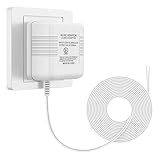
- 【More Power】Transformer Input: 120V AC 60Hz 0.2A, Output: 24V AC 500mA. No more interrupted operation when you’re away. The power adapter can keep your doorbell / thermostat constantly powered;
- 【Widely Applicable】Compatible with most doorbells (Nest, Arlo, Ring, Amcrest, Logitech, Eufy, Remo, SkyBell, Simplysafe), thermostats (Honeywell, Nest, Ecobee, Wyze, Emerson, Sensi) and other devices that require 24 volt power for operation;
- 【Easy to Install】Just run the wire from the socket to the doorbell or thermostat, and the installation can be completed in a few minutes. There is not need to distinguish between positive and negative of the wires;
- 【Long Cable】The length of cable is 26ft (8m). You can plug the adapter into a socket far away from the thermostat or doorbell. If you don't like the extra wire, you can cut it to a suitable length;
- 【Service】We provide 24 hours support online. If you have any questions about this charger, please feel free to contact us whenever.
Clean battery contacts
If battery performance drops after handling or reinstalling the doorbell, inspect and clean contacts. Use a dry, lint-free cloth. If you see corrosion, you may need gentle cleaning and then a full dry period before charging.
The Tool Desk
Outbyte PC Repair FREEClear out junk files and repair common Windows errorsFree Scan →Outbyte Driver Updater FREEScan for outdated or missing drivers - takes under a minuteDriver Scan →Don’t leave the battery partly charged for long periods
For lithium batteries, repeated shallow usage can be better than deep discharge, but sitting at very low charge for extended periods is worse. Aim for full charge cycles when you do charge.
Protect against temperature effects
Battery capacity drops in cold weather, and charging efficiency can change. Even if your settings are perfect, winter can reduce runtime.
Plan for seasonal differences
If you typically see shorter battery life in winter, that’s expected. Many users notice the most dramatic change after sustained freezing nights.
Use placement to reduce direct cold exposure
If possible, mount so the doorbell isn’t directly exposed to icy wind tunnels. A small change in angle or sheltered mounting location can reduce how long it spends at extreme temperatures.
Do these 3 things before closing this tab:
1Scan for outdated or missing drivers - takes under a minute2Clear out junk files and repair common Windows errors3Fix the driver behind crashes, sound loss and screen glitchesAfter you bring the battery indoors, allow time before reinstalling
If you remove the battery during cold conditions, let it warm to near room temperature before installing. Cold batteries can behave oddly and may not report accurately until they stabilize.
Choose the right installation and viewing angle
A camera pointed slightly off can increase triggers more than you’d expect. Placement affects motion detection and how often the device has to process events.
Tighten the field of view to your target area
Reduce how much of the street and sidewalk is visible. If your doorbell sees constant movement (cars rolling by, pedestrians, cyclists), you’ll pay for it in battery drain.
Eliminate glare and reflections
Direct sun and strong reflections can create changing pixel patterns that look like motion. If the sun hits the lens, adjust angle or position to minimize direct glare.
Recommended Free Tools
Rank #4

- Doorbell Camera Charger cable Compatible with Blink,Arlo,BOTSLAB,Tapo,eufy Security,AOSU Doorbell Camera,Google Nest Doorbell Charger
- Doorbell Camera Charger,Input: AC 100~240V 50/60Hz, Output: 5V=2A 10W Max. Intelligent adjustment smart fast charge and data transfer speeds up to 480Mbps. Flame-retardant exterior shell and built-in safeguards to protect against overheat, overload, over-charging, short-circuit provide ultimate protection for you and your devices.
- 5 feet / 1.5 meter USB TYPE-C charging cable cord. Convenient to use your device on the table, sofa, in bed, or even backseat of a car while charging.
- Doorbell Charger,Using high-quality PVC flame-retardant materials, Durable, long service life, free winding, no knots, no creases.
- Packing Included:1 x AC Adapter, 1 x USB TypeC Cable.
Check mounting height and obstructions
Doorbells mounted too high can capture more background activity; mounted too low can trigger from package movement or shadows. Also look for nearby objects that may swing—flags, light fixtures, or hanging decorations.
Consider wired/transformer options if you can
If your home already has a doorbell transformer and wiring, switching to wired power usually gives the most dramatic improvement in battery life concerns (because the device doesn’t rely on the battery as heavily during normal operation).
How to evaluate whether wired is feasible
- Do you have existing doorbell wiring behind the current doorbell button/receiver?
- Do you have a transformer (or can you install/upgrade one) that meets the manufacturer requirements?
- Can you mount and connect the doorbell safely according to local electrical codes?
What to confirm before wiring
Verify transformer voltage and compatibility with your specific Nest Doorbell model. If your transformer is undersized or incompatible, you can cause resets, intermittent power, or poor performance.
Independent reader supportYour contribution helps us test, update, and keep practical guides available for everyone.Troubleshooting: when battery life suddenly drops
If you normally get decent runtime and then see a sudden battery dip, treat it like a diagnostic problem: isolate the cause quickly, then confirm with short tests.
Step 1: Check whether event count spiked
If the doorbell is generating far more motion alerts than before, battery drain will follow. Go into your motion settings and zones and tighten them again.
Step 2: Reboot your Wi‑Fi gear
Power cycle your router or mesh nodes to clear stuck sessions. Then check if the doorbell reconnects cleanly and consistently.
Step 3: Move the doorbell to a better Wi‑Fi path (if possible)
If the doorbell is near the edge of coverage, placing a mesh node closer or adding an access point can reduce retries and extend runtime.
Step 4: Remove and re-seat the battery
After charging, fully remove the battery and re-seat it. This can fix intermittent contact issues that lead to higher-than-normal power draw.
Step 5: Update firmware
In the Google Home app, ensure the device and related services are up to date. If you recently experienced the drop immediately after a firmware update, monitor for 48–72 hours while the system stabilizes.
Best Value
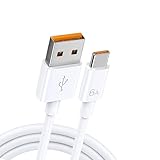
- 【Universal Device Compatibility】:Compatible with Google Nest,Blink,BOTSLAB,Tapo,eufy Security,AOSU,Oura Ring 4 / Gan 3 Size 4/5/6/7/8/9/10/11/12/13/14/15,Botslab Ring Pro camera doorbell charger.(Note: Please check the charging port before purchasing).
- 【Fast Charging Technology】:6A maximum output and 480 Mbps data transfer speed. Charge your Doorbell Camera faster, getting it ready for use in minimal time while maintaining safe power delivery.
- 【Tangle-Free Convenience】:Engineered to endure over 20,000 bends, this premium cable features exceptional tangle-resistance and abrasion-proof durability. Designed for daily reliability, it stays flawless through constant use and stores neatly in bags, drawers, or travel cases—always retaining its original shape.
- 【Extreme Durability】Doorbell Charger cable,Using high-quality PVC flame-retardant materials, durable, long service life, free winding, no knots, no creases. Flame-retardant exterior shell and built-in safeguards to protect against overheat, overload, over-charging, short-circuit provide ultimate protection for you and your devices.
- 【Complete Package Contents 】Includes: 1 × 4.9ft USB A to USB C Charging cable.
Step 6: Factory reset only if drain persists
A factory reset can help if configuration data or networking permissions are corrupted. Before you do it, record any custom motion zones, schedules, and Wi‑Fi network details so you can restore quickly.
Model differences and what to look for
“Nest Doorbell” covers multiple variants. Some features (like advanced zones, schedules, or specific detection modes) vary by model and region.
| Model family | Typical battery behavior | Most effective changes |
|---|---|---|
| Nest Doorbell (battery) | Highly sensitive to motion frequency and Wi‑Fi stability | Tighten activity zones, reduce sensitivity, improve 2.4 GHz signal |
| Wired-compatible Nest Doorbell variants | Less battery strain if wired power is stable | Still tune motion zones; wiring reduces the “battery panic” effect |
| Doorbells with optional accessories | Power draw depends on how recordings and streaming behave | Disable extra triggers, check device placement and glare |
If you tell me your exact model name (for example, printed on the device or shown in the Google Home app), I can tailor the recommended settings path more precisely.
Crashes, No Sound, or Screen Glitches?
Random freezes, missing sound and display glitches usually trace back to one bad driver. Find and replace yours safely.Free scan · under a minuteWindows Errors? Fix Them Before They Spread
Repair common Windows errors and clear accumulated junk for a smoother, more stable PC - no reinstall needed.Free scan · no reinstallCommon mistakes that cut battery life
- Leaving zones too large so the doorbell watches the entire street.
- Over-high sensitivity to avoid missing motion, then compensating with notification filtering later.
- Ignoring Wi‑Fi weakness and expecting the battery to handle unreliable connectivity.
- Charging from an unstable source or using low-quality cables.
- Not accounting for winter and assuming a sudden battery issue is a device defect.
- Failing to remove false motion sources like moving branches, insects, or direct sunlight glare.
FAQs about Nest Doorbell battery life
How often should I charge my Nest Doorbell?
It depends on motion frequency, Wi‑Fi reliability, and temperature. If your event count is high (busy street or frequent alerts), expect more frequent charging than in a quiet area.
Does turning off notifications save battery?
Notifications alone typically aren’t the biggest drain. Battery life is driven more by how often the doorbell records and transmits events, which relates to motion triggers and connectivity.
Will a stronger Wi‑Fi signal improve battery life?
Yes. Reliable Wi‑Fi reduces retries and the time spent reconnecting or uploading clips, which can extend runtime on battery-powered models.
Why is my battery draining even when there’s no motion?
Common causes include Wi‑Fi instability (reconnect attempts), lens glare/changes causing false detection, faulty battery contact, or a temporary software behavior change after an update.
Crashes, No Sound, or Screen Glitches?
Random freezes, missing sound and display glitches usually trace back to one bad driver. Find and replace yours safely.Free scan · under a minutePC Slower Than It Used to Be?
A free scan shows the junk files, broken settings and background clutter dragging Windows down - then fixes them in one click.Free scan · Windows 10 & 11Does cold weather permanently reduce battery capacity?
Cold reduces effective capacity temporarily. It usually improves when temperatures rise, though long-term battery health can still be affected by repeated extreme conditions over years.
Should I buy a second battery?
If you want fewer downtime interruptions, a spare battery is practical. It won’t fix drain caused by motion or Wi‑Fi issues, but it can make maintenance easier.
Bottom Line
To extend your Nest Doorbell battery life, focus on the two fastest levers: reduce unnecessary motion-triggered events (smaller activity zones, lower sensitivity, scheduled recording) and improve Wi‑Fi reliability (often 2.4 GHz with better coverage). Then refine placement to avoid glare and moving objects.
If battery drain suddenly spikes, treat it as a diagnostic: review recent event frequency, check Wi‑Fi stability, re-seat the battery, and only then consider a deeper reset if the issue persists.
Quick Recap
Product prices and availability are accurate as of the date/time indicated and are subject to change. Any price and availability information displayed on Amazon at the time of purchase will apply.




