If you recently changed your pattern, you may be able to regain access without erasing the phone—but only if your Galaxy supports Samsung’s previous-lock recovery and is running One UI 6.1 or later. Otherwise, the official recovery route is generally to erase the phone and set it up again. Samsung’s support guidance does not establish that the newer recovery feature works on every Galaxy A02, so check your model and available lock-screen options before relying on it.
Can you unlock a Samsung A02 without losing data?
Possibly, if you changed the screen lock within the last 72 hours and your device supports Samsung’s previous-lock recovery. Samsung says the feature is available only on supported Galaxy devices running One UI 6.1 or later. Its availability and screen labels can vary by model and software version. See Samsung India’s support instructions, updated July 10, 2026.
As an Amazon Associate I earn from qualifying purchases.
Samsung says the previous PIN, password, or pattern is retained for 72 hours after a lock change. After five or more failed attempts, a “Forgot PIN/Password/Pattern” option may appear on supported devices. Choose it if it appears, enter the previous pattern when prompted, then follow the instructions to set a new lock. The prior method can be entered incorrectly three times; after that, the feature allows no further attempts. Samsung also limits this recovery to once per lock type.
Do not assume this option will appear on an A02. Samsung’s firmware history for the listed SM-A022F variant shows Android 11 releases, including one dated October 11, 2023; that history does not establish the software status of every regional or carrier A02 variant. Check your model code and the lock screen’s actual options rather than treating One UI 6.1 recovery as guaranteed. See Samsung’s SM-A022F update history.
#1 Best Overall
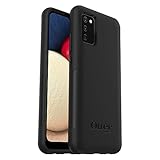
- Compatible with Samsung Galaxy A02S
- DOES NOT come with a screen protector
- Soft inner and hard outer layers absorb and deflect impacts, open access to ports and speakers (no port covers)
- Thin profile slips in and out of pockets
- Trusted OtterBox Quality: With OtterBox, you're not just buying a case; you're investing in peace of mind. Our limited warranty covers material and workmanship defects.
What if the previous-pattern option is missing?
Google’s current guidance is that if you cannot unlock an Android phone, “you’ll need to erase it.” Google’s old pattern-reset flow applies to Android 4.4 or lower; it is not a general unlock option for current Android phones. See Google Android Help: Can’t unlock your Android device.
For a phone that cannot be unlocked, Google describes two general erase routes: remote erase with Find Hub, when its requirements are met, or a button-based reset following the phone manufacturer’s model-specific instructions. Neither route removes the need to prove you are authorized to use a protected device.
Rank #2

- 【Compatible Models】: Compatible with Samsung Galaxy A02 / M02, NOT compatible with other devices.
- 【Screen Protector】: We will send the phone case with 1 piece tempered glass screen protector.
- 【Camera Lens Protection】: Delicate Slide Lens Cover, higher than the raised Camera protects your phone camera from scratches,collision, scuffs and impact. Unique design to hide the camera perfectly, increase the science and technology feeling at the same time. Close to protect your camera and privacy.
- 【Ring Kickstand】: 360 degree rotatable Built-in flexible kickstand, Provides your Phone with multiple-viewing angles for watching video and movie as a kickstand. Built-in metal disk can be attached to a magnetic car mount (Just phone case, NOT including car mount).
- 【Materal】: Soft TPU + Hard Plastic + Metal Ring, 3 in 1 hybrid design, Soft inner layer + Tough & outer layer features dual layer protection.
Remote erase with Find Hub
Remote erasure is possible only if the phone has power and internet access, a Google Account is signed in, Find Hub is enabled, and the device is visible on Google Play. If any condition is not met, the erase command may not be available or may not reach the phone. Google’s locked-device guidance describes the route.
The Tool Desk
Outbyte Driver Updater FREEScan for outdated or missing drivers - takes under a minuteDriver Scan →Outbyte PC Repair FREERepair Windows errors before they cause bigger problemsFix Now →Button-based reset
Use Samsung’s instructions for your exact A02 model and region to find the Recovery button sequence. The official material available here does not establish one sequence that applies to every A02 regional model and software build, so do not rely on button instructions for a different Galaxy model. Check the model code in your device paperwork or account records, consult Samsung’s support for your region, or contact Samsung support or an authorized service center.
Rank #3
![beukei Compatible with for Galaxy A02 Wallet Case [2 Pack] Tempered Glass Screen Protector, Leather Flip Credit Card Holder Stand Phone Cover, for Samsung Galaxy A02 Case Black](https://m.media-amazon.com/images/I/41HZgPzDSnL._SL160_.jpg)
- 【Compatible Models】: Compatible with Galaxy A02 , NOT compatible with other devices.
- 【Card Holder】:3 card slots securely hold your cards and some cash without taking wallet outside.
- 【Kickstand】: The Kickstand can be converted into a multi-angle comfortable view for reading, watching videos or facetime.
- 【Precise cutouts】:Precise cutouts for speakers, charging ports, audio ports and buttons for your convenience.
- 【All-Round Protection】: Full body protective wallet case to protect your mobile phone from drop and bump.
What will a factory reset erase?
A factory reset deletes data stored on the phone, including local content that was not backed up or synced. Treat unsynced photos and files as lost. Google-backed-up content may be restorable during setup, but apps and their data are removed from the device. Before resetting, check what is backed up and whether you can access the account used for that backup. Google explains the impact and preparation steps in its factory-reset guidance.
Why does Google ask for an account after a reset?
Android device protection can require the screen credentials or a Google Account that was previously synced to the phone after a reset, including one performed with the buttons. Have the previously synced account credentials ready before erasing the device. If you cannot provide the required credentials, you may be unable to complete setup and use the phone. Google explains these ownership checks in Help prevent others from using your device without permission.
Quick Recap
Which recovery route should you use?
| Route | When it may work | Effect on local data | Account or credential consideration |
|---|---|---|---|
| Samsung previous-lock recovery | Supported Galaxy model on One UI 6.1 or later; previous lock changed within 72 hours; recovery option appears after failed attempts (Samsung India Support, updated July 10, 2026). | Can restore access without erasing the phone. | You need the prior PIN, password, or pattern; Samsung permits three incorrect entries. |
| Remote erase with Find Hub | Phone has power and internet; Google Account is signed in; Find Hub is enabled; phone is visible on Google Play (Google Android Help). | Erases data stored on the phone; backed-up content may be restorable. | Be prepared to verify ownership and sign in during setup. |
| Button-based reset | Follow Samsung instructions for the exact model and region; a single universal A02 sequence is not established here. | Erases data stored on the phone; unsynced local content should be treated as lost. | Setup may require the screen credentials or a previously synced Google Account. |
Product prices and availability are accurate as of the date/time indicated and are subject to change. Any price and availability information displayed on Amazon at the time of purchase will apply.
Quick wins for a faster PC:
Fix the driver behind crashes, sound loss and screen glitchesFind Drivers →Repair Windows errors before they cause bigger problemsFix Now →Scan for outdated or missing drivers - takes under a minuteDriver Scan →



