Windows Errors? Fix Them Before They Spread
Repair common Windows errors and clear accumulated junk for a smoother, more stable PC - no reinstall needed.Free scan · no reinstallCrashes, No Sound, or Screen Glitches?
Random freezes, missing sound and display glitches usually trace back to one bad driver. Find and replace yours safely.Free scan · under a minuteIf Azure Virtual Desktop (AVD) shows “Refreshing your token,” “Couldn’t connect to session desktop,” or “Sign-in failed,” sign out of Windows App or the web client, close it, reopen it, and sign in with the correct work account. Then test the official web client at https://client.wvd.microsoft.com/arm/webclient. If both clients fail, an administrator should check Microsoft Entra sign-in logs, Conditional Access, workspace and application-group assignment, VM login permissions, and session-host health.
The message is a symptom, not a diagnosis. AVD authentication passes through sign-in, feed retrieval, application-group authorization, session-host authentication, RDP session creation, and profile loading. A failure at any stage can look like a token problem.
Start with the least disruptive fix
- Record the exact message and time, including your time zone.
- Sign out of Windows App. In a browser, sign out of the relevant Microsoft account.
- Close every Windows App and browser window.
- Reopen the client and sign in with the work account assigned to AVD.
- Test the other client at https://client.wvd.microsoft.com/arm/webclient.
- If the issue remains, use a private browser window or a second device and ask an administrator to review Microsoft Entra sign-in logs.
Microsoft recommends signing out and signing in again for AADSTS50058, which means that no usable single sign-on session was found. If that does not help, Microsoft documents clearing the Web Account Manager cache as a follow-up action: Troubleshoot single sign-on and Conditional Access for Azure Virtual Desktop.
Identify the stage that is failing
| What you observe | Likely layer | Next check |
|---|---|---|
| Windows App fails but the web client works | Local app, cache, or device policy | Reset or update Windows App and inspect local identity state |
| Both clients fail for one user | Identity, Conditional Access, assignment, or permissions | Review Entra logs, policies, application groups, and VM roles |
| Several users fail on one host | Session host, agent, profile storage, or networking | Check host status, drain mode, RDAgent, FSLogix, and connectivity |
| Several users fail across the pool | Tenant policy, service, host-pool, or network issue | Check Azure Service Health and pool-wide configuration |
| No workspace or desktop appears | Feed, workspace, tenant, or assignment | Verify the application-group and workspace relationship |
| Authentication succeeds, then the desktop disconnects | Session-host authorization, session creation, or profile loading | Check VM login roles, local policy, TerminalServices, and FSLogix logs |
Microsoft advises checking Azure status and Service Health before extensive local troubleshooting. See the Azure Virtual Desktop troubleshooting overview.
#1 Best Overall

- Virtual 7.1 surround sound - Experience an immersive 360-degree sound field that lets you hear what you can't see
- Built for Comfort - The sleek over-ear design with synthetic leather-wrapped ear-cushions allows you to play for hours in complete comfort
- Superior Fit & Finish - Featuring premium materials and construction, highly adjustable and surprisingly lightweight
- Swappable Precision Microphone - Highly sensitive omni-directional mic that focuses on your voice and minimizes background noise
- Compatibility - Works with PC Desktop Computers, Windows 10, Windows 8, Windows 7 or Windows Vista computers
Refresh the local sign-in session
Confirm the account and tenant
- Use the organizational account assigned to AVD, not a personal Microsoft account.
- Check that a browser is not silently selecting a different work account.
- Confirm the correct tenant and workspace are selected.
- Remove or refresh an obsolete saved workspace only after confirming its replacement.
Clear cached authentication carefully
- Sign out and close Windows App.
- Reboot the device.
- With the user’s approval, remove only clearly stale entries from Windows Credential Manager.
- If the issue persists, follow Microsoft’s current Web Account Manager cache procedure in the SSO troubleshooting article.
- Reset, update, or reinstall Windows App only when the web client works and the failure is demonstrably local.
Do not delete arbitrary folders, registry keys, or all saved credentials. That can remove unrelated enterprise sign-ins and create additional failures.
Use the web client as an isolation test
The web client is a comparison, not proof that the environment is healthy.
- Web works, Windows App fails: concentrate on the app installation, cached credentials, Web Account Manager, device policy, or local network controls.
- Both fail: investigate identity, Conditional Access, assignment, permissions, host health, or service incidents.
- Web sign-in works but the desktop will not launch: authentication reached the feed, so examine session-host authorization, RDP handoff, profile mounting, and host connectivity.
Diagnose Microsoft Entra ID and Conditional Access
In Microsoft Entra admin center, open Sign-in logs for the affected time. Capture the exact AADSTS code, the Conditional Access tab, and Authentication Details. The flow can involve both the Azure Virtual Desktop application and the Windows Cloud Login application. A policy that permits one but blocks the other can cause repeated prompts or failure during handoff. Microsoft’s diagnostic guidance is at Troubleshoot single sign-on and Conditional Access for Azure Virtual Desktop.
Common codes
| Code | Meaning | Action |
|---|---|---|
AADSTS50058 |
No usable SSO session | Sign out and back in; clear Web Account Manager cache if needed |
AADSTS50076 |
MFA is required but was not satisfied | Verify a registered MFA method and identify the policy requiring it |
AADSTS65001 |
User or administrator consent is required | Apply the organization’s approved consent process or grant appropriate admin consent |
Also check device compliance, named locations, sign-in frequency, grant or block controls, and user- or sign-in-risk policies. Do not disable MFA or Conditional Access as a generic fix. For Microsoft Entra-joined hosts, Microsoft’s guidance may require disabling legacy per-user MFA for affected users and enforcing MFA through Conditional Access instead, depending on the tenant design and supported SSO architecture.
What’s actually slowing this PC down?
Pick the symptom - the matching free tool is one click away.
Rank #2

- HDR10 AR Glasses with 201” Virtual Screen – Experience over 10 billion colors and ultra-deep contrast on a massive 201-inch virtual display. Compared to standard LCD screens, HDR10 delivers brighter highlights and richer blacks, making movies, Netflix streaming, and gaming more immersive at home, in bed, or on flights.
- Vision 4000 Chip with AI SDR-to-HDR Upscaling – Co-developed with Pixelworks, this processor enhances color, sharpness, and motion clarity in real time. Enjoy smooth 120Hz visuals for PS5, Steam Deck, Switch 2, and mobile gaming without lag or motion blur.
- 3D Movie Glasses for Immersive Viewing – Watch native 3D films or convert 2D videos into 3D with AI depth enhancement. Transform any room into a private cinema experience with theater-like depth and realism—perfect for movie nights or travel entertainment.
- Audio by Bang & Olufsen – Four precision speakers deliver immersive 360° spatial sound for movies and gaming. Use whisper mode for private listening in public spaces. Optional Sound Tube accessory boosts volume up to 15dB (sold separately).
- Universal USB-C Compatibility – No WiFi or Apps Required. Connect directly to iPhone 17/16/15 (USB-C models), Android phones, MacBook, iPad, Steam Deck, and PlayStation consoles. No battery inside—lighter weight and instant setup wherever you go.
Verify the workspace and application-group assignment
- Confirm the user or security group is assigned to the correct application group.
- Confirm that application group is associated with the expected workspace.
- Ensure the group is a supported security group, not a distribution group.
- Check that the application group contains a usable desktop or application.
- If a subscription moved to another Microsoft Entra tenant, recheck assignments and workspace relationships.
Microsoft documents these cases in Troubleshoot Azure Virtual Desktop service connection.
Check VM login permissions
Application-group assignment alone does not authorize Windows logon. For Microsoft Entra-joined session hosts, verify that the user has an appropriate role at the VM or required resource scope:
- Virtual Machine User Login, or
- Virtual Machine Administrator Login.
Also inspect local groups and policy for Deny log on through Remote Desktop Services, restrictive Group Policy, or a recently recreated account whose security identifier changed. A Microsoft Q&A case describes these as possible causes, but community guidance is not a universal diagnosis: One user in Azure Virtual Desktop getting “Disconnected. Sign in failed.”
Inspect Microsoft Entra-joined host requirements
For Entra-joined VMs, verify the tenant join state, VM login role, device and user identity alignment, Conditional Access scope, and supported SSO configuration. Depending on the client and architecture, PKU2U, Kerberos, and per-user MFA settings can affect the credential handoff. Use Microsoft’s current guidance for the applicable join type: Troubleshoot connections to Microsoft Entra joined VMs.
Recommended Free Tools
Rank #3

- Custom-designed Fresnel lenses with LED display; 1280 x 1440 pixels per eye with an 80 Hz refresh rate.
- Headphones-Free 3D Positional Audio: With positional audio built directly into the headset, you can hear your teammates or what's sneaking up behind you even without headphones.
- Built-In Room-Scale Oculus Insight tracking: removes the need for external sensors to convert movements into virtual reality.
- Fit Wheel Adjustable Halo Headband: The Rift S features a halo headband that's engineered to be comfortable during long gaming sessions. Simply twist the built-in fit wheel to secure the headset in place.
- ▌Authorized BROAGE Bundle ▌Bundled with BROAGE 3ft USB Extension Cable USB 3.0 Extender Type A Male to Female Data Transfer Cord.
Check session-host status and agent health
In the Azure portal, inspect the host’s status, drain mode, recent reboot or update, capacity, power state, and agent health. Available is the normal status; Unavailable, Needs Assistance, drain mode, or a full host can prevent new sessions. See Session host statuses and health checks in Azure Virtual Desktop.
When a host is unavailable
- Review the installed Azure Virtual Desktop agent and boot-loader versions.
- Confirm the RDAgent and RDAgentBootLoader services are running.
- Review
C:WindowsTempScriptLog.logwhere relevant. - Confirm outbound access to required Azure services and successful agent authentication.
- Preserve diagnostics before updating or re-registering the agent.
Use Troubleshoot Azure Virtual Desktop session host for current agent-registration procedures.
Check FSLogix and profile loading
If sign-in succeeds but the session disconnects during desktop creation, inspect FSLogix profile-container availability, SMB reachability, storage permissions, profile locks, VHD/VHDX attachment errors, disk space, and temporary-profile events. A corrupt profile is one possible post-authentication cause, not proof of a token failure.
Do not delete a profile container first. Preserve it, back it up or rename it according to your organization’s recovery process, and confirm the relevant FSLogix evidence before rebuilding a profile.
Do these 3 things before closing this tab:
1Clear out junk files and repair common Windows errors2Scan for outdated or missing drivers - takes under a minute3Repair Windows errors before they cause bigger problemsRank #4

- WIDELY COMPATIBLE - Compatible with most standard size VR headsets, Suitable for Oculus Quest 2/Quest 3/Quest/Rift S, Valve Index, HP Reverb G2, Valve Index, HTC Vive, Vive Pro, etc.
- EASY TO ASSEMBLY - With only five steps, the VR stand is easy to assembly without tool. The most stable posture to protect and display your VR headset on the display holder. Without touching the lens, so you don't worry about scratches the lens.
- STORAGE TIDY & CONVENIENT - A VR stand to solve all your desktop storage problems. Not only VR headsets and controllers can be placed on the VR hooks, but more things like headphone, VR accessories, extension cables, etc. Keep you desk tidy and always ready for playing.
- DURABLE AND STABLE - Made of high quality ABS material, the VR stand is very durable and sturdy. The base of the VR holder is designed with the most stable triangular structure, better protect your VR headsets and touch controllers.
- WHAT YOU GET - The size of the VR stand installed is 12" x 12" x 7". The package include a 1 VR display stand and 1 manual. Please Note: the Oculus Quest 2 VR headset and Touch Controller are not included!
Investigate network, proxy, and service health
- Test corporate proxy, VPN, DNS, outbound firewall rules, and TLS or SSL inspection.
- Check for browser extensions or privacy settings that block authentication.
- Verify that the session host, not just the browser, can reach required Azure endpoints.
- Check Azure Service Health and AVD status for incidents.
Loading the web page proves only basic browser access. Control-plane authentication, gateway connectivity, and session-host communication are separate stages. Microsoft’s networking troubleshooting categories are listed at Azure Virtual Desktop troubleshooting for partners.
Do not confuse user tokens with host-registration tokens
User authentication token
Investigate sign-out/sign-in, browser state, Web Account Manager, Entra logs, Conditional Access, MFA, and consent.
Session-host registration token
This token registers a VM with a host pool. It matters when a new host will not register, a deployment reports an expired machine token, or a pre-provisioned host has been powered off for a long period. Registration keys can be issued for a selected lifetime up to 27 days. Microsoft also documents machine-token refresh behavior for powered-on hosts and expiration concerns for hosts left off for more than 90 days. Generate a new key and register the host again when this is the actual failure: Add session hosts to a host pool.
Best Value
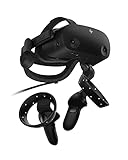
- THE NO COMPROMISE VR HEADSET - Realistic visuals, soundscapes, and superb performance come together to form a more immersive experience
- IT’S ALL INSIDE - Packaging includes HP VR Headset, 6m headset cable for desktop and mobile PCs, 2 motion controllers, 1 DisplayPort to mini-DisplayPort adapter, 1 Power Adapter, and easy set up instructions
- EXCEPTIONAL VISUALS AND SOUND - Seeing and hearing is believing with high-quality resolution and fully immersive spatial audio with mura-free 2160 x 2160 LCD panels per eye
- A HEADSET THAT ADJUSTS TO YOU - Flexible material, increased cushion size, and lenses that adjust to suit different eye distances, allow you to bask in your virtual world comfortably
- MORE CAMERAS. BETTER TRACKING - With 4 built in cameras, and ergonomically designed controls, tracking more movement with the VR headset just got a whole lot easier
For the current Azure CLI syntax, Microsoft documents:
az desktopvirtualization hostpool retrieve-registration-token
  --resource-group "<resource-group>"
  --host-pool-name "<host-pool>"
Administrator diagnostic commands and logs
Install or update the current Az.DesktopVirtualization module before using these examples:
Connect-AzAccount

Get-AzWvdSessionHost `
  -ResourceGroupName "<resource-group>" `
  -HostPoolName "<host-pool>"

Get-AzWvdSessionHost `
  -ResourceGroupName "<resource-group>" `
  -HostPoolName "<host-pool>" `
  -Name "<session-host>"
On the session host, run:
dsregcmd /statusReview device join and Primary Refresh Token fields, but do not treat one field as proof that the entire AVD configuration is correct. In Event Viewer, inspect Applications and Services Logs > Microsoft > Windows > TerminalServices and the Security log. Also collect AVD agent and FSLogix entries.
Evidence to collect before escalation
- Exact error text and absolute timestamp with time zone
- User identifier, client type and version, browser and operating-system version
- Workspace and desktop names
- Session-host name and health status
AADSTScode, Entra correlation ID, and request ID- Conditional Access result and affected application
- Whether another user can use the same desktop
- Whether the affected user succeeds from another device or client
- Relevant TerminalServices, AVD agent, network, and FSLogix log entries
Escalate promptly when multiple users are affected, no hosts are available, Conditional Access shows Block, registration or agent repair fails, profile storage or networking is unavailable, or the issue persists across clients and devices. For unresolved platform issues, use the appropriate Azure support channel described in Microsoft’s troubleshooting overview.
Quick Recap
Product prices and availability are accurate as of the date/time indicated and are subject to change. Any price and availability information displayed on Amazon at the time of purchase will apply.



