Recommended Free Tools
To hear a Fire TV Stick through a soundbar, the simplest setup is usually to plug the Stick into a regular HDMI port on your TV, then connect the soundbar to the TV’s HDMI ARC or eARC port. If those ports are unavailable, use an optical cable between compatible TV and soundbar ports, or pair a compatible soundbar directly with the Stick over Bluetooth.
Choose a connection that your TV and soundbar support
Check the labels and manuals for the TV and soundbar before connecting anything. HDMI ARC/eARC is the usual first choice when both devices support it. Optical is a wired alternative if both have optical audio ports. Bluetooth can connect the Stick directly to a compatible soundbar, but it may bring connection or audio-sync complications.
As an Amazon Associate I earn from qualifying purchases.
- HDMI ARC/eARC: A good starting point for a wired connection and the route to investigate for compatible advanced audio formats and TV remote control of soundbar volume or power. Exact support varies by equipment.
- Optical: Useful when HDMI ARC/eARC is unavailable and both devices have optical ports. Format and control features can be more limited on some models.
- Bluetooth: Avoids an audio cable between the Stick and soundbar, but compatibility and synchronization depend on the devices. Amazon warns that connecting its Fire TV Soundbar to the TV using both Bluetooth and HDMI may cause issues.
For the Fire TV Soundbar Plus, Amazon says to use HDMI ARC/eARC for Dolby Atmos or DTS:X on compatible equipment; its instructions say optical and Bluetooth do not support those formats in that setup. This is specific to that soundbar’s guidance, not a guarantee for every TV or soundbar. Check your models’ manuals before relying on Atmos, DTS:X, surround sound, or TV remote-control features. Amazon’s Fire TV Soundbar Plus setup instructions and audio-format guidance cover its supported connections.
Do these 3 things before closing this tab:
1Fix the driver behind crashes, sound loss and screen glitches2Clear out junk files and repair common Windows errors3Scan for outdated or missing drivers - takes under a minuteConnect the Fire Stick and soundbar through HDMI ARC/eARC
- Plug the Fire TV Stick into a regular HDMI port on the TV—not the port reserved for ARC/eARC.
- Connect the soundbar’s HDMI ARC/eARC connection to the TV port labelled ARC or eARC. Use the soundbar’s manual to identify the correct port.
- Set the soundbar’s input to HDMI.
- If audio does not start automatically, open the TV’s Speakers or Audio Output settings and select the soundbar or audio system. Check that the TV’s HDMI ARC and HDMI-CEC controls are enabled or configured as required.
Amazon’s Fire TV Soundbar setup guide also places the Stick in a non-ARC TV HDMI port so the soundbar can use the ARC/eARC port.
#1 Best Overall

- 【HDMI Audio Extractor】The HDMI audio extractor can extract audio from HDMI signal and transmit it to AV receiver through optical or 3.5mm Cable.(Note: Devices do not support ARC and eARC.TV is not supported as the input source,otherwise product doesn't p video.)
- 【3 modes】2.0CH, 5.1CH and PASS mode. Select 3.5mm stereo output, please use 2.0CH mode. Select optical output, please use 5.1CH mode. When you use the first and two modes and find that no audio and video signal is output, use the pass mode.
- 【4K Ultra-HD with HDMI 1.4V】HDMI audio converter up to 10.2G bandwidth, support HDCP1.4,4K@30Hz RGB / YUV4:4:4 Ultra high definition image quality. The optical output supports DTS 5.1. The 3.5mm output supports PCM2.0. The audio splitter does not support 7.1 channels.Note: Fire TV, Apple TV, PS4/5 etc. only support 1080p format signals and do not support 4K
- 【Low energy consumption】HDMI audio splitter has a low energy consumption,only requires the USB port to be connected to the 5V-USB port of another device to work. Or use your other 5V-USB power adapter
- 【Wide Compatibility & Plug and Play】Suitable for various HDMI source devices without dedicated audio output as well as Blu-ray/ DVD/ HD player, cable/satellite box, Amazon Fire TV, PS4,PS5, Xbox, PC/laptop etc
Use optical audio as a wired alternative
- Confirm that the TV has an optical audio output and the soundbar has an optical input.
- Connect the TV’s optical output to the soundbar’s optical input with an optical cable.
- Set the soundbar’s input to Optical.
- If needed, select external audio output or the soundbar in the TV’s audio settings.
Amazon notes that an optical cable is sold separately for its Fire TV Soundbar setup. This connection is only an option when both devices have the required ports. Fire TV Soundbar setup and Soundbar Plus setup describe Amazon’s optical connections.
Pair a soundbar directly with the Fire TV Stick over Bluetooth
- Put the soundbar into Bluetooth pairing mode.
- On the Stick, open Settings > Controllers & Bluetooth Devices > Other Bluetooth Devices > Add Bluetooth Devices.
- Select the soundbar when it appears, then follow any on-screen prompts.
Menu labels can vary by device version. Amazon’s Fire TV Soundbar instructions advise disconnecting the soundbar’s HDMI or optical cable from the TV before using Bluetooth. They also warn that connecting that soundbar to the TV over Bluetooth and HDMI at the same time may cause connection issues. See Amazon’s setup instructions.
Rank #2

- TV HDMI eARC/ARC Audio Extractor: Extracts audio from your TV's eARC or ARC-enabled HDMI port and outputs it via Optical (Toslink/SPDIF) to soundbars, amplifiers, wireless headphones, or home theater systems —— Not Reversible, Converts audio output to Optical only | 📌Use correct HDMI port (No standard HDMI) | 📌Adjust TV volume via audio device.
- High-Resolution Audio Support: Achieves a 192kHz/24-bit sampling rate, ensuring high-fidelity, lossless audio transmission. Compatible with PCM 2.0, Dolby 5.1, and DTS 5.1 formats, delivering immersive and detailed sound.
- eARC Upgrade for Better Audio Performance: eARC provides significantly higher bandwidth than ARC, supporting lossless audio formats such as Dolby 5.1, DTS 5.1, providing a superior audio experience for your home theater system.
- LED Audio Status Indicators: Includes LED indicators for 5.1-channel and 2.0-channel audio output, allowing you to easily monitor the audio mode in real-time for a seamless experience.
- Aluminum Alloy Housing: Delivers enhanced Electromagnetic shielding and Heat dissipation. Durable design ensures reliability in environments with multiple electronic devices, supporting stable signal integrity and consistent, professional-grade audio performance.
Fix missing sound or an unexpected audio format
- No sound at all: Confirm the soundbar is powered on and its input matches the connection—HDMI, Optical, or Bluetooth. Check that the TV’s audio output is set to the soundbar or external audio system.
- HDMI ARC/eARC has no audio: Make sure the cable connects the TV’s ARC/eARC port to the soundbar’s ARC/eARC connection. Check the TV’s ARC and HDMI-CEC settings, then confirm the soundbar is on its HDMI input.
- Optical has no audio: Verify both devices have the correct optical ports, remove any protective caps from the cable ends if present, select Optical on the soundbar, and choose external audio output on the TV.
- Bluetooth will not connect: Put the soundbar back into pairing mode and add it through the Stick’s Bluetooth settings. For the Fire TV Soundbar, disconnect its HDMI or optical connection to the TV before using Bluetooth.
- Surround, Atmos, or DTS:X is missing: Check that the content and every device in the signal path support the format, and verify that the chosen connection supports it for your particular models. Amazon’s Fire TV Soundbar Plus guidance specifies HDMI ARC/eARC for Atmos and DTS:X on compatible equipment.
Amazon’s soundbar setup, soundbar audio troubleshooting, and Fire TV Soundbar Plus setup pages provide model-specific checks.
Quick wins for a faster PC:
Fix the driver behind crashes, sound loss and screen glitchesFind Drivers →Repair Windows errors before they cause bigger problemsFix Now →Scan for outdated or missing drivers - takes under a minuteDriver Scan →Understand Fire TV audio output choices
Fire TV devices may offer digital audio output options, but labels and menus vary. Amazon’s guidance for Fire TV Smart TVs describes these choices:
Rank #3
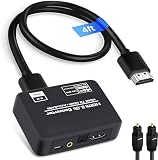
- 🔹 HDMI Audio Splitter Extractor: avedio links HDMI to HDMI audio extractor converter can extract audio from a digital HDMI signal to your Amplifier, Soundbar, Speaker, etc. It allows output separately to an audio receiver without powering on your HDTV/ Monitor, and Optical Toslinks SPDIF and 3.5mm audio support ARC function.(ARC function: Support HDTV Input& Only for ARC/eARC Interface)
- 🔹 4K 60Hz High Resolution: HDMI sound inserter extractor supports resolution up to 4Kx2K@60Hz, HDR 10, HDCP 2.2, RGB 8:8:8, max bandwidth of 18 Gbps. HDMI optical splitter adapter provides impressive high-quality UHD video, bringing you an amazing visual experience.
- 🔹 Three Audio Output Modes: HDMI-ARC audio extractor converter has TV, 2.0CH, 5.1CH three kinds of audio mode options. 3.5mm audio output supports 2CH PCM LPCM stereo audio; Optical SPDIF output supports 2CH PCM, 5.1CH Dobly Digital, Dobly True HD, DTS-HD, DTS. It also Support HDMI ARC (Audio Return Channel).
- 🔹 Wide Compatible: HDMI audio extractor 4k@60Hz are suitable for various HDMI source devices to meet different needs. HDMI input: Blu-ray/ DVD/ HD player, Amazon Fire TV, PS3/ PS4/ PS5, Xbox, PC/laptop etc. HDMI Output: Full HD TV, Monitor, Projector. Audio output: Speaker, Amplifier, Soundbar or other sound systems.
- 🔹 Package Included: 1 x HDMI Audio Extractor Converter, 1 x Digital Optical Cable, 1 x USB Power Adapter, 1 x HDMI Cable, 1 x User Manual. This HDMI audio extractor can effectively achieve audio synchronization separation and provide high quality audio and video transmission.
- PCM: Sends uncompressed audio to HDMI ARC or optical.
- Dolby Digital: Sends Dolby Digital audio.
- Passthrough: Forwards the incoming signal without changing its format.
- Auto: Selects a format based on the connected device or output.
That page addresses Fire TV Smart TVs; it does not establish that the same labels or settings appear on every Fire TV Stick. Use the settings available on your device and check the TV and soundbar manuals for supported formats. Amazon’s Fire TV Smart TV audio settings explains the options for those televisions.
Quick Recap
Product prices and availability are accurate as of the date/time indicated and are subject to change. Any price and availability information displayed on Amazon at the time of purchase will apply.




