Recommended Free Tools
On Epson projectors, Sleep Mode usually describes an automatic response to inactivity or a missing signal; standby is the low-power state the projector may enter afterward. The terms can overlap: some Epson manuals explicitly say Sleep Mode puts the projector into standby. What turns off, what remains available, and how to wake the projector depend on the model and its settings.
What is the difference between Sleep Mode and standby?
Think of Sleep Mode primarily as a trigger or timer, and standby as a resulting operating state. A projector may wait for a period without a signal, then turn off projection or its light source and enter standby. Epson documentation does not use these terms identically across its projector range, so they are not always two separate modes.
As an Amazon Associate I earn from qualifying purchases.
- Sleep Mode: commonly an automatic response to inactivity or loss of an input signal. The trigger and timer are model-specific.
- Standby: generally a low-power state after projection stops. Some models can retain selected functions, such as network monitoring or communication.
For example, Epson describes the PowerLite 1263W Sleep Mode as automatically placing the projector in standby after an interval of inactivity. Its guide lists a Sleep Mode Timer range of 1 to 30 minutes; that range applies to the 1263W, not to Epson projectors generally. See the PowerLite 1263W guide.
What’s actually slowing this PC down?
Pick the symptom - the matching free tool is one click away.
What happens when an Epson projector goes to sleep?
The action varies. On some models, the light source turns off after a no-signal interval; on others, the documented behavior is described as entering standby. For the PowerLite 830p, Epson’s guide says: “In Sleep Mode, the projector automatically turns off the lamp when it has not received any signals for 30 minutes.” That is a model-specific example, not a universal Epson setting. See the PowerLite 830p guide.
#1 Best Overall

- Display Stunning Images up to 300" — Widescreen picture four times larger than a 75" flat panel delivers an immersive experience for business presentations, home viewing and beyond
- Compact Design — Sleek, lightweight design easily fits in backpacks for easy portability on the go
- Ultra Bright Images — 3,000 lumens of color and white brightness (1) deliver outstanding-quality images in a variety of lighting conditions
- Best-in-Class Color Brightness (2) — Advanced 3-chip 3LCD technology displays 100% of the RGB color signal for every frame, allowing for outstanding color accuracy while maintaining excellent color brightness without any distracting “rainbowing” or “color brightness” issues seen with other projection technologies
- Compatible with Streaming — Connect your preferred streaming solution, such as an Apple TV, Roku, Amazon Fire TV or Android TV (3), to the built-in HDMI port to start streaming your favorite content—easy.
A connected device can affect the timer. Epson’s EF22 FAQ says its Sleep Timer measures how long the projector waits without a signal; if a connected device is on and supplying a signal, the projector will not enter sleep mode during that period. Read Epson’s EF22 FAQ.
Can the projector still use network features in standby?
Sometimes. Epson manuals for some older PowerLite models describe network-enabled standby as preserving remote monitoring or control. One guide also notes that the fan may continue after cooling when Network ON is selected. This is not evidence that every Epson projector retains the same functions, so check the standby and network options in the manual for your model. Consult the PowerLite 7850p guide.
Rank #2

- EXTRA-LARGE SCREEN DISPLAY — Image size reaches up to 300 in, 4x the size of a 75 in flat panel; Color projector with speaker allows you to level up your Zoom video conferencing experience with stunning widescreen WXGA resolution
- ULTRA BRIGHTNESS — 4,000 Lumens of Color Brightness (IDMS rated) and 4,000 Lumens of White Brightness (ISO Rated)¹; Wall projector allows you to display group presentations, spreadsheets and videos, even in well-lit rooms
- CRISP IMAGE QUALITY — Advanced 3-Chip 3LCD technology displays 100% of RGB color signal for every frame, providing precision color accuracy while maintaining vivid color brightness, without distracting "rainbowing" or "color brightness" issues
- VERSATILE CONNECTIVITY — Epson video projector features two HDMI ports so you can easily connect laptops and streaming devices², including Amazon Fire, Apple TV, Roku and Chromecast; Connect laptops for seamless video conferencing and more
- QUICK AND SIMPLE SETUP — The built-in speaker means you can start using this business projector immediately; Easy setup for video and audio right out of the box; Portable projector can also be easily repositioned
There is no portfolio-wide standby power figure established by Epson’s cited materials here. Do not assume standby means every circuit is off or infer a specific power draw from the mode name.
How do you change the Sleep Mode timer?
Use the menu path documented for your projector; Epson menu locations differ by model. For the PowerLite 1263W, the guide places Sleep Mode Timer in the ECO menu and lists settings from 1 to 30 minutes. Other Epson documentation puts related controls in Operation or Extended menus. Do not apply the 1263W path or timer range to a different projector without checking its guide.
Rank #3
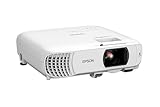
- HOME THEATER PROJECTOR — Bring your entertainment experience to the next level; With detailed 1080p images and fast data processing, the Epson Home Cinema projector is optimized for fast-action sports and more; Also an exciting casual gaming projector
- ULTRA BRIGHT IMAGES — 4,000 Lumens of Color Brightness (IDMS rated) and 4,000 Lumens of White Brightness (ISO Rated)¹; Wall projector for tv and movies delivers clear and crisp images in a variety of lighting conditions
- VIVID AND PRECISE COLOR — Advanced 3LCD technology displays 100% of RGB color signal for every frame, providing precision color accuracy while maintaining vivid color brightness, without distracting "rainbowing" or "color brightness" issues
- VERSATILE CONNECTIVITY — Streaming projector features two HDMI ports and a USB port that functions as a power source for streaming devices²; Connect laptops and devices, including Fire TV, Apple TV, Roku, and Chromecast; Seamless video conferencing
- QUICK AND SIMPLE SETUP — The built-in speaker means you can start using this projector immediately; Easy setup for video and audio right out of the box; Portable projector with speaker can also be easily repositioned
- Find the exact model number on the projector label or in its on-screen information, then open the matching manual from Epson’s projector support page.
- Search the guide for “Sleep Mode,” “Sleep Timer,” or “Sleep Mode Timer.” Follow the menu path and options listed for that model.
- Adjust the timer or disable the feature only if the guide documents that option. Check whether the setting is under ECO, Operation, or Extended for your model.
Why does an Epson projector go into standby—or fail to sleep?
A projector may enter standby because its configured inactivity or no-signal timer has elapsed. If it does not sleep when expected, check the signal and control conditions before changing settings.
- A signal is still present: a connected device that continues sending a signal may prevent a no-signal timer from expiring, as Epson explains for the EF22.
- Sleep Mode is disabled or the timer is set differently: Epson’s Pro EX11000 FAQ advises checking that Sleep Mode is enabled and adjusting the Sleep Mode Timer as needed.
- Control activity is keeping it awake: the EX11000 FAQ notes that certain serial or LAN control activity may prevent sleep.
- The menu or indicator is being interpreted too broadly: menu labels and status-light meanings vary across models.
For the EX11000, use its FAQ and manual rather than assuming another model’s menu path or timer applies. Read Epson’s Pro EX11000 FAQ.
Rank #4
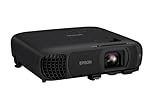
- EXTRA-LARGE SCREEN DISPLAY — Image size reaches up to 300 in, 4x the size of a 75 in flat panel; Color projector with speaker allows you to level up your Zoom video conferencing experience with stunning Full HD 1080p resolution
- ULTRA BRIGHTNESS — 4,100 Lumens of Color Brightness (IDMS rated) and 4,100 Lumens of White Brightness (ISO Rated)¹; Wall projector allows you to display group presentations, spreadsheets and videos, even in well-lit rooms
- CRISP IMAGE QUALITY — Advanced 3-Chip 3LCD technology displays 100% of RGB color signal for every frame, providing precision color accuracy while maintaining vivid color brightness, without distracting "rainbowing" or "color brightness" issues
- WORKS WITH APPLE AIRPLAY — Epson projector with wifi allows you to wirelessly stream videos, music, photos and presentations to your projector from your iPhone, iPad, or Mac², plus screen mirroring with Miracast to stream from your Windows PC³
- VERSATILE CONNECTIVITY — Features two HDMI ports and a USB port that functions as a power source for streaming devices⁴; Easily connect laptops and devices including Fire TV, Apple TV, Roku, and Chromecast; Seamless video conferencing and more
Can you unplug an Epson projector in standby?
Do not unplug it during a documented cooling sequence. Some Epson projectors continue cooling after projection stops, and their guides give model-specific instructions about when power can be disconnected. The PowerLite 7850p guide warns not to unplug the power cord while its power light is green or flashing orange. Follow the indicator and shutdown instructions in your own projector’s manual; the 7850p warning should not be treated as the indicator rule for every Epson model.
Do these 3 things before closing this tab:
1Scan for outdated or missing drivers - takes under a minute2Clear out junk files and repair common Windows errors3Fix the driver behind crashes, sound loss and screen glitchesDo the status lights tell you whether it is asleep or in standby?
Not necessarily. Epson status tables may group “Standby, sleep mode, or monitoring” under one indicator pattern, so a light by itself may not identify the exact state. Check the model’s status-light table and consider the setting, recent signal activity, and whether a cooling sequence is underway. See an Epson projector support guide.
Quick Recap
Product prices and availability are accurate as of the date/time indicated and are subject to change. Any price and availability information displayed on Amazon at the time of purchase will apply.




