For a Logitech G910 Orion Spark or Orion Spectrum, the documented download route is Logitech Gaming Software from Logitech’s G910 support page: www.logitech.com/support/g910-rgb. Logitech lists Logitech Gaming Software version 8.78.133 as the package that supports G910 lighting, game mode, custom profiles and firmware updates, but that release was last updated on 2016-03-16. Logitech now also offers G HUB, its current control application for G gaming gear. Because the retrieved G HUB documentation does not explicitly name every G910 variant, check your exact model in Logitech Support before replacing the legacy software.
Which software should you download for a G910?
The safest choice depends on the keyboard variant and the controls you need. The G910 Orion Spark manual specifically instructs owners to connect the keyboard by USB and install Logitech Gaming Software. That is the documented model-specific route for both the Orion Spark and Orion Spectrum families. G HUB is Logitech’s newer platform, but current G HUB materials do not explicitly confirm support for every G910 revision.
As an Amazon Associate I earn from qualifying purchases.
| Software route | Model recognition | Operating-system currency | Controls and features | Firmware availability | Use it when |
|---|---|---|---|---|---|
| Logitech Gaming Software (LGS) 8.78.133 | Legacy Logitech pages explicitly list G910 support | Legacy release; last update 2016-03-16 | G910 lighting, game mode, custom lighting profiles, G-keys and M-key assignments | Listed as supported on the legacy G910 route | You have an Orion Spark or Orion Spectrum and want the documented package |
| Logitech G HUB | Current Logitech gaming control application; exact G910 variant support must be verified | Current platform, with support changing over time | Use only the functions Logitech exposes for your detected device | Check the device page before accepting an update | LGS does not install or Logitech Support explicitly offers G HUB for your model |
Do not assume that a newer application automatically replaces the model-specific package. If Logitech Support detects your G910 and presents G HUB, follow that current recommendation. If it presents Logitech Gaming Software, use that package rather than downloading an unofficial repackaged installer.
Recommended Free Tools
Identify your G910 before downloading
Check the name printed on the keyboard
Look for “G910 Orion Spark” or “G910 Orion Spectrum” on the keyboard, box or original invoice. Logitech documents both variants, but a support page can show different downloads depending on the product record and operating system you select.
#1 Best Overall

- Exclusive Romer-G Mechanical Switches Exclusive Romer-G mechanical switches make Orion Spectrum our fastest keyboard ever. 1. 5mm actuation makes it possible for Orion Spectrum to receive input up to 25 percent faster than leading competitors, with 40 percent more durability at 70 million keystrokes..9 dedicated G-keys
- Intelligent RGB Illumination Customize Orion Spectrum’s RGB illumination from a palette of up to 16 million colors. Customize key illumination for specific games or game events. Each key top is entirely illuminated with 16MM color lighting for a beautiful, evenly lit glow.
- Arx Control Integration Smartphones and tablets can be connected to Orion Spectrum using the adjustable Smart Dock. Arx Control makes it possible for mobile devices to display in-game display information, vital system statistics and more.
- 9 Customizable G-keys Orion Spectrum’s 9 fully-customizable G-keys can be assigned commands per profile, and have been positioned for optimal speed and accessibility.
- Dedicated Media Controls Orion Spectrum’s dedicated media controls can be used to play, pause, and mute songs and videos. Use the on-board roller bar to adjust the volume, or skip scenes at the touch of a button.
Check Windows’ hardware name
- Press
Windows+R, typedevmgmt.msc, and pressEnter. - Expand Keyboards and, if necessary, Human Interface Devices.
- Right-click the G910-related entry, choose Properties, and open the Details tab.
- Use Hardware Ids if Logitech Support asks you to distinguish the device from another USB keyboard.
Keep the exact variant handy when you visit support. It prevents installing a package intended for a different Logitech keyboard family.
Requirements and Windows compatibility
The original Orion Spark specifications list Windows Vista, Windows 7, or Windows 8/8.1, an internet connection and 70 MB of free disk space. Logitech does not give a publication year for that specification in the retrieved material, so treat it as a launch-era requirement rather than a guarantee for current Windows releases.
- USB connection: Connect the keyboard directly to a working USB port during installation. Avoid an unpowered hub while troubleshooting detection.
- Internet access: The original setup instructions require internet access to obtain the software and online components.
- Administrator access: Windows may ask for permission to install device software or update firmware.
- Free storage: The historical specification calls for 70 MB; leave additional space for downloaded installers, profiles and temporary files.
- Modern Windows: Windows 10 and Windows 11 are newer than the documented launch requirements. The legacy installer may still run, but Logitech’s support page should be treated as the authority for your edition and current package.
How to download and install Logitech Gaming Software
1. Open Logitech’s G910 support page
Go to www.logitech.com/support/g910-rgb. Confirm that the page identifies your G910 model. If Logitech redirects you to a product-support interface, select the exact Orion Spark or Orion Spectrum entry rather than a similar-looking keyboard.
2. Select the operating system
Use the operating-system selector supplied by Logitech. If the page offers Logitech Gaming Software, download that official installer. The legacy Logitech page identifies version 8.78.133 and records 2016-03-16 as its last update; that date is important because it explains why the download may look old even when it is the package Logitech documented for the G910.
3. Connect the keyboard by USB
Plug the G910 directly into the computer before launching setup. If your desktop has rear motherboard USB ports, use one of those for the first installation. Disconnect other gaming keyboards temporarily so the installer and configuration application have only one target device to identify.
Rank #2
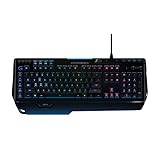
- World's fastest RGB mechanical gaming keyboard: Exclusive Romer-G Mechanical Switches with up to 25 percent faster actuation
- Customizable RGB illumination: Personalize individual key lighting from a palette of 16 million colors ; Cable Length (Power/Charging): 6 ft (1.8 m)
- Arx Control App and smartphone dock: Instantly access in-game data on your smartphone or tablet without interrupting the game
- 9 programmable G-keys: Create custom game macros to execute complex commands with lightning speed and accuracy
- Dedicated media controls: One-touch control panel for quick access to play, pause, mute, volume and skip.Android 3.2 or later
4. Run the installer
- Open your browser’s downloads list and launch the Logitech installer.
- Approve the Windows permission prompt only if the publisher and filename match the package you obtained from Logitech.
- Accept the license terms, keep the default installation location unless you have a specific reason to change it, and allow the setup program to install its device components.
- Restart Windows if the installer requests it. A restart lets the keyboard service and USB components load cleanly.
5. Start the application and confirm detection
Open Logitech Gaming Software from the Start menu. The G910 should appear as a selectable device. If it does not, close the program, unplug the keyboard, wait several seconds, reconnect it directly, and start the application again. Do not begin firmware updates until the software consistently identifies the correct keyboard.
Configure G-keys, M-keys and profiles
G-key capacity
The G910 manual documents nine programmable G-keys and three M-keys. It also documents three M profiles, allowing up to 27 unique functions per game when the nine G-keys are assigned differently in each profile. The exact labels and profile controls can vary slightly between LGS screens, but the workflow is the same: choose a profile, select a key, assign an action, then save the profile.
The Tool Desk
Outbyte Driver Updater FREEFix the driver behind crashes, sound loss and screen glitchesFind Drivers →Outbyte PC Repair FREERepair Windows errors before they cause bigger problemsFix Now →Create a profile for a game or application
- In Logitech Gaming Software, open the profile area and create a new profile.
- Associate it with the game’s executable when the software offers application linking. Use the game’s actual launcher or executable, not a desktop shortcut, if automatic switching fails.
- Select a G-key, choose a keystroke, macro or other available action, and save.
- Repeat for the remaining keys. Use a separate M profile when the same physical key needs a different function.
- Launch the game and test each assignment in a safe menu before using it in a match or active session.
Keep a written list of important assignments. If you later remove LGS, change Windows accounts or reset the keyboard profile, that list makes reconstruction much faster.
Lighting and game mode
LGS support for the G910 includes lighting controls and game mode. Use the lighting section to select the effect or custom lighting profile available for your model. Game mode is useful when a game should ignore selected Windows keys or other shortcuts; test the mode outside the game first so you know which keys are intentionally disabled.
Firmware updates: when and how to proceed
The legacy G910 software page lists firmware updates as part of its supported functions. Only start an update after the keyboard is detected reliably and the computer is connected to stable power. Close games and other keyboard utilities, do not unplug the USB cable, and do not force a shutdown while the updater is running.
Rank #3

- Personalize 5 customizable lighting zones with over 16.8M colors to match your setup or game and synchronize backlit lighting effects with other Logitech G devices using Logitech G Hub
- G213 Prodigy is a full-sized keyboard designed for gaming and productivity, with a slim body built for gamers of all levels and durable construction to repel liquids, crumbs, and dirt for easy cleanup
- Each key is tuned to enhance the tactile experience, delivering ultra-quick, responsive feedback while the anti-ghosting gaming matrix is tuned for optimal gaming performance, keeping you in control
- G213 gaming keyboard features dedicated media controls that can play, pause, and mute music and videos instantly; easily adjust the volume or skip to the next song with the touch of a button
- Customize lighting, game mode, and macro programming with Logitech G HUB software and stay comfortable during long gaming sessions thanks to an integrated palm rest and adjustable keyboard feet
- Open the device or settings view in Logitech Gaming Software.
- Check whether a firmware update is offered for the exact G910 variant.
- Read the on-screen instructions and confirm that the listed model matches your keyboard.
- Allow the process to finish completely, then restart Windows if prompted.
If an update is interrupted, reconnect the keyboard directly, reboot Windows and reopen the Logitech software before attempting another update. If the keyboard remains unusable, stop repeated attempts and use Logitech Support for model-specific recovery instructions.
Should you install G HUB instead?
G HUB is Logitech’s current control application for Logitech G gaming gear, and Logitech’s software directory lists both G HUB and Logitech Gaming Software. That does not establish that every G910 revision is supported by every current G HUB release. Treat G HUB as an option only after Logitech’s device page identifies your exact Orion Spark or Orion Spectrum.
- Use LGS first: The G910 manual explicitly names Logitech Gaming Software, and the legacy support page specifically records G910 lighting, profiles, game mode and firmware functions.
- Try G HUB when Logitech offers it: If the current support page detects your keyboard and directs you to G HUB, follow that model-specific instruction.
- Avoid running both at once: Two configuration utilities can compete for profiles, lighting or startup control. Uninstall or disable the older utility before testing the alternative, and export or record your profiles first.
Troubleshooting common download and setup problems
The installer will not start
Redownload from Logitech’s support page, check that the file completed, and run it from a local folder such as Downloads. Temporarily close other installer windows and restart Windows. If Windows blocks an old package because of compatibility rules, do not obtain a modified installer from a mirror; check whether Logitech provides a current package for your model.
The keyboard is not detected
- Move the USB cable to another direct port.
- Disconnect hubs, KVM switches and extension cables during testing.
- Restart Windows with the keyboard connected.
- In Device Manager, look for an unknown USB or keyboard device and use Action > Scan for hardware changes.
- Test the G910 on another computer if available. If it fails there too, the issue may be physical rather than software-related.
G-keys work as ordinary keys
Open LGS and verify that the correct profile is active and linked to the game’s executable. Check whether game mode or an application-specific profile has changed the assignment. Test the key in a text editor with a simple keystroke assignment; this separates a profile problem from a game that blocks macros.
Lighting does not match the profile
Confirm that the intended profile is active, disable competing keyboard utilities, and reconnect the keyboard. If lighting stopped after a firmware operation, restart Windows and check the device’s firmware status before changing profiles repeatedly.
What’s actually slowing this PC down?
Pick the symptom - the matching free tool is one click away.
Rank #4

- Full-Size Wired Gaming Keyboard: The Logitech G915 X offers the latest innovations in gaming technology; sleek design and next-gen engineering elevate every level of performance
- Master the Game Your Way: Set up to 15 functions per key and remap commonly used commands to turn your keyboard into a personalized command center with KEYCONTROL
- Speed and Precision: Achieve speed, precision and comfort with low-profile GL mechanical switches; increase APM (actions per minute) rate with 1.3 mm actuation point and 3.2 mm total travel distance
- Elevated Typing Experience: With sand-blasted aluminum top plate and double-shot PBT keycaps, the G915 offers next-gen comfort with zero compromise to durability
- Light Up the Game With LIGHTSYNC RGB: Access ~16.8M colors to customize play and create themes; sync with other Logitech G gear in G HUB
G HUB does not list the G910
That result does not prove the keyboard is defective. The available evidence does not confirm universal G910 support in every G HUB release. Return to the Logitech G910 support page and install the documented Logitech Gaming Software package for your variant.
Independent reader supportYour contribution helps us test, update, and keep practical guides available for everyone.Clean reinstall procedure
A clean reinstall is useful when LGS opens but shows no device, profiles disappear, or installation repeatedly fails.
- Export or photograph important G-key and lighting assignments.
- Close Logitech Gaming Software and any related background process shown in Task Manager.
- Open Settings > Apps > Installed apps (or Control Panel > Programs and Features on older Windows) and uninstall Logitech Gaming Software.
- Restart Windows.
- Reconnect the G910 directly to USB and install the official package again from Logitech’s support page.
- Open LGS, confirm detection, then recreate or restore profiles one at a time.
Do not delete unknown registry entries or system folders as a first step. Manual removal can damage other Logitech devices and is rarely necessary for a normal reinstall.
Is Logitech G910 software safe?
The risk is primarily where the installer comes from and whether you install the correct package. Download from Logitech’s official support page, verify that the model name matches your keyboard, and avoid “preconfigured” installers from file-sharing sites. Keep Windows security protections enabled, scan unexpected downloads with your existing security software, and do not disable protection merely to force an installer to run. Logitech Gaming Software is configuration software; it is not a replacement for Windows security tools.
Free tools Windows power users keep installed
One-click scans. No signup required.
If you want an optional shortcut after trying the manual steps, Outbyte Driver Updater scans more than 100 devices for outdated, corrupted or missing drivers, installs only official drivers, shows current and recommended versions, and offers driver backup, restore and scheduled scans. It runs on Windows 11, 10, 8 and 7 with a two-day free trial and no credit card, followed by a subscription; results vary and no tool repairs every keyboard problem.
Frequently asked questions
Frequently Asked Questions
Can I use a G910 without installing Logitech software?
Basic USB keyboard input can work through Windows’ built-in keyboard support, but the documented G910 features—programmable G-keys, M profiles, custom lighting, game mode and firmware management—require Logitech’s configuration software.
Best Value

- Near-instantaneous responsiveness: Experience elite gaming performance with an 8 kHz report rate for quick signal transmission and precise, game-ready response times
- Personalize your play: Hot-swappable switches and double shot PBT keycaps allow you to easily customize the look and feel of your mechanical gaming keyboard, and helps with shine resistance
- Intuitive on-board controls: Joyful and interactive LED dot-matrix display and dial let you easily control report rate, volume, brightness, and media without leaving your game
- Premium sound and feel: Gasket-mounted structure with sound-dampening silicone and foam layers provides a refined, quiet typing experience and satisfying tactile feedback
- Dynamic LIGHTSYNC RGB lighting: interactive light bar reacts to your setup and dial adjustments, customize 30 different light zones and per key lighting for a truly immersive gaming environment
Is Logitech Gaming Software still available for the G910?
Logitech’s legacy software page lists G910 support and version 8.78.133, with a last-update date of 2016-03-16. Availability can change, so use the G910 support page and select your exact variant before downloading.
Are Orion Spark and Orion Spectrum interchangeable in software?
They are separate documented G910 variants. Logitech’s support system may present different packages, so confirm the model name rather than assuming a download for one variant applies to the other.
Windows Errors? Fix Them Before They Spread
Repair common Windows errors and clear accumulated junk for a smoother, more stable PC - no reinstall needed.Free scan · no reinstallCrashes, No Sound, or Screen Glitches?
Random freezes, missing sound and display glitches usually trace back to one bad driver. Find and replace yours safely.Free scan · under a minuteWhy does the old software mention Windows Vista, Windows 7 and Windows 8/8.1?
Those operating systems come from the launch-era Orion Spark specification. They describe the historical requirement, not a promise that the legacy installer is fully supported on every current Windows 10 or Windows 11 build.
What should I do before switching from LGS to G HUB?
Record or export your profiles, check Logitech Support for explicit recognition of your G910 variant, and avoid running both utilities simultaneously while testing. If G HUB does not detect the keyboard, return to the documented Logitech Gaming Software route.
Quick Recap
Product prices and availability are accurate as of the date/time indicated and are subject to change. Any price and availability information displayed on Amazon at the time of purchase will apply.




