Free tools Windows power users keep installed
One-click scans. No signup required.
Not always. Whether a PCIe 5.0 SSD needs a heatsink depends on the exact drive’s instructions, the cooling built into your motherboard, and how you use the drive. Some drives explicitly require cooling; for others, a motherboard M.2 heatsink may be enough. Check both manuals before buying anything.
When a PCIe 5.0 SSD needs a heatsink
There is no universal rule that every PCIe 5.0 SSD must have a separate, aftermarket heatsink. The drive maker’s installation guidance is the first thing to check. If it says the drive requires cooling, treat that as a requirement and follow its instructions for the kind of cooling to use. CORSAIR’s MP700 installation guide, for example, specifies that the drive requires cooling and directs users to their system documentation or to purchase cooling separately. It also tells users to put the system heatsink or slot cover over the drive when using it.
As an Amazon Associate I earn from qualifying purchases.
That instruction does not mean every MP700 installation needs a separately purchased accessory: a suitable motherboard or system heatsink may provide the cooling, if the drive and motherboard documentation support that arrangement. It does mean that installing the drive without the required cooling is not an option to assume is safe or supported. The instructions for another PCIe 5.0 model may differ, so do not transfer one drive’s requirements to another.
For a drive whose maker does not explicitly require a particular cooling arrangement, consider the workload and the cooling already present. Everyday tasks generally do not call for an SSD heatsink, according to Kingston’s consumer guidance. Sustained, intensive transfers and restricted case airflow are more likely to make additional cooling useful. The important distinction is not simply whether the drive uses PCIe 5.0; it is whether its specified cooling is in place and whether the system can keep it operating as intended during your actual workload.
#1 Best Overall

- 【Designed for desktop PC/PS5】- Perfectly fit for Samsung 860 EVO, 960 EVO, 970 EVO, 970 Pro, 980 Pro, PS5 etc. this M.2 SSD heatsink compatible with all single sided Type.
- 【Main body material】- Aluminum alloy, silver plating (helps eliminate static electricity), anodic oxidation surface treatment. Dimensions: 3 x 0.95 x 0.4inm.2 heatsink well fit for PS5 installation as well as PC M.2 Slot.
- 【Thermal Pads】- with good thermal conductivity ability. Low viscosity, with no damage to the M.2 SSD.
- 【High Performance】- With 10°C - 20°C cooling effect (varies depending on the environments), cool your M.2 2280 SSD to a safe temp to avoid overheating and throttling, improve your computer's performance.
- 【Easy to Install 】 - With double-sided clip design, are suitable for M.2 NVME SSD of various heights, stable installation, better protection of your M.2 SSD with good heat dissipation performance.
What an SSD heatsink does—and why heat can affect speed
An M.2 heatsink is a thermal spreader that sits over the SSD. A thermal pad bridges the space between the drive and the heatsink so heat can transfer from the drive to the metal surface. A motherboard may provide this as a removable M.2 cover, while an aftermarket M.2 heatsink is a separate accessory. Some SSDs also come with a heatsink already attached.
When an SSD gets too hot, it can reduce its speed to protect itself. This behavior is called thermal throttling. The practical effect depends on the specific drive, the task, and the cooling and airflow around it. A short everyday task may finish without exposing a sustained heat problem; a long transfer can keep the drive busy for longer and make a performance decline more apparent. A heatsink is intended to help manage heat, not to guarantee a particular transfer rate.
Tom’s Hardware tested a heatsink-less Transcend 260S 2TB PCIe 5.0 SSD under sustained transfer. In that test, reported transfer performance fell from just under 4,000 MB/s to around 1,700 MB/s shortly after 50 seconds, and later to around 600 MB/s. Those figures describe that drive and test—not a general performance curve for PCIe 5.0 SSDs. The publication notes that mainstream workflows may encounter this less often and that the effect varies by drive and conditions.
What’s actually slowing this PC down?
Pick the symptom - the matching free tool is one click away.
Rank #2

- High-Performance Cooling with Integrated Heatpipe: Advanced aluminum heatsink with built-in heatpipe ensures efficient heat dissipation, keeping your M.2 NVMe SSD cool even under heavy workloads.
- Maintains Maximum Read and Write Speed: Prevents thermal throttling by lowering SSD temperatures, allowing your drive to maintain top performance for longer periods.
- Compatible with Single and Double-Sided M.2 2280 Drives: Designed to fit both single-sided and double-sided M.2 2280 modules, offering flexible compatibility with a wide range of NVMe SSDs.
- Premium Black Aluminum Design: Sleek matte black finish delivers a clean, high-quality look that perfectly matches modern PC builds while providing excellent thermal conductivity.
- Easy Installation and Secure Fit: Simple mounting system allows quick, hassle-free setup on your M.2 slot for reliable cooling and long-term durability.
Choose the cooling arrangement that fits your system
Before selecting a solution, identify your exact SSD and the exact M.2 slot you plan to use. Check the drive’s cooling instructions and the motherboard manual for that slot. Then compare the available options:
| Cooling option | When it may fit | What to verify |
|---|---|---|
| Motherboard M.2 heatsink or cover | The board supplies one and the drive documentation permits using it. | That the selected slot has the cover, the installation instructions match the drive, and the thermal pad contacts the drive evenly. |
| Drive’s integrated heatsink | The SSD is sold with a heatsink attached. | Whether the motherboard cover can be removed or otherwise accommodated. Do not stack covers or cooling hardware unless the manuals explicitly allow it. |
| Separate aftermarket M.2 heatsink | The drive calls for cooling and the system lacks a suitable integrated solution, or existing cooling does not provide adequate contact for the intended workload. | Drive length, pad contact, slot and case clearance, and any interference with nearby components. |
A motherboard heatsink is often the simplest first option when the drive’s guide allows it. Its presence alone, however, does not prove that it makes good contact. In Tom’s Hardware’s test of primary M.2 heatsinks on 20 motherboards, only 6 of the 20 tested boards made full contact with the test drive, according to the article’s title. That is a result from the publication’s sample and procedure, not a failure rate for all motherboards. It is a reason to pay attention to fit rather than assume that every cover cools every installed drive equally well.
If your SSD already has an integrated heatsink, do not put the motherboard cover on top of it unless the SSD and motherboard instructions specifically permit that setup. Extra layers can prevent the intended contact, create a fit problem, or interfere with nearby hardware. The reverse also applies: if you plan to use the board’s cover, confirm whether the SSD’s attached heatsink can be removed and whether its maker permits removal.
Rank #3
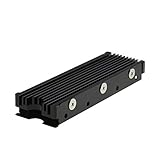
- 【Designed for M.2 SSD】-The heat sink is specially designed for M.2 2280mm SSD, which is very suitable for desktop computers/Playstation 5, etc.
- 【Double-sided cooling】- Aluminum alloy-Groove design, greatly increase the heat dissipation area, with 10°C - 30°C cooling effect (Varies depending on the environments), cool your M.2 SSD to a safe temp to avoid overheating and throttling, improving the performance of your computer.
- 【Easy to Install and Operate】 - With double-sided clip design, 6 adjustable height screws, suitable for M.2 SSD of various heights, stable installation, better protection of your M.2 SSD.
- 【Unique Nano Thermal Pad】- Advancing Gene thermal pad is made from Nano Silicon Grease Material, with good thermal conductivity ability. Soft enough and good ductility, compatible with uneven surfaces of the M.2 SSD. Low viscosity, with no damage to the SSD warranty label.
- 【Fine Workmanship】- Main body material: Aluminum alloy, silver plating (Helps eliminate static electricity), anodic oxidation surface treatment. Dimensions: 3 x 0.95 x 0.4in., net weight: 1oz., minimum installation height requirement: 12mm.
How to check whether your motherboard heatsink is suitable
Good cooling depends on contact between the drive and the cooling surface. A heatsink that sits above the SSD with a gap, or presses unevenly, may not transfer heat as intended. Thermal-pad thickness and arrangement matter: Kingston advises using the supplied pad and ensuring full, even contact, and cautions that pad thickness can affect contact. Follow the exact instructions for your board and SSD rather than adding, removing, or substituting pads by guesswork.
- Confirm slot compatibility. Use the motherboard manual to identify a PCIe Gen5-capable M.2 slot and verify that the SSD is supported in that slot. CORSAIR’s MP700 guide specifically directs users to system documentation to identify a Gen5-capable slot.
- Check the drive’s cooling directions. Look for whether the SSD requires cooling, whether it has an integrated heatsink, and what the maker says about using a motherboard cover.
- Follow the motherboard’s installation sequence. MSI’s general instructions say to remove the M.2 heatsink if present, secure the SSD in the position for its supported length, and then reinstall the heatsink. Use the board manual’s exact procedure for the selected slot.
- Inspect pad placement and contact. Use the specified thermal pad arrangement and check that the pad meets the drive evenly. Do not infer adequate contact just because the cover can be screwed down.
- Check physical clearance. If adding a separate cooler, verify that its dimensions suit the drive and that it clears the case and nearby components, including the graphics card. Also check that it does not conflict with an existing motherboard cover.
If the manuals disagree or leave a particular configuration unclear—for example, whether a motherboard cover can be used with an SSD’s attached heatsink—do not force the parts together. Follow the drive maker’s cooling requirement and the motherboard’s slot-specific installation guidance, and seek clarification from the relevant manufacturer if the combination is not addressed.
Independent reader supportYour contribution helps us test, update, and keep practical guides available for everyone.Decide based on workload and airflow
Cooling is most worth considering when the drive is expected to handle long, demanding transfers, when airflow around the drive is restricted, or when the system has no suitable built-in M.2 cooling. These factors do not create a universal temperature threshold or tell you that a particular accessory is mandatory; the sources do not establish a single temperature limit or a percentage of PCIe 5.0 drives that require heatsinks. Use the drive’s own instructions as the deciding requirement, then consider whether your workload makes a better cooling arrangement useful.
Rank #4

- [Brand Overview]Thermalright is a Taiwan brand with a history of over 20 years of development. It has a certain popularity in domestic and international markets and has a significant influence in the radiator market. We have been focusing on the research and development of computer accessories. The R&D product line includes: CPU coolers, case fans, thermal silicone pad, thermal paste, CPU fan controllers, mounting brackets and other goods.
- [Double-sided heat sink] with high performance heat sink silicone film with good thermal conductivity, the SSD 2280 heasink cooling is laminated on both sides and combined with the aluminium combination, allows for optimum cooling performance.
- [Aluminum Alloy Material] Aluminum alloy with anodized sandblasting process and anodized surface treatment greatly increases the heat dissipation area of the M.2 SSD cooler with 10°C-30°C (varies depending on the environment).
- [Easy to Installation] Size: 70*24*13mm, the 2280 heatsink SSD cooler is designed with double-sided clips and comes with 4 screws for a tighter fit to the SSD and enhanced thermal conductivity, allowing for quick and easy installation and removal, combined with instructions and video tutorials for better installation.
- [Wide Compatibility] Designed for desktop PC M.2 interface, this M.2 SSD heatsink works perfectly with M.2 2280 SSD cooling and is compatible with Samsung 990 Pro, 980 PRO, 850 EVO, 860 EVO, 960 EVO, 970 EVO, 950 PRO, 960 PRO, 970 PRO series M.2 SSDs without interfering with PCI-E slot devices.
Everyday use
For ordinary tasks that do not keep the SSD under heavy load for long periods, Kingston’s guidance says a heatsink is generally unnecessary. That is general consumer guidance, not a guarantee for every model or case. If the drive maker requires cooling, follow that requirement even if your use is light.
Long transfers and intensive work
For sustained work, such as a transfer that keeps the SSD busy, cooling and contact deserve more attention. The Transcend test illustrates why: under that test’s sustained transfer, performance fell over time. It does not predict the speed of another drive or establish that every user will see the same pattern. If sustained performance matters to you, use the specified cooling and pay attention to whether the drive’s behavior changes during your own workload.
Do these 3 things before closing this tab:
1Repair Windows errors before they cause bigger problems2Fix the driver behind crashes, sound loss and screen glitches3Clear out junk files and repair common Windows errorsRestricted airflow or no board heatsink
A drive in a location with restricted airflow may benefit more from cooling than one in a better-cooled position, according to Kingston’s guidance. If the selected slot has no suitable integrated heatsink, a compatible separate M.2 heatsink is one category of solution. Verify fit and pad contact before buying; a generic product description does not establish compatibility with your exact SSD, slot, or case.
Common mistakes to avoid
- Assuming PCIe 5.0 alone determines the answer. Cooling instructions vary by model; check the specific SSD guide.
- Buying a second heatsink before checking the motherboard. A board cover may already provide the intended solution, subject to the drive’s instructions and actual contact.
- Assuming every motherboard cover makes full contact. The Tom’s Hardware test found variation among the 20 boards it examined; it does not establish that your board is inadequate, but it makes checking fit worthwhile.
- Using an incompatible thermal pad or stacking cooling hardware. Pad thickness affects contact, and double coverage may not fit or work as intended. Follow both manuals.
- Ignoring clearance. A heatsink can be the right general type and still conflict with the drive length, case, motherboard cover, or nearby graphics card.
- Reading one benchmark as a prediction for your PC. Test results depend on the drive and conditions. The reported Transcend figures are not a universal PCIe 5.0 speed profile.
When a specialized M.2 cooling card is relevant
For a single SSD in an ordinary motherboard M.2 slot, a specialized expansion card is not a routine cooling purchase. ASUS documents a Hyper M.2 x16 Gen5 Card that supports up to four Gen5 or Gen4 M.2 drives and integrates a full-cover heatsink, thermal pads, and a blower-style fan. That makes it relevant to multi-drive expansion; it does not make the card necessary for a typical one-drive installation.
Similarly, an aftermarket M.2 heatsink is a product category to consider only after checking whether the SSD requires cooling, whether the motherboard already provides a compatible cover, and whether the parts fit together. No specific accessory’s current availability or compatibility is established here, so confirm a product’s dimensions and pad arrangement against your exact hardware before purchasing.
Quick Recap
A practical decision checklist
- If the drive manual requires cooling, provide the cooling arrangement it specifies.
- If the board has an M.2 heatsink, confirm that it belongs to the chosen slot and is compatible with the SSD’s heatsink configuration.
- If the workload involves sustained transfers or airflow is restricted, give extra attention to pad contact and drive behavior.
- If the drive has its own heatsink, do not add a motherboard cover over it unless both sets of instructions allow that combination.
- If built-in cooling is absent or unsuitable, consider a compatible M.2 heatsink only after checking length, contact, and clearance.
Product prices and availability are accurate as of the date/time indicated and are subject to change. Any price and availability information displayed on Amazon at the time of purchase will apply.




