Do these 3 things before closing this tab:
1Fix the driver behind crashes, sound loss and screen glitches2Clear out junk files and repair common Windows errors3Scan for outdated or missing drivers - takes under a minuteCPU core parking is a power-saving mechanism that can park (effectively suspend) some logical cores when your workload doesn’t need them. That can reduce idle power, but it can also add scheduling latency and responsiveness hiccups—especially on gaming systems, low-latency workloads, and some workstation use cases.
If you want maximum performance, the practical goal is simple: stop Windows from parking cores while you’re on a high-performance power plan (or at all, depending on how aggressive you want to be). Below is a reliable, step-by-step guide to disable CPU core parking on Windows 10/11 using multiple methods, plus verification and troubleshooting.
As an Amazon Associate I earn from qualifying purchases.
Scope note: Core parking settings are Windows-specific. macOS and Linux handle CPU scheduling differently, and this guide won’t apply there.
What CPU Core Parking Is (and what it breaks)
When core parking is enabled, Windows may reduce active core count during light loads. It does that through the power management policy for your active power plan. Under bursty workloads, the OS may unpark cores when demand spikes, which can introduce a short delay.
#1 Best Overall

- Cool for R7 | i7: Four heat pipes and a copper base ensure optimal cooling performance for AMD R7 and Intel i7.
- Quiet Cooling Fan: SickleFlow 120 Edge with Dynamic PWM control (690–2,500 RPM), designed for low noise and peak cooling performance.
- Simplify Brackets: Redesigned brackets simplify installation on AM5 and LGA 1851|1700 platforms.
- Versatile Compatibility: 152mm tall design offers performance with wide chassis compatibility.
- Easy Installation: Easy to install with included thermal paste for hassle-free setup and optimal cooling performance.
Disabling core parking typically trades:
- Pros: better latency consistency, fewer “ramp-up” pauses, more predictable performance under sudden load.
- Cons: higher idle power usage and potentially higher temps (fans may spool up sooner).
This doesn’t automatically increase average FPS in every game. It more often improves how steady performance feels when CPU demand changes rapidly.
Prerequisites and what to check first
You’ll get the most reliable result by doing two quick checks before changing settings.
- Confirm your OS: Windows 10 or Windows 11 (core parking settings exist in both, but UI labels vary slightly).
- Use an admin account: Registry edits and some power plan changes require elevated permissions.
- Pick your target power plan: Core parking is controlled per power plan. Decide whether you want it disabled on High performance, Balanced, or both.
If you’re on a laptop, keep an eye on battery behavior—disabling parking can increase drain noticeably.
Quick wins for a faster PC:
Fix the driver behind crashes, sound loss and screen glitchesFind Drivers →Clear out junk files and repair common Windows errorsFree Scan →Method 1: Disable core parking via Power Options (recommended)
This is the cleanest approach because it uses supported Windows power settings and tends to survive updates better than manual registry edits.
Windows 10/11 using advanced power settings
- Open Control Panel → Hardware and Sound → Power Options.
- Choose the plan you want to modify (commonly High performance). If you don’t have it, create one: click Create a power plan, choose High performance, name it, then select it.
- Click Change plan settings → Change advanced power settings.
- In the list, expand Processor power management.
- Expand Processor performance core parking (may appear as Core parking on some builds).
- Set the following for both On battery and Plugged in if you want it disabled everywhere:
- Minimum number of parked cores → set to 0
- Maximum number of parked cores → set to 0
- If you see a System cooling policy option under Processor power management (sometimes it’s under System cooling policy), set it to match your tolerance (e.g., Active on desktops; be cautious on laptops).
- Click Apply → OK.
If you don’t see “Processor performance core parking,” search within the advanced list by scrolling carefully—some OEM images hide or rename entries. In that case, use the Registry method below.
Verify changes actually applied
After changing settings, confirm your active plan and re-open the same advanced power settings page. Windows sometimes switches plans automatically (battery slider modes, OEM utilities, or “dynamic performance” features).
- Open Settings → System → Power & battery → confirm the plan mode (Windows 11) matches what you edited.
- In Control Panel, verify the plan name at the top is the one you’re changing.
Method 2: Disable core parking via Registry (most control)
Registry edits set the exact policy values Windows uses for core parking in your active plan. This method is powerful, but it’s easier to make mistakes—back up first.
The Tool Desk
Outbyte Driver Updater FREEScan for outdated or missing drivers - takes under a minuteDriver Scan →Outbyte PC Repair FREEClear out junk files and repair common Windows errorsFree Scan →Rank #2

- [Brand Overview] Thermalright is a Taiwan brand with more than 20 years of development. It has a certain popularity in the domestic and foreign markets and has a pivotal influence in the player market. We have been focusing on the research and development of computer accessories. R & D product lines include: CPU air-cooled radiator, case fan, thermal silicone pad, thermal silicone grease, CPU fan controller, anti falling off mounting bracket, support mounting bracket and other commodities
- [Product specification] Thermalright PA120 SE; CPU Cooler dimensions: 125(L)x135(W)x155(H)mm (4.92x5.31x6.1 inch); heat sink material: aluminum, CPU cooler is equipped with metal fasteners of Intel & AMD platform to achieve better installation, double tower cooling is stronger((Note:Please check your case and motherboard for compatibility with this size cooler.)
- 【2 PWM Fans】TL-C12C; Standard size PWM fan:120x120x25mm (4.72x4.72x0.98 inches); fan speed (RPM):1550rpm±10%; power port: 4pin; Voltage:12V; Air flow:66.17CFM(MAX); Noise Level≤25.6dB(A), leave room for memory-chip(RAM), so that installation of ice cooler cpu is unrestricted
- 【AGHP technique】6×6mm heat pipes apply AGHP technique, Solve the Inverse gravity effect caused by vertical / horizontal orientation, 6 pure copper sintered heat pipes & PWM fan & Pure copper base&Full electroplating reflow welding process, When CPU cooler works, match with pwm fans, aim to extreme CPU cooling performance
- 【Compatibility】The CPU cooler Socket supports: Intel:115X/1200/1700/17XX AMD:AM4;AM5; For different CPU socket platforms, corresponding mounting plate or fastener parts are provided(Note: Toinstall the AMD platform, you need to use the original motherboard's built-in backplanefor installation, which is not included with this product)
Paths and values you’ll change
The relevant setting is typically stored per power scheme under:
HKEY_LOCAL_MACHINE\SYSTEM\CurrentControlSet\Control\Power\PowerSettings- Then the values live under your power plan’s GUID and setting GUID (the “core parking” setting GUIDs vary by setting category).
In practice, the safest way is to use the built-in power UI once to find the exact setting and then change via registry—or use the command-line method that targets the same setting GUID.
If you want maximum reliability, combine both approaches:
- Use Method 1 to expose the setting, then note what it changes.
- Or use powercfg to query the current values and setting identifiers.
Step-by-step registry workflow
- Press Win + R, type
regedit, and press Enter. - Back up the registry (recommended): in Registry Editor, click File → Export. Save a copy.
- Navigate to the core parking settings for your power plan using the identifiers you find (or use Method 3 to identify the right GUIDs).
- Set the key values that correspond to:
- Minimum number of parked cores → 0
- Maximum number of parked cores → 0
- Close Registry Editor.
- Restart the PC, or at minimum, re-select the power plan in Control Panel to force a policy refresh.
Gotcha: If you set values under the wrong power scheme GUID (for example, editing one plan but using another), Windows will appear to ignore your changes.
Undo/rollback plan
- If you used Export backup: restore the
.regfile. - Or re-run Method 1 to set Minimum/Maximum parked cores back to default values (commonly non-zero). If you don’t know the original numbers, query them via Method 3.
Method 3: Command-line (Powercfg) for repeatable setups
If you’re deploying this to multiple PCs, command-line is the most repeatable. Windows uses GUIDs for each setting, and powercfg can read and write them.
- Open an elevated Command Prompt: Start menu → type cmd → right-click Command Prompt → Run as administrator.
- List power schemes to confirm which plan you’re targeting:
- Run:
powercfg -list
- Run:
- Identify the current core parking setting GUIDs (query the settings under your target plan):
- Run:
powercfg -query(and/or target known setting GUIDs once you have them)
- Run:
- Set the “minimum parked cores” and “maximum parked cores” to 0 for both AC and DC variants using the correct GUIDs. The general pattern is:
powercfg -setacvalueindex SCHEME_CURRENT SUB_PROCESSOR <SETTING_GUID> <VALUE_INDEX>powercfg -setdcvalueindex SCHEME_CURRENT SUB_PROCESSOR <SETTING_GUID> <VALUE_INDEX>
- Apply the updated scheme:
powercfg -setactive SCHEME_CURRENT
- Re-check with
powercfg -query SCHEME_CURRENT SUB_PROCESSORto confirm values.
Why you may need GUIDs: “core parking” has multiple sub-settings. Using Powercfg ensures you write the exact one Windows uses for the UI you see in advanced power settings.
Method 4: Vendor utilities (Ryzen / Intel platforms)
Modern OEMs often ship power profiles that can override Windows power plan behavior. If you’ve ever noticed your settings “randomly return,” this is usually why.
Rank #3

- CONTACT FRAME FOR INTEL LGA1851 | LGA1700: Optimized contact pressure distribution for longer CPU life and better heat dissipation
- ARCTIC's P12 PRO FAN: More power at any speed - more powerful and quieter than the P12, especially at low speeds. Higher maximum speed for optimal cooling performance under high load
- NATIVE OFFSET MOUNTING FOR INTEL AND AMD: Shifting the cold plate center towards the CPU hotspot ensures more efficient heat transfer
- INTEGRATED VRM FAN: PWM-controlled fan that lowers the temperature of the voltage converters and thus ensures reliable performance
- INTEGRATED CABLE MANAGEMENT: The PWM cables of the radiator fans are integrated in the sheathing of the hoses so that only a single visible cable is connected to the motherboard
AMD Ryzen Balanced/High Performance profiles
If you use AMD chipset or power-management utilities, verify you’re not running an OEM “Balanced” mode that reconfigures parking/processor states when plugged in. Test with only Windows power settings changed, then reintroduce vendor profiles one at a time.
- Plug in and set plan to your tuned profile.
- Disable any “auto mode” features temporarily (if present) to confirm core parking stays off.
Intel platform power features
Intel systems may use OEM overlays and background policies that adjust power behavior. If you’re on a laptop, OEM utilities sometimes manage parked cores indirectly via different performance policies.
For best control, set core parking with Method 1 and then avoid stacking multiple “optimizer” apps.
Method 5: Third-party “tuning” tools (use carefully)
Third-party tools can flip the same underlying power plan values, but they also introduce risk: they may overwrite other power settings you care about, and some tools update less consistently across Windows builds.
If you use a tool, do this checklist:
- Choose software with clear documentation of what it changes.
- After applying changes, verify via Method 1 UI and/or
powercfg. - Keep a restore point or documented baseline in case you need to roll back.
How to confirm core parking is really off
The main verification is twofold: confirm the setting values and confirm runtime behavior.
What’s actually slowing this PC down?
Pick the symptom - the matching free tool is one click away.
Use Windows core parking indicators
While Windows doesn’t present a single universal “Core Parking: OFF” badge in the UI, you can validate using:
- The advanced power settings page: both minimum and maximum parked cores should read 0 for the AC/DC modes you care about.
powercfgquery output (most reliable for confirming what Windows thinks).
Measure CPU behavior under load
To prove it’s affecting performance, test with a CPU-heavy and bursty workload.
Rank #4

- [Brand Overview] Thermalright is a Taiwan brand with more than 20 years of development. It has a certain popularity in the domestic and foreign markets and has a pivotal influence in the player market. We have been focusing on the research and development of computer accessories. R & D product lines include: CPU air-cooled radiator, case fan, thermal silicone pad, thermal silicone grease, CPU fan controller, anti falling off mounting bracket, support mounting bracket and other commodities
- [Product specification]AX120R SE; CPU Cooler dimensions: 125(L)x71(W)x148(H)mm (4.92x2.8x 5.83 inch); Product weight:0.645kg(1.42lb); heat sink material: aluminum, CPU cooler is equipped with metal fasteners of Intel & AMD platform to achieve better installation
- 【PWM Fans】TL-C12C; Standard size PWM fan:120x120x25mm (4.72x4.72x0.98 inches); fan speed (RPM):1550rpm±10%; power port: 4pin; Voltage:12V; Air flow:66.17CFM(MAX); Noise Level≤25.6dB(A), the fan pairs efficient cool with low-noise-level, providing you an environment with both efficient cool and true quietness
- 【AGHP technique】4×6mm heat pipes apply AGHP technique, Solve the Inverse gravity effect caused by vertical / horizontal orientation. Up to 20000 hours of industrial service life, S-FDB bearings ensure long service life of air-cooler radiators. UL class a safety insulation low-grade, industrial strength PBT + PC material to create high-quality products for you. The height is 148mm, Suitable for medium-sized computer case
- 【Compatibility】The CPU cooler Socket supports: Intel:1150/1151/1155/1156/1200/1700/17XX/1851,AMD:AM4 /AM5; For different CPU socket platforms, corresponding mounting plate or fastener parts are provided
- Run a CPU load tool (for example, a benchmark or a CPU stress test) and then repeatedly switch between idle and short bursts.
- Watch for more consistent scheduling and fewer micro-stalls in latency-sensitive apps (game input, audio processing, compile runs).
Thermal check: If your idle temps rise noticeably, that’s a normal side effect of keeping more cores active.
Common issues and troubleshooting
Core parking changes should be straightforward, but Windows has a habit of “helping” via power plan switching, sleep behavior, and OEM utilities.
Outdated Drivers Are Slowing You Down
One free scan finds every outdated or missing driver and matches the right update for your exact hardware.Free scan · exact hardware matchPC Slower Than It Used to Be?
A free scan shows the junk files, broken settings and background clutter dragging Windows down - then fixes them in one click.Free scan · Windows 10 & 11Changes revert after sleep/hibernate
This is one of the most common problems. Windows can re-apply power policy when resuming, and OEM utilities can also reset plans.
- Re-select your tuned power plan after wake.
- Temporarily disable OEM power tools and “performance booster” utilities.
- In Windows 11, verify that your Power mode in Settings still matches your edited plan.
No such setting or option missing
On some systems, the advanced power UI may not expose core parking entries exactly as expected.
- Use the Registry or powercfg approach instead.
- Confirm you’re editing the correct plan (SCHEME_CURRENT vs a specific GUID).
System instability or higher idle power
Disabling core parking generally shouldn’t “break” stability, but it can increase CPU power draw at idle, raising temps and prompting throttling or fan noise.
- Try disabling only for Plugged in and keep On battery unchanged.
- If temps climb, improve cooling or tune your fan curve back to a reasonable baseline.
- Consider setting only Maximum number of parked cores to 0 while leaving minimum behavior closer to default (more conservative).
Conflicts with OEM power profiles or “optimizer” software
If an app changes power settings frequently, it can override your edits. This includes some “performance” suites and laptop utilities.
Recommended Free Tools
- Perform a clean baseline test: uninstall/disable the optimizer temporarily, then confirm Method 1 values remain 0.
- Re-enable tools one at a time and retest after reboot.
Performance expectations (realistic numbers)
Core parking is mostly about responsiveness, not raw throughput. Expect results to vary by CPU generation, scheduler behavior, BIOS settings, and the specific workload.
Best Value
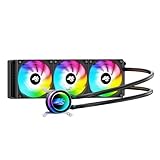
- High-Speed Ceramic Bearing Pump: Our 360mm AIO is equipped with a premium ceramic bearing water pump running at 3000 RPM, ensuring ultra-long lifespan and stable operation, offering higher lift and faster flow for maximum cooling efficiency. Our CPU cooler delivers reliable performance even under heavy workloads, keeping your system cool and stable.
- Industrial-Grade Motor for Elite Cooling: Our AIO cooler 360mm is powered by an advanced 3-phase, 4-pole motor that minimizes vibration and noise for ultra-smooth, silent operation. Our cpu water cooler accelerates heat transfer and boosts coolant flow to maximize thermal performance, ensuring greater efficiency and long-term reliability.
- Smart PWM Fan Control for Quiet Efficiency: Our water cooler CPU is equipped with PWM-controlled fans that automatically adjust their speed based on your system’s temperature, delivering optimal airflow only when needed. Running at up to 1600 RPM, these fans offer a perfect balance of high airflow and low noise, making our cpu liquid cooler ideal for gamers, creators, and power users alike.
- Exclusive 12-Channel Radiator for Superior Heat Dissipation: Our CPU liquid cooler features a 12-path water-cooled radiator with a low-resistance hydraulic design and optimized fin density, maximizing surface contact for faster heat transfer and enhanced cooling performance.
- Daisy-Chained Fans for Cleaner, Simpler Cable Management: Our 360mm aio cooler comes with pre-installed 120mm fans featuring a daisy-chain design, allowing all fans to connect through a single 4-pin PWM and 5V ARGB header—dramatically reducing cable clutter and simplifying installation.
Latency vs. throughput
Common improvements:
- More consistent frame pacing in CPU-bound scenarios.
- Reduced micro-stutter when switching from idle to burst CPU usage.
Common “no change” scenarios:
- GPU-bound games (CPU isn’t the limiter).
- Workloads already saturating many cores continuously.
Idle power and thermals
Disabling parking can increase idle CPU residency in higher C-states. That can mean a measurable watt increase and warmer idle temps, especially on systems with strong cooling.
If your priority is battery life, don’t disable core parking on battery. If your priority is thermals, test with plugged-in only and monitor your typical idle temperature for 30–60 minutes.
FAQ
Will disabling CPU core parking void my warranty?
No. You’re changing OS power management policy, not BIOS hardware settings. That said, avoid registry edits unless you’re comfortable reverting them.
Free tools Windows power users keep installed
One-click scans. No signup required.
Is it safe to disable core parking on desktop and laptop?
Generally safe on desktops. On laptops, it’s safe but can hurt battery life and raise idle temps. For laptops, many people disable core parking only for Plugged in.
Does BIOS settings affect core parking?
Not directly in the same way Windows power plans do, but BIOS power options can influence CPU power states and scheduling behavior. If your OS setting doesn’t seem to work, check for BIOS-managed performance profiles.
Why does Windows show different values after reboot?
Common causes include: another power profile becoming active, OEM utilities reapplying settings, or the setting being edited under a different scheme than the one you’re currently using.
Will this improve FPS in every game?
No. If the game is GPU-bound or already keeps the CPU busy, disabling core parking may barely change average FPS. It’s more likely to help with stutter and input responsiveness when the CPU workload is bursty.
Bottom Line
To disable CPU core parking on Windows and chase maximum performance, start with the built-in advanced power settings: set Minimum number of parked cores and Maximum number of parked cores to 0 for the power modes you care about. Then verify with powercfg or by re-checking the advanced settings UI.
If your changes don’t stick, the fix is usually policy competition: OEM power utilities, automatic plan switching, or editing the wrong power scheme. Once you eliminate that, you’ll get the predictable responsiveness that core parking can otherwise interfere with.
Quick Recap
Product prices and availability are accurate as of the date/time indicated and are subject to change. Any price and availability information displayed on Amazon at the time of purchase will apply.




