Chrome does not document a built-in browser-wide setting for turning off its native page right-click menu. The available controls depend on what you want to change: an extension can manage its own menu entries, an administrator can manage supported enterprise policies, and a site author can change behavior on their own page. These are separate control layers.
First identify which menu you mean
| Your goal | Relevant control | What Chrome’s documentation establishes |
|---|---|---|
| Manage entries added by an extension | That extension’s settings or code using the chrome.contextMenus API |
The API adds extension menu items; it does not document disabling Chrome’s native menu. Chrome contextMenus API reference |
| Remove entries from a particular third-party extension | The extension’s own settings or extension management | The API reference explains creating and removing an extension’s own items, not a universal way to remove other extensions’ entries. |
| Suppress a right-click menu on your own website | The website’s page-level behavior | This is separate from Chrome’s browser interface; the Chrome sources cited here do not establish implementation instructions. |
| Disable the native menu across Chrome | A browser setting or managed policy | The reviewed Chrome documentation did not identify a built-in setting or general enterprise policy for this. |
What Chrome extensions can control
Chrome describes its chrome.contextMenus API as a way to add items to Chrome’s context menu. An extension using it must declare the contextMenus permission in its manifest. The API supports targeting contexts such as pages, frames, selected text, links, editable fields, images, video, audio, the extension action, and tabs; document URL filters can further limit where an item appears. Chrome contextMenus API reference
As an Amazon Associate I earn from qualifying purchases.
The API also provides create() and remove() methods for managing items belonging to the extension. Those methods are not controls for Chrome’s built-in menu or for entries owned by another extension. If an unwanted item comes from an extension, look for a setting in that extension or manage the extension itself in Chrome.
What’s actually slowing this PC down?
Pick the symptom - the matching free tool is one click away.
What administrators can control
Chrome Enterprise documentation covers policies for managed browsers and users, including app and extension policies. The policy material reviewed did not identify a general policy to turn off Chrome’s native page context menu. That is a finding about the reviewed catalog, not proof that no organization-specific configuration or future policy could exist. Check the current catalog for your platform before applying an administrative change: Chrome Enterprise policy list and ExtensionSettings policy.
#1 Best Overall

- Full-Size Layout – Enjoy comfortable typing with well-spaced keys in a compact design.
- Plug-and-Play USB – Quick and easy setup; no drivers or software required.
- Chrome OS Compatible – Perfect for Acer Chromebooks and other Chrome OS devices.
- Durable Build – Designed for long-lasting performance with quality materials.
- Universal Support – Works with Windows, Chrome OS, and most USB-enabled devices.
Extension policies can govern extensions; they should not be presented as a way to disable Chrome’s native right-click menu. Use a policy only for the behavior it actually documents.
Independent reader supportYour contribution helps us test, update, and keep practical guides available for everyone.Website right-click behavior is a separate issue
A site author may want a right-click on a particular page to behave differently. That concerns the website, not a Chrome-wide setting: changing one page does not remove Chrome’s native menu everywhere. The Chrome extension and enterprise references above do not establish a reliable site-level implementation, so no code or browser-wide guarantee is offered here.
Quick Recap
Rank #3
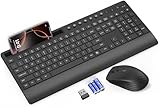
- FULL-SIZE WIRELESS KEYBOARD: Enjoy precision and quiet typing on a familiar layout with reduced noise, a palm rest, a spill-resistant design, adjustable tilt legs, and easy-access media keys
- BUILT FOR COMFORT: This ergonomic wireless keyboard features a 1.57-inch palm rest and 7° tilt legs, while the cordless silent mouse's streamlined design fits perfectly in your hand, ensuring all-day comfort and ease of use
- LONG-LASTING BATTERY LIFE: Enjoy up to 90 days of keyboard use and 30 days for the mouse with 2 AAA and 1 AA batteries (included). Smart sleep mode and an ON/OFF switch help conserve power, reducing the need for frequent battery replacements
- LESS NOISE, MORE FOCUS: Low-profile keys offer fluid, quiet typing. Silent experience in a wireless USB mouse. Get the same click feel with over 97% noise reduction, even the rubber scroll wheel glides silently
- EFFORTLESS CONTROL: The keyboard wireless includes 7 multimedia keys, 5 function keys, 12 shortcut combos, and a numeric keypad for quick navigation and data entry
Rank #2

- 【Type in Comfort & Smooth】 The foldable stand of the keyboard provides two tilt angles, which help relieve wrist pressure and increase comfort. 3mm short keystroke distance, lighter keystroke force, and standard 104 keys full size American QWERTY layout make typing more sensitive, smooth, and soft.
- 【Less Noise, More Quiet】The mouse is 100% quiet without any clicking sound. The keyboard is not super quiet, but it is more than 95% quieter than other similar keyboards, so you can without worrying about disturbing others.
- 【Lag-free, Plug & Play】2.4GHz wireless technology provides automatic frequency recognition and stable signal, plug and play, connection range up to 33ft without any delays. Cut the cord and enjoy the freedom.【𝐍𝐨𝐭𝐞】Keyboard and mouse 𝐬𝐡𝐚𝐫𝐞 𝐨𝐧𝐞 𝐫𝐞𝐜𝐞𝐢𝐯𝐞𝐫, 𝐰𝐡𝐢𝐜𝐡 𝐢𝐬 𝐬𝐭𝐨𝐫𝐞𝐝 𝐢𝐧 𝐭𝐡𝐞 𝐦𝐨𝐮𝐬𝐞.
- 【Sleep Mode Extends Battery Life】 Idle for 6 mins, the keyboard will sleep, idle for 15 mins, the mouse will sleep, by typing or double clicking any keys to wake. Saving you the trouble of changing batteries frequently. The keyboard needs 2 x AAA batteries, the mouse needs 1 x AA / 1 x AAA battery (𝐁𝐚𝐭𝐭𝐞𝐫𝐲 𝐍𝐨𝐭 𝐈𝐧𝐜𝐥𝐮𝐝𝐞𝐝).
- 【Wide Compatibility】 This wireless keyboard mouse combo is compatible with all Windows system versions, Linux, Chrome OS. Works well with computer, laptop, Chromebook, PC, desktops, TV. 【𝐍𝐨𝐭𝐞】𝐓𝐡𝐞 𝟏𝟐 𝐬𝐡𝐨𝐫𝐭𝐜𝐮𝐭𝐬 𝐚𝐫𝐞 𝐧𝐨𝐭 𝐟𝐮𝐥𝐥𝐲 𝐜𝐨𝐦𝐩𝐚𝐭𝐢𝐛𝐥𝐞 𝐰𝐢𝐭𝐡 𝐭𝐡𝐞 𝐌𝐚𝐜 𝐬𝐲𝐬𝐭𝐞𝐦.
Bottom line by situation
- Unwanted extension item: check that extension’s settings or remove/manage the extension.
- Managed workplace browser: consult the current Chrome Enterprise policy catalog for a policy that explicitly covers the desired behavior; the reviewed material did not show a general native-menu disable policy.
- Native menu on every page: Chrome’s reviewed documentation does not establish a built-in global off switch.
- Your own website: treat it as a site-level change, not a Chrome configuration.
Product prices and availability are accurate as of the date/time indicated and are subject to change. Any price and availability information displayed on Amazon at the time of purchase will apply.




