Free tools Windows power users keep installed
One-click scans. No signup required.
There is no universal winner. A GPU instance can encode faster, but it is cheaper only if the time it saves outweighs its hourly premium—and if the output meets your quality needs. Compare the total cost of producing or sending the same stream on each machine, not just the listed price per hour. For a 24/7 YouTube channel that plays uploaded videos, StreamNeo is another option: it runs the stream from the cloud without keeping your own server or computer on.
What you are paying to do
“Encoding a prerecorded stream” can mean two different workloads. First, a machine may read a video and encode it into a live feed that it sends to YouTube. Alternatively, it may create multiple output renditions before or while sending. Identify which task you need: YouTube says it automatically transcodes an ingested live stream into formats for viewers, so a sender generally does not need to produce a full multi-resolution ladder unless its production specifically requires one. YouTube’s live encoder settings describe its ingest recommendations.
As an Amazon Associate I earn from qualifying purchases.
Also distinguish a prerecorded file played out at real-time speed from a batch job that finishes encoding before broadcast. A batch encoder can finish sooner than the source duration; a live sender must sustain the outgoing feed at real-time pace for the whole stream. Price and performance comparisons only make sense when the machines are doing the same job.
Quick wins for a faster PC:
Scan for outdated or missing drivers - takes under a minuteDriver Scan →Clear out junk files and repair common Windows errorsFree Scan →Fix the driver behind crashes, sound loss and screen glitchesFind Drivers →How to calculate the cost fairly
- Define one representative workload. Use the same source file and duration, codec, resolution, frame rate, target quality or bitrate, audio, FFmpeg version, and filters on both machines.
- Measure runtime and live headroom. Record how long a completed encode takes, or verify that a live encode sustains real-time pace without dropped frames. For a broadcast, also test stability over a representative, movement-rich section.
- Calculate compute cost. For a batch encode, multiply the machine’s hourly price by the elapsed encoding time. For a continuous live stream, count the hours the instance actually runs, including idle time. Normalize the result to one completed source-video hour or one streamed hour so unlike schedules are not compared.
- Add the rest of the bill. Include storage and network transfer, plus any instance-specific or operating-system charges. AWS notes that configuration and OS affect EC2 pricing and that charges such as EBS optimization or data transfer may be additional.
- Check equivalent quality. Confirm that both outputs satisfy the same visual-quality requirement. A faster hardware encode is not a genuine saving if its output is unacceptable for your use.
Use current prices for your provider, region, operating system, instance type and pricing model. Continuous operation can make idle time and always-on charges important; a scheduled, short-lived workload can have different economics. AWS’s EC2 pricing page is one place to check current AWS charges, but the calculation method applies to other providers too.
#1 Best Overall
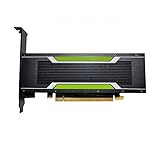
- P4 8G Professional Computing Video Codec Encoding Computing GPU Graphics Card
What the AWS GPU-versus-CPU benchmark shows—and does not
AWS’s January 4, 2024 Compute Blog article, “Optimizing video encoding with FFmpeg using NVIDIA GPU-based Amazon EC2 instances”, compares CPU x264/x265 encoding with NVIDIA NVENC for H.264 and H.265 using FFmpeg 6.0. Its tests include batch and live-streaming cases. In its particular live test, AWS encoded a 4K source to 1080p, 720p, 480p, 360p and 160p outputs; it reports that a g4dn.xlarge sustained up to four parallel encodings, while CPU instances sustained at most one parallel stream in the tested configuration.
The article gives benchmark-era example hourly figures of $0.587 for g4dn.xlarge and $2.1888 for c6i.12xlarge, which could nearly sustain three simultaneous streams in that test. These are AWS’s published figures for its benchmark context, not current price quotes, not independent measurements and not a cost estimate for one specific prerecorded YouTube stream. The multi-output, parallel workload is especially important: its result does not establish that a GPU is the cheaper choice for a single stream.
Rank #2

- Chipset: NVIDIA GeForce GT 1030
- Video Memory: 4GB DDR4
- Boost Clock: 1430 MHz
- Memory Interface: 64-bit
- Output: DisplayPort x 1 (v1.4a) / HDMI 2.0b x 1
The benchmark is useful evidence that hardware acceleration can change throughput and parallel capacity for some encoding workloads. It is not a substitute for testing your file, settings and acceptable quality. AWS also notes that CPU encoding can suit cases where output file size is critical; hardware encoding should not automatically be treated as a quality-equivalent replacement for software encoding.
Recommended Free Tools
When a GPU instance or CPU VPS makes sense
| Consideration | GPU instance | CPU VPS |
|---|---|---|
| Encoding workload | Worth testing when supported hardware encoding can reduce processing time or handle the required concurrency. | Worth testing when CPU encoding can meet the real-time requirement and the quality or file-size target. |
| Setup | Requires compatible GPU hardware, drivers and an FFmpeg build with NVIDIA acceleration enabled. | Avoids GPU-specific setup, though FFmpeg configuration and monitoring still matter. |
| Cost decision | Compare measured runtime and complete charges against the CPU alternative; an hourly premium may or may not be offset by faster encoding. | Compare the full runtime bill, including any continuous idle time and ancillary charges. |
| Evidence for your stream | Do not assume AWS’s multi-resolution benchmark predicts your single-stream result. | Do not assume “CPU VPS” performance without testing the selected instance and exact workflow. |
NVIDIA documents FFmpeg use of NVENC for encoding and NVDEC for decoding, with GPU-side scaling examples. That path depends on compatible hardware, drivers and an FFmpeg build compiled with NVIDIA acceleration. AWS also offers VT1 video-transcoding instances; its product page advertises up to 30% lower cost per stream than selected G4dn instances and up to 60% lower than selected C5 instances for its stated live-encoding scenarios. Those are AWS vendor claims for particular scenarios, not guaranteed savings for your workflow. AWS VT1 details.
Rank #3

- Robust 4GB Memory & Quad Display Ready: Equipped with 4GB of fast GDDR5 memory to smoothly handle daily graphics tasks. Features four built-in HDMI ports, enabling a seamless quad-monitor setup directly out of the box—perfect for multi-tasking offices, digital signage, or trading desks.
- Plug-and-Play Installation & Wide Compatibility: Utilizes a standard PCI Express interface for broad compatibility with most desktop PCs. Offers straightforward plug-and-play installation and stable driver support for modern Windows and Linux operating systems, ensuring a hassle-free setup.
- Quiet, Cool & Compact Design: Engineered with a silent fan and efficient cooling system for near-silent operation, making it ideal for noise-sensitive environments. Its low-profile design fits easily into small form factor cases, with both half-height and full-height brackets included for flexible installation.
- Enhanced Multimedia & Everyday Performance: Delivers smooth 1080P video playback and supports hardware-accelerated decoding, offering an excellent experience for home theater PCs (HTPC). Provides capable performance for everyday applications, multimedia tasks.
- Complete Package & Reliable Support: Includes the graphics card, both low-profile and standard brackets, a quick start guide, and screwdriver, which make it simple and quick setup process.
Configure and test the YouTube feed
- Set up the broadcast in YouTube Live Control Room. Obtain the stream URL and stream key there, then enter them in the encoder. Treat the key as a password; do not publish it or share it in logs or screenshots.
- Choose an ingest protocol and codec. YouTube’s current encoder settings list RTMP/RTMPS and H.264, H.265/HEVC and AV1 options. YouTube recommends RTMPS; confirm the supported choice for your encoder and target.
- Match the output to the requirement. Set the intended resolution and frame rate, using a supported frame rate up to 60 fps. Use constant bitrate encoding and a two-second keyframe interval; YouTube says the interval should not exceed four seconds. Check YouTube’s live settings for the current bitrate recommendation for your chosen output rather than treating one bitrate as universal.
- Test under representative conditions. Include audio and movement similar to the actual video, monitor stream health and allow upload headroom. YouTube’s recommendations are for the outgoing feed and do not prescribe the source file’s resolution or encoding.
- Check archive expectations. YouTube says streams under 12 hours are automatically archived. Do not assume the same automatic archive outcome for a longer continuous stream.
YouTube’s verified-encoder listing describes AJA’s PlayToStream function as supporting scheduled prerecorded media sent directly to YouTube Live without a computer. That establishes one prerecorded-media workflow, but does not show that buying this hardware is an economical substitute for rented cloud compute.
What can change the answer
- One stream versus several: GPU throughput may matter more when encoding multiple outputs or concurrent streams. Keep the number and type of outputs identical in the comparison.
- Always-on versus scheduled: A machine billed through idle hours can cost more than one started only for a defined encoding window.
- Quality and file-size targets: A fast encode that fails your quality target is not comparable. Include visual review as well as speed.
- Operational effort: Account for driver and FFmpeg setup, restart behavior, monitoring, and recovery—not only compute charges.
- Changing prices: Regional rates, operating systems, commitments, storage and transfer charges can change the result. Recalculate using the actual deployment region and pricing model.
Common problems and fixes
- The GPU is not used: Check hardware compatibility, drivers and whether the installed FFmpeg build includes NVIDIA support; use FFmpeg’s available encoders to confirm the intended NVENC encoder is present.
- The live encode falls behind: Measure real-time performance with the actual filters and output settings. Reduce unnecessary processing or test a larger/suitable instance, then repeat the same quality check.
- The GPU result looks worse: Revisit encoder settings and compare at the same target quality. Do not count speed as a win until the output meets the requirement.
- YouTube reports poor stream health: Check the selected bitrate, network upload headroom, frame rate and keyframe interval against YouTube’s current recommendations; test again with representative motion and audio.
- The broadcast disconnects: Check the encoder process, network path and stream key, then verify recovery behavior before relying on the setup for continuous operation.
- The bill exceeds the estimate: Reconcile billed runtime, idle hours, storage and transfer against the original calculation; also check instance and OS-specific charges.
Or let it run in the cloud
If the goal is a YouTube channel that keeps uploaded videos playing 24/7, rather than managing your own FFmpeg server, StreamNeo is a hosted option: upload a recording or build a playlist, add your YouTube stream key once, and go live. It loops uploaded videos from the cloud; it does not broadcast from a camera. Your computer and home connection do not have to stay on. Each slot supports the uploaded quality up to 4K 60fps at one flat price per slot, with automatic recovery if YouTube drops the stream. The first day is free with no card, one free day per account. The Monthly price is $9.99 per month.
Quick Recap
Best Value

- The Geforce 210 is with a 589MHz core clock,up to 1066Mbps effective,perfect for working,video and photo editing,allows good fluency,which can effectively meet your needs.
- PCI Express 2.0 interface,offers compatibility with a range of systems. Also includes VGA and HDMI outputs for expanded connectivity,supports up to 2 monitors.Good for adding a simple low profile gpu to a small form factor pc.
- The computer graphics cards is small in size and saves more space,easy to install,plug and play,you can build a compact PC system easily for slim/ITX chassis.
- This low profile video card is good value option for entry level, if you just want basic upgrade graphics and daily simple work for your computer, or not be AAA gamer.(include low profile bracket)
- No external power supply and the all-solid-state capacitor keeps low power consumption and high performance,supports Windows 10/8/7/Vista/XP(not compatible with windows 11).
Rank #4

- Advanced Intel Arc Performance: Intel Arc B570 GPU with 10GB GDDR6 memory on 160-bit bus delivers excellent 1440p gaming and content creation performance
- Next-Gen Xe2-HPG Architecture: Features Intel Xe2-HPG architecture with Xe Matrix Extensions (XMX) for advanced AI acceleration and upscaling technology
- High Clock Speeds: GPU clock speed of 2600 MHz with 19 Gbps memory speed ensures smooth, responsive gaming experiences
- Intel XeSS 2 Technology: Supports Intel Xe Super Sampling 2 for enhanced performance and image quality through AI-powered upscaling
- Efficient Dual Fan Cooling: Dual striped axial fans with 0dB silent cooling technology provide optimal thermal performance during intense gaming sessions
Start your free StreamNeo day.
Product prices and availability are accurate as of the date/time indicated and are subject to change. Any price and availability information displayed on Amazon at the time of purchase will apply.
Do these 3 things before closing this tab:
1Scan for outdated or missing drivers - takes under a minute2Repair Windows errors before they cause bigger problems3Fix the driver behind crashes, sound loss and screen glitches



