What’s actually slowing this PC down?
Pick the symptom - the matching free tool is one click away.
When your Chromecast with Google TV (HD) can’t use your TV power button, it’s almost always a problem with HDMI-CEC—either it’s disabled on the TV, blocked by an HDMI setting, or the Chromecast isn’t completing the TV control setup.
The goal of this guide is simple: get TV power working again by walking through the exact settings on both the Chromecast and your TV, then handling the most common edge cases (wrong HDMI port, AVR/soundbar in the chain, CEC quirks, and remote pairing issues).
As an Amazon Associate I earn from qualifying purchases.
How Chromecast TV power control works (HDMI-CEC)
Chromecast with Google TV (HD) uses HDMI-CEC to send power commands to your TV through the HDMI connection. On most TVs, this is enabled via a feature commonly named something like:
- Samsung: Anynet+ (HDMI-CEC)
- LG: Simplink (HDMI-CEC)
- Sony: Bravia Sync / BRAVIA Sync
- Panasonic: VIERA Link
- Sharp: Aquos Link
- TCL/Hisense: HDMI-CEC (often just called HDMI CEC)
- Vizio: CEC (sometimes under System or Settings > CEC)
If CEC is off, or your TV blocks CEC from that specific HDMI port, the Chromecast remote typically won’t be able to power the TV.
#1 Best Overall

- 【Compatibility】Voice replacement for white Google-Chromecast-Remote, for Chromecast with Google TV Remote, for Google TV HD/4K Streaming Stick, for Google TV Streamer (4K). Only for Snow Chromecast Google!!
- 【Incompatible Devices】NOT Compatible with Google Chromecast lst Gen, NOT for Google Chromecast 2nd Gen, NOT for Google Chromecast 3rd Gen, NOT for Chromecast Ultra, NOT for Chromecast Audio
- 【Easy to Pair】Pair your new remote ①Press the pairing button on your device; ②Press and hold the"Back" and "Home" buttons simultaneously for 10 seconds until the LED on your new remote starts flashing
- 【Voice Control】Pressing the voice button on the remote, you can use voice to search for specific shows, or by mood, genre, actress, and more. Talk to Google and say, "What should I watch?" And use the remote to control the volume switch inputs, play music, and get answers on-screen
- 【Preferred Features】The replacement remote for Google Chromecast TV has 2 shortcut buttons for popular streaming channels,and needs to install new 2*AAA batteries to use(batteries are NOT included in package)
Quick checks before changing settings
Start with the fastest validations. These often fix the issue in minutes.
- Try a different HDMI port on the TV (prefer one labeled HDMI, ARC/eARC, or CEC-friendly if your TV marks ports).
- Confirm the Chromecast is on and you can control Google TV normally.
- Unplug/replug the HDMI cable at both ends (Chromecast and TV).
- Power-cycle both devices: turn off TV, unplug Chromecast power for 30 seconds, then plug back in and test again.
- Remove any HDMI switches or splitters temporarily—CEC support is inconsistent across them.
Fix on Google TV (Chromecast) side
Even when HDMI-CEC is working, Google TV still needs to successfully set up TV controls.
Re-run TV power setup in Google TV
On your Chromecast with Google TV (HD), do this from the settings that control your TV remote features.
- Open Settings on the Chromecast.
- Select Remotes & Accessories.
- Choose Set up TV controls.
- Select your TV brand when prompted.
- Follow the on-screen prompts to test power and volume.
If you previously selected the wrong TV brand, the setup can partially work (volume or mute) but fail power entirely.
Check that your remote is the one paired for TV controls
If you use multiple remotes (for example a controller and the original Google TV remote), make sure the one you’re using is the one configured for TV controls.
- Go to Settings > Remotes & Accessories.
- Confirm the active remote shows as connected/paired.
- Test the TV Power button again.
Fix on your TV (HDMI-CEC / Bravia Sync / Anynet+ / Simplink / etc.)
Most Chromecast power control failures are caused by HDMI-CEC being disabled on the TV, misconfigured, or restricted to certain HDMI ports.
Rank #2

- 【Compatibility】Replacement for white Google-Chromecast-Remote, for Snow Chromecast with Google TV HD/4K & Google TV Streamer 4K.
- 【Voice Search】Pressing the voice button on the remote, not only can you use voice search to find your favourite entertainment, but you can also use voice to control the volume, switch inputs, play music, and get answers on-screen
- 【EASY TO PAIR】Pair your new remote in just two steps: ①. Press the pairing button on your device; ②. Press and hold the Back and Home buttons simultaneously for 10 seconds until the LED on your new remote starts flashing
- 【BATTERIES COMPATIBLE】Insert 2 * AAA batteries. (Package not included batteries)
- 【FEATURES】32ft Range, 0.2s Response, 120K+ Clicks Tested. Features Anti-Slip Dot Design & Multi-Angle Control for Stable Operation.
Enable HDMI-CEC on your TV
Use your TV’s settings menu. The exact path varies, but the feature name usually includes CEC.
The Tool Desk
Outbyte PC Repair FREEClear out junk files and repair common Windows errorsFree Scan →Outbyte Driver Updater FREEScan for outdated or missing drivers - takes under a minuteDriver Scan →- Open your TV Settings.
- Find External Inputs, Connections, System, or General.
- Enable HDMI-CEC (or the brand equivalent like Anynet+ / Simplink / Bravia Sync).
- Save the setting and fully power-cycle the TV.
After enabling, wait 1–2 minutes, then retest Chromecast power control.
Look for “CEC from standby” and “TV auto power” settings
Some TV models have extra options that affect whether CEC commands work while the TV is sleeping.
- Power on via HDMI / Auto Power On
- Device auto power off
- HDMI-CEC standby
Enable them if you see the options. If your TV offers both “device control” and “system audio,” prioritize “device control.”
Brand-specific steps (Samsung, LG, Sony, TCL/Hisense, Vizio)
These are the most common TV menu names you’ll see when fixing HDMI-CEC for Chromecast.
Crashes, No Sound, or Screen Glitches?
Random freezes, missing sound and display glitches usually trace back to one bad driver. Find and replace yours safely.Free scan · under a minuteWindows Errors? Fix Them Before They Spread
Repair common Windows errors and clear accumulated junk for a smoother, more stable PC - no reinstall needed.Free scan · no reinstallSamsung (Anynet+)
- Open Settings.
- Select General > External Device Manager.
- Choose Anynet+ (HDMI-CEC).
- Set it to On.
- Power-cycle the TV, then test Chromecast Power.
LG (Simplink / HDMI-CEC)
- Open Settings.
- Go to General > External Devices.
- Enable Simplink (HDMI-CEC).
- Confirm Device Connection or related HDMI-CEC controls are enabled.
- Power-cycle the TV and retest.
Sony (BRAVIA Sync)
- Open Settings.
- Select Watching TV > External Inputs (wording varies).
- Find BRAVIA Sync settings or BRAVIA Sync.
- Enable BRAVIA Sync.
- Power-cycle and test Chromecast power control.
TCL / Hisense (HDMI CEC)
- Open Settings.
- Go to Channels & Inputs or External Devices.
- Enable CEC or HDMI-CEC.
- If there’s a port selector, choose the HDMI port where Chromecast is plugged in.
- Power-cycle and retest.
Vizio (CEC)
- Open Settings.
- Go to System > CEC.
- Set CEC to On.
- Enable the option that allows Device Control (if present).
- Power-cycle and test again.
HDMI port and wiring gotchas
CEC reliability depends heavily on the HDMI chain you’re using.
Rank #3

- 【COMPATIBILITY】 Voice Remote Replacement for Google TV Streamer 4K Remote, for Chromecast with Google TV Remote(4K/HD).
- 【VOICE INTERACTION】Control your entertainment hands-free with Google Chromecast Remote—powered by voice interaction. Just speak to search shows, adjust volume, or launch apps instantly.
- 【QUICK PAIR】Quick 2-Step Pairing①Press the button on the back of your Google device ②Hold "Back" + "Home" on the remote for 10 seconds until the LED flashes.
- 【SHORTCUT KEYS】Upgrade your streaming experience with replacement remote featuring dedicated YouTube and Netflx buttons.
- 【RAPID RESPONSE】26 feet long-distance remote control, 0.2 seconds fast response, 50,000 times presses for durability, requires 2 * AAA batteries. (Batteries not included in package)
Avoid the “wrong” HDMI path (soundbars, AVRs, extenders)
If Chromecast is connected through an AVR/soundbar or an HDMI extender/switch, CEC can be lost or partially supported.
- Test Chromecast directly into the TV if possible.
- If you must use a soundbar/AVR, check that the receiver also has HDMI-CEC/BRAVIA Sync/Anynet+/Simplink enabled.
- Some HDMI switches explicitly disable CEC—remove them during troubleshooting.
ARC/eARC ports sometimes behave differently
ARC/eARC ports often have special HDMI handling. If your Chromecast power control fails only on one port, try another.
HDMI signal settings that can interfere
Some TVs add processing options that can break CEC timing. If you see these settings, temporarily disable them for testing:
- HDMI “enhanced format,” “HDMI deep color,” or unusual video modes
- HDMI “Ultra HD,” “4K @ 60” modes that require special negotiation
- Any “HDMI control” set to off-per-port
Remote pairing and button behavior checks
Sometimes power control fails because the remote isn’t actually sending a TV command, or the TV is rejecting it.
Test the power button while the TV is on
If power works when the TV is already on, but not from standby, the TV’s standby-CEC setting is likely disabled.
- Turn the TV on.
- Press Chromecast remote Power.
- If it turns off, re-check TV options like “CEC from standby” or “device auto power on.”
Check for remote button mapping conflicts
If your remote has custom settings (for example, controlling a different device), power control can be mapped elsewhere.
Rank #4
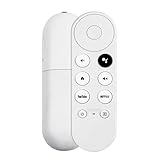
- 【Voice-Enabled Remote】Equipped with built-in voice functionality, this remote lets you quickly find favorite content with simple voice commands. Just press the microphone button to search shows by title, mood, genre, or actor—even ask "What should I watch?" You can also control volume, switch inputs, play music, and get on-screen answers via voice.
- 【Easy Pairing】Pair your remote in two steps: ① Press the pairing button on your device. ② When "Start Pairing" shows on screen, press and hold the Back and Home buttons until the remote’s LED flashes, then release—your remote is ready to use. If pairing fails, repeat steps or add via TV’s "Remote & Accessories" > "Add a new remote."
- 【Wide Compatibility】This voice remote works seamlessly with white Chromecast Snow devices, Compatible with Google Chromecast TV, Compatible with Google TV HD, including models G9N9N, GA01920-US, GA01409-US, GA01919-US, GA01923-US, GA02463-US, and GA02464-US. Note: Package includes remote and user manual only—Chromecast/devices not included.
- 【Durable Build】Crafted with durable ABS material and an upgraded chip, this Chromecast 4K Snow replacement remote matches the original’s functionality and performance. It offers a comfortable grip, stable signal, and requires 2xAAA batteries (not included).
- 【Important Notice】This remote works *only* with Chromecast devices with built-in TV—not Compatible with Google TV streamers, nor TCL/Hisense/ONN TVs. Only one remote can pair at a time. Includes voice remote only (Chromecast device and AAA batteries not included).
- In Google TV: Settings > Remotes & Accessories.
- Review TV controls configuration.
- Re-run Set up TV controls if anything looks mismatched.
If power control still fails: advanced troubleshooting
If the basics don’t fix it, use a systematic approach to isolate whether the problem is Chromecast, the TV, or the HDMI path.
Factory reset only the TV control setup (reconfigure)
Depending on the Google TV version, you may see an option to reset or re-learn TV controls.
- Go to Settings > Remotes & Accessories.
- Open Set up TV controls.
- If available, choose an option to reset or remove TV control settings before setting them up again.
Power-cycle order matters
Try this consistent sequence:
- Turn the TV off.
- Unplug Chromecast power for 30 seconds.
- Turn TV on and wait until fully booted.
- Plug Chromecast power back in.
- After Google TV loads, go to Remotes & Accessories > Set up TV controls and test power.
Update software on both devices
HDMI-CEC handling improves over time. Update when you can.
- On Chromecast: Settings > System > About > System update.
- On TV: update firmware from the TV’s Software Update menu.
Then power-cycle and retest.
Try a different Chromecast remote (or remote batteries)
Low battery can make button presses inconsistent, and you’ll miss the CEC command. Replace the batteries (if your model uses removable cells) and test again.
Independent reader supportYour contribution helps us test, update, and keep practical guides available for everyone.Alternatives to get TV power control working
If CEC just won’t behave with your exact TV model, you still have options.
Quick wins for a faster PC:
Clear out junk files and repair common Windows errorsFree Scan →Scan for outdated or missing drivers - takes under a minuteDriver Scan →Use an IR universal remote for TV power
Many universal remotes or TV remotes can control power via IR directly, bypassing HDMI-CEC limitations. You won’t need Chromecast to send CEC commands.
Best Value

- Voice search function:Press the for Google Assistant button on the remote to use your audible to find your favorite content, control volume, switch inputs, play music, and get answers, quickly search thousands of popular channels, and play entertainment by voice.
- Sensing Distance: Excellent response between the new G9N9N remote control and the TV with an optimal distance of 5 meters. Maximum length is 10 meters.
- High quality:The G9N9N Replacement telecontrol Control is made of high quality ABS with no odor, lightweight and ergonomic design makes it very comfortable with soft and very responsive buttons. Combining the functionality and performance of the original remote control, with all the basic buttons and functions you can easily control your for Google Chromecast 4K Snow with a stable signal and comfortable grip.
- Easy pairing:Press the Chromecast button to turn on pairing mode and notify you via the TV screen. Next press and hold the BACK and HOME buttons at the same time until the light on the remote starts blinking, release the buttons when the light comes on and the remote pairing is complete.
- Applicable models:G9N9N Replacement telecontrol for Chromecast (for Google TV), Chromecast for Google TV, for GA01409-US, GA01920-US, GA01923-US, GA01919-US, GA02463-Us, GA02464-US requires Chromecast (for Google TV).
Control power with a smart plug (works even without CEC)
A smart plug won’t be as elegant (it removes real standby behavior), but it’s reliable. Use it with caution: some TVs may not like frequent power cycles.
Use a home automation controller
If your setup supports it (Home Assistant, Google Home routines, etc.), you can trigger TV power using smart plugs, IR blasters, or compatible TV APIs—again, not depending on HDMI-CEC.
Common mistakes
- Leaving HDMI-CEC off on the TV while configuring Chromecast TV controls.
- Using an HDMI switch or extender during setup.
- Assuming volume working means power will too. Some TVs accept volume/mute CEC but block power from standby.
- Not power-cycling after CEC changes. Many TVs apply CEC settings only after reboot.
- Using the wrong HDMI port (especially when CEC is port-specific).
FAQs
Why does my Chromecast control volume but not TV power?
That usually means partial HDMI-CEC compatibility. Your TV may allow audio/remote commands but block power from standby, or it may restrict power commands per HDMI input. Re-check standby-CEC and port-specific CEC settings.
Do these 3 things before closing this tab:
1Clear out junk files and repair common Windows errors2Fix the driver behind crashes, sound loss and screen glitches3Repair Windows errors before they cause bigger problemsDoes the Chromecast with Google TV (HD) need a specific HDMI port to control power?
Usually it doesn’t, but some TVs treat CEC differently by port. If power doesn’t work on one HDMI input, test another HDMI port on the TV.
Can I fix this if I’m using a soundbar or AVR?
Often, yes. Enable HDMI-CEC on the soundbar/AVR too (and test temporarily by connecting Chromecast directly to the TV to confirm whether the audio device chain is breaking CEC).
What if HDMI-CEC is already enabled, but nothing changes?
Re-run Settings > Remotes & Accessories > Set up TV controls on Chromecast, then power-cycle both devices in a consistent order. If that fails, update firmware and test a direct HDMI connection without switches/extenders.
Bottom Line
If your Chromecast with Google TV (HD) can’t use TV power, the fix is usually to get HDMI-CEC fully enabled and then re-learn TV controls in Google TV. Start by testing a different HDMI port and power-cycling after you change CEC settings.
Recommended Free Tools
If CEC remains unreliable due to your TV or HDMI setup (especially with soundbars/AVRs or switches), switch tactics: reconfigure TV controls, update firmware, and use a universal remote or smart plug/IR solution as a dependable fallback.
Quick Recap
Product prices and availability are accurate as of the date/time indicated and are subject to change. Any price and availability information displayed on Amazon at the time of purchase will apply.




