Choose Chrome Reading Mode when you want to simplify a webpage you have open in Chrome right now. Choose Instapaper when you want to save articles and return to them later, including offline. They solve different parts of the reading problem, so neither is a universal winner.
What is the main difference?
Chrome Reading Mode changes how an eligible page currently open in Chrome is displayed. Instapaper is a read-it-later service: you collect web content, such as articles, blog posts, videos, and long emails, then return to it on another device or offline.
As an Amazon Associate I earn from qualifying purchases.
Google’s April 7, 2026 announcement describes Chrome’s full-page view as an immersive, text-focused way to remove visual distractions. That does not make it a saved-article library: the cited Chrome documentation describes reading and customizing the current page, while Instapaper explicitly describes saving content for later.
PC Slower Than It Used to Be?
A free scan shows the junk files, broken settings and background clutter dragging Windows down - then fixes them in one click.Free scan · Windows 10 & 11Crashes, No Sound, or Screen Glitches?
Random freezes, missing sound and display glitches usually trace back to one bad driver. Find and replace yours safely.Free scan · under a minuteHow do their reading features compare?
| Need | Chrome Reading Mode | Instapaper |
|---|---|---|
| Read now or later | Simplifies a page already open in Chrome. | Saves web content to read later. |
| Offline reading | The cited Google documentation does not describe a saved-article library or offline archive. | Instapaper says saved content can be read offline and across devices; exact feature availability can vary by device configuration. |
| Reading controls | Side-panel controls include typeface, font size, background color, line spacing, and letter spacing. Full-screen view includes controls to show or hide links and images. | The cited sources describe a clean reading experience but do not specify an equivalent set of typography controls. |
| Listening | On computer, Chrome documents read-aloud, voice selection, and playback-speed controls. | Instapaper Premium lists mobile text-to-speech playlists. These are different device contexts, not a direct quality comparison. |
| Paid option | The cited Google feature documentation does not identify a separate Reading Mode subscription. | Premium is optional and lists features including text-to-speech playlists, speed reading, and an ad-free website. Current pricing and the full free-versus-paid boundary are not established here. |
When Chrome Reading Mode is the better choice
Use Chrome Reading Mode if you mostly read in Chrome and want a quick way to make the page in front of you easier to focus on. Its typography options are useful when you want to adjust the presentation, while computer read-aloud can help if listening suits the moment better than reading.
#1 Best Overall
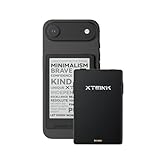
- 3.7" Pocket eBook Reader, Only Approx. 58g: Take your library anywhere with XTEINK X3, a compact 3.7-inch pocket eReader designed for true everyday portability. At only approx. 58g and 5.1mm thin, it slips easily into your pocket, bag, or daily carry setup for reading during commutes, travel, and quick breaks.
- Paper-feel E-Ink Reading, Made for Focus: Enjoy a clean, paper-feel E-Ink reading experience that feels gentle on the eyes and helps you stay focused. No constant notifications, no social media distractions—just a simple mini eReader built for books, manga, notes, and quiet reading time.
- Gyroscope Page-Turn + Physical Buttons: Read comfortably with one hand using gyroscope page-turn control and responsive physical buttons. Whether you are standing, commuting, or relaxing, XTEINK X3 makes page turning smoother, easier, and more intuitive than traditional touch-only reading devices.
- Personalized Features & Long-Lasting Battery:Switch between reading, photos, clock, and more for a customizable experience beyond traditional eReaders. Designed for everyday portability, XTEINK X3 delivers up to 10 hours of reading time, supporting about a week of casual reading on a single charge. For safe charging, use a locally certified charger and keep conductive objects away from the charging pin contacts during charging to help prevent short circuits.
- Magnetic-Ready Design with Pogo-Pin Charging: XTEINK X3 includes an Adhesive Metal Ring to enable magnetic attachment on compatible non-magnetic phone cases or surfaces, expanding compatibility for everyday use. The magnetic pogo-pin charging design maintains a clean, minimalist appearance while supporting convenient daily charging.
On computer, Google documents two reading views: a side panel with typography settings and a full-screen view with read-aloud and controls for links and images. Reading Mode is not available on every website, so an unsupported page may not offer the view you expect.
When Instapaper is the better choice
Pick Instapaper if the main problem is not how a page looks, but that you have found something worth reading and cannot get to it yet. Saving it gives you a place to return to later, and Instapaper says saved content is available offline and across devices.
Rank #2

- 3.7" Pocket eBook Reader, Only Approx. 58g: Take your library anywhere with the XTEINK X3, a compact 3.7-inch lightweight eReader designed for everyday portability. Weighing approximately 58g and measuring just 5.1mm thin, it easily slips into your pocket or bag, making it ideal for reading during commutes, while traveling, or during quick breaks.
- Paper-feel E-Ink Reading, Made for Focus: Enjoy a clean, paper-feel E-Ink reading experience that feels gentle on the eyes and helps you stay focused. No constant notifications, no social media distractions—just a simple mini eReader built for books, manga, notes, and quiet reading time.
- Gyroscope Page-Turn + Physical Buttons: Read comfortably with one hand using gyroscope page-turn control and responsive physical buttons. Whether you are standing, commuting, or relaxing, XTEINK X3 makes page turning smoother, easier, and more intuitive than traditional touch-only reading devices.
- Personalized Features & Long-Lasting Battery:Switch between reading, photos, clock, and more for a customizable experience beyond traditional eReaders. Designed for everyday portability, XTEINK X3 delivers up to 10 hours of reading time, supporting about a week of casual reading on a single charge. For safe charging, use a locally certified charger and keep conductive objects away from the charging pin contacts during charging to help prevent short circuits.
- Magnetic-Ready Design with Pogo-Pin Charging: XTEINK X3 includes an Adhesive Metal Ring to enable magnetic attachment on compatible non-magnetic phone cases or surfaces, expanding compatibility for everyday use. The magnetic pogo-pin charging design maintains a clean, minimalist appearance while supporting convenient daily charging.
If you are considering Premium for features such as mobile text-to-speech playlists, speed reading, or an ad-free website, check Instapaper’s current plan details before subscribing. The cited feature information does not establish current pricing or exactly which capabilities are included in every free or paid configuration.
Quick wins for a faster PC:
Fix the driver behind crashes, sound loss and screen glitchesFind Drivers →Clear out junk files and repair common Windows errorsFree Scan →Can you use both?
Yes. They can fit different moments in the same reading routine: use Instapaper to collect something for later, and use Chrome Reading Mode to simplify a supported page you are reading in Chrome. The cited product descriptions do not establish that one replaces the other across all devices or workflows.
Rank #3

- 𝗕𝗥𝗢𝗪𝗦𝗘 𝗔𝗡𝗗 𝗥𝗘𝗔𝗗 𝗘𝗕𝗢𝗢𝗞𝗦 𝗜𝗡 𝗙𝗨𝗟𝗟 𝗖𝗢𝗟𝗢𝗨𝗥 - Read in colour with a 6” E Ink Kaleido 3 display to enjoy eBook covers, comics, graphic novels, illustrations, and more.
- 𝗡𝗢 𝗠𝗢𝗥𝗘 𝗛𝗨𝗡𝗧𝗜𝗡𝗚 𝗙𝗢𝗥 𝗛𝗜𝗚𝗛𝗟𝗜𝗚𝗛𝗧𝗘𝗥𝗦 - With multiple colours available at the touch of a finger, you can highlight your eBooks. Add, erase, or change colours as you go, and easily see all your highlights by chapter at a glance
- 𝗬𝗢𝗨𝗥 𝗘𝗬𝗘𝗦 𝗪𝗜𝗟𝗟 𝗧𝗛𝗔𝗡𝗞 𝗬𝗢𝗨 – ComfortLight PRO automatically reduces blue light throughout the day, and you can personalize your reading settings via font size, line spacing, or even Dark Mode
- 𝗪𝗔𝗧𝗘𝗥𝗣𝗥𝗢𝗢𝗙 𝗙𝗢𝗥 𝗥𝗘𝗔𝗗𝗜𝗡𝗚 𝗔𝗡𝗬𝗪𝗛𝗘𝗥𝗘 – Full waterproof protection and meets requirements of IPX8 rating – waterproof for up to 60 minutes in up to 2 metres of water
- 𝗕𝗘𝗧𝗧𝗘𝗥 𝗕𝗬 𝗗𝗘𝗦𝗜𝗚𝗡 - Made with recycled and ocean-bound plastic and repairability to waterproof protection
How to open Chrome Reading Mode on a computer
- Open a webpage in Chrome.
- Right-click the page and select Open in reading mode. Google announced this full-page option on April 7, 2026; availability can depend on the website.
- Adjust the available view controls. In the side panel, change typeface, font size, background color, line spacing, or letter spacing. In full-screen view, use the documented controls for read-aloud, voice, playback speed, and showing or hiding links and images.
Google notes that side-panel appearance settings apply to text in that panel, not to other Chrome content or websites generally. The instructions above are for computer use; they do not establish the same controls on every platform.
Independent reader supportYour contribution helps us test, update, and keep practical guides available for everyone.Verdict: decide whether you need focus or a reading queue
For a cleaner view of a page that is already open, Chrome Reading Mode is the more direct fit. For saving things to read later and accessing them offline across devices, Instapaper is the more relevant tool. If you need both, their distinct purposes make using them together reasonable.
Quick Recap
Best Value

- 𝗕𝗥𝗢𝗪𝗦𝗘 𝗔𝗡𝗗 𝗥𝗘𝗔𝗗 𝗘𝗕𝗢𝗢𝗞𝗦 𝗜𝗡 𝗙𝗨𝗟𝗟 𝗖𝗢𝗟𝗢𝗨𝗥 - Read in colour with a 6” E Ink Kaleido 3 display to enjoy eBook covers, comics, graphic novels, illustrations, and more.
- 𝗛𝗜𝗚𝗛𝗟𝗜𝗚𝗛𝗧 𝗜𝗡 𝗖𝗢𝗟𝗢𝗨𝗥 - With multiple colours available at the touch of a finger, you can highlight your eBooks. Add, erase, or change colours as you go, and easily see all your highlights by chapter at a glance.
- 𝗘𝗔𝗦𝗬 𝗢𝗡 𝗬𝗢𝗨𝗥 𝗘𝗬𝗘𝗦 - ComfortLight PRO automatically reduces blue light and personalize your reading settings via font size, line spacing, or even Dark Mode
- 𝗪𝗔𝗧𝗘𝗥𝗣𝗥𝗢𝗢𝗙 𝗗𝗘𝗦𝗜𝗚𝗡 - Full waterproof protection and meets the requirements of IPX8 rating – waterproof for up to 60 minutes in up to 2 metres of water.
- 𝗕𝗘𝗧𝗧𝗘𝗥 𝗕𝗬 𝗗𝗘𝗦𝗜𝗚𝗡 - Made with recycled and ocean-bound plastic and repairability to waterproof protection.
Rank #4

- 3.7" Pocket eBook Reader, Only Approx. 58g: Take your library anywhere with XTEINK X3, a compact 3.7-inch pocket eReader designed for true everyday portability. At only approx. 58g and 5.1mm thin, it slips easily into your pocket, bag, or daily carry setup for reading during commutes, travel, and quick breaks.
- Secure Magnetic Attachment: Designed exclusively for the XTEINK X3 E-book Reader, the built-in magnetic design keeps the case firmly attached for stable everyday use. Whether you're reading at home, commuting, or carrying it in your bag, it stays firmly in place for added convenience.
Product prices and availability are accurate as of the date/time indicated and are subject to change. Any price and availability information displayed on Amazon at the time of purchase will apply.
Recommended Free Tools




