Brawl Stars is built for mobile, but many players prefer the larger screen, steadier controls, and smoother performance a PC can offer. While there is no traditional Windows or macOS version from Supercell, you can still play it on a computer through supported Android-based options, most commonly a reputable emulator.
The main concern is choosing a safe setup. Some downloads that claim to offer “PC versions” of Brawl Stars can be outdated, unofficial, or risky, so it is better to use trusted platforms, install the game through legitimate app stores, and avoid modified APKs or cheat tools.
As an Amazon Associate I earn from qualifying purchases.
This guide covers what actually works, how to set up Brawl Stars on PC, how to configure controls, and what to know about performance, account safety, and Supercell’s rules before you start playing.
Can You Play Brawl Stars on PC?
Yes, you can play Brawl Stars on a PC, but there is no native Windows or macOS version of the game from Supercell. Brawl Stars is designed for iOS and Android, so playing it on a computer usually means running the mobile version through an Android emulator. An emulator creates an Android-like environment on your PC, allowing you to install the game from Google Play and play with a keyboard, mouse, or controller-style keymapping.
#1 Best Overall

- Brawl Stars Blindbag Collectible Figure - 1 Pack (S1) (Random)
The most common PC setup is a trusted Android emulator such as BlueStacks, Google Play Games for PC where available, LDPlayer, or another well-known emulator that supports Google Play sign-in. Availability can vary by region, emulator version, and hardware, so not every option will work equally well for every player. The safest route is to download emulators only from their official websites and install Brawl Stars through the Google Play Store inside the emulator rather than downloading APK files from random sites.
There are a few practical differences compared with playing on a phone or tablet. On PC, you get a larger screen, more stable performance if your hardware is strong enough, and customizable controls. This can make aiming, movement, and quick ability use feel more comfortable after setup. At the same time, the game is still built around touch controls, so the experience depends heavily on your keymapping. Poorly configured controls can make close-range brawlers, precise aiming, and fast reactions feel awkward until you adjust them.
- Official mobile version: Brawl Stars remains a mobile game, and Supercell does not provide a dedicated PC client.
- Typical PC method: Use a reputable Android emulator and install the game through Google Play.
- Avoid risky downloads: Do not use modified APKs, “unlocked” versions, private servers, or tools that claim to give free gems or unfair advantages.
- Account access: Link your progress with Supercell ID so you can move safely between phone, tablet, and emulator.
For most players, the answer is simple: Brawl Stars can be played on PC through emulation, but it should be treated as the same mobile account and the same live game. Use trusted software, keep your account protected, and avoid anything that modifies the game client or automates gameplay. The next step is choosing the safest and most reliable way to run it on your computer.
Best Ways to Play Brawl Stars on PC
The most practical way to play Brawl Stars on a PC is through a reputable Android emulator. Since Brawl Stars is built for mobile, an emulator creates an Android environment on your Windows or macOS device, allowing you to install the game from the Google Play Store and play with keyboard, mouse, or a controller if supported. The safest choices are well-known emulators that provide official downloads, regular updates, and built-in keymapping tools.
1. Use a trusted Android emulator
For most players, this is the best balance of convenience, performance, and safety. Popular options include BlueStacks, LDPlayer, GameLoop, and MuMu Player. These emulators are designed for games, so they usually include features such as customizable controls, frame rate settings, multi-instance tools, and graphics options. BlueStacks is often the easiest starting point for beginners because it has a polished interface and broad compatibility, while LDPlayer and MuMu Player are commonly used by players who want lighter performance on mid-range PCs.
| Method | Best for | What to watch for |
|---|---|---|
| BlueStacks | Beginner-friendly setup and strong compatibility | Can feel heavy on older PCs |
| LDPlayer | Good performance on many Windows systems | Download only from the official site |
| GameLoop | Players who already use Tencent-style gaming tools | Game availability may vary by region |
| MuMu Player | Lightweight Android gaming experience | Control presets may need manual adjustment |
2. Install Brawl Stars only from official app stores
After installing an emulator, the safest route is to sign in to the Google Play Store inside the emulator and download Brawl Stars from there. This reduces the risk of installing modified APK files, malware, or fake versions that can compromise your device or account. Avoid websites that advertise “unlocked,” “modded,” “private server,” or “unlimited gems” versions of Brawl Stars. These downloads are unsafe and can put your Supercell ID, Google account, and PC at risk.
3. Consider screen mirroring for casual play
If you do not want to install an emulator, screen mirroring is another option. Tools built into some phones, Windows devices, or third-party casting apps can display your phone screen on your PC monitor. This approach keeps the game running on your actual mobile device, which can be useful if you only want a bigger display. However, it is usually not ideal for competitive matches because input delay can make aiming, dodging, and using Supers feel less responsive.
The Tool Desk
Outbyte Driver Updater FREEFix the driver behind crashes, sound loss and screen glitchesFind Drivers →Outbyte PC Repair FREERepair Windows errors before they cause bigger problemsFix Now →Rank #2

- Perfect for Brawler who love to play in Showdown to reach the Stars. Great gift for mobile gamer and video game lover.
- Even a brawl champion will be surprised by this great brawling design. Just a great idea for Eat Sleep Brawl Repeat!
- Lightweight, Classic fit, Double-needle sleeve and bottom hem
4. Avoid unofficial PC clients
There is no official standalone Windows or macOS version of Brawl Stars. Any site claiming to offer a native PC edition should be treated with caution unless Supercell announces one through its official channels. A reliable setup should not ask you to disable antivirus protection, install suspicious browser extensions, complete surveys, or enter your Supercell ID on an unfamiliar website.
- Best overall choice: a reputable Android emulator downloaded from its official website.
- Safest installation source: Google Play Store inside the emulator.
- Best no-emulator option: screen mirroring, mainly for casual viewing or light play.
- Methods to avoid: modded APKs, private servers, fake PC clients, and gem generators.
How to Install and Set Up Brawl Stars on PC
The safest way to install Brawl Stars on PC is to use a reputable Android emulator from its official website, then download the game through the Google Play Store inside the emulator. Avoid standalone “Brawl Stars PC” installers, APK bundles from unknown sites, modded versions, private servers, or tools that promise free gems, since these can contain malware, steal account details, or violate Supercell’s terms.
Step-by-step setup with an Android emulator
- Choose a trusted emulator: Popular options include BlueStacks, Google Play Games for PC where available, LDPlayer, and MEmu. Download only from the official site of the provider.
- Check your PC specs: For a smooth experience, use a Windows PC with a modern dual-core or quad-core CPU, at least 8 GB of RAM, updated graphics drivers, and enough free storage for the emulator and game data.
- Install the emulator: Run the installer, follow the on-screen setup, and allow the emulator to finish downloading its Android components. If Windows asks for permission, confirm only if the installer came from the official source.
- Sign in to Google Play: Open the emulator, launch the Play Store, and sign in with a Google account. Using your own account keeps app updates and purchases easier to manage.
- Search for Brawl Stars: In the Play Store, search for Brawl Stars by Supercell. Confirm the developer name before installing.
- Install and launch the game: Click install, wait for the download to finish, then open Brawl Stars from the emulator home screen.
- Connect Supercell ID: If you already play on mobile, sign in with Supercell ID inside the game settings to sync your progress. Do not share your login code with anyone.
After the first launch, the game may download extra files and ask you to accept permissions or terms. Let it complete the initial update before changing graphics or control settings. If the game opens in a small window, switch the emulator to landscape mode or resize the window. Brawl Stars is designed for touch controls, so most emulators will automatically apply a basic keyboard and mouse layout, but you will usually get better results by reviewing the keymap before playing ranked or competitive modes.
Recommended first-time emulator settings
| Setting | Suggested value |
|---|---|
| CPU allocation | 2 to 4 cores, depending on your PC |
| Memory allocation | 4 GB if available |
| Resolution | 1280×720 or 1920×1080 |
| Frame rate | 60 FPS if stable |
| Graphics mode | Use the default first, then test DirectX or OpenGL if needed |
If Brawl Stars does not appear in the Play Store, update the emulator, clear the Play Store cache, or try another supported emulator. In some regions, availability can vary, so installing from the official store is the best way to avoid compatibility problems. Once the game is running, play a few casual matches or training rounds first to confirm that movement, aiming, super activation, and gadget buttons respond correctly before relying on the setup in serious matches.
Do these 3 things before closing this tab:
1Clear out junk files and repair common Windows errors2Scan for outdated or missing drivers - takes under a minute3Repair Windows errors before they cause bigger problemsRecommended PC Controls and Keymapping Tips
A good Brawl Stars PC setup should make movement, aiming, gadget use, and Super activation feel natural without giving you accidental inputs. Most Android emulators include a keymapping editor that lets you place keyboard and mouse controls over the on-screen buttons. Start with a simple layout first, test it in the Training Cave or friendly matches, then adjust sensitivity and button positions before playing ranked modes.
Basic keyboard and mouse layout
The most common setup is to use the keyboard for movement and the mouse for aiming. This works well because Brawl Stars relies heavily on quick directional changes and precise shot placement. If your emulator supports MOBA-style controls or right-stick aiming, enable that profile instead of manually dragging every attack, as it usually feels smoother and more consistent.
| Action | Recommended Key | Use Case |
|---|---|---|
| Move | WASD | Standard movement with easy access to nearby action keys |
| Aim and attack | Mouse drag or left click | Use for manual aiming, especially with long-range Brawlers |
| Auto-attack | Spacebar or left click | Useful at close range when aiming is less important |
| Super | Right click, E, or Shift | Choose a key you can press quickly without stopping movement |
| Gadget | Q or F | Place near WASD for fast reaction plays |
| Hypercharge | R or C | Keep separate from Super to avoid accidental activation |
| Pin or spray | T, V, or number keys | Optional, best kept away from combat keys |
For most players, WASD plus mouse aiming is the easiest layout to learn. Put the movement pad control directly over the in-game joystick, then bind attack, Super, gadget, and Hypercharge to their exact on-screen buttons. After saving the profile, check that each key triggers only one action. Overlapping buttons can cause missed Supers, wasted gadgets, or unwanted auto-attacks during close fights.
Rank #3

- GET ALL FIVE GENUINE BRAWL STARS ACTION FIGURES AT ONCE! Five of the most popular characters from a series of Brawl Stars toys, Spike, Crow, Colt, Leon, and Mortis are always “Ready to Brawl!”. These 4.5-inch-tall toy figures have game-like features that come to life! You can move their hands, arms, legs, and heads with these interactive Action Figures. Don’t mess with the whole crew!
- ALL FIVE OF BRAWL STARS TOY COLLECTIBLES ACTION FIGURES. Find all these BRAWL STARS action figures: Leon, Colt, Crow, Spike, and Mortis. Get the most character variations out of these Brawl Stars toys / figures by trying out the different moving parts. These action figures can be played with, and they will look nice on a shelf as a collection. Collect them all!
- USE THE TOYS AS BRAWL STARS PARTY SUPPLIES. These toys can work as both party décor and entertainment as they bring a mood and a theme to a party and invite fans to an activity—just play with them! These Brawl Stars toys for gamers can inspire them to have an offline match or two of their own. Throw a simple Brawl Stars party or even a Brawl Stars birthday party with this BrawlStars stuff, and hear your gamer happily shout their favorite Brawlers’ catchphrases.
- GENUINE BRAWL STARS TOYS LICENSED BY THE GAME’S DEVELOPERS. P.M.I., the manufacturer of these mini toys, is licensed by Supercell, the company that created Brawl Stars. The toys are authentic-looking and in line with the game’s original style. Detailed and precise, these collectible Brawl Stars party favors show the producer’s great attention to detail. Spark your fan’s interest in the game, or reward them if they’re already fans.
- PERFECT AS BRAWL STARS GIFTS. A whole pack of Brawl Stars merch is a great gift idea, especially if you or your friends have tried out and liked the game. The pack will also come in handy if you’re looking for simple Brawl Stars birthday party supplies, and it can even be used as Brawl Stars birthday decorations. Get the right pack to help a young enthusiast complete their collection or start one from scratch. All Brawl Stars small toys collectors will appreciate the gift!
Manual aim versus auto-attack
Manual aiming is usually better on PC because the mouse gives you finer control over direction and range. It is especially useful for Brawlers such as Piper, Belle, Brock, Bea, Mandy, and other characters that depend on landing accurate shots. Auto-attack still has a place, particularly with tanks and close-range Brawlers like Bull, El Primo, Rosa, Jacky, and Edgar. A practical setup is to keep manual aim on the mouse and bind auto-attack to Spacebar, so both options are available without changing controls mid-match.
Recommended Free Tools
- Use low to medium mouse sensitivity if your shots feel shaky or you often over-aim.
- Increase sensitivity slightly for assassins and short-range Brawlers that need fast turns.
- Avoid placing Super and gadget on neighboring keys if you frequently mispress during fights.
- Create separate profiles if your emulator allows it, such as one for shooters and one for tanks.
- Disable unnecessary shortcuts that conflict with game controls, such as emulator screenshot or recording hotkeys.
If you use a controller, map movement to the left stick, aiming to the right stick, attack to the right trigger, Super to the left trigger or right bumper, and gadget to a face button. Controller play can feel closer to mobile dual-stick controls, but emulator support varies, so test input delay carefully. Whatever control method you choose, spend a few matches practicing movement while aiming in different directions, because that is where PC controls can feel most different from a phone or tablet.
Performance Settings for Smoother Gameplay
Brawl Stars is not a demanding game, but playing through an Android emulator adds an extra layer that can affect input delay, frame pacing, and stability. For the smoothest experience, use a well-known emulator, keep it updated, and tune both the emulator and Windows settings before jumping into matches. The goal is consistent performance rather than maximum graphics quality, especially because quick aiming, dodging, and super timing matter more than visual effects.
Adjust emulator CPU, RAM, and graphics settings
Open your emulator’s settings menu and check the performance options first. If your PC has a modern quad-core processor or better, allocating 2 to 4 CPU cores to the emulator is usually enough for Brawl Stars. For memory, 3 GB to 4 GB of RAM is a safe range on most systems with 8 GB or more installed. Avoid assigning all available CPU cores or RAM to the emulator, because Windows still needs resources for background services, graphics drivers, audio, and network handling.
- CPU allocation: Start with 2 cores on lower-end PCs and 4 cores on stronger systems.
- RAM allocation: Use 3 GB to 4 GB if available; lower it if Windows becomes sluggish.
- Graphics mode: Try OpenGL first, then switch to DirectX or Vulkan if your emulator supports it and performance feels worse.
- Frame rate: Set the emulator to 60 FPS for responsive gameplay, unless your PC cannot hold it steadily.
- Resolution: Use 1280 x 720 for weaker PCs and 1920 x 1080 only if performance remains stable.
Reduce stutter and input delay
Stutter is often caused by background tasks, outdated graphics drivers, or overly aggressive emulator settings. Close browsers with many tabs, game launchers, recording software, and other heavy apps before playing. If your emulator has a high-performance mode, enable it, but avoid experimental settings unless you know how to revert them. In Windows, set your laptop or desktop to a high-performance power plan, especially if you are playing on a book that may reduce CPU or GPU speed to save battery.
Quick wins for a faster PC:
Fix the driver behind crashes, sound loss and screen glitchesFind Drivers →Clear out junk files and repair common Windows errorsFree Scan →Scan for outdated or missing drivers - takes under a minuteDriver Scan →Make sure hardware virtualization is enabled in your PC’s BIOS or UEFI. Most Android emulators rely on virtualization to run smoothly, and without it, games can feel choppy even on capable hardware. You can usually confirm virtualization status in the emulator’s diagnostics panel or in Windows Task Manager under the CPU section. If it is disabled, check your motherboard or laptop manufacturer’s instructions before changing BIOS settings.
Network and display settings
Because Brawl Stars is an online mullayer game, connection quality matters as much as frame rate. Use a wired Ethernet connection where possible, or play near your Wi-Fi router on a 5 GHz network. Avoid downloading large files, streaming high-resolution video, or running cloud backups during matches. If you see lag spikes but the game’s frame rate looks smooth, the issue is more likely network-related than emulator-related.
Rank #4

- 1. EMBROIDERED CHARACTER DETAILS — Dark stitched eyes, mouth and cactus lines give the round green plush a clean, recognizable expression while preserving its soft surface.
- 2. SOFT PP COTTON FILLING — The compact plush body is filled with PP cotton for a soft, squeezable feel that works as both a bag charm and a small display accent.
- 3. ATTACH IT TO YOUR GEAR — A black split ring and short chain make it easy to add the plush figure to keys, backpacks, totes or gaming bags.
- 4. COMPACT CHARACTER SIZE — The plush figure measures approximately 3.5 in wide by 4.3 in high, sized for everyday carry without overwhelming your bag.
- 5. ONE PLUSH KEYCHAIN INCLUDED — The package contains 1 green cactus-character plush keychain, ready to give to a Brawl Stars player or add to a gaming collection.
| Setting | Recommended Starting Point | When to Change It |
|---|---|---|
| Emulator resolution | 1280 x 720 | Increase only if FPS stays stable |
| Frame rate cap | 60 FPS | Lower to 30 FPS on very weak PCs |
| CPU cores | 2 to 4 cores | Reduce if other apps slow down |
| RAM | 3 GB to 4 GB | Reduce if your PC has only 8 GB total |
After changing settings, test them in a few casual matches or training sessions before playing ranked modes. Watch for delayed movement, missed shots caused by input lag, audio crackling, or sudden FPS drops during busy fights. If problems appear after a change, revert one setting at a time so you can identify what caused it. A modest, stable setup will usually feel better than pushing the emulator to high resolution with inconsistent performance.
Independent reader supportYour contribution helps us test, update, and keep practical guides available for everyone.Is Playing Brawl Stars on PC Safe and Allowed?
Playing Brawl Stars on PC through an Android emulator is common, but it is not the same as playing through an official PC version. Supercell does not provide a native Windows or macOS release of Brawl Stars, so any desktop setup depends on third-party software. That means the safest approach is to use a reputable emulator, install the game only from Google Play or another official app source inside the emulator, and avoid modified APK files, unlocked versions, private servers, or tools that promise free gems, auto-aim, bots, or other unfair advantages.
From an account safety perspective, the biggest risk is not the emulator itself but what is installed alongside it. Unofficial downloads can contain malware, credential stealers, fake login pages, or tampered game files. If you sign in with Supercell ID, Google, or another account inside an unsafe environment, you may expose your account to theft. Choose well-known emulators such as BlueStacks, LDPlayer, or Google Play Games on PC where available, download them from their official websites, and keep both the emulator and Brawl Stars updated.
Account and fair play considerations
Supercell’s rules focus heavily on fair play, account security, and preventing abuse. Using cheats, scripts, macros, automation, modified clients, memory editors, or botting software can put your account at serious risk. Even if a tool is marketed as an emulator add-on, it can still violate fair play rules if it performs actions for you, changes gameplay behavior, or gives an advantage that mobile players do not have. Simple keyboard mapping for movement, aiming, and attacks is generally treated differently from automation, but players should avoid anything that repeats actions, aims automatically, farms resources, or manipulates matchmaking.
- Use only official login methods: Supercell ID and Google Play sign-in are safer than entering credentials into unknown launchers or websites.
- Avoid modified APKs: Install Brawl Stars from Google Play inside the emulator whenever possible.
- Do not use cheats or macros: Auto-aim, rapid-fire scripts, farming bots, and match automation can lead to penalties.
- Protect your account: Enable account recovery options, use a strong password for your email, and never share Supercell ID codes.
- Be cautious with overlays: Screen recorders and FPS counters are usually fine, but suspicious injectors or “game boosters” should be avoided.
Parents and younger players should also be careful with emulator ads and download pages. Some websites copy emulator branding to distribute fake installers. A safe installer should come directly from the emulator publisher, use a normal setup process, and not require surveys, password-protected zip files, “cracked” premium features, or separate patch tools. If an installer asks for unnecessary permissions, bundles unknown software, or redirects through mulle download buttons, cancel it and use a different source.
In practical terms, playing Brawl Stars on PC can be safe if you keep the setup clean: reputable emulator, official game download, no cheating tools, and secure account login. It can also be risky if you rely on random APK sites, mod menus, unofficial launchers, or automation software. If you want the lowest-risk option, check whether Google Play Games on PC supports Brawl Stars in your region; if not, a trusted Android emulator is the next most reliable route, provided you treat it like any other gaming platform and keep your account security habits strong.
Frequently Asked Questions
Can I play Brawl Stars on PC without getting banned?
Supercell does not officially release Brawl Stars for Windows or macOS, but many players use Android emulators to play on PC. The safest approach is to use a reputable emulator, install the game only through the Google Play Store inside the emulator, and avoid cheats, scripts, macros, or modified APKs. Account risk usually comes from unauthorized tools or suspicious downloads rather than simply using a mainstream emulator.
Best Value
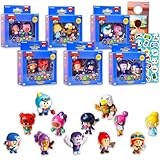
- Brawl Stars Mini Figures 12 Pack - Bundle with 12 Video Game Cupcake Topper Figurines Plus Stickers, More | Brawl Stars Party Supplies Set for Boys, Girls, Kids.
- This Brawl Stars toy set contains 12 mini figures of favorite Brawl Stars characters. Collect all assorted Brawl Stars mini figures!
- These mini Brawl Stars figures are great to use as cupcake toppers, party favors, party supplies, goodie bag fillers, gift basket fillers, and more.
- Sure to be a hit with boys and girls alike, these Brawl Stars collectible mini action figures will pair perfectly with all other Brawl Stars merchandise.
- Officially licensed Brawl Stars figures set for kids, boys and girls alike, also includes video game stickers and a Rex-Man door hanger.
What is the safest way to install Brawl Stars on a PC?
Download a well-known Android emulator from its official website, sign in to Google Play, and install Brawl Stars directly from the Play Store. Do not download random “Brawl Stars PC” installers, cracked versions, private servers, or APK bundles from unknown sites. These can contain malware, steal account credentials, or violate Supercell’s terms.
Which emulator works best for Brawl Stars on PC?
Popular options include BlueStacks, LDPlayer, and Google Play Games for PC where available, though support and performance can vary by region and hardware. For Brawl Stars, choose an emulator that offers stable frame rates, easy keymapping, and regular security updates. If one emulator has lag or input delay on your system, testing another reputable option is often the fastest fix.
What keyboard and mouse controls should I use for Brawl Stars?
A common setup is WASD for movement, mouse aiming for attacks, and nearby keys such as Space, E, or Shift for gadgets, supers, and abilities. You should spend time adjusting sensitivity and dead zones so aiming feels predictable instead of twitchy. Avoid automation or macro setups that perform repeated actions for you, because those may create account safety issues.
PC Slower Than It Used to Be?
A free scan shows the junk files, broken settings and background clutter dragging Windows down - then fixes them in one click.Free scan · Windows 10 & 11Crashes, No Sound, or Screen Glitches?
Random freezes, missing sound and display glitches usually trace back to one bad driver. Find and replace yours safely.Free scan · under a minuteHow can I make Brawl Stars run smoother on my PC?
Enable virtualization in your BIOS or UEFI if your emulator recommends it, then allocate enough CPU cores and RAM without starving Windows. Use a reasonable resolution such as 720p or 1080p, close unnecessary background apps, and keep your graphics drivers updated. If gameplay still stutters, lowering emulator resolution and frame-rate targets is usually more effective than maxing every setting.
Bottom Line
Yes, you can play Brawl Stars on PC, but the safest route is to use a reputable Android emulator, download the game through official app stores, and avoid modified APKs or “PC versions” from unknown sites. Choose an emulator with strong compatibility, map your controls carefully, and keep your account protected with Supercell ID.
If you want the smoothest experience, start with a trusted emulator, test your performance settings, and adjust keybinds until movement and aiming feel natural. Before installing anything, verify the source, understand Supercell’s policies, and prioritize account safety over shortcuts.
Quick Recap
Product prices and availability are accurate as of the date/time indicated and are subject to change. Any price and availability information displayed on Amazon at the time of purchase will apply.
Free tools Windows power users keep installed
One-click scans. No signup required.




