Windows Errors? Fix Them Before They Spread
Repair common Windows errors and clear accumulated junk for a smoother, more stable PC - no reinstall needed.Free scan · no reinstallOutdated Drivers Are Slowing You Down
One free scan finds every outdated or missing driver and matches the right update for your exact hardware.Free scan · exact hardware matchIf you need a small display for your own dashboard or web interface, the most clearly documented option is a Raspberry Pi connected to a compatible screen and configured to open a browser in kiosk mode. That is a do-it-yourself build, not a tested ranking of ready-made smart displays. A browser-based kiosk is also different from installing arbitrary native apps on an Echo- or Nest-style device.
What “running custom software” means
There are two different goals behind this phrase:
- Show a custom web dashboard: A browser loads a page you control, often full-screen and without the usual browser controls. A Raspberry Pi kiosk can do this.
- Install a native app on a commercial smart display: The device’s manufacturer controls its operating system and app platform. Assistant branding or developer tools do not, by themselves, establish that arbitrary apps can be installed.
Google’s Smart Displays developer documentation describes a platform-specific Actions experience using rich responses such as cards, lists, tables and carousels. It says voice remains the primary modality and that “linking out to the web from smart displays is currently not supported.” That is Google’s guidance for the documented Smart Display Actions platform, not a blanket statement about every Google-branded device or all commercial displays. Google Smart Displays developer documentation
As an Amazon Associate I earn from qualifying purchases.
Options for a small custom display
| Approach | What it can do | What to expect |
|---|---|---|
| Raspberry Pi kiosk with a browser dashboard | Display a web page or self-hosted interface in Chromium kiosk mode. | Requires a Raspberry Pi, a compatible display and setup. The cited sources do not compare specific screens, prices or performance. |
| Home Screens on Raspberry Pi | Run a self-hosted, web-based smart-display interface in Chromium kiosk mode. | The project lists modules and touch support; those are project claims, not independent testing. |
| Home Assistant OpenDisplay | Use the Home Assistant integration to upload images to a compatible display setup. | A narrower Home Assistant feature, not a general-purpose app runtime. Bluetooth Low Energy range can make transfers unreliable at greater distances from an adapter. |
| Commercial assistant display | Use the interactions supported by that device’s vendor platform. | The cited documentation does not establish that a particular model can run arbitrary native apps or a user-controlled web kiosk. |
Build a Raspberry Pi browser kiosk
Raspberry Pi’s official tutorial documents configuring Chromium to launch in kiosk mode after the desktop loads and shows web pages on a connected display. Raspberry Pi kiosk-mode tutorial
Recommended Free Tools
- Choose the board and screen together. Check that the screen’s video connection and touch interface (if needed) work with the specific Raspberry Pi model. Confirm mounting, power and cable requirements before buying; the available sources do not validate individual compact screens.
- Set up the Raspberry Pi desktop and Chromium. Follow Raspberry Pi’s kiosk tutorial to configure the browser to open full-screen and start automatically after the desktop loads.
- Point Chromium at your dashboard. Use the web address of the dashboard or self-hosted interface you intend to show. The kiosk approach is for browser-accessible content, not installing arbitrary native applications.
- Test the complete setup. Verify that the page loads after startup and that touch input, if required, works with your chosen screen. Decide how you will update the page and recover if the browser or network is unavailable.
For a self-hosted starting point, Home Screens describes itself as an open-source, web-based smart-display replacement for Raspberry Pi running in Chromium kiosk mode. Its project page lists 45 built-in modules—including calendar, weather, images and video, and display control—and describes a touch-friendly interface and Raspberry Pi installation path. These are the project’s own feature statements, not independent evaluations of reliability, screen compatibility or image quality. Home Screens project on GitHub
#1 Best Overall

- [1.83-inch HD Display & Customisable Watch Faces] Immerse yourself in the vivid 1.83-inch IPS display, which delivers a crystal-clear visual experience with a high resolution of 240×284. Easily personalise your smartwatch with a wide range of customisable watch faces. Choose freely from styles to suit any occasion, whether trendy, artistic or minimalist. Ideal for casual, sporty and professional occasions. The sophisticated, modern design complements any outfit, seamlessly blending technology and fashion to create the perfect everyday companion.
- 【120 Sports Modes & Advanced Health Tracking】Our TK29 smart watches for women men come equipped with 120 sports modes, allowing you to effortlessly track a variety of activities such as walking, running, cycling, and swimming. With integrated heart rate and sleep monitors, you can maintain a comprehensive overview of your health, achieve your fitness goals, and maintain a balanced, active lifestyle with ease. Your ideal wellness companion (Note: Step recording starts after exceeding 20 steps)
- 【IP67 Waterproof & Long-Lasting Battery】Designed to keep up with your active lifestyle, this smartwatch features an IP67 waterproof rating, ensuring it can withstand splashes, sweat, and even brief submersion, making it perfect for workouts, outdoor adventures, or rainy days. Its reliable 350mAh battery offering 5-7 days of active use and up to 30 days in standby mode, significantly reducing frequent charging. Ideal for all-day wear, whether you’re at the gym, outdoors, or simply on the go
- 【Stay Connected Anytime, Anywhere】Stay informed and in control with Bluetooth call and music control features. Receive real-time notifications for calls, messages, and social media apps like Facebook, WhatsApp, Twitter, and Instagram directly on your smartwatch. Easily manage calls, control your music playlist, and stay updated without needing to reach for your phone. Perfect for work, workouts, or on-the-go, this watch keeps you connected and never miss important updates wherever you are
- 【Eco-Friendly & Sustainable Design】DIVOAZBVO TK29 Smartwatch is designed with sustainability in mind, using eco-conscious materials and energy-efficient technology to minimize environmental impact. Its durable build and long-lasting battery reduce waste, while the energy-saving features ensure lower power consumption. By choosing DIVOAZBVO, you’re not only embracing cutting-edge technology but also actively supporting eco-friendly practices for a greener, healthier, and more sustainable future
When Home Assistant fits—and when it does not
Home Assistant OpenDisplay is relevant if your goal includes sending images through Home Assistant. Its integration documentation covers adding the integration and uploading images, and warns that Bluetooth Low Energy range may make transfers unreliable when the display is too far from an adapter. It should not be treated as a general-purpose way to install apps on a smart display. Home Assistant OpenDisplay documentation
Home Assistant itself is separate from the display hardware. Home Assistant describes Green as its plug-and-play hub and also lists Raspberry Pi, mini PC, NUC and virtual machine as possible hosts. Its FAQ says a custom installation on a Raspberry Pi, mini PC or virtual machine usually takes 1 to 2 hours; that is Home Assistant’s estimate for setting up the home-automation system, not a measured setup time for a kiosk display. Home Assistant installation options
Rank #2

- Alexa can show you more - Echo Show 5 includes a 5.5” display so you can see news and weather at a glance, make video calls, view compatible cameras, stream music and shows, and more.
- Small size, bigger sound – Stream your favorite music, shows, podcasts, and more from providers like Amazon Music, Spotify, and Prime Video—now with deeper bass and clearer vocals. Includes a 5.5" display so you can view shows, song titles, and more at a glance.
- Keep your home comfortable – Control compatible smart devices like lights and thermostats, even while you're away.
- See more with the built-in camera – Check in on your family, pets, and more using the built-in camera. Drop in on your home when you're out or view the front door from your Echo Show 5 with compatible video doorbells.
- See your photos on display – When not in use, set the background to a rotating slideshow of your favorite photos. Invite family and friends to share photos to your Echo Show. Prime members also get unlimited cloud photo storage.
If you are building software around Home Assistant, its developer portal provides documentation for integrations and frontend interfaces. That documentation concerns software development, not certification of a particular screen or hardware combination. Home Assistant developer documentation
How to choose hardware without guessing
The documented route supports a build category—Raspberry Pi plus a compatible screen—not a model-by-model buying recommendation. Before choosing a screen, check:
Rank #3
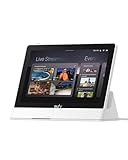
- 𝐈𝐧𝐬𝐭𝐚𝐧𝐭 𝐇𝐚𝐧𝐝𝐬-𝐅𝐫𝐞𝐞 𝐃𝐨𝐨𝐫 𝐀𝐥𝐞𝐫𝐭𝐬: When someone rings the doorbell, unlocks the door, or is detected by the camera, the display automatically lights up with a live feed and a voice alert. Know who's there instantly, hands-free.
- 𝐒𝐞𝐞 𝐄𝐯𝐞𝐫𝐲𝐭𝐡𝐢𝐧𝐠 𝐰𝐢𝐭𝐡 𝐅𝐨𝐮𝐫 𝐕𝐢𝐞𝐰𝐬 𝐨𝐧 𝐎𝐧𝐞 𝐒𝐜𝐫𝐞𝐞𝐧: View your entire property at a glance through four simultaneous live feeds while maintaining full control and near-instant access to live video streams. The moment something happens, you're instantly in the know.
- 𝐈𝐧𝐬𝐭𝐚𝐧𝐭 𝐏𝐥𝐚𝐲𝐛𝐚𝐜𝐤, 𝐍𝐨 𝐖𝐚𝐢𝐭𝐢𝐧𝐠, 𝐍𝐨 𝐁𝐮𝐟𝐟𝐞𝐫𝐢𝐧𝐠: Historical events are automatically downloaded to local storage so you can replay past moments instantly—no delays, no buffering.
- 𝐒𝐦𝐚𝐫𝐭 𝐃𝐚𝐢𝐥𝐲 𝐑𝐞𝐩𝐨𝐫𝐭𝐬 𝐰𝐢𝐭𝐡 𝐊𝐞𝐲 𝐒𝐞𝐜𝐮𝐫𝐢𝐭𝐲 𝐄𝐯𝐞𝐧𝐭𝐬: Using advanced facial and package recognition (powered by HomeBase 3), the display intelligently compiles daily summaries, including stats and video recordings for quick insights.
- 𝐌𝐨𝐧𝐢𝐭𝐨𝐫 𝐄𝐯𝐞𝐫𝐲𝐭𝐡𝐢𝐧𝐠, 𝐀𝐧𝐲𝐭𝐢𝐦𝐞, 𝐀𝐧𝐲𝐰𝐡𝐞𝐫𝐞: The user-friendly 8-inch touchscreen is simple enough for kids and seniors, ensuring ease of use for everyone. Designed for flexible monitoring wherever you need it.
- Interface compatibility: Confirm the screen’s video and touch connections match the board and available ports.
- Physical fit: Check diagonal size, resolution, mounting method and case clearance for the space where it will sit.
- Power and cables: Confirm power needs and the exact cable or adapter required by the selected components.
- Software behavior: Make sure the dashboard works in Chromium and determine how it will be updated and restored if startup fails.
- Network and cloud dependence: Establish whether the dashboard is served locally or relies on an external service, and plan for what the display should show if the connection drops.
“Raspberry Pi touchscreen display” is a useful search phrase for finding candidate components, but it is not a verified product recommendation. Compatibility and current availability need to be checked against the exact board and screen listing.
Quick Recap
Best Value

- All-in-One Connectivity: The 10-in-1 design features one HDMI 2.1 port, one DisplayPort 1.4 port, 80W Pass through charging from your extra 100W charger, one 10 Gbps USB-C port, one 10 Gbps USB-A data port, two 5 Gbps USB-A ports, one Gigabit Ethernet port, and SD/microSD 3.0 card slots. (Note: Charger not included. For optimal performance, use a 65W or higher USB-C charger.)
- Dual Display Support with Up to 2K@240 Hz: Drive a single monitor at up to 4K@144 Hz or 2K@240 Hz, or expand to dual 2K@240 Hz displays for ultra-smooth motion in gaming, editing, and streaming. (Note: Dual 2K@240 Hz output requires a host laptop USB-C port that supports DP 2.1 with DSC 3:1. Video output is supported through HDMI and DisplayPort only.)
- Smart Built-In Display: The built-in display shows real-time port status, charging power, data transfer speed, and device temperature. Upload your own images for a rotating slideshow, or press twice to start the customizable focus timer.
- Declutter Your Desk Setup: With 80% of ports facing the rear, cables route backward and downward to reduce the clutter common with flat hub designs. A 2.3ft built-in host cable allows flexible placement while keeping the front of your desk clear.
- Web and App Control: Customize your smart display, track port status, and adjust the 25-minute focus timer settings on the web dashboard, or run photo album slideshows and firmware updates through the app.
Rank #4

- 【SMART HUD DISPLAY CAR WINDSHIELD - SPEED IN YOUR LINE OF SIGHT】This smart HUD display car windshield unit places large MPH digits in your forward view. The heads up display for cars lets you check vehicle speed without repeatedly looking down at the dashboard, helping you stay focused during daily commutes, highway driving, and long trips.
- 【SMART IN CAR HUD CO PILOT GPS - FAST GPS + BDS POSITIONING】This smart in car HUD co pilot GPS speedometer uses GPS and BDS dual-mode positioning, a 10Hz refresh rate, and support for up to 32 satellites for responsive real-time speed updates. A normal GPS variation of approximately 0.6–1.8 MPH may occur, providing a useful second speed reference alongside the factory speedometer.
- 【SMART HUD FOR CAR - USB PLUG & PLAY, NO OBD CONNECTION】This digital speedometer for car connects to a standard 5V USB power source for plug-and-play installation. No OBD port, wiring modification, or vehicle data connection is required. The smart HUD for car also works with USB-equipped trucks, SUVs, motorcycles, ATVs, scooters, golf carts, boats, buses, and other vehicles used in open areas.
- 【SMART HUD - AUTOMATIC BRIGHTNESS FOR DAY AND NIGHT】A built-in light sensor automatically adjusts display brightness as surrounding light changes. The smart HUD stays clear in daylight and more comfortable to view at night, while the anti-reflective shade helps reduce glare for quick, easy speed checks.
- 【SMART HEADS UP DISPLAY FOR CARS - LARGE MPH DIGITAL SPEEDOMETER】This smart heads up display for cars works as an MPH speedometer for car and displays speeds up to 115 MPH with a bold, large font for quick reading. First satellite lock typically takes 10–30 seconds in an open area. GPS reception may be limited indoors, in tunnels or underground garages, during severe weather, or behind metallic windshield film.
Product prices and availability are accurate as of the date/time indicated and are subject to change. Any price and availability information displayed on Amazon at the time of purchase will apply.




