Free tools Windows power users keep installed
One-click scans. No signup required.
If your Bambu Lab AMS will not feed or load filament, first find where the filament stops: at the spool, inside the AMS, in the PTFE tube, or near the printer’s toolhead. A loading error alone does not identify the failed part. Check the spool and accessible filament path before attempting a repair, and use instructions for your exact printer and AMS model.
How the AMS filament path works
On the original AMS, filament travels from a spool through a slot’s feeder and the AMS hub, then through tubing toward the printer. The system also includes a buffer. Bambu Lab’s overview identifies the original AMS spool holders, hub, and buffer: AMS Quick Start Guide. The exact route and service procedure can vary by AMS and printer generation, so do not assume that the original AMS, AMS Lite, AMS 2 Pro, and other variants use interchangeable parts or identical repair steps.
As an Amazon Associate I earn from qualifying purchases.
Start diagnosis by recording the printer and AMS model, the exact on-screen error, the affected slot, filament type, and whether the spool rotates freely. Note how far the filament travels and whether the printer registers it. A photo of the route can also help when contacting support.
Check the spool and visible path first
- Stop repeated load attempts. Do not force filament through a suspected jam; repeated attempts can make it harder to tell where the obstruction is.
- Check spool movement. Confirm the spool can rotate and that the filament is not crossed, tangled, broken, or caught on a loose end.
- Inspect accessible tubing and connections. Look for a disconnected tube, visible blockage, or damage. Check only portions you can reach without opening the AMS or printer.
- Record the stopping point. Note whether filament never leaves the slot, advances and retracts, reaches the printer, or is detected but does not load. The location narrows what to inspect next, but does not prove which component has failed.
Bambu Lab’s support forum points to a troubleshooting guide for loading and unloading failures and a separate workflow guide covering pre-loading, RFID reading, loading and unloading, and feed-assist mode: Bambu Lab forum resource pointers. The official troubleshooting guide is organized around errors and symptoms; follow its current directions for your machine rather than relying on a generic disassembly sequence.
#1 Best Overall

- High-Speed Precision: The Bambu Lab P2S 3D printer prints up to 600 mm/s while maintaining exceptional accuracy. With the PMSM Servo Extruder and Active Flowrate Compensation, every layer of your printed object stays sharp and smooth, delivering flawless corners and consistent results.
- Ready to Print in 15 Minutes: Set up your P2S FDM 3D printer and start printing in just 15 minutes. With AI failure detection, quick-swap nozzles, and automatic calibration, this 3D printer makes professional-grade 3D printing effortless, even for beginners.
- Effortless Multi-Color Printing: The AMS 2 Pro enables seamless multi-color/multi-material 3D printing. It features built-in filament drying at up to 65 °C, keeping every spool ready for flawless prints. (Note: The P2S 3D printer does not support multi-color printing; Combo version required.)
- Smart Airflow for Any Filament: The Adaptive Airflow System automatically balances cooling and heat retention—keeping overhangs crisp with cool air, or maintaining a 50 °C chamber for engineering-grade materials. A carbon filter ensures clean, safe air while you print.
- Limitless Creativity, Seamless Workflow: Explore over one million 3D models on MakerWorld and bring them to life with a smooth, unified workflow using Bambu Studio, Bambu Handy, and your FDM 3D printer, from design to finished print.
Diagnose by where the filament stops
Filament does not leave the spool or slot
Look first for a tangle, damaged or loose filament end, or resistance that prevents the spool from turning. If the spool moves freely but filament does not advance, record the slot and error and consult the model-specific troubleshooting steps. Do not open the feeder to look for a fault unless you have the relevant service instructions.
Filament advances partway, then retracts
Note the point where it stops. Check for a broken fragment in the visible route, a disconnected or obstructed PTFE segment, or resistance at an accessible connection. Reports of repeated retraction and internal blockages describe individual cases, not a universal cause or fix: AMS loading case and filament feeding case.
Rank #2

- Up to 16 Colors: Bring your designs to life with vibrant multi-color/multi-material printing capabilities, perfect for showcasing your creativity. Note: Connecting Bambu Lab AMS is required.
- 500mm/s and 20000 mm/s² Acceleration True High Speed: Don't wait around for your masterpieces. Lightning-fast printing speed lets you focus on creating, not waiting.
- Enclosed Design: Fully enclosed body improves print performance for advanced filaments. Automatic Bed Leveling: Say hello to high-quality, successful prints. Auto bed leveling makes 3D printing such an easy thing.
- Set Up in 15 Minutes: Spend more time printing and less time setting up. User-friendly design ensures a hassle-free assembly experience for all skill levels.
- Supported Filament: Ideal: PLA, PETG, TPU, PVA, PET ABS, ASA; Capable : PA, PC; Not Recommended: Carbon/Glass Fiber Reinforced Polymer.
If filament reaches the printer before the problem occurs, the tubing route and resistance near the toolhead are reasonable areas to inspect. Confirm the actual path and use instructions for the exact printer and AMS; a tube bend should not be assumed to be the cause without evidence.
AMS loading fails, but external-spool feeding works
If your printer’s instructions support external-spool feeding, comparing that route with AMS feeding can help localize the symptom toward the AMS path. It does not identify whether the feeder, hub, buffer, tube, or a connection is responsible. An AMS Lite community discussion mentions external-spool feeding as an isolation check, but defer to the official instructions for your model: AMS Lite discussion.
Rank #3

- [4-Carousel Auto Feeding]:AMS Lite 4-spool automatic feeder for A1 A1 Mini multi-color printing
- [Smart RFID Recognition]:Auto-detects material type sets print params Compatible with Bambu filaments
- [Unattended Printing]:Auto switches spools resumes printing when filament runs out
- [Wide Compatibility]:Fits 40-68mm width spools works with PLA PETG ABS ASA
- [Compact & Reliable]:Lightweight 1.6kg design with transparent cover for easy monitoring
External-spool feeding also fails, or the printer does not detect filament
Consider the printer-side path, extruder, or sensing system rather than assuming the AMS is at fault. In a specific A1 Series “filament not feeding” support case, Bambu Lab’s SupportAssistant advised checking the filament sensor ribbon cable connection and said replacing the sensor may solve the problem if it is damaged: A1 Series support response. That advice is specific to the A1 case; it is not a default fix for every printer or AMS.
Filament is stuck or broken
Use the official maintenance instructions for the exact printer and AMS version before attempting removal. A community user who opened an AMS hub reported that magnets and springs came loose during the repair; this is an anecdote, but it illustrates the risk of opening a component without model-specific service guidance: AMS hub repair discussion.
Rank #4

- High-Speed Precision: Experience unparalleled speed and precision with the Bambu Lab A1 3D Printer. With an impressive acceleration of 10,000 mm/s², the A1 delivers blazing-fast printing while maintaining exceptional accuracy and detail in your prints.
- Multi-Color Printing with AMS lite: Unlock your creativity with vibrant and multi-colored 3D prints. The Bambu Lab A1 3D printers make multi-color printing accessible and reliable for everyone, bringing your designs to life in stunning detail. Note: AMS lite required, get A1 Combo or buy AMS lite seperately.
- Full-Auto Calibration: Say goodbye to manual calibration hassles. The A1 3D printer takes care of all the calibration processes automatically, ensuring optimal performance for every print. Enjoy a seamless printing experience with precise Z-offset, bed-leveling, and more.
- Active Flow Rate Compensation: Achieve consistently smooth prints with active flow rate compensation. The algorithm actively compensates the flow rate according to the readings to extrude with accuracy, ensuring flawless prints.
- Easy and Quiet 3D Printing: Experience effortless printing with the Bambu Lab A1 FDM 3D printer. Its user-friendly interface and simplified touchscreen make it easy to use. The 1-Clip quick swap nozzle ensures convenient maintenance and provides versatile printing options. Enjoy a quiet printing environment with active motor noise canceling, allowing you to focus on your work while the A1 FDM 3D printer brings your ideas to life
When PTFE tubing or a sensor may need attention
PTFE tube
PTFE tubing and a tube connector are listed among the original AMS Quick Start Guide’s included accessories: AMS Quick Start Guide. Tubing is a relevant replacement only when it is visibly damaged, worn, or obstructed. Before ordering, verify the AMS generation, printer compatibility, tube dimensions, and connectors against current model-specific documentation. The source materials do not establish one tube size that fits every AMS version.
The Tool Desk
Outbyte PC Repair FREEClear out junk files and repair common Windows errorsFree Scan →Outbyte Driver Updater FREEScan for outdated or missing drivers - takes under a minuteDriver Scan →A1 filament sensor
For the A1 Series case above, check that the sensor ribbon cable is connected before considering a sensor replacement. Do not generalize this narrow recommendation to other printer models or treat a sensor as the likely cause of an AMS-only feed fault.
Best Value
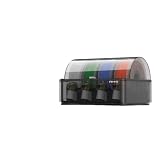
- [Multi Material Printing] Complete feed system matching AMS enables seamless multi color multi material printing without frequent manual filament switching
- [Auto Filament Supply] Smart replenishment feed unit for AMS auto feeds printing materials to cut down frequent manual refilling operations
- [Stable Filament Transport] Precision feed system kit for AMS prevents filament jams and ensures smooth continuous long hour printing tasks
- [Easy System Upgrade] Integrated multi color feed assembly compatible with AMS for simple installation to expand your printing material options
- [Consistent Print Output] Optimized automated replenishment system built for AMS maintains steady filament feeding for uniform finished print models
When to stop and contact support
- The obstruction appears to be inside a feeder, hub, buffer, or toolhead that requires disassembly.
- You cannot remove a broken fragment using the model’s official maintenance procedure.
- The same error returns after checking the spool and accessible route, or the symptom occurs with both AMS and external-spool feeding.
When seeking help, include the printer and AMS versions, exact error wording, affected slot and filament, where feeding stops, whether external-spool feeding changes the symptom, and clear photos of the path. Bambu Lab describes its troubleshooting resource as covering common AMS filament loading and unloading failures in a SupportAssistant post dated August 16, 2024: Bambu Lab SupportAssistant post.
Quick Recap
Product prices and availability are accurate as of the date/time indicated and are subject to change. Any price and availability information displayed on Amazon at the time of purchase will apply.




