What’s actually slowing this PC down?
Pick the symptom - the matching free tool is one click away.
Claims that an iPhone is “eavesdropping on everything you say” spread fast, but the actual situation is usually more specific. iPhones can listen for certain triggers (like Hey Siri), apps can access your microphone, and some services may transmit voice data—yet there’s a clear set of settings to limit and monitor all of it.
This guide walks you through the most effective controls in iOS: checking microphone activity indicators, removing mic permissions from apps, tightening Siri and Dictation settings, and investigating profiles or unusual device management. If you follow the steps in order, you’ll drastically reduce what your iPhone can record and share.
As an Amazon Associate I earn from qualifying purchases.
What people mean by iPhone eavesdropping (and what iOS actually does)
When people say “eavesdropping,” they typically mean one of three things:
Quick wins for a faster PC:
Clear out junk files and repair common Windows errorsFree Scan →Fix the driver behind crashes, sound loss and screen glitchesFind Drivers →Repair Windows errors before they cause bigger problemsFix Now →- Microphone usage by an app (recording audio for a call, voice memo, camera app, some messaging features, etc.).
- Voice triggers such as Hey Siri (a listening mode designed to detect that specific wake word).
- Data sharing after speech is recognized (for example, Siri processing, Dictation, or transcriptions).
Separately, a common confusion is “I talked about a product and then saw an ad.” That pattern can come from many sources (search history, device identifiers, ad personalization, shared interests). None of that automatically proves your iPhone recorded everything in the background.
#1 Best Overall

- Blocks External Noise Completely – This mic blocker forces your phone to record ONLY internal system sounds (music, game audio, voiceovers, AI narration). No room noise, no fan sound, no kids crying – super clean audio every time.
- Super Easy Plug & Play – No apps, no settings, no Bluetooth. Just plug the dongle in and start recording instantly. Zero delay, works perfectly for live streaming and screen recording.
- Works on All Phones – Lightning version for iPhone 7-14, USB-C version for iPhone 15/16, Samsung, Google Pixel, and all Android phones/tablets.
- Small, Premium & Durable – Tiny matte black design, fits in your pocket or on a keychain. High-quality connector lasts thousands of uses.
- Perfect for Creators & Live Sellers – Ideal for TikTok/YouTube live streams (including unmanned selling), game clips, tutorials, ASMR, Reels, and voiceover videos. Get professional sound without expensive equipment.
Quick checks that confirm whether the mic is being used
Before changing settings, verify whether microphone access is actually happening right now.
1) Watch the microphone status indicator
When an app is actively using the microphone, iOS shows an indicator near the microphone icon (and in some cases in the status area). If you never see this while you’re not using voice features, it’s a good sign.
2) Check the Privacy report for microphone access
iOS tracks recent permissions usage. Go to:
- Open Settings
- Tap Privacy & Security
- Tap Microphone
- Look for which apps are enabled and whether they’ve been active
If you see apps you don’t recognize, or apps that are turned on when you never expect them to record, that’s your starting point.
Stop app microphone access on iPhone
This is the fastest, highest-impact step. Removing mic permission prevents most background capture attempts by apps.
Disable microphone permission per app
- Open Settings
- Tap Privacy & Security
- Tap Microphone
- Turn off the toggle for apps you don’t explicitly need to record audio
Typical offenders (depending on your apps) include social apps, “assistant” apps, and certain browsers. If an app can’t work without mic access for your use case, you can either keep it off most of the time or only allow it when you’re actively using that feature.
Remove mic permission when you no longer need voice features
If an app only needs the microphone for a one-time task (voice note, profile recording), deny mic access after you finish. Re-enabling later is usually simpler than debugging suspicious behavior.
Rank #2

- Instant Microphone Block for Total Privacy Plug in this tiny USB-C adapter to physically disable your device’s mic. Perfect for Zoom, Teams, Webex, or any situation where you need guaranteed silence.
- Clean Screen Recordings – No External Noise When recording your screen, this mic blocker eliminates all background and ambient sounds, leaving only crystal-clear internal audio from your phone or laptop – ideal for tutorials, gameplay, presentations, and voiceovers.
- Just Hardware Design – No Apps, Batteries or Software Needed. Plug-and-play, no pairing, no charging, no permissions required – just insert and your microphone is blocked instantly
- Ultra-Portable & Keychain Ready: Weighs under 10g with removable keyring included. Keep it in your pocket or on your keys for on-the-go privacy and clean recordings anywhere.
- This tiny USB-C adapter physically blocks your device’s microphone the moment you plug it in. Perfect for online privacy and noise-free screen recordings mic mute microphone mute
Control Siri, Dictation, and Voice Feedback
Siri and Dictation are the most common reasons iPhone voice functionality involves audio processing. You can tighten them without sacrificing basic usability.
Turn off Hey Siri (or restrict it)
- Open Settings
- Tap Siri & Search
- Turn off Listen for Hey Siri
- (Optional) Turn off Press Side Button for Siri if you want zero voice assistant initiation
If you rely on Siri while driving, consider keeping only what you need. Turning off Hey Siri is the single best way to reduce passive listening.
Disable Dictation
- Open Settings
- Tap General
- Tap Keyboard
- Turn off Dictation
Dictation is separate from Siri. If your concern is broad “everything I say,” removing Dictation reduces the amount of spoken text captured for typing.
Review Voice Feedback
- Open Settings
- Tap Siri & Search
- Review Voice Feedback settings
Choose a less chatty option if you want Siri to speak less often. This doesn’t stop all processing, but it reduces observable interactions.
Review what iPhone sends to Apple and third parties
Even with mic access controlled, some services may still send data related to voice processing or personalized experiences. You can limit several categories.
The Tool Desk
Outbyte PC Repair FREERepair Windows errors before they cause bigger problemsFix Now →Outbyte Driver Updater FREEFix the driver behind crashes, sound loss and screen glitchesFind Drivers →Limit Ad Tracking
- Open Settings
- Tap Privacy & Security
- Tap Apple Advertising
- Turn on Personalized Ads = off (wording may vary)
- Optionally turn on Limit Ad Tracking if present
This helps with the “I talked about it and then saw ads” feeling by reducing identifier-based personalization.
Rank #3
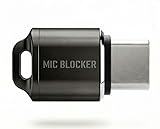
- Prevent Unauthorized Microphone Access : This USB-C adapter blocks access to your device’s built-in microphone at the hardware level by acting as an external audio input, helping prevent apps, malware, or remote processes from capturing sound without your consent.
- True Hardware-Based Microphone Protection: Unlike software settings or permissions, this solution works physically. Once plugged in, your device routes audio input away from the internal microphone—no background access, no system overrides. This microphone protector will allow your virtual assistant works. Does not block Siri and Bixby,
- Plug-and-Play, No Software or Permissions: No apps, no pairing, no battery, and no system access required. Simply insert into the USB-C port and protection starts immediately.
- Silent Screen Recording as an Added Benefit: When recording your screen, external environmental noise is not captured. This makes it ideal for tutorials, presentations, gameplay recording, and professional content creation.
- Compact Design for Daily Privacy Control Ultra-small and lightweight with a detachable keyring. Easy to carry and ready whenever microphone privacy matters—at work, at home, or on the go.
Review analytics and data sharing
- Open Settings
- Tap Privacy & Security
- Tap Analytics & Improvements
Adjust “Share iPhone Analytics” and similar toggles according to your comfort level.
Check for suspicious behavior (calls, Background App Refresh, profiles)
If you’re seeing mic indicators, unusual battery drain, or repeated app behavior, dig deeper.
1) Look for unexpected battery and network usage
Go to:
- Settings → Battery
Check which apps consumed the most background activity. If a voice-related app is active when you didn’t use it, re-check its Microphone toggle under Privacy & Security.
Recommended Free Tools
2) Disable Background App Refresh for risky apps
- Open Settings
- Tap General
- Tap Background App Refresh
- Turn it off globally, or selectively disable it for specific apps
Background App Refresh isn’t the same as microphone recording, but limiting background activity reduces opportunities for questionable behavior.
3) Verify profiles and device management
Malicious or unwanted management profiles can introduce access changes. Check:
- Open Settings
- Tap General
- Tap VPN & Device Management
- Look for unknown profiles
If you see a profile you didn’t install (or one that’s “MDM” managed unexpectedly), remove it only if you trust the source and you’re comfortable losing any associated management policies.
Rank #4
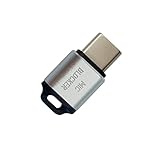
- 🔒 Protect your privacy – Instantly disable your device's built-in or external microphone with just one tap, preventing hackers from eavesdropping or unauthorized software recordings.
- 🎙 Plug and play – USB-C compatible laptops, mobile phones, tablets, and other devices can be plugged and played without drivers, making it easy to control microphone permissions.
- 🔇 Signal Shielding, 100% Secure – Hardware-level switches completely cut off the microphone signal, which is more reliable than software shielding and eliminates any potential listening risks.
- 📱 Thin and portable – Compact and exquisite design, easy to carry around, suitable for business meetings, remote work, and privacy-sensitive scenarios.
- 🛡 Strong compatibility – Supports various systems such as Windows, macOS, Android, etc., suitable for USB-C devices such as mobile phones, computers, tablets, etc.
Edge cases: accessibility features, voice control, and car/wearable devices
Not all “audio processing” equals “eavesdropping.” Some features use the microphone by design.
PC Slower Than It Used to Be?
A free scan shows the junk files, broken settings and background clutter dragging Windows down - then fixes them in one click.Free scan · Windows 10 & 11Outdated Drivers Are Slowing You Down
One free scan finds every outdated or missing driver and matches the right update for your exact hardware.Free scan · exact hardware match- Accessibility voice controls may use microphone input for commands. Check relevant Accessibility settings if you use voice assistance.
- Car playback and call routing can trigger microphone usage during hands-free calls.
- AirPods and other Bluetooth headsets can cause Siri or call features to behave differently. If the mic seems “active,” confirm whether a headset is connected.
If you want a clean baseline test, disconnect Bluetooth devices and temporarily disable Siri features as described earlier.
When the main fix doesn’t work: troubleshooting workflow
If you’ve disabled mic permissions and Siri/Dictation, but you still suspect recording, use a structured process instead of guessing.
Try a controlled test
- Put your iPhone in Airplane Mode (or at least disable Wi‑Fi and Bluetooth)
- Go to Settings → Privacy & Security → Microphone
- Turn off microphone access for all non-essential apps
- Disable Listen for Hey Siri under Settings → Siri & Search
- Restart the iPhone
Then do a simple scenario: talk near the phone without using any app. If you see no mic indicator and behavior is normal, your suspicion is likely due to non-microphone factors (ad personalization, past searches, or recommendation systems).
Reset only what’s necessary
Use these steps cautiously, in order.
- Restart the iPhone (safe first move).
- If you recently installed an app or updated iOS, remove the app or roll back your expectations (you can uninstall and reinstall from the App Store if needed).
- Consider Reset Location & Privacy only if you changed many permissions. This resets permission prompts and may inconvenience you.
- For persistent, unexplained issues: back up data and use Erase All Content and Settings, then restore only what you trust.
A full reset is a last resort. It’s effective when something is truly wrong, but it’s heavy-handed.
How to spot the difference between rumor and real microphone capture
Real microphone capture on iOS generally leaves traces: active indicators, visible permissions, and clear triggers (calls, voice memos, certain app workflows). “Everything you say” without any prompts or indicators doesn’t match how iOS permissions are designed.
Best Value

- Prevent Unauthorized Microphone Access : This USB-C adapter blocks access to your device’s built-in microphone at the hardware level by acting as an external audio input, helping prevent apps, malware, or remote processes from capturing sound without your consent.
- True Hardware-Based Microphone Protection: Unlike software settings or permissions, this solution works physically. Once plugged in, your device routes audio input away from the internal microphone—no background access, no system overrides. This microphone protector will allow your virtual assistant works. Does not block Siri and Bixby,
- Plug-and-Play, No Software or Permissions: No apps, no pairing, no battery, and no system access required. Simply insert into the USB-C port and protection starts immediately.
- Silent Screen Recording as an Added Benefit: When recording your screen, external environmental noise is not captured. This makes it ideal for tutorials, presentations, gameplay recording, and professional content creation.
- Compact Design for Daily Privacy Control Ultra-small and lightweight with a detachable keyring. Easy to carry and ready whenever microphone privacy matters—at work, at home, or on the go.
That said, ad personalization can still feel uncanny. If ads match your conversations, ask these questions:
- Did you search for it earlier on your iPhone or another device?
- Did you mention it in an app or post where personalization is expected?
- Is a related website tracking you via cookies or app signals?
- Is your ad personalization enabled in iOS and in the apps you use?
On a privacy checklist, controlling mic permissions and limiting ad tracking usually fixes the biggest “eavesdropping” complaints—even when the original claim was exaggerated.
FAQ
Can iPhone record conversations when no app is using the microphone?
Under normal circumstances, iOS won’t let an app record audio without mic permissions. System features like Siri/Dictation can process voice when enabled, and wake-word modes are designed for specific triggers.
What does it mean when the microphone icon appears?
It typically means an app is actively using the microphone or a related voice feature is in progress. Check Settings → Privacy & Security → Microphone to see which apps are enabled and correlate timing.
Will turning off Siri stop all voice data processing?
Disabling Listen for Hey Siri and Dictation removes the most common always-available voice interactions. Some apps can still request microphone access for their own features—so mic permissions matter.
Does disabling Background App Refresh stop microphone access?
No. Background App Refresh limits background updates, but microphone access is controlled separately through mic permissions. Treat them as complementary controls.
Should I worry about iPhone listening for everything just because ads match?
Matching ads don’t prove microphone recording. Most “coincidence” cases come from web/app tracking, search history, and ad personalization. Still, it’s reasonable to reduce exposure by turning off mic permissions for apps you don’t trust.
Bottom Line
If you want to stop your iPhone from acting like it’s “eavesdropping,” focus on the settings that actually govern audio: revoke microphone permission for apps, disable Hey Siri, and turn off Dictation if you don’t need it. Those controls meaningfully reduce both microphone access and voice-data processing.
Then verify with the Microphone settings and real usage indicators. If behavior still seems off, run the controlled test and investigate device management profiles—rather than assuming your iPhone is quietly capturing everything.
Quick Recap
Product prices and availability are accurate as of the date/time indicated and are subject to change. Any price and availability information displayed on Amazon at the time of purchase will apply.




