Recommended Free Tools
Lines on a phone screen can appear suddenly as vertical streaks, horizontal bars, colored bands, flickering patterns, or thin black marks across the display. Sometimes they show up after a drop or pressure on the phone, but they can also happen after an app freezes, a system update misbehaves, or the display driver briefly glitches.
The cause may be as simple as a temporary software issue or as serious as a damaged LCD, OLED panel, digitizer, or loose internal display connector. Knowing the difference can help you avoid unnecessary repairs while still recognizing when the screen needs professional attention.
As an Amazon Associate I earn from qualifying purchases.
Before replacing the display, there are several practical checks worth trying, from restarting the phone and updating the software to testing safe mode, removing screen accessories, and looking for signs of physical or liquid damage.
Common Types of Lines You Might See on a Phone Screen
Screen lines can look different depending on what is causing them, and the pattern often gives the first clue. Some lines appear only for a few seconds, while others stay visible from the moment the phone wakes up. They may show on the lock screen, inside apps, during charging, or only when the brightness changes. Before assuming the display is broken, it helps to identify the type of line and when it appears.
#1 Best Overall

- Kaisi 20 pcs opening pry tools kit for smart phone,laptop,computer tablet,electronics, apple watch, iPad, iPod, Macbook, computer, LCD screen, battery and more disassembly and repair
- Professional grade stainless steel construction spudger tool kit ensures repeated use
- Includes 7 plastic nylon pry tools and 2 steel pry tools, two ESD tweezers
- Includes 1 protective film tools and three screwdriver, 1 magic cloth,cleaning cloths are great for cleaning the screen of mobile phone and laptop after replacement.
- Easy to replacement the screen cover, fit for any plastic cover case such as smartphone / tablets etc
Vertical lines
Vertical lines run from the top of the screen to the bottom. They may be thin black, white, green, pink, or multicolored stripes. A single vertical line can sometimes point to a display driver issue, a loose internal connection, or damage to the OLED or LCD panel. Mulle vertical lines are more common after drops, pressure damage, or water exposure, especially if the phone also shows touch problems or areas of discoloration.
Horizontal lines
Horizontal lines stretch from one side of the display to the other. They can appear as narrow bands, thick bars, or repeated stripes across the screen. On some phones, horizontal lines show up after a software freeze or graphics glitch and disappear after a restart. If they remain visible during boot-up, on the logo screen, or in recovery mode, the issue is more likely tied to the screen hardware, display connector, or internal board damage.
Colored lines and bands
Colored lines are often green, purple, pink, blue, or white. OLED phones are known to develop bright green or pink vertical lines after impact, overheating, or panel failure. LCD phones may show washed-out colored bands, rainbow-like patches, or dark streaks when the liquid crystal layer is damaged. If the line is bright and perfectly straight, it may be related to pixel column failure; if it looks cloudy, blotchy, or uneven, pressure or liquid damage may be involved.
Do these 3 things before closing this tab:
1Repair Windows errors before they cause bigger problems2Fix the driver behind crashes, sound loss and screen glitches3Clear out junk files and repair common Windows errors- Green or pink vertical line: often seen on OLED displays with panel or driver damage.
- Black line or dark bar: may indicate dead pixels, cracked display layers, or connector issues.
- White line: can appear from a display signal fault, panel defect, or graphics glitch.
- Rainbow patches: commonly linked to pressure damage, moisture, or separation inside the display.
Flickering lines
Flickering lines may flash, pulse, or move when the screen brightness changes. They can appear during gaming, video playback, charging, or after the phone gets warm. This type of issue can be software-related, especially after an operating system update, a buggy app, or a problem with adaptive brightness. However, flickering that gets worse when you press the screen, twist the phone slightly, or plug in a charger can suggest a weak display connection, battery issue, or failing screen component.
Lines that appear only in certain situations
Some screen lines do not show all the time. For example, you might see them only on a dark background, only at low brightness, or only inside one app. Lines that appear in screenshots are usually caused by software or graphics rendering, because the phone is capturing the same defect digitally. Lines that do not appear in screenshots but are visible to your eyes are more likely coming from the physical screen. This simple check can help separate an app or system problem from a display panel fault before moving on to troubleshooting.
Software Glitches That Can Cause Screen Lines
Not every line on a phone screen means the display is physically broken. In some cases, vertical lines, horizontal bands, color streaks, flickering, or ghost-like patterns are caused by software problems that affect how the operating system sends image data to the screen. These issues are often temporary and may appear after an update, during heavy app use, when the phone overheats, or when the system runs out of available memory.
A common software-related cause is a buggy system update. If screen lines started shortly after installing a new version of iOS or Android, the update may have introduced a display driver issue, refresh-rate bug, or compatibility problem with certain apps. This can be more noticeable on phones with high-refresh-rate screens, adaptive brightness, always-on display features, or advanced color modes. In these cases, the screen panel itself may still be fine, but the phone is not rendering the image correctly.
Rank #2

- 【Wide Application】This precision screwdriver set has 120 bits, complete with every driver bit you’ll need to tackle any repair or DIY project. In addition, this repair kit has 22 practical accessories, such as magnetizer, magnetic mat, ESD tweezers, suction cup, spudger, cleaning brush, etc. Whether you're a professional or a amateur, this toolkit has what you need to repair all cell phone, computer, laptops, SSD, iPad, game consoles, tablets, glasses, HVAC, sewing machine, etc
- 【Humanized Design】This electronic screwdriver set has been professionally designed to maximize your repair capabilities. The screwdriver features a particle grip and rubberized, ergonomic handle with swivel top, provides a comfort grip and smoothly spinning. Magnetic bit holder transmits magnetism through the screwdriver bit, helping you handle tiny screws. And flexible extension shaft is useful for removing screw in tight spots
- 【Magnetic Design】This professional tool set has 2 magnetic tools, help to save your energy and time. The 5.7*3.3" magnetic project mat can keep all tiny screws and parts organized, prevent from losing and messing up, make your repair work more efficient. Magnetizer demagnetizer tool helps strengthen the magnetism of the screwdriver tips to grab screws, or weaken it to avoid damage to your sensitive electronics
- 【Organize & Portable】All screwdriver bits are stored in rubber bit holder which marked with type and size for fast recognizing. And the repair tools are held in a tear-resistant and shock-proof oxford bag, offering a whole protection and organized storage, no more worry about losing anything. The tool bag with nylon strap is light and handy, easy to carry out, or placed in the home, office, car, drawer and other places
- 【Quality First】The precision bits are made of 60HRC Chromium-vanadium steel which is resist abrasion, oxidation and corrosion, sturdy and durable, ensure long time use. This computer tool kit is covered by our lifetime warranty. If you have any issues with the quality or usage, please don't hesitate to contact us
App and System Problems That May Trigger Lines
- Misbehaving apps: Games, video editors, camera apps, launchers, and apps that use overlays can sometimes cause flickering or colored artifacts while they are open.
- Low memory or system overload: When too many apps are running, the phone may stutter, freeze, or show temporary visual glitches.
- Overheating: Heat can cause the display to behave strangely, especially during gaming, charging, navigation, or recording video for long periods.
- Incorrect display settings: Features such as adaptive brightness, dark mode, color correction, blue light filters, or high refresh rate can occasionally conflict with the system or an app.
- Corrupted cache or temporary files: Stored system data can sometimes cause display-related bugs after updates or app crashes.
You can usually identify a software glitch by watching when the lines appear. If the lines show up only inside one app, disappear after restarting the phone, change when you rotate the screen, or vanish in a screenshot viewed on another device, the problem may be software-related. For example, if you take a screenshot while the lines are visible and the lines appear in the screenshot when opened on a computer, the issue is likely coming from the software or graphics rendering. If the screenshot looks normal elsewhere but the phone still shows lines, hardware becomes more likely.
Start with basic fixes before assuming the screen needs replacement. Restart the phone, close recently installed apps, and update all apps from the App Store or Google Play Store. Then check for a newer system update, since manufacturers often release patches for display bugs. If the issue began after installing a particular app, uninstall it and test the screen again. Android users can also boot into Safe Mode to see whether a third-party app is causing the problem; if the lines disappear in Safe Mode, an installed app is probably involved.
Display settings are also worth testing. Turn off adaptive brightness, eye comfort mode, color filters, extra dim, always-on display, and high refresh rate if your phone allows it. Set brightness manually to the middle range and see whether the lines change. If the phone is hot, power it down for several minutes, remove the case, and let it cool before testing again. Persistent lines that remain on the boot logo, lock screen, recovery menu, or across every app are less likely to be caused by software and may point to a damaged display, loose connector, or internal hardware fault.
Hardware Damage and Display Connection Problems
If restarting, updating, or resetting software settings does not change the lines on your phone screen, the problem may be physical. Modern phone displays are thin layered assemblies made up of glass, touch digitizer, OLED or LCD panel, backlight components on some models, and tiny flex cables that connect the screen to the main board. Damage to any of these parts can show up as vertical lines, horizontal bands, colored streaks, flickering, black patches, or areas that no longer respond to touch.
Drops are one of the most common causes. A phone does not need a badly cracked screen to have internal display damage; impact can fracture the panel underneath the glass or loosen a connector inside the device. You might notice one bright green, pink, white, or purple line after a fall, or lines that appear only when you press near an edge of the screen. If the lines change when the phone is flexed slightly, tapped, or squeezed, that often points to a physical connection or panel issue rather than an app or operating system glitch.
Common hardware-related causes
- Damaged OLED or LCD panel: A cracked internal display layer can create permanent colored lines, dark bars, flickering sections, or dead zones.
- Loose display flex cable: The thin cable connecting the screen to the phone’s logic board can shift after a drop, previous repair, or pressure damage, causing intermittent lines or flicker.
- Water or moisture exposure: Liquid can corrode display connectors and internal contacts, leading to lines that worsen over time, touch problems, or random brightness changes.
- Pressure damage: Sitting on a phone, keeping it in a tight pocket, or placing heavy objects on it can stress the display and create bands or bleeding marks.
- Battery swelling: A swollen battery can push from behind the screen, causing distortion, lifting edges, touch issues, and display lines. This should be handled promptly.
- Poor-quality replacement screen: Aftermarket displays or improper installation can result in flickering, color lines, uneven brightness, or connectors that do not seat securely.
Water damage deserves special attention because symptoms may appear gradually. A phone might work normally right after getting wet, then begin showing faint lines, green tinting, or flickering hours or days later as corrosion develops. If the screen lines appeared after rain exposure, a spill, steam in a bathroom, or a drop into water, avoid charging the phone until it has been inspected. Charging a device with moisture inside can increase the risk of short circuits.
There are a few signs that strongly suggest hardware damage: lines are visible on the startup logo or lock screen, the display is distorted before any apps open, touch input fails in the same area as the lines, the screen has black ink-like spots, or the issue started immediately after a drop or repair. A screenshot can also help you separate screen hardware from graphics or software problems. If the lines do not appear in a screenshot viewed on another device, the phone’s display hardware is likely responsible. In many cases, the practical fix is reseating the display connector or replacing the screen assembly, both of which are best done with proper tools and parts.
Rank #3

- Screen Fastening Clamp, adjustable repair holder for telephone screen opening repair on most mobile phone and tablets.
- Used to fixed your mobile phone, when you replaced a new screen in its right place, screen fastening clamps will not bulge or sink.
- There are rubber pads inside the fastening clamp to ensure that it will not hurt the screen.
Quick Troubleshooting Steps to Try First
Before assuming the display is broken, try a few quick checks that separate a temporary software problem from likely hardware damage. If the lines appeared after a drop, heavy pressure, water exposure, or a recent screen repair, handle the phone carefully and avoid pressing on the display. If the lines appeared suddenly during normal use, the steps below may clear a frozen graphics process, bad app behavior, or a display setting issue.
What’s actually slowing this PC down?
Pick the symptom - the matching free tool is one click away.
- Restart the phone: Power the device off completely, wait 30 seconds, then turn it back on. A restart can clear temporary glitches affecting the screen driver, GPU, or system interface. If the screen is too distorted to navigate, use the device’s force restart button combination for your model.
- Remove the case and screen protector: A tight case, warped protector, or trapped debris can press against the display edges and cause touch or image distortion. Take them off, clean the screen gently with a microfiber cloth, and check whether the lines change or disappear.
- Check for overheating: If the phone feels hot, close demanding apps, unplug it from the charger, and let it cool in a shaded area. Heat can trigger flickering, colored lines, or temporary display instability, especially during gaming, video recording, fast charging, or direct sun exposure.
- Update the operating system and apps: Install any available system updates, then update your apps from the app store. Display bugs can come from outdated firmware, launcher issues, or apps that do not render properly after an OS change.
- Boot into Safe Mode or uninstall recent apps: On Android, Safe Mode loads only essential system apps, which helps reveal whether a third-party app is causing the lines. If the display looks normal in Safe Mode, uninstall recently added launchers, screen filters, battery savers, or apps that draw over other apps. On iPhone, remove recently installed apps and restart after each removal if the issue began after an app change.
- Adjust display settings: Turn off adaptive brightness, blue light filters, always-on display, dark mode experiments, high refresh rate options, or color correction settings temporarily. Also reduce brightness and then raise it again. If flickering changes at certain brightness levels, the panel or backlight circuitry may be involved.
If you can still use the phone, take a screenshot of the screen while the lines are visible. Then view that screenshot on another device or send it to someone else. If the lines appear in the screenshot, the problem is more likely related to software, graphics rendering, or the operating system. If the screenshot looks normal but the phone’s physical screen still shows lines, the issue is more likely with the display panel, flex cable, or internal connector.
For persistent problems, back up your data before doing anything more invasive. Use cloud backup, a computer, or an external drive if supported. Once your data is safe, you can try resetting display-related settings or, as a last software step, performing a full factory reset. A factory reset erases the phone, so only do this after backing up photos, messages, authenticator apps, and files. If the lines remain after a reset, or if they worsen when you bend the phone slightly, tap near the edges, or change the screen angle, stop troubleshooting and consider professional inspection.
When to Seek Professional Screen Repair
If basic troubleshooting has not cleared the lines on your phone screen, it may be time to have the device inspected by a repair professional. Persistent vertical or horizontal lines, colored bands, black streaks, or flickering that continues after restarting, updating software, removing recently installed apps, and checking display settings often points to a physical display problem rather than a temporary system glitch.
Professional repair is especially worth considering if the lines appeared after a drop, bend, liquid spill, or heavy pressure on the screen. Even if the glass is not visibly cracked, the OLED or LCD panel underneath can be damaged. A loose display connector, failing digitizer, damaged flex cable, or internal corrosion can also cause lines that come and go when the phone is moved, squeezed, charged, or warmed up during use.
Crashes, No Sound, or Screen Glitches?
Random freezes, missing sound and display glitches usually trace back to one bad driver. Find and replace yours safely.Free scan · under a minutePC Slower Than It Used to Be?
A free scan shows the junk files, broken settings and background clutter dragging Windows down - then fixes them in one click.Free scan · Windows 10 & 11Signs the screen likely needs repair
- Lines remain visible on the boot screen or lock screen: If the issue appears before apps load, it is less likely to be caused by a single app.
- The screen has dead zones: Areas that do not respond to touch may indicate digitizer or panel damage.
- Lines spread over time: A small green, pink, white, or black line that grows wider usually suggests panel failure.
- The display flickers or dims randomly: This can be related to a damaged screen, connector, or power-related component.
- There are signs of liquid exposure: Moisture inside the phone can corrode display contacts and cause unpredictable screen behavior.
- The phone heats up near the display: Excessive heat combined with screen distortion should be checked promptly.
Before approving a repair, ask the technician to confirm whether the issue is the display assembly, a loose connector, or another internal component. On many modern phones, the glass, touch layer, and display panel are replaced as one unit, which can make screen repair more expensive than replacing only cracked glass. If the phone is still under warranty or covered by device protection, contact the manufacturer or carrier first, since unauthorized repairs may affect coverage.
Cost should also guide your decision. A screen replacement may make sense for a recent flagship phone, especially if the battery, camera, and charging port still work well. For an older budget phone, the repair price may be close to the value of the device. In that case, backing up your data and replacing the phone might be the better option. If the lines are getting worse, touch input is failing, or the display is difficult to read, arrange repair soon so you can safely transfer photos, contacts, authentication apps, and other data before the screen becomes unusable.
Rank #4
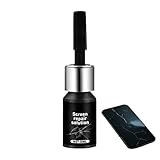
- Effective Crack Repair Solution: Glass repair liquid restores screen smoothness and clarity whilst maintaining touch sensitivity, ensuring seamless device performance for smartphones, tablets, and watches during work or leisure activities
- Easy Application Without Tools: The glass repair liquid allows users to fix their phone screens effortlessly without additional tools, ensuring a seamless DIY screen repair experience whilst saving time and effort at home or during travel emergencies
- Advanced Screen Protection: Features surface hardening technology that forms a dust-proof crack barrier, creating a protective layer that strengthens screen edges for enhanced durability, ideal for daily use on smartphones and tablets in busy environments
- Universal Compatibility: Provides versatile screen protection fitting both curved and flat screens across major brands, ensuring multi-device screen repair is achievable for smartphones and watches of various models in daily use scenarios
- Compact Size: Bottle measures approximately 6.5 cm in height and 1.5 cm in diameter, containing 5ml of repair solution; lightweight and portable design makes it convenient to carry for on-the-go screen repairs
How to Prevent Screen Line Issues in the Future
Not every screen line problem is preventable, especially when it comes from aging display components or a manufacturing defect, but everyday habits can reduce the risk of damage to the display panel, flex cable, and internal connectors. Since many vertical, horizontal, colored, or flickering lines appear after drops, pressure, moisture, overheating, or unstable software behavior, prevention is mostly about protecting both the hardware and the phone’s operating environment.
Protect the screen from impact and pressure
A sturdy case with raised edges and a quality tempered glass screen protector can help absorb the force of drops before it reaches the display. This is especially useful for OLED and AMOLED screens, which can develop colored lines or black patches after impact even if the outer glass does not visibly crack. Avoid carrying your phone in a back pocket, sitting on it, or packing it tightly in a bag with keys, chargers, or other hard objects pressing against the screen.
- Use a case with corner protection: corners often take the hardest hit during a fall.
- Choose a screen protector that fits properly: poorly fitted protectors can lift, trap dirt, or apply uneven pressure.
- Avoid twisting the phone: bending stress can loosen display connections or damage the panel.
Keep your phone away from moisture and extreme temperatures
Water and humidity can corrode internal display connectors and cause intermittent lines, flickering, or touch problems. Even phones with water resistance can lose protection over time due to worn seals, previous repairs, or small cracks. Keep your phone out of steamy bathrooms, wet gym bags, pool areas, and heavy rain when possible. If it does get wet, power it off, dry the exterior, remove the case, and avoid charging it until you are confident the charging port and device are dry.
Heat can also affect the display and battery, especially if the phone is left in a car, used in direct sunlight, or charged while running demanding apps. Excessive heat may cause temporary display glitches, but repeated exposure can contribute to longer-term component wear. If the screen becomes unusually warm and starts flickering or showing faint lines, stop gaming, recording video, navigation, or fast charging for a while and let the device cool down naturally.
Maintain stable software and charging habits
Software updates often include display driver fixes, graphics performance improvements, and stability patches, so keeping the operating system and apps updated can help prevent glitch-related screen behavior. At the same time, avoid installing unknown apps, beta system builds, or unofficial firmware unless you are comfortable troubleshooting problems. A buggy launcher, accessibility overlay, screen filter app, or poorly optimized game can make display issues appear worse even when the hardware is healthy.
- Restart your phone regularly: this clears temporary display or graphics glitches before they become confusing.
- Use certified chargers and cables: low-quality accessories can cause heat, unstable power delivery, or touch/display interference.
- Free up storage space: phones running near full storage may lag, freeze, or behave unpredictably.
- Remove suspicious apps: uninstall apps that trigger flickering, overlays, color shifts, or screen artifacts.
If your phone has already been dropped, repaired, or exposed to moisture, pay close attention to early warning signs such as brief flickers, a single thin line that comes and goes, touch dead zones, or discoloration along the edges. Back up your data promptly and avoid pressing on the screen to “test” the issue, as extra pressure can turn a minor connection problem into a full display failure. Good protection, careful charging, regular updates, and avoiding physical stress give the screen the best chance of staying line-free for as long as possible.
Frequently Asked Questions
Can phone screen lines go away on their own?
Sometimes they can, especially if the lines are caused by a temporary software glitch, overheating, or a buggy app. Restarting the phone, installing updates, or letting the device cool down may clear the issue. If the lines remain on the boot screen or appear constantly, the problem is more likely related to the display hardware.
Best Value

- 【59 in 1 Precision Screwdriver Set】Small screwdriver set contains 44 screwdriver bits, Phillips PH000,PH00,PH0,PH1,PH2; Flathead -1.0, -1.5 -2.0,-3.0; Torx T1 T2 T3 T4 T5, Torx security TR6 TR7 TR8 TR9 TR10 TR15 TR20; Triwing Y0.6, Y1.5. Y2.3, Y3.0; Pentalobe P2(0.8) P5(1.2); Triangle 2.3; U-type U2.6; H-type: H0.9, H1.3, H1.5, H2.0, H2.5, H3.0; MID-type: MID; Sleeve: M2.5, M3.0, M3.5, M4.0, M4.5, Cross 2.0, G3.8, G4.5
- 【Unique Handle Design】Ergonomic design handle, more energy-saving operation, batch head built-in strong magnet, easy to adsorb the batch head. The screwdriver bit is made of high quality CRV steel, which is wear-resistant and hard.
- 【Multi-Functional Accessories】Mini Tool kit contains 15 accessories for a variety of repair needs, including a magnetic plus or minus area to increase or decrease the magnetism of the bit, a long pry bar, a scimitar shaped pry bar, four triangular pry blades, three double-ended pry bars, tweezers, a black cleaning brush, a SIM card thimble, and a suction cup. Note: The package is made of PP material without carton and user manual.
- 【Practical Storage Box】Compartments are categorized for placement, each CRV precision bit is marked with a model number for easy identification, neatly dispensed for easy storage and searching. The box is sturdy and durable with strong clasps that protect each accessory well. The bits are mini (long 28mm, diameter 3.98mm) for precision work, not suitable for large screws.
- 【Wide Scope of Application】Suitable for iPhone/Samsung/Huawei and other cell phones; Mini/Air/Pro and Huawei/Honor and other laptops; Macbook/Air/Pro; Kindle/Kindle Fire; Ring Video Doorbell/ Video Doorbell 2/Pro/Elite; PS4/PS5/XOBX game console controllers and consoles, and PC laptops , watches, glasses, jewelry, toys, flight models, drones, cameras, RC cars, and some small appliances like coffee makers.
How can I tell if the lines are caused by software or a broken screen?
Take a screenshot and view it on another device or send it to someone else. If the lines appear in the screenshot, the issue may be software-related or caused by the graphics system. If the screenshot looks normal but the lines are visible on your phone, the display panel, flex cable, or internal connection is likely damaged.
Do vertical or colored lines mean I need a screen replacement?
Persistent vertical, horizontal, green, pink, or white lines often point to physical display damage or a loose internal display connector. This is especially likely if the phone was recently dropped, bent, exposed to water, or repaired. A technician may need to reseat a connector, but in many cases the display assembly must be replaced.
What should I try before taking my phone in for repair?
Restart the phone, remove any recently installed apps, update the operating system, and check whether the lines appear in safe mode if your phone supports it. You can also reduce screen refresh rate, disable experimental display settings, and back up your data in case the issue gets worse. Avoid pressing hard on the screen, since that can make panel damage spread.
Quick wins for a faster PC:
Repair Windows errors before they cause bigger problemsFix Now →Scan for outdated or missing drivers - takes under a minuteDriver Scan →Clear out junk files and repair common Windows errorsFree Scan →Is it worth repairing a phone with screen lines, or should I replace it?
It depends on the phone’s age, repair cost, and whether there are other problems such as poor battery life or water damage. For a newer or high-end phone, screen repair is often worth it if the rest of the device works well. For an older budget phone, replacing the device may make more sense if the repair cost is close to the phone’s value.
Bottom Line
Lines on your phone screen can come from something as simple as a temporary software glitch or as serious as a damaged display, loose connector, water exposure, or failing graphics hardware. Start with the low-risk fixes first: restart the phone, update the software, remove problematic apps, check display settings, and back up your data.
If the lines remain in safe mode, appear before the phone fully boots, worsen when you press or move the device, or follow a drop or water incident, it is likely a hardware issue. At that point, your next step is to get a repair quote and compare the cost of replacing the screen with upgrading the phone.
Quick Recap
Product prices and availability are accurate as of the date/time indicated and are subject to change. Any price and availability information displayed on Amazon at the time of purchase will apply.
The Tool Desk
Outbyte PC Repair FREEClear out junk files and repair common Windows errorsFree Scan →Outbyte Driver Updater FREEScan for outdated or missing drivers - takes under a minuteDriver Scan →



