Free tools Windows power users keep installed
One-click scans. No signup required.
If your Element TV powers on but the screen stays black, the most common causes are a wrong input, a connected device that is off or set to the wrong input, a normal startup delay, or a temporary software freeze that a proper power reset clears. Element’s official guidance starts with exactly these checks. A black picture on its own does not show which internal part has failed, so work through the steps below in order, and identify your exact model and platform first, because the reset instructions differ between Element’s smart, standard, and Fire TV models.
Start with what the screen and indicator show
Before changing any settings, note three things: whether a light is on at the front or bottom of the TV, whether you hear sound, and whether the TV responds to the remote or the physical buttons. These observations narrow the cause and make it easier to describe the problem to support. Element’s older standard TV manual treats a red standby indicator and a set with no indicator as different conditions, so do not assume they mean the same thing.
As an Amazon Associate I earn from qualifying purchases.
| What you observe | What it most often points to | Next step |
|---|---|---|
| No indicator light at all | No power reaching the set, or a power connection problem | Check that the power cord is firmly seated at the TV and the wall outlet, and that the outlet works with another device. Then try the TV’s power control. |
| Red standby indicator, no picture | The TV is in standby rather than fully on | Turn the TV on with the remote or the physical power control, then allow it time to start. |
| Sound present, no picture | A display, input, or source problem; sound alone shows the TV is running | Check the input and connected devices, then perform the power reset for your platform. |
| TV menu visible, black when a device is playing | Wrong input or a fault in the connected device or its cable | Switch inputs and test another source or channel. |
| Black on every input, no menu | A TV-wide problem, which a power reset may clear | Perform the reset for your platform, then contact Element if the screen stays black. |
Work through the checks in order
- Confirm power. Check the power cord at both ends and confirm the outlet works. Note whether the indicator light changes when you press the power button.
- Allow for startup. Element’s standard TV manual says the image may be muted during startup. If no picture appears after five minutes, the manual says to contact the service centre. This guidance comes from one manual, so confirm it matches your model.
- Select the correct input. Use the Input or Source button on the remote and cycle to the input your cable box, streaming stick, console, or other device uses.
- Check connected devices and cables. Confirm the cable box, streaming device, game console, receiver, or soundbar is powered on. Element’s manual says to check the selected HDMI input and that video cables are connected properly. For Fire TV, Element also advises turning off any connected A/V receiver or soundbar and switching it to the correct input while troubleshooting.
- Test another source. Element’s manual notes that a channel or broadcaster can cause some picture problems, so try another channel or a different device if one is available.
- Perform the power reset for your platform. Use the section below that matches your model.
Reset the TV for your platform
Element publishes different unplugged power-reset procedures for its smart TVs, standard TVs, and Fire TV models. Use the instructions for your own family rather than assuming one applies to every set.
What’s actually slowing this PC down?
Pick the symptom - the matching free tool is one click away.
Smart TV models
These steps follow Element’s blank-screen and sound-with-no-picture support articles for the smart TV model families they list.
#1 Best Overall

- Universal Remote Control Replacement for Element LCD LED TVs. It does NOT wrok for Element Fire TV & Element Roku TV.
- No Setup Required. Simply insert 2 x AAA Batteries (Not Included), It is ready to use
- Compatible with Element TV models: ELCFT194 ELCFW324 ELDFW406 ELCFT262 ELDFW322 ELCFW326 ELCFW329 ELDFT404 ELCFW328 ELDFW464 ELDFT465J ELDFQ501J ELEFQ501J ELGFW601 ELDFW501 ELEFW193 ELEFJ191 ELEFT195 ELEFW195 ELEFS191 ELEFT193 ELEFJ243 ELEFS241 ELEFW264 ELEFT281 ELEFW325 ELEFT326 ELEFS321 ELEFJ321 ELEFQ402 ELEFW401A ELEFQ462 ELEFW462 ELEFC461 ELEFC463JA ELEFW705 ELEFQ391J ELDFT395J ELEFJ391 ELEFC401 ELDFQ501J ELDFC551J ELEFC461 ELDFT465J ELEFQ402 ELEFW705 ELDFW407
- Brand new, High quality, Long Life Material, Fast Signal
- Remote Control fit for All Element LCD LED TVs
- Unplug the TV from the wall.
- While the TV is unplugged, press and hold the TV’s physical power button for 20 to 25 seconds.
- Release the button, plug the TV back into the wall, and turn it on.
- If the picture does not return, contact Element support.
Standard TV models
Element’s support articles for the standard TV model families describe the same unplugged sequence with the same 20-to-25-second hold on the physical power button. Follow the steps above, then contact support if the screen stays black.
Element Fire TV
The Fire TV procedure differs in two ways: the hold time is longer, and the button is on the back of the set.
Rank #2
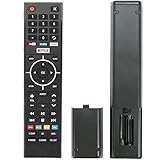
- Young Replacement remote for Element TV model:ELSW3917BF E4SFT5017 E4STA5017 ELSJ5017 ELST3216H ELST5016S E2SW5018. Support 2K 4K UHD Smart TV. Include NETOLIX button,YouTube button,VUDU button&pandora button
- Please pay attention to the TV model when purchasing. The correct TV model does not need programming or pairing,Put the batteries inside and it will be works,No other Settings are required
- This Item uses two AAA batteries(Batteries are not included). Please put new batteries inside
- High quality ABS material, wear-resistant and fall proof
- If you have any questions after receiving the remote control, please feel free to contact us, we will provide you with timely and high-quality service
- Unplug the set from the wall.
- Check the power and input of any connected receiver or soundbar.
- Press and hold the power button on the back of the TV for 30 seconds.
- Reconnect power and turn the set on.
- If the screen stays black, contact Element support.
Brief black screens during 4K streaming on Fire TV
Element’s Fire TV support article, published in 2020, states: “When you start or stop streaming a title in 4K Ultra HD, your TV screen possibly flickers or turns black for up to five seconds.” This describes a short transition during 4K playback on Fire TV. It is not a general timing rule for all Element TVs, and a black screen that lasts longer than a few seconds, or appears at startup or on every input, should be handled with the steps above.
Quick wins for a faster PC:
Fix the driver behind crashes, sound loss and screen glitchesFind Drivers →Clear out junk files and repair common Windows errorsFree Scan →When the screen stays black: contact Element
If the correct input, connected devices, and the reset for your platform do not restore the picture, contact Element support. Element’s support articles list 888-842-3577 as of October 2026. Phone numbers can change, so confirm the current number on Element’s support site before calling.
Rank #3

- As Long As This Remote Have the Same Appearance As Your Remote Control, It Can Be Used. Remote Control Replacement for Element TV Fit for ELEMENT ELEFW328 ELEFT426 ELEFT506 ELEFT426 ELEFT326 20343
- Need New 2x AAA Batteries; The Remote Carry One Year Warranty.
- NOT Support Bluetooth pairing and Initial setup for a new TV,This remote has NO Voice Control.
Have the following ready so support can act on the details:
- The exact model number and your platform (smart, standard, or Fire TV)
- What the indicator light does when you press power, including whether it is off or red
- Whether you hear sound when the picture is black
- Which inputs and devices you have already tested
This guide does not establish current warranty coverage or repair pricing for any Element model. Check your purchase records and ask Element support about coverage.
Rank #4
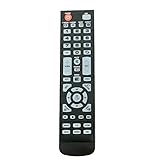
- New Remote Control Replacement for Element TV ELEFW195 ELEFT222 ELEFW247 ELEFW248 ELEFW328 ELEFT407 ELEFW504 ELEFW505 ELEFT506 ELEFW581
- ELEFW247 ELEFW505 ELEFW248 ELEFW247 Elefw504 Eleft326 Elefw195 ELEFW505 ELEFT506 ELEFW247 ELEFW504 ELEFW248 ELEFT195 ELEFW581 ELEFT222 ELEFW195 ELEFT326 ELEFT407
- No programming or paring needed. Install new batteries for the first time usage.
- Universal Replacement Remote Control for All Element LCD LED TV. It does NOT work for Element Roku & Fire TVs.
- The remote uses infrared (IR) technology, so make sure to point it at the TV’s IR sensor for it to work properly.
Avoid guessing at parts
A black screen does not, by itself, show that a backlight, power board, or main board has failed. Element’s support material does not diagnose component faults from the symptom alone. Do not buy a backlight strip, power board, or main board until a support representative has diagnosed your exact model and confirmed compatibility.
A replacement HDMI cable is worth considering only if the problem is limited to one HDMI device or connection. If every input is black, a new cable will not address a TV-wide display fault, so complete the input, device, and reset checks first.
Quick Recap
Best Value

- New Replacement Voice Remote Control Compatible with Element Xumo TV Stream Box, Including Element 65” 4K UHD HDR Xumo TV E500AC65C E500AC43C E500AC55C E500AC50C.
- The advanced voice remote lets you quickly search and access your favorites across every app. No more scrubbing different streaming platforms to find that one show your friend recommended. Switch between apps, discover new shows, change the volume, and more with the sound of your voice. More watching, less waiting. (Note: Voice control will not work until you pair your remote. Voice commands only work when your TV is connected to the internet.)
- How to Pairing with New Xumo TV: Before using your remote, you'll need to pair it with your TV. If you put batteries in your remote within 15 minutes of plugging in your TV for the first time, your remote will automatically pair to your TV. If unpaired, please follow the below instructions: Step1) Press the SETTING button. Step2) Select Remote > Pair your remote to your TV. Step3) Follow the on-screen instructions. ( Tips: If pairing fails, turn off your TV and unplug from the power source. Plug TV back in, power on, any try steps 1-3 again.)
- How to Pairing with Sound System: Step1) Press the SETTING button. Step2) Select Remote > Pair your remote and sound system. Step3) Follow the on-screen instructions.
- How To Reset Remote: Step1) Hold the ← and + buttons for 3 seconds until the light at the top of the remote turns solid green. Step2) Press 9, then 8, then 4(the light will blink red a few times). Step3) Hold the ← and + buttons for 3 seconds again. Step4) Press 9, then 8, then 1. Step5) Wait for the light at the top of the remote to flash red again. Step6) With your remote control pointed towards your TV, try pressing the HOME button then other keys to make suer your remote is working properly.
Product prices and availability are accurate as of the date/time indicated and are subject to change. Any price and availability information displayed on Amazon at the time of purchase will apply.




