What’s actually slowing this PC down?
Pick the symptom - the matching free tool is one click away.
The best starting point is to leave Enhance PSSR Image Quality enabled, then choose the graphics mode inside each game. Use 120 Hz output and VRR only when both your display and the game support them. For HDR, choose On When Supported if you want SDR games and apps to remain SDR; Always On converts all output to HDR. There is no universal “best” combination because developers decide what each Pro, Fidelity and Performance mode changes.
Start with these PS5 Pro settings
On the PS5 Pro, the most important choices are split between the console’s video menu and each game’s own graphics menu. Set the system options once, but expect to revisit the in-game mode whenever you start a different title.
As an Amazon Associate I earn from qualifying purchases.
- Enhance PSSR Image Quality: leave it on for compatible PS5 Pro games unless a particular title behaves unexpectedly.
- 120 Hz Output: enable it when your television or monitor and the game both support 120 Hz.
- VRR: enable it with a compatible display; test “Apply to Unsupported Games” only if you need help with an uneven frame rate.
- HDR: use On When Supported for native HDR/SDR behavior, or Always On if you deliberately want SDR content converted to HDR.
- Video Transfer Rate: leave Automatic unless 4K flicker or signal instability requires -1 or -2.
Find the main options at Settings > Screen and Video > Video Output. The game-specific setting is normally under a Graphics, Display or Video menu.
Enhance PSSR Image Quality: the first setting to check
What it does
Enhance PSSR Image Quality is a system-level option for PS5 Pro games that use PSSR, Sony’s machine-learning reconstruction technology. Sony describes it as a way to improve image stability in supported games. It is not a universal resolution switch, and it cannot add a Pro presentation to a game that does not support the relevant technology.
#1 Best Overall

- Ray Tracing - Immerse yourself in worlds with a new level of realism as rays of light are individually simulated, creating true-to-life shadows and reflections in supported PS5 games.
- Faster Loading - Fast-travel across the map and get back into the game almost instantly with the PlayStation 5 console’s ultra-high-speed SSD and fast load times.
- Stunning Visuals - Experience the vast world in stunning 4K and HDR at 120 FPS (with a 4K and HDR compatible TV or display)
- Breathtaking Immersion - Discover a deeper gaming experience with support for haptic feedback, adaptive triggers, and 3D Audio technology.
- Backwards Compatibility - Play over 4,000 PS4 games on PS5. Enjoy faster and smoother frame rates in some of the PS4 console's greatest games.
Sony’s current PS5 Pro support material says the option is on by default and that results vary by title. A game may show steadier fine detail, less shimmering or cleaner reconstruction, while another may show little visible difference. Updates to the console or game can also change the result.
How to turn it on
- Open Settings from the PS5 home screen.
- Select Screen and Video.
- Choose Video Output.
- Set Enhance PSSR Image Quality to On.
Use the setting with titles that identify PSSR or PS5 Pro support. If a game develops visual glitches or another unexpected behavior, turn the option off for that title and check for updates.
How widely PSSR is used
In a February 27, 2026 announcement about an upgraded version of PSSR, Sony Interactive Entertainment said PSSR had been used to boost effective resolution in over 50 titles on PS5 Pro at that time. That is a dated figure, not a permanent count. Sony’s current PS5 Pro product page separately describes over 100 PS5 titles as enhanced for PS5 Pro; that figure is attributed to the page as accessed in 2026 and does not mean every enhanced title uses PSSR.
The Tool Desk
Outbyte Driver Updater FREEScan for outdated or missing drivers - takes under a minuteDriver Scan →Outbyte PC Repair FREEClear out junk files and repair common Windows errorsFree Scan →Mark Cerny, PlayStation’s lead architect for PS5 and PS5 Pro, described PSSR as “an AI library that analyzes game images pixel by pixel as it upscales them.” The practical consequence is that image quality depends on the game’s implementation, source resolution and chosen graphics mode.
Choose the game’s graphics mode title by title
The console cannot decide whether a game should prioritize frame rate or visual effects. Developers set the available modes and the compromises behind them. Before choosing, compare four things in the game’s description or menu:
- Frame-rate target: commonly 30, 40 or 60 frames per second, with some games offering a high-frame-rate option.
- Resolution or reconstruction: native rendering, dynamic resolution, upscaling and PSSR can all produce different levels of fine detail.
- Ray tracing and effects: reflections, shadows, lighting, foliage and draw distance may change between modes.
- Image stability and motion: a mode with a lower internal resolution can still look cleaner in motion if reconstruction and frame pacing are better.
| Mode label | What it usually prioritizes | Check before selecting |
|---|---|---|
| Performance | Higher or steadier frame rate and more responsive controls | Whether resolution, ray tracing or effects are reduced; the exact target is set by the developer |
| Fidelity | Higher rendering quality, resolution or visual effects | Whether the game is locked to 30 fps, offers a 40-fps option, or uses an unlocked frame rate |
| Pro or Balanced | A developer-specific compromise between image quality and performance | The in-game explanation rather than the label; “Pro” has no single industry-wide specification |
| High-frame-rate | Support for 120 Hz displays and a faster frame-rate target | Required display mode, reduced resolution or effects, and whether 120 Hz output is enabled |
Examples of why labels are not enough
Naughty Dog described a Pro-specific mode that renders at 1440p, upscales to 4K with PSSR and targets 60 fps. Its developer explanation called the mode an “ideal balance of framerate and resolution.” That is a specification for the named game, not a promise that every Pro mode renders at 1440p.
Insomniac has described a Performance Pro mode that combines crisp 4K output and ray-tracing features with a 60-fps target. Other developers may use different internal resolutions, reconstruction methods or effect settings under the same label.
Crashes, No Sound, or Screen Glitches?
Random freezes, missing sound and display glitches usually trace back to one bad driver. Find and replace yours safely.Free scan · under a minuteWindows Errors? Fix Them Before They Spread
Repair common Windows errors and clear accumulated junk for a smoother, more stable PC - no reinstall needed.Free scan · no reinstallRank #2
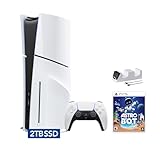
- Upgraded 2TB Ultra Fast SSD - Double the space than the standard model with the same ultra fast speed. Fast-travel across the map and get back into the game almost instantly with fast load times.
- Stunning Visuals - Experience the vast world in stunning 4K and HDR (with a 4K and HDR compatible TV or display).
- Breathtaking Immersion - Discover a deeper gaming experience with support for haptic feedback, adaptive triggers, and 3D Audio technology.
- Slim Design - More power and storage packed in the new slim and compact design.
- Bundle comes with Astro Bot Game Voucher and C-Gamers controller charger
A practical selection method
- Open the game’s graphics menu and read the description for every mode.
- Pick the highest frame-rate target you can comfortably maintain if fast camera movement and input response matter most.
- Pick Fidelity or a Pro quality mode if you prefer richer lighting, reflections and detail and accept slower motion.
- If the game offers a Balanced mode, compare it in a busy scene rather than judging only the pause menu or opening area.
- Recheck the choice after a game update; developers can change resolution, ray tracing and frame-pacing behavior.
120 Hz output: enable it only with compatible hardware and games
At Settings > Screen and Video > Video Output, the PS5 Pro can be configured for 120 Hz output. Sony states that both the display and the game must support 120 Hz. Enabling the console option does not make an unsupported game run at 120 frames per second.
A compatible title may offer a 120-Hz or high-frame-rate mode with its own compromises, such as lower resolution or fewer effects. Check the game’s mode description and your display’s input specifications. A television may support 120 Hz at one resolution or HDMI input but not another, so use the input and cable path documented for that model.
VRR: useful for uneven frame rates, not a guarantee
Variable refresh rate (VRR) lets a compatible display adjust its refresh timing to the console’s current frame rate. This can reduce visible judder or tearing when a game does not hold its target perfectly. Enable VRR when your display and the game support it, then judge the result in actual play; Sony notes that behavior varies by television.
Apply to Unsupported Games
The PS5 Pro also offers Apply to Unsupported Games in the VRR settings. Sony says this may stabilize the frame rate of games that do not officially support VRR. It is an optional compatibility aid, not a guaranteed improvement. If you see flicker, brightness changes, artifacts or other unexpected behavior, turn it off and return to standard VRR behavior.
Quick wins for a faster PC:
Clear out junk files and repair common Windows errorsFree Scan →Scan for outdated or missing drivers - takes under a minuteDriver Scan →HDR: choose between native output and forced conversion
On When Supported
On When Supported leaves games and apps that do not support HDR in SDR. This is the appropriate choice if you want native HDR games to use HDR while unsupported content keeps its original SDR output.
Always On
Always On converts even non-HDR-compatible games and apps to HDR output. Some displays and viewers prefer the resulting presentation, but it is not the same as a game rendering native HDR. Choose it only if you specifically want the console to convert all content.
Adjust HDR
After selecting your HDR behavior, run the console’s Adjust HDR calibration screens. Do not copy another display owner’s brightness values: the correct result depends on your panel, room lighting and viewing setup. Re-run the calibration after changing the television’s HDR picture mode or replacing the display.
Rank #3
- Ray Tracing - Immerse yourself in worlds with a new level of realism as rays of light are individually simulated, creating true-to-life shadows and reflections in supported PS5 games.
- Faster Loading - Fast-travel across the map and get back into the game almost instantly with the PlayStation 5 console’s ultra-high-speed SSD and fast load times.
- Stunning Visuals - Experience the vast world in stunning 4K and HDR at 120 FPS (with a 4K and HDR compatible TV or display)
- Breathtaking Immersion - Discover a deeper gaming experience with support for haptic feedback, adaptive triggers, and 3D Audio technology.
- Backwards Compatibility - Play over 4,000 PS4 games on PS5. Enjoy faster and smoother frame rates in some of the PS4 console's greatest games.
Video Transfer Rate: a troubleshooting control for 4K flicker
Video Transfer Rate is not a picture-quality preset. Leave it on Automatic unless you see flicker, dropouts or an unstable 4K signal. Sony says selecting -1 or -2 limits some output modes and may improve the picture. The available 4K modes differ at each setting, so use the console’s displayed compatibility information and test the least restrictive value that removes the problem.
- Confirm that the television is on the correct HDMI input and that its 4K mode is enabled.
- Check the cable and any receiver, soundbar or switch between the PS5 Pro and display.
- Set Video Transfer Rate to -1 and test the same game or menu.
- If flicker remains, try -2; understand that some resolution, HDR or refresh combinations may no longer be available.
- Return to Automatic after changing the connection or display, then test again.
Enhance Image Quality for PS4 games is a separate feature
Do not confuse Enhance Image Quality for PS4 Games with Enhance PSSR Image Quality. The former applies to PS4 games running on PS5 Pro; it is not the PSSR option for PS5 Pro-enhanced PS5 games.
Sony places it at Settings > Screen and Video > Video Output. It requires a screen that supports 2160p or 1440p at 60 Hz and is available only on consoles in the CFI-7000 model group. Turn it off if a PS4 game shows unexpected behavior.
Do you need a new TV or monitor?
No. You can change the PS5 Pro’s image-processing and game-mode settings with an existing display. A new screen matters only when the current one lacks a mode you want to use.
For 120-Hz gaming, verify all of these before buying or rewiring anything:
Free tools Windows power users keep installed
One-click scans. No signup required.
- Supported resolution at 120 Hz, not merely a headline refresh-rate number.
- VRR support and its operating range.
- The exact HDMI input that supports those features.
- Whether a receiver, soundbar or switch passes the same signal.
- HDR support and the display’s available HDR picture modes.
The same checks apply to monitors. A display that accepts 4K at 60 Hz may still be unsuitable for a game’s 4K/120-Hz or VRR mode.
Recommended setups for common priorities
Best image stability in supported PS5 Pro games
- Set Enhance PSSR Image Quality to On.
- Choose the game’s Pro or Fidelity mode if its description prioritizes resolution and effects.
- Use HDR On When Supported and complete Adjust HDR.
- Enable VRR if the display and title support it.
Best responsiveness
- Leave Enhance PSSR Image Quality on if the game supports it.
- Select Performance or a developer-described 60-fps/120-Hz mode.
- Enable 120 Hz output only with a compatible display and title.
- Enable VRR, but disable Apply to Unsupported Games if it causes artifacts.
Fixing flicker or a lost 4K signal
- Check the HDMI input, cable and any intermediate equipment.
- Try Video Transfer Rate -1, then -2 if necessary.
- Retest HDR, 120 Hz and VRR after each change because limiting output modes can remove combinations that previously worked.
What can change over time
Supported-game lists, graphics modes and PSSR behavior can change with system and game updates. Sony’s figures and developer examples describe the software available or documented at those times; they are not independent benchmark measurements. When a menu does not match the instructions above, install current updates and read the title’s own mode description before assuming the console is malfunctioning.
Quick Recap
Product prices and availability are accurate as of the date/time indicated and are subject to change. Any price and availability information displayed on Amazon at the time of purchase will apply.




