Do these 3 things before closing this tab:
1Scan for outdated or missing drivers - takes under a minute2Repair Windows errors before they cause bigger problems3Fix the driver behind crashes, sound loss and screen glitchesA sound card handles your PC’s audio input and output: it routes audio, converts digital signals for analog headphones or speakers, and provides the connections and amplification those devices need. It may be built into the motherboard, installed inside the PC as a PCIe card, or connected externally by USB. A separate device can add useful ports, speaker-channel support, or headphone amplification—but it is an upgrade only if it solves a need your current setup does not meet.
What a sound card does
A sound card is the hardware behind a computer’s audio connections and functions. Depending on the device, it may process audio, convert digital audio into an analog signal for headphones or speakers, convert analog microphone input into digital data, and amplify output. The exact components and features vary.

As an Amazon Associate I earn from qualifying purchases.
In a typical playback path, an application generates digital audio. The PC’s audio hardware and software route it and may process it. A digital-to-analog converter (DAC) produces an analog signal for analog headphones or speakers; an amplifier supplies the output level needed by the connected device. For a microphone or line input, the path runs in reverse through analog-to-digital conversion. Digital equipment may use a different signal path.
Recommended Free Tools
Where the sound card is in a PC
“Sound card” can describe audio hardware in several forms. Many PCs use audio circuitry integrated into the motherboard, so no separate card is required for basic audio. Other systems use an internal expansion card or an external USB audio device.
#1 Best Overall

- HIGH-RESOLUTION AUDIO - Delivers ultra-clear playback with 32-bit / 384 kHz and up to 120 dB SNR
- SURROUND SOUND - Supports discrete 7.1-channel analog output for immersive multi-channel audio on your PC
- VERSATILE CONNECTIVITY - Connects effortlessly to multi-channel PC speaker systems, SPDIF output and headset outputs, mic-in, as well as line-in sources
- ALL-NEW CREATIVE NEXUS APP - AutoEq customization that allows users to simulate the frequency response of various headphones for a tailored listening experience
- COMPACT LOW-PROFILE DESIGN - The card is 10.5 cm in length and comes with a half-height bracket to ensure compatibility with smaller cases and different build needs
| Type | Connection | What to check |
|---|---|---|
| Motherboard-integrated audio | Built into the motherboard; connectors are usually on the rear I/O panel, with some case-front connections routed to the board. | Look up the exact motherboard’s audio features, ports, and supported speaker configuration. “Onboard audio” does not describe one fixed level of capability. |
| Internal PCIe sound card | Installs in a compatible PCIe slot inside the PC. | Confirm an available slot, physical clearance, required inputs and outputs, and current driver and operating-system support for the exact model. |
| External USB audio device | Connects to the PC by USB. | Confirm USB and operating-system compatibility, and check that its connections and headphone or speaker capabilities suit your equipment. |
ASUS’s motherboard audio setup guide illustrates how integrated audio connections and channel configurations depend on the board. For external hardware, Creative describes its Sound Blaster PLAY! 3 as a USB DAC and amplifier for PC and Mac.
When a separate sound card or USB device can help
A separate device is worth considering when it adds a specific capability your existing setup lacks, or addresses a diagnosed audio problem. Examples include:
Rank #2
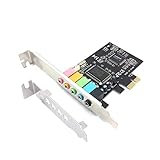
- 1) PCIe sound card, 5.1 stereo audio card
- 2) Easily convert the PC into a cinematic entertainment system by providing a 5.1 3D stereo surrounding sound
- 3) With low profile bracket for 2U case, your best choice of sound card for PC desktop
- 4) 16-bit multimedia digital signal editing decoder inside, Supports 32/64-bit audio processing, recording and playback
- Headphone amplification: A device with a suitable headphone amplifier may be useful if your existing output does not meet your headphones’ needs. Check the exact device’s specifications rather than assuming every sound card has the same amplifier.
- Different connections: You may need a microphone or line input, optical output, headset connection, or analog speaker outputs that your PC does not provide.
- Multichannel speakers: A discrete device may offer the outputs needed for a particular speaker arrangement. Check whether the listed mode is discrete speaker output or virtual surround processing for headphones; they are not the same thing.
- An external audio path: A USB device can be an option when you do not have a suitable internal expansion slot or prefer not to install a PCIe card.
- A confirmed fault or limitation: If troubleshooting points to the existing audio hardware as the problem, another device may be a practical alternative.
These are reasons to choose features, not proof that a separate card will sound better in every PC. The published specifications for individual products do not establish a universal quality advantage over motherboard audio.
Quick wins for a faster PC:
Scan for outdated or missing drivers - takes under a minuteDriver Scan →Clear out junk files and repair common Windows errorsFree Scan →How to decide what your setup needs
- List your equipment and connections. Note the headphones, speakers, microphone, and any digital audio equipment you use, then identify the connectors each requires: for example, headphone, headset, microphone or line input, analog speaker outputs, or optical output.
- Check the motherboard first. Find the specifications and audio setup information for your exact motherboard. Confirm its available ports and whether it supports your intended speaker-channel arrangement.
- Match the form factor to the PC. For a PCIe card, check for a compatible free slot and enough physical clearance. For a USB device, verify the connection and the maker’s operating-system and driver support for that specific model.
- Check the audio mode and amplifier details. Distinguish discrete speaker outputs from virtual headphone surround. If headphone amplification matters, compare the model’s published amplifier specifications with the needs of your headphones; impedance alone does not determine compatibility or loudness.
- Buy only to address a concrete gap. If your current connections and output work for your equipment, a separate sound device may not provide a meaningful benefit. Labels such as “gaming,” “audiophile,” or “high-definition” do not replace checking the actual features.
A product example: what specifications do—and do not—tell you
Creative’s Sound BlasterX AE-5/AE-5 Plus technical specifications show the kinds of components and connections that can appear on an internal PCIe card: a Sound Core3D audio/DSP processor, ESS ES9016K2M DAC, microphone/line input, headphone/headset output, analog speaker outputs, and TOSLINK optical output. Creative lists 5.1 discrete speaker output and virtual 7.1 headphone surround as separate capabilities.
Rank #3
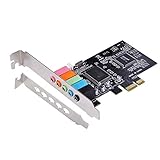
- PCIe sound card, 5.1 stereo audio card.
- Easily convert the PC into a cinematic entertainment system by providing a 5.1 3D stereo surrounding sound.
- With low profile bracket for 2U case, your best choice of sound card for PC desktop.
- 16-bit multimedia digital signal editing decoder inside, Supports 32/64-bit audio processing, recording and playback.
- Supports direct sound, A3D and EAX, HRTF 3D tone. Supports Windows XP / 7 / 10.
For that product, Creative lists a 16–600 ohm headphone amplifier range, a 122 dB stereo DAC dynamic range, 116 dB headphone-amplifier SNR, and 0.0009% headphone-amplifier THD+N. These are Creative’s product specifications; the page does not state a publication date. They are not independent test results or evidence of a universal audible improvement.
Creative’s AE-5/AE-5 Plus FAQ says: “The Sound BlasterX AE-5/AE-5 Plus is the first sound card to feature Xamp, our custom-designed discrete headphone amplifier.” This is Creative’s statement about its own product, not an independent comparison.
Rank #4

- REFERENCE-GRADE HI-RES AUDIO – Powered by the ESS ES9039Q2M DAC with up to 130 dB SNR, supporting 32-bit / 384 kHz playback for exceptional clarity and detail, far beyond typical onboard audio
- POWER FOR DEMANDING HEADPHONES – Built-in high-performance headphone amplifier delivers up to 350mW @ 32Ω. Easily drives studio-grade headphones
- LOW-LATENCY PERFORMANCE – Supports DSD256 and ASIO 2.3 for high-resolution playback and low-latency audio, ideal for music, gaming, and PC audio workflows.
- PRECISION SOUND PERSONALISATION – 10-band parametric EQ + AutoEq in Creative Nexus add meaningful personalization and offers advanced audio tuning and control
- FLEXIBLE CONNECTIVITY – Coaxial output and optical input for seamless integration with desktop audio setups.
If audio stops working after installation
When sound fails after adding a device, check the basic routing and connections before assuming the new hardware is defective. Creative’s sound card troubleshooting guidance supports these checks; exact menu names and driver behavior can vary by PC and operating system.
Quick Recap
Best Value
- Set the intended sound device as the default playback device in your operating system’s sound settings.
- Check the device’s status in the operating system and confirm its driver is installed and functioning.
- Unmute the system and app, then check the operating system’s volume mixer and output level.
- Verify that speakers or headphones are connected to the correct output and that cables are secure.
- If onboard audio and the added card are both present, check for a device-selection or onboard-audio conflict.
Product prices and availability are accurate as of the date/time indicated and are subject to change. Any price and availability information displayed on Amazon at the time of purchase will apply.




