A server that appears to have failed after two weeks away may have a storage, playback, monitoring, or network problem—not necessarily a crashed media-server process. The title alone does not identify what actually broke, which server software was running, or whether the 14-day interval caused anything. The useful first step is to identify which layer stopped working, then check the evidence before restarting services or changing settings.
What does “broken” mean in this case?
There is no specific observed failure to diagnose from the title. A media library disappearing, a stream refusing to play, and remote access failing point to different parts of a server. For Jellyfin, the documented troubleshooting paths cover service and database availability, storage mounts, filesystem watching, transcoding, and network access. They are plausible avenues to investigate, not evidence that any one of them failed during a 14-day absence.
As an Amazon Associate I earn from qualifying purchases.
- Library contents look missing: check whether the media storage was mounted and available when Jellyfin scanned it or ran scheduled maintenance.
- The server responds but a video will not play: check server and FFmpeg logs to distinguish a playback or transcoding problem.
- Access works at home but not remotely: check the router and port-forwarding path.
- No server log entry appears for an attempted connection: investigate whether the request reached the server at all.
These distinctions are more useful than assuming that an idle server needs a reboot. Jellyfin’s troubleshooting guide recommends using logs and access patterns to narrow playback, filesystem-watcher, and connectivity problems.
Recommended Free Tools
Could an unavailable media drive make the library look empty?
Yes. Jellyfin reads media from the filesystem, including storage mounted by the operating system. If a network or other mounted media location is unavailable when a scan or scheduled task runs, the library can appear to have lost items even if the server process is still running. Jellyfin warns that scheduled maintenance can remove library items when media storage is unavailable; its task documentation also warns that “Clean up collections and playlists” can remove playlists when files are missing at task time. Those warnings describe possible effects, not proof that cleanup caused a particular incident.
#1 Best Overall

- Entry-level NAS Personal Storage:UGREEN NAS DH2300 is your first and best NAS made easy. It is designed for beginners who want a simple, private way to store videos, photos and personal files, which is intuitive for users moving from cloud storage or external drives and move away from scattered date across devices. This entry-level NAS 2-bay perfect for personal entertainment, photo storage, and easy data backup (doesn't support Docker or virtual machines).
- Set Your Devices Free, Expand Your Digital World: This unified storage hub supports massive capacity up to 64TB.*Storage drives not included. Stop Deleting, Start Storing. You can store 22 million 3MB images, or 2 million 30MB songs, or 43K 1.5GB movies or 67 million 1MB documents! UGREEN NAS is a better way to free up storage across all your devices such as phones, computers, tablets and also does automatic backups across devices regardless of the operating system—Window, iOS, Android or macOS.
- The Smarter Long-term Way to Store: Unlike cloud storage with recurring monthly fees, a UGREEN NAS enclosure requires only a one-time purchase for long-term use. For example, you only need to pay $459.98 for a NAS, while for cloud storage, you need to pay $719.88 per year, $2,159.64 for 3 years, $3,599.40 for 5 years. You will save $6,738.82 over 10 years with UGREEN NAS! *NAS cost based on DH2300 + 12TB HDD; cloud cost based on 12TB plan (e.g. $59.99/month).
- Blazing Speed, Minimal Power: Equipped with a high-performance processor, 1GbE port, and 4GB RAM on Board, this NAS handles multiple tasks with ease. File transfers reach up to 125MB/s—a 1GB file takes only 8 seconds. Don't let slow clouds hold you back; they often need over 100 seconds for the same task. The difference is clear.
- Let AI Better Organize Your Memories: UGREEN NAS uses AI to tag faces, locations, texts, and objects—so you can effortlessly find any photo by searching for who or what's in it in seconds. It also automatically finds and deletes similar or duplicate photo, backs up live photos and allows you to share them with your friends or family with just one tap. Everything stays effortlessly organized, powered by intelligent tagging and recognition.
Check the mount before changing the library
- Confirm at the operating-system level that each media path is mounted and that the server account can read it.
- Check Jellyfin’s scheduled-task history and logs for a scan or cleanup that ran while the storage was unavailable.
- Verify the mount is ready before scheduled library scans or cleanup tasks run.
- Only after storage is available, determine whether a library refresh is needed. Do not infer that files were deleted just because entries disappeared from the interface.
Jellyfin recommends keeping its database on local storage while allowing media files to use suitable network storage. Its storage guidance says a moderate-sized library database can range from 10 to 100 GB; that is the project’s planning guidance, not a universal capacity requirement or an independent measurement.
Why might automatic library updates stop?
Jellyfin can watch filesystem changes, but real-time monitoring depends on the filesystem and available watcher resources. On Linux it uses inotify. Jellyfin’s troubleshooting documentation says NFS and rclone do not support inotify directly and gives an example error when a configured user limit of 8192 watches is reached. That number is an example of a logged limit, not an estimate of how often the problem occurs.
If new files are not appearing automatically, compare the media path’s filesystem with Jellyfin’s watcher support and check logs for watcher errors or exhausted limits. A library that updates when manually scanned but not when files change points toward the watcher path rather than proving that the media server itself is down.
Rank #2

- IronWolf internal hard drives are the ideal solution for up to 8-bay, multi-user NAS environments craving powerhouse performance.date transfer rate:6.0 gigabits_per_second
- Store more and work faster with a NAS-optimized hard drive providing 8TB and cache of up to 256MB
- Purpose built for NAS enclosures, IronWolf delivers less wear and tear, little to no noise/vibration, no lags or down time, increased file-sharing performance, and much more
- Easily monitor the health of drives using the integrated IronWolf Health Management system and enjoy long-term reliability with 1M hours MTBF
- Three-year limited product warranty protection plan and three year Rescue Data Recovery Services included
Why can a server be up while playback fails?
Playback depends on more than server uptime. A client’s supported codecs, resolution, bitrate, and other capabilities affect whether a file can play directly or Jellyfin must transcode it. A failure may involve the client profile, transcoder, driver, or available resources; the fact that the server is running does not identify which.
Use the logs to separate playback from transcoding
- For a playback problem, start with Jellyfin’s server logs and the details of the failed playback session.
- If the file needs transcoding and conversion fails, inspect the FFmpeg logs for the relevant session.
- Check whether the client’s capabilities require conversion and whether hardware acceleration is configured for compatible hardware and software.
Jellyfin documents its transcoding behavior and configuration separately from general playback troubleshooting. Its hardware guidance recommends SSDs for Jellyfin’s own files, which see random access; this is distinct from choosing storage for the media library itself. Transcoding also needs temporary space, and the amount depends on the source media and the number of concurrent conversions.
Does local access work when remote access fails?
That split helps locate the problem. If Jellyfin is reachable on the local network but not from outside it, the router and port-forwarding configuration are among the first checks in Jellyfin’s network troubleshooting guidance. If local HTTP works but HTTPS does not, certificate configuration may be involved. If a remote connection attempt produces no web-traffic log entry, the request may not have reached Jellyfin, so server-side playback troubleshooting is unlikely to explain it.
Rank #3
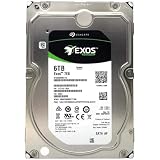
- [ Enterprise-Class Reliability ] Designed for 24/7 operation with enterprise-grade components, making it ideal for servers, NAS systems, RAID arrays, and data-intensive environments.
- [ High-Capacity 6TB Storage ] Store large amounts of business data, backups, media libraries, surveillance footage, and critical files on a single drive.
- [ 7200 RPM Performance ] Fast spindle speed combined with a large 256MB cache delivers responsive performance and efficient data transfers for demanding workloads.
- [ SATA 6Gb/s Interface ] Provides broad compatibility with desktops, workstations, NAS devices, servers, and storage arrays while delivering reliable high-speed connectivity.
- [ Optimized for Multi-Drive Systems ] Built for enterprise and RAID environments with enhanced vibration tolerance and workload capabilities for dependable long-term operation.
For Plex, official documentation describes scheduled tasks and a status dashboard with real-time and historical activity views. Their availability and details can vary by version and platform. These are product-specific references, not a basis for ranking Plex against Jellyfin or claiming one is more reliable.
How can you tell whether the server is healthy while you are away?
A simple uptime check can show that a host or web endpoint responds; it does not necessarily establish that the database is reachable, media mounts are ready, or playback works. Jellyfin provides a /health endpoint for HTTP and database connectivity and an optional Prometheus-compatible /metrics endpoint. The health check may not behave as expected while the server starts and runs database migrations, so an automatic watchdog should account for startup instead of treating every early failed check as a crash.
Metrics are disabled by default to avoid unintentionally exposing them publicly. If enabling them, restrict access—for example, with a reverse proxy limited to the internal network. Jellyfin’s monitoring documentation explains the endpoints and the startup caveat.
Rank #4

- Available in capacities ranging from 2TB to 12TB
- For RAID-optimized NAS systems with up to 8 bays
- Designed for Continuous Operation
- Backed by World-Class Support and Warranty
- Tuned for NAS with NASware
What should storage planning account for?
Separate the storage used by Jellyfin from storage used for the media. Jellyfin recommends a local database and SSD storage for Jellyfin files; media can reside on suitable network storage mounted by the operating system. The project’s hardware guidance also identifies an SSD for the operating system, Jellyfin files, and transcode cache. Capacity needs are conditional: the documented database range is guidance, while transcode space varies with the media being processed and concurrency.
Before relying on scheduled work during an absence, prioritize mount readiness and task timing over simply increasing disk capacity. More storage does not prevent a scan or cleanup from running against an unavailable mount.
Do these 3 things before closing this tab:
1Scan for outdated or missing drivers - takes under a minute2Clear out junk files and repair common Windows errors3Fix the driver behind crashes, sound loss and screen glitchesQuick Recap
A practical order for diagnosing an unattended server
- Establish what still responds. Test the server locally, then remotely, and distinguish a web-interface failure from a single failed stream.
- Check storage readiness. Confirm media mounts, permissions, and path availability before rescanning or interpreting missing entries as deletions.
- Read the relevant logs. Look at server logs for playback or connection evidence, FFmpeg logs for failed transcoding, and task history for scheduled cleanup.
- Check library watching. If files are present but automatic updates stopped, investigate filesystem support and inotify limits.
- Review monitoring behavior. Use health checks and metrics with startup timing and restricted endpoint access in mind.
Product prices and availability are accurate as of the date/time indicated and are subject to change. Any price and availability information displayed on Amazon at the time of purchase will apply.




