To access a Verizon router’s settings, connect your phone or computer to that router by Wi-Fi or Ethernet, open the address for your router family, and sign in with its admin or WebGUI password. The address and login details vary by device: use the router’s label and the model-specific guide below rather than assuming every Verizon router uses the same address. Your Wi-Fi password gets a device onto the network; it is not necessarily the password that opens settings.
Choose the login address for your Verizon device
First identify the service and model from the router or gateway label, or from your Verizon account. Then use the matching row. These addresses are for the local management page and require a connection to that router.
As an Amazon Associate I earn from qualifying purchases.
| Device or service | Address to try | Login detail |
|---|---|---|
| Verizon Router | mynetworksettings.com or https://192.168.1.1 |
Use the admin password. Verizon directs users to the rear label for default network information. Verizon Router: Access Admin Page |
| Verizon 5G Home Router | my.router or 192.168.0.1 |
Use the WebGUI password printed on the bottom of the router. 5G Home Router: Sign in to the Admin WebGUI |
| Verizon Internet Gateway, models WNC-CR200A or ARC-XCI55AX | mynetworksettings.com or https://192.168.1.1 |
Connect to the gateway and use its admin credentials. Verizon Internet Gateway: Access Admin Page |
| Verizon Internet Gateway, models ASK-NCQ1338 or ASK-NCQ1338FA | mynetworksettings.com or https://192.168.0.1 |
Connect to the gateway and use its admin credentials. Verizon Internet Gateway: Access Admin Page |
| Fios Router | myfiosgateway.com or 192.168.1.1 |
The listed username is admin; use the unique default password on the router label, unless it was changed. Verizon Router FAQs | Fios Support |
Sign in to the local admin page
- Connect to the Verizon router or gateway you want to manage. Wi-Fi is fine; connect by Ethernet if Wi-Fi is unavailable or you cannot reach the network wirelessly.
- Open a browser and enter the exact hostname or IP address from the table in its address bar—not a search box.
- At the sign-in screen, enter the admin or WebGUI credentials. For a Fios Router, the listed username is
admin; other models may ask only for a password or show a model-specific login. - If the default password has not been changed, check the router label. Use the label’s admin/WebGUI password, not the Wi-Fi password, unless the page explicitly asks for the wireless password.
Verizon’s instructions for the Verizon Router, 5G Home Router, and Internet Gateway each specify a local connection and a device-family address. If you are unsure which family you have, check the model label before trying another address; the listed addresses are not interchangeable across all Verizon equipment.
Do these 3 things before closing this tab:
1Scan for outdated or missing drivers - takes under a minute2Clear out junk files and repair common Windows errors3Fix the driver behind crashes, sound loss and screen glitchesUnderstand which password the page needs
The Wi-Fi password authenticates a device to the wireless network. The admin or WebGUI password authenticates you to the router’s settings. A device can already be connected to Wi-Fi and still need a different password to sign in to the admin page. Verizon explicitly identifies the 5G Home Router’s WebGUI password as a separate admin credential and says its default is printed on the device. See Verizon’s instructions for changing the 5G Home Router admin password.
#1 Best Overall

- The latest Wi-Fi generation, Wi-Fi 6 (802.11 ax) with speeds averaging 60% faster on 2.4 GHz and 38% faster on 5 GHz than previous Verizon Wi-Fi routers*
- Tri-band 4x4 antennas, increasing Wi-Fi coverage by an average of 63%*
- 4 Gigabit LAN + 1 Gigabit WAN, MoCA2.5 + LAN MoCA1.1 WAN
- Automatic Band switching between 2.4GH and 5.8GH Band and 150% more Wi-Fi range than G1100
- Self-Organizing Network technology for automatic band steering and single Wi-Fi Network name
Recover access if the password is forgotten
5G Home Router
On the 5G Home Router sign-in page, select Forgot Admin Password? and follow the prompt to answer the security question. This is Verizon’s documented recovery route for that router family. See the 5G Home Router sign-in instructions.
Other Verizon router families
Recovery options differ by model. Check the support instructions for your exact device before resetting it. Verizon’s Fios guidance says that, in some situations where a changed password is forgotten, a factory reset may be required. A reset can erase customized settings, so do not treat it as a universal first step; use the model-specific recovery path where one is provided. Fios router FAQs.
Rank #2

- IPv4 / IPv6 Dual Stac
- IP sharing for LAN with up to 253 users
- Firewall function with Access Control List (ACL)
- Dynamic and Static IP
- Guest Wi-Fi (2.4 GHz)
Troubleshoot a page that will not open
- Confirm the connection: Your device must be connected to the router or gateway whose settings you want to open. If Wi-Fi is not working, try Ethernet if your devices have compatible ports. Verizon lists both Wi-Fi and Ethernet as connection options for its router and gateway.
- Check the device family and address: Verify the model label and use its matching address from the table. A different Verizon family may use a different local IP.
- For a local gateway privacy warning: Verizon notes that a browser may show a “Your connection is not private” warning when opening the Internet Gateway page. Proceed only after confirming you are connected to your own gateway and entered the expected local address, then follow Verizon’s model-specific page instructions. Do not assume unrelated certificate warnings are safe to bypass. Verizon Internet Gateway instructions.
- If the Wi-Fi network is missing: Verizon identifies outdated wireless-adapter drivers or compatibility between older client devices and Wi-Fi 6 as possible causes for some Fios situations. Check the client device’s wireless-adapter support and driver updates. Fios Router support.
Use an app or account page for routine Wi-Fi changes
For supported Fios products, My Verizon can manage Wi-Fi and guest Wi-Fi settings. Verizon also describes the Verizon Home app as offering Wi-Fi name and password management, equipment management, restart, speed testing, LED settings, and parental controls for supported equipment. Availability depends on the service and device; some home-service settings are managed only on the My Verizon website. These account and app tools are alternatives for supported routine tasks, not a universal replacement for the local admin page. Fios router FAQs and Wi-Fi Access Point FAQs.
Wi-Fi security settings to approach carefully
For the Fios Wi-Fi Access Point configurations covered by Verizon’s FAQ, WPA2/WPA3 defaults are described for 2.4 GHz and 5 GHz, while 6 GHz uses WPA3. Verizon also warns that enabling 3-Link MLO changes the network to WPA3 and may stop some older devices from connecting. These details apply to the supported equipment and settings described in that FAQ, not necessarily every Verizon router. Verizon Wi-Fi Access Point FAQs.
Quick Recap
Best Value
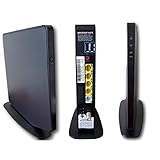
- AC1750 dual-band Wi-Fi for Verizon Fios plans
- 4 Gigabit Ethernet ports for wired devices
- 3x3 MIMO for strong, reliable coverage
- MoCA 2.0 uses coax to extend network
- Supports Wi-Fi 5 (802.11ac) technology
Rank #4

- Item Package Dimension -9.3299999904834L x 9.249999990565W x 3.699999996226H inches
- Item Package Weight - 2.48901893798 Pounds
- Item Package Quantity - 1
- Product Type - NETWORKING ROUTER
Rank #3

- DUAL-BAND WIFI 6 ROUTER: Wi-Fi 6(802.11ax) technology achieves faster speeds, greater capacity and reduced network congestion compared to the previous gen. All WiFi routers require a separate modem. Dual-Band WiFi routers do not support the 6 GHz band.
- AX1800: Enjoy smoother and more stable streaming, gaming, downloading with 1.8 Gbps total bandwidth (up to 1200 Mbps on 5 GHz and up to 574 Mbps on 2.4 GHz). Performance varies by conditions, distance to devices, and obstacles such as walls.
- CONNECT MORE DEVICES: Wi-Fi 6 technology communicates more data to more devices simultaneously using revolutionary OFDMA technology
- EXTENSIVE COVERAGE: Achieve the strong, reliable WiFi coverage with Archer AX1800 as it focuses signal strength to your devices far away using Beamforming technology, 4 high-gain antennas and an advanced front-end module (FEM) chipset
- OUR CYBERSECURITY COMMITMENT: TP-Link is a signatory of the U.S. Cybersecurity and Infrastructure Security Agency’s (CISA) Secure-by-Design pledge. This device is designed, built, and maintained, with advanced security as a core requirement.
Product prices and availability are accurate as of the date/time indicated and are subject to change. Any price and availability information displayed on Amazon at the time of purchase will apply.




