Recommended Free Tools
Using the PSVR Camera on a PC is doable, but it’s not a simple “plug in and it works” situation. The camera was designed around the PSVR/PS4 ecosystem, so the two big hurdles are (1) getting the camera physically connected to your PC and (2) using software that can translate the camera feed into usable tracking data.
This guide walks you through both parts in a methodical way—starting with what hardware you need, then covering the most practical software routes for Windows 10/11, plus placement, calibration, and troubleshooting when tracking goes sideways.
When using a PSVR camera on a PC, Outbyte Driver Updater can optionally check camera and USB drivers for compatibility.
As an Amazon Associate I earn from qualifying purchases.
Do these 3 things before closing this tab:
1Fix the driver behind crashes, sound loss and screen glitches2Clear out junk files and repair common Windows errors3Scan for outdated or missing drivers - takes under a minuteWhat You’re Actually Trying to Do (and What the PSVR Camera Can’t Do on Its Own)
The PSVR Camera provides a video feed used for tracking. On a PlayStation, the system stack handles camera initialization, calibration, and tracking pipelines. On PC, you must provide that pipeline—either through a dedicated driver (common for SteamVR) or an open-source tracking stack that supports the camera.
Also note a common misconception: the camera alone won’t automatically turn your PC into a full “PSVR-like” system. You still need compatible tracking hardware (often PlayStation Move controllers) and software that knows how to interpret the camera data.
#1 Best Overall

- 1st. Plug the PS Camera Adapter to the USB port of the PS5 console
- 2nd. Connect the PS Camera to the PS Camera Adapter's AUX port
- 3rd. Connect your PSVR to your PS5 console and play
- This adapter is not used with the PS4 console
- Must-Have: If you want to experience great PSVR games like Iron Man VR on PS5 or use VR in games like No Man's Sky after the substantial next-gen update, you'll need an adaptor for your camera
Prerequisites Before You Start
- PC OS: Windows 10 or Windows 11 (64-bit recommended).
- USB: A stable USB 3.0 port on the motherboard (avoid unpowered hubs).
- SteamVR (if using SteamVR-based methods): Install the current SteamVR runtime from Steam.
- Motion controllers: If you want controller tracking, you’ll typically need PlayStation Move controllers and compatible software support.
- Lighting: Moderate, consistent lighting helps the camera detect reflective markers/IR properly.
If you’re missing any of those, you can still test whether the camera feed is accessible, but full tracking may fail or look jittery.
Hardware Options to Connect the PSVR Camera to a PC
The PSVR Camera uses a PlayStation-specific connector to the PS4/PSVR processing hardware. Most “PC usage” scenarios rely on an adapter board or a purpose-built USB interface so the camera can physically connect to your PC as a USB device.
The Tool Desk
Outbyte PC Repair FREEClear out junk files and repair common Windows errorsFree Scan →Outbyte Driver Updater FREEFix the driver behind crashes, sound loss and screen glitchesFind Drivers →Pick a connection path that matches your camera revision and the adapters you can source. If you’re unsure, check the camera model marking on the unit and confirm adapter compatibility before buying.
Option A: Use a known PSVR Camera-to-USB adapter (most common)
This is the typical route. You connect the camera to an adapter board/cable, then plug the adapter into USB on your PC. A stable USB connection matters more than port speed—undervoltage or flaky wiring causes dropped frames and “tracking lost.”
- Connect the PSVR Camera to the adapter according to the adapter’s pinout/cable labeling.
- Plug the adapter into a motherboard USB port (rear ports are usually more stable).
- Boot into Windows and verify the device shows up in Device Manager.
Option B: Use an external “camera processing” box (less DIY)
Some setups use an intermediate hardware device that handles camera signaling. This can reduce the risk of power/firmware quirks, but it adds cost and can still rely on the same PC software for tracking.
Rank #2

- Compatible with PS5, PS5 Slim, and PS5 Pro consoles, this adapter allows seamless use of your PS4 Camera for PSVR gaming on PS5.
- Easy plug-and-play setup: just connect the adapter to your PS5 USB port, attach your PS4 Camera, and start enjoying supported PSVR games instantly.
- Compact and lightweight design measuring approximately 17.5 x 2.5 x 1.7 cm — perfect for gaming on the go.
- The PS Camera adaptor cannot be used with the PS4 console
- Tip:If you experience the camera going dark while using the adapter, please first check whether the indicator light is on and confirm the camera is receiving power. If both are normal but the issue continues, try unplugging and reconnecting the adapter, or restarting your PS5 console. If the problem still persists after these steps, please contact us directly for further assistance.
- Connect the processing box to your PC via USB.
- Confirm Windows detects it as a camera/video-related device.
- Proceed to the software method section that matches your driver requirements.
Verify the camera is detected (Windows quick check)
- Open Device Manager (right-click Start).
- Expand Imaging devices and Universal Serial Bus controllers.
- If the camera doesn’t appear, try a different USB port and avoid hubs.
If Windows sees the device but the tracking software doesn’t, the issue is almost always driver/software configuration—not the camera’s physical power.
Free tools Windows power users keep installed
One-click scans. No signup required.
Method 1: Use iVRy to Get SteamVR Tracking From the PSVR Camera
For many users, iVRy is the most straightforward path because it’s designed around SteamVR integration. It typically provides a working tracking pipeline for the PSVR Camera when paired with compatible controllers and correct camera setup.
High-level idea: iVRy runs as a SteamVR driver, consumes the PSVR Camera feed, and exposes tracking to SteamVR-compatible applications.
Step-by-step (Windows + SteamVR)
- Install SteamVR from Steam if you don’t already have it.
- Install the iVRy driver/software for your camera setup (follow the installer prompts on the iVRy site).
- Plug in the PSVR Camera adapter and confirm the device is detected in Windows.
- Start SteamVR and launch the SteamVR driver setup.
- In the iVRy configuration UI, select the PSVR Camera device.
- Configure tracking inputs (commonly including controller types/which tracking targets you’re using).
- Set camera preview/tracking mode if the UI provides it, then confirm the preview shows a clear view of your tracking area.
- Run SteamVR room-view or an included test to confirm tracking stability before launching a full app.
Common iVRy configuration choices that matter
- Correct camera selection: If multiple cameras exist, pick the one representing your PSVR camera adapter.
- Tracking targets: Ensure the software matches what you’re wearing/holding (e.g., Move controllers).
- Camera height and angle: Set it so the controllers/targets stay in view for typical play space.
If you get a camera preview but the tracking never “locks,” don’t start by reinstalling everything. Start by fixing placement and lighting first—tracking pipelines are extremely sensitive to occlusion and reflections.
Method 2: Use Open-Source Tracking With PS Camera Support (psmoveapi/related tools)
Open-source options can be great if you like tweaking configs and you want to avoid paid drivers. The main trade-off is that setup can be more brittle, and the exact workflow depends on what software stack you install and which camera adapter you have.
Rank #3

- Use your PlayStation VR on PlayStation 5 console with the PlayStation Camera adapter
- Fistly -- Plug the PS Camera Adapter to the USB port of the PS5 console
- Secondly -- Connect the PS Camera to the PS Camera Adapter's AUX port
- Lastly -- Connect your PSVR to your PS5 console and play
- The PlayStation Camera adaptor cannot be used with the PS4 console
Many community setups revolve around psmoveapi and a matching PS camera adapter/driver approach, then expose tracking to applications via an API or compatibility layer.
Step-by-step (Windows troubleshooting-first workflow)
- Confirm the camera appears as a video device in Windows (Device Manager).
- Install the open-source tracking application and its prerequisites (runtime dependencies, USB/video backends, etc.).
- Locate the configuration file(s) for camera device selection and tracking options.
- Set the camera device to the correct USB camera entry.
- Enable the camera preview or diagnostics mode.
- Verify the preview is stable at your target resolution/frame rate (where applicable).
- Enable tracking and check logs for errors like device not found, frame timeouts, or calibration failures.
What to look for in logs when it fails
Even without changing anything, logs often tell you whether the camera feed is the problem or whether marker/controller detection is failing. If you see “no frames,” focus on USB power/cables. If you see frames but no tracking targets, focus on placement, lighting, and occlusion.
Camera Placement, Lighting, and Coverage
Camera placement determines whether you get stable tracking. Your goal is a wide, consistent view of the motion area, with minimal occlusion when you raise hands or turn.
Placement rules of thumb
- Height: Mount the camera slightly above eye level or around it. Too low increases floor occlusion during swings.
- Angle: Aim it toward your chest/head height, not at the floor.
- Distance: Keep the tracking targets within the camera’s effective range. If tracking “drops” when you extend arms, you’re likely too far.
- Stability: Lock the mount. Vibrations translate into jitter.
Lighting matters because IR/reflections and contrast affect how reliably targets are detected. Avoid direct sunlight and strong IR sources (some TVs, lamps, and reflective surfaces).
Quick lighting test
- Turn on the room lighting you’ll normally use.
- Start the camera preview/diagnostics mode.
- Move your controllers through the full range you plan to use.
- If the preview looks fine but tracking still fails, you likely have detection settings mismatch rather than a lighting “brightness” issue.
Calibration and Quality Checks
Calibration aligns the tracking coordinate system so controllers appear where the software expects them. Skipping calibration or using the wrong room scale can cause drift and misalignment.
Rank #4
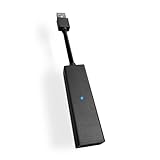
- 1st. Plug the PS Camera Adapter to the USB port of the PS5 console
- 2nd. Connect the PS Camera to the PS Camera Adapter's AUX port
- 3rd. Connect your PSVR to your PS5 console and play
- This adapter is not used with the PS4 console
- Must-Have: If you want to experience great PSVR games like Iron Man VR on PS5 or use VR in games like No Man's Sky after the substantial next-gen update, you'll need an adaptor for your camera
Perform a sanity calibration
- Use the provided calibration tool in your driver/software (iVRy UI or the open-source tool’s calibration workflow).
- Perform the calibration while your camera has the same placement you’ll use for play.
- Confirm the preview shows targets clearly during the calibration steps.
Quality checklist
- Tracking lock: Controllers become “tracked” and remain stable for 30+ seconds.
- Low jitter: Small hand movements produce smooth controller motion.
- No sudden drops: Turning around doesn’t cause frequent “tracking lost” events.
Troubleshooting Guide
When PSVR Camera tracking fails, the fastest path is to classify the problem: connection/power, camera feed, detection, or calibration. Below are targeted fixes for each category.
Problem: Windows won’t detect the camera
- Try a different USB port (prefer a motherboard port).
- Remove USB extension cables; keep runs short.
- Avoid unpowered hubs.
- Check the adapter/cable seating—loose connectors are common with PSVR-specific breakouts.
Problem: Camera preview shows a picture, but tracking won’t start
- Confirm you selected the correct camera device in your driver settings.
- Verify you’re using the right tracking targets (e.g., Move controllers) that the software supports.
- Increase lighting consistency and reduce glare/reflective surfaces.
- Move the controllers closer to the camera and re-test.
Problem: Tracking is jittery or drifts over time
- Stabilize the camera mount (vibration causes micro-jitter).
- Re-run calibration using your real play placement.
- Reduce occlusion. If you repeatedly block targets with your body, the system may “guess” and then correct late.
- Try turning off competing webcams and unnecessary camera devices to prevent device contention.
Problem: Tracking works for a few minutes then drops
- Check USB power stability. If you’re on a front-panel port, try the back.
- Close bandwidth-heavy apps (video capture, streamers) that may tax the system.
- Restart the SteamVR session and the driver to reset device state.
Problem: SteamVR sees the driver but controllers don’t appear
- Verify the PS Move controller setup is correct (controller pairing and battery state).
- In SteamVR controller settings, run the controller binding/recognition test.
- Re-check iVRy (or your open-source tool) that the correct controller type is enabled.
If you get controller tracking in one test app but not another, the issue can be app-side (driver expects a specific API or device role).
Independent reader supportYour contribution helps us test, update, and keep practical guides available for everyone.Common Mistakes That Break Tracking
- Wrong USB port or unstable adapter: Dropped frames look like tracking “loss.”
- Camera too far away: Targets leave the effective field and detection fails at extremes.
- Occlusion: Turning your body so controllers move behind your torso causes intermittent tracking.
- Inconsistent lighting: Sunlight changes during the day or glare from a monitor can break detection.
- Skipping calibration: Misalignment shows up as controller offsets and drift.
PSVR Camera vs. Other PC Tracking Setups
The PSVR Camera approach can be cost-effective, especially if you already own PSVR hardware. But if you’re choosing hardware from scratch, it helps to compare constraints.
Windows Errors? Fix Them Before They Spread
Repair common Windows errors and clear accumulated junk for a smoother, more stable PC - no reinstall needed.Free scan · no reinstallCrashes, No Sound, or Screen Glitches?
Random freezes, missing sound and display glitches usually trace back to one bad driver. Find and replace yours safely.Free scan · under a minute| Setup | Strengths | Trade-offs |
|---|---|---|
| PSVR Camera + SteamVR driver (e.g., iVRy) | Reasonable integration with SteamVR; good results when placement/lighting are right | Requires correct camera adapter wiring + careful setup |
| PSVR Camera + open-source tracking tools | Free/transparent; strong community knowledge base | More setup friction; configuration mistakes are common |
| Dedicated modern PC tracking (outside PSVR Camera ecosystem) | Often better out-of-box stability and tuning | Cost; you may need new hardware |
If your goal is “set it up once and forget it,” dedicated PC tracking hardware can win on consistency. If your goal is “I already have the PSVR Camera and I want PC tracking,” the PSVR route is a solid project.
FAQs
Do I need a specific PSVR Camera model to use it on PC?
Most PC tracking approaches expect a PSVR Camera that matches supported camera behavior, and the adapter must be compatible. If your camera works with PSVR, it may still require a specific adapter/cable for PC connection.
Best Value

- Use your PlayStation VR on PlayStation 5 console with the PlayStation Camera adapter
- he ps5 controller is specially designed for PS5. High quality material, durable and sturdy, it is a perfect replacement for the original adapter.
- Connect the PS Camera adaptor to a USB port on the back of your PS5 console (The PlayStation Camera adaptor cannot be used with the PS4 console)
- Just connect the adapter to a USB Type A port on the back of the PS5 console and connect the PlayStation Camera to the AUX port of the Adapter.
- How to Use -- Just connect the adapter to a USB Type A port on the back of the PS5 console and connect the PlayStation Camera to the AUX port of the Adapter.
Will the PSVR Camera work with SteamVR without Move controllers?
It depends on the software. Many PSVR-camera tracking pipelines are designed around PlayStation Move controllers (or other trackable targets) so the system has something predictable to detect.
Why does tracking only fail when I move behind my body?
That’s classic occlusion. Keep controllers/targets within the camera’s view cone and reduce angles that block the markers from the camera.
What’s actually slowing this PC down?
Pick the symptom - the matching free tool is one click away.
Can I use the PSVR Camera for full-body tracking on PC?
Full-body tracking usually needs additional sensors/cameras and/or a specific tracking stack designed for that purpose. The PSVR Camera can be part of a tracking system, but full-body results vary heavily by software and hardware used.
What’s the best place to start if everything fails?
Start with the lowest layer: confirm Windows detects the camera, then confirm your software gets a stable camera preview, then tune placement/lighting, and only then chase calibration settings.
Bottom Line
Using the PSVR Camera on your PC is a real, practical option—but it’s an integration job, not a plug-and-play appliance. Get the hardware connection solid, choose a working software path (SteamVR driver like iVRy or an open-source tracking stack), then tune placement and lighting until tracking locks consistently.
If you treat it like a troubleshooting workflow—connection → preview → detection → calibration—you’ll usually reach stable performance faster than reinstalling drivers repeatedly.
Quick Recap
Product prices and availability are accurate as of the date/time indicated and are subject to change. Any price and availability information displayed on Amazon at the time of purchase will apply.




