Free tools Windows power users keep installed
One-click scans. No signup required.
To speed up UniFi WiFi, first identify where performance drops: one client, one room or access point, the wireless environment, the wired uplink, or the internet connection. Compare a repeatable speed test near the access point and in the problem area, then check the client’s signal, band, channel width and link rates in UniFi Network. Change one thing at a time; a wider channel or new access point will not fix every bottleneck.
Start by locating the slowdown
Note which device is affected, where it is, and whether the problem is slow internet, slow transfers between devices on your local network, high latency, or disconnections. Check whether other clients in the same place—or on the same access point—have the same issue.

As an Amazon Associate I earn from qualifying purchases.
Run comparable tests near the access point and where performance is poor. WiFiman can run speed tests; when it is connected to a network managed by a UniFi Cloud Gateway, it can also show signal strength and channel width. A test near the access point helps separate a coverage problem from a limit that affects the whole network. For an internet-speed test, keep in mind that the result also depends on the WAN connection and test conditions.
- One slow device: inspect that client’s capabilities, signal and driver before treating the access point as the cause.
- Several slow devices in one room or on one AP: investigate coverage, interference, airtime and AP uplink.
- Slow results across the network, including close to an AP: check the wired path, gateway, switch, WAN and ISP service.
See Ubiquiti’s WiFiman guide for the app’s supported views.
#1 Best Overall

- Create a reliable wireless business network with this wireless access point that features a high-speed data transfer rate
- 3 Gbit/s wireless transmission speed provides high and efficient communication with maximum efficiency
- IEEE 802.11 a/b/g/n/ac/ax wireless LAN standard ensures trouble-free and convenient connectivity
- Gigabit Ethernet port for ultra-fast wired network speeds
- PoE+ port to receive data and power of up to 25.5W through a single cable in places where a power outlet is not available
Check the client’s link before changing the network
In UniFi Network, open the affected client and inspect its band, signal strength, maximum PHY rate and current transmit/receive rates. Compare these with what the device supports: 2.4, 5 or 6 GHz; WiFi generation; spatial streams; and maximum channel width. Update the device’s WiFi driver where applicable.
PHY rate is a theoretical link rate, not the speed an app or internet test should be expected to show. Ubiquiti says real throughput is typically about 50–60% below maximum PHY rate; this is vendor guidance, not a universal conversion formula. Its example for a 1 Gbps internet plan gives 150–600 Mbps over WiFi depending on the client, rather than promising 1 Gbps to every wireless device. See Maximizing Wireless Speeds.
If only one client is slow while others perform normally in the same location, a client limitation, driver or connection to a less suitable band is more likely than a network-wide capacity problem.
What’s actually slowing this PC down?
Pick the symptom - the matching free tool is one click away.
Rank #2

- Four stream 802.11AC Wave2 technology
- Supports 200+ concurrent users
- 802.3af PoE compatibility
- Optional covers (sold separately) allow the Unifi nanohd AP TO discreetyly blend into its setting
Improve weak signal and access-point placement
Retest with the client closer to its associated access point. Ubiquiti’s speed guidance targets a signal of -60 dBm or better for maximum performance and recommends -50 dBm or better; its connectivity guidance says -70 dBm or better is needed for stable connectivity. These describe different aims, not guaranteed speed thresholds. Signal readings alone do not predict throughput.
If moving closer materially improves performance, consider placement before replacing equipment. Avoid hiding an AP behind obstacles or placing it where nearby interference is likely. If the coverage gap persists, an additional AP may help, provided the existing network and deployment can support it. Prefer a wired uplink when practical: Ubiquiti estimates wireless meshing can reduce performance by about 50% per hop, especially in high-interference conditions. Actual results vary by environment. See its WiFi Troubleshooting Guide.
Inspect interference, channel use and airtime
Use UniFi’s radio environment or airtime views to assess interference and channel utilization. A channel can be busy because of neighboring networks or because connected devices are occupying airtime. Ubiquiti advises choosing channels with less interference and, when interference levels are similar, lower utilization. For 2.4 GHz, it specifically recommends channels 1, 6 and 11; nearby APs should use different channels where possible.
Rank #3
High airtime utilization can slow multiple clients even when the internet connection is healthy. Check for crowded radios and consider whether clients can be distributed across access points or bands. Ubiquiti’s guide to high airtime utilization explains how to investigate this condition.
Do these 3 things before closing this tab:
1Scan for outdated or missing drivers - takes under a minute2Clear out junk files and repair common Windows errors3Fix the driver behind crashes, sound loss and screen glitchesUse Channel AI as a channel-planning aid
Channel AI analyzes the environment and recommends channel choices. Ubiquiti says it does not change channel width or transmit power, and that applying its channel plan does not affect active clients. It can reduce manual channel selection, but check the resulting plan against local conditions rather than treating it as a speed guarantee. Details are in UniFi Channel AI and Automated WiFi Optimization.
Consider DFS only if interruptions are acceptable
Dynamic Frequency Selection (DFS) channels can offer less congested 5 GHz spectrum, but access points must stop broadcasting on a channel when radar is detected. Depending on country and channel, entering a DFS channel can involve a 1–10 minute wait; a channel where radar is detected may be unavailable for at least 30 minutes. Rules and channel availability vary by region. DFS is therefore a situational option, not a default fix for a network that cannot tolerate interruptions. See Ubiquiti’s DFS channel guidance.
Rank #4

- FREE Omada Essential Platform Centralized Remote Management: Unlock numerous advanced features by integrating with Omada Cloud Management Platform, such as network monitoring, remote network configuration, AI features, ZTP (Zero Touch Provisioning) etc. More possibilities you can find with your network management
- Dual-Band 4-Stream Wi-Fi 7: Up to 5.0 Gbps, 4324 Mbps on 5 GHz + 688 Mbps on 2.4 GHz. Powered by Wi-Fi 7 technology, enjoy faster speeds with Multi-Link Operation, increased reliability with Multi-RUs, and 120% more data capacity with 4K-QAM, delivering enhanced performance for all your devices
- Future Proof 2.5G Port: Equipped with a 2.5 Gigabit Ethernet port to support high-speed networking and future broadband upgrades-no hardware replacement required when switching to multi-gig internet plans
- Abundant Networking Features Available to Develop: Network monitoring, VLAN segmenting, Bandwidth management, Schedule Setup, Security features, PPSK all seated and right there waiting to be developed for you
- Premium WiFi Experience: Seamless roaming, Mesh, Airtime fairness and other business level wifi experience features are provided here
Choose channel width and transmit power for the environment
Ubiquiti’s speed-first starting points are 20 MHz on 2.4 GHz and 80 MHz on 5 GHz. On 6 GHz, it suggests 160 or 320 MHz when the access point, client and region support them. Wider channels can increase potential link capacity, but use more spectrum and may encounter more interference; a client also needs to support the selected width.
Ubiquiti distinguishes between deployment types: for lower-density residential networks it describes 80 MHz on 5 GHz and high transmit power, unless APs are close together. For high-density environments it recommends 40 MHz on 5 GHz and medium power to limit interference between APs. Treat these as starting points, not universal settings. If a speed-oriented change worsens connectivity or latency, revert it; Ubiquiti favors defaults that preserve connectivity when tuning degrades quality. See Optimizing WiFi Connectivity and Reducing Latency.
Quick wins for a faster PC:
Repair Windows errors before they cause bigger problemsFix Now →Scan for outdated or missing drivers - takes under a minuteDriver Scan →Check mesh, cabling, AP capacity and the upstream connection
When several clients on one AP are slow, check its uplink and the capacity of the AP and switch as well as radio airtime. A degraded Ethernet cable can limit an AP’s bandwidth. Check the negotiated link speed and cable condition before replacing hardware; a cable replacement is warranted only if the wired link is the problem.
Best Value
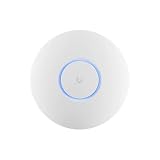
- Ubiquiti U6+ AP WiFi6 access point for network expansion
- Features 1xGbE PoE connection with dual-display support
- 2x2 dual-band technology for optimal wireless coverage
Also test whether the slowdown affects local network transfers, internet access, or both. Slow local transfers point toward the wireless or wired LAN path. If local performance is good but internet tests are poor across devices, inspect the gateway, WAN link and ISP connection. A 1 Gbps WAN plan does not guarantee 1 Gbps over WiFi.
Consider adding or replacing an AP only when measurements point to a coverage or capacity limitation and the rest of the network can support it. Diagnose the cause first; buying equipment does not resolve a client, channel, cable or upstream issue.
Treat SSID options as troubleshooting controls
SSID features can affect compatibility, roaming or airtime, but they are not universal speed switches. Adjust one setting at a time and retest the affected clients.
- Band steering: encourages compatible clients toward 5 GHz; it cannot add support that a client lacks.
- Fast roaming/BSS transition: can help clients move among multiple APs, but older devices may have compatibility problems.
- Multicast enhancement: may help reliability for streaming or discovery traffic, while some smart-home devices may require it to be disabled.
- Minimum data rates and DTIM: influence airtime and roaming behavior and can affect legacy or IoT compatibility.
Ubiquiti describes these settings and their trade-offs in its UniFi WiFi SSID and AP Settings Overview.
Use 6 GHz only when the AP, client and region support it
6 GHz requires a compatible WiFi 6E or WiFi 7 UniFi AP, a compatible client and regional support. Ubiquiti’s setup guidance requires WPA3 and Protected Management Frames. A wider 6 GHz channel will not help a device that does not support it, and some clients may remain connected at weaker coverage than they would have on 5 GHz. Check stability and placement; if a specific device is unreliable, disabling 6 GHz for that device is a last-resort troubleshooting option, not a general recommendation. See Getting Started with 6 GHz.
Quick Recap
Make one change, then verify the result
- Record the baseline: note the affected client, location, band, signal, channel width, link rates and comparable test result.
- Test the simplest likely cause: move the client nearer to its AP, update its driver if appropriate, or inspect channel utilization—depending on what the baseline indicates.
- Change one setting or physical condition: avoid changing width, power, roaming and SSID options all at once.
- Repeat the same test: use the same client and comparable locations and conditions; check latency and stability as well as throughput.
- Keep or revert: retain a change only if it improves the relevant problem without introducing worse connectivity or compatibility.
Product prices and availability are accurate as of the date/time indicated and are subject to change. Any price and availability information displayed on Amazon at the time of purchase will apply.




