Recommended Free Tools
If your TV keeps dimming, first check its automatic brightness and power-saving settings. Ambient-light sensors, Eco modes and energy-saving controls can lower brightness on their own; screensaver dimming may be normal. The right fix depends on when it happens, your TV model and whether you’re watching active video or a static screen.
First, identify when the dimming happens
Notice whether brightness changes during ordinary video, only in dark scenes, while a picture is paused, in a screensaver or Ambient Display, or only on one HDMI input. Also note the TV model, software version, input and type of content. These clues help distinguish an automatic setting from screensaver behavior, possible OLED protection or an issue limited to one source. There is no single cause or menu path that applies to every TV.
As an Amazon Associate I earn from qualifying purchases.
- During active video: Check automatic brightness, ambient-light and energy-saving controls first.
- Only during a screensaver: The dimming may be part of the screensaver or Ambient Display.
- With a paused or static image on an OLED: The TV may be reducing brightness as a protective measure related to image retention.
- On one input only: Compare with another input or a built-in app before changing more settings.
Try these low-risk checks
- Open the TV’s picture and power settings. Look for options such as Ambient Light Detection, light sensor, auto luminance, Energy Saving, Power Saving, Eco mode or Adaptive Brightness. Labels and availability vary by model and software.
- As a test, turn off or reduce only the automatic feature that seems relevant. Replay the same content under similar room-light conditions to see whether the brightness change stops.
- Try another HDMI input or a built-in streaming app. Samsung recommends testing another source when brightness continues to change after energy-saving controls have been adjusted.
- If dimming occurs only in a screensaver, check its settings instead of treating it as active-video dimming. On an OLED, dimming during a static image may be protective; check the model’s guidance before changing picture settings.
- If the screen still dims across sources after you check the automatic controls, consult the manufacturer’s support page for your exact model or contact a qualified TV repair service.
Where to look on major TV brands
These are starting points, not universal instructions. Menu names and paths vary by model, software generation and region.
Samsung
Samsung’s 2018 manual gives this path for Ambient Light Detection: Home/Settings > General > Eco Solution > Ambient Light Detection. Samsung describes Eco Sensor or Ambient Light Detection as adjusting brightness in response to surrounding light. The sensor is at the bottom of the TV on the models covered by that manual, so check that it is not obstructed.
#1 Best Overall

- Functional Applications: led strip lights mainly used for TV decoration, led lights for tv light, improve image clarity
- 16 colors and 4 dynamic modes: tv led backlight, dimmable. Come with 24 key IR remote, use the remote to choose the color. Control distance is 8-10m
- Relieves the eye strain: led light strip reducing the eyestrain caused by differences in picture brightness, when watching tv or playing games
- Installation: 180 degree foldable. Tape and fixing buckle installation
- The product is powered by the TV usb 5v interface
Samsung distinguishes Energy Saving, which selects a brightness level, from Eco Sensor, which adjusts brightness according to ambient light. Check both if brightness changes unexpectedly; if it continues, compare another source.
Sony
Look for settings called Ambient light sensor, Light sensor, Auto luminance level or Ambient Optimisation. Which names and paths appear depends on the TV and its software. Make sure the sensor is not blocked.
Rank #2

- A Symphony of RGBIC Lighting: Govee RGBIC technology realizes the color segmentation display of the TV lights behind, creating more dynamic and gorgeous lighting effects. Experience more vibrant colors in your TV lights and upgrade your visuals.
- App & Voice Control: Manage the LED TV lights via app or smart voice control with Alexa & Google Assistant. ( Please note that it won't capture colors automatically and support 2.4G only.)
- Multiple Preset Scenes: Govee Home App offers 99+ preset scene modes and 11 music modes, from which you can choose the lighting effects that suit your mood or the atmosphere around you to enhance your viewing.
- Music Sync: Govee TV LED Backlight includes a built-in mic, making the color and brightness sync with the music. Experience breathtaking lighting effects that dance with any audio as though you're at a concert.
- Flexible Installation: The 12.5ft TV backlight can easily cover 4 sides of any 55-65 inch TV. It is recommended to use the cable clips to secure the TV LED strip lights to make them snugly fit your TVs.
Sony also notes that an OLED TV may gradually reduce brightness when displaying an image that could cause image retention. That behavior alone does not establish that the panel is faulty.
LG
LG’s Energy Saving feature reduces power use by adjusting peak screen brightness. On supported models, an Auto setting detects ambient lighting. If the screen remains dark, LG recommends checking power-saving controls and, for OLED troubleshooting, switching the picture mode from Eco to Standard. Paths differ across webOS generations, and picture settings may differ by input.
Rank #3
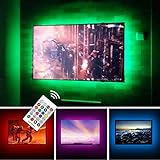
- TV lights for better TV viewing or video games experience and Relieve Eye Strain. Help to make a more comfortable environment when long watch watching and playing TV games
- Custom Version TV Backlight, can cover ALL the four sides of 70 to 82 inch TV
- Wireless RF Remote, 360 degree and 60ft MAX. control range, 17 colors(include white), with fade/flash mode
- Powered by USB of your TV, it will ON/OFF with your TV, but can not change with your TV's color; TV lights will remember the last color when off.
- LED strips itself is black, not noticeable; Easy to install, take 5 to 10 minutes
TCL
Some TCL models place Automatic Dimming or Adaptive Brightness under Picture > Eye Health Protection > Adaptive Brightness. TCL says settings vary by model. Its QM9K documentation also describes adaptive brightness for screensaver or Ambient Display behavior; that guidance should not be assumed to apply to every TCL TV.
Google TV Ambient Display
Google TV says screensaver brightness adjusts to room brightness: “The screen dims in dark rooms.” This describes Screensaver mode, not necessarily dimming during active video.
Rank #4

- Immersive Visual Experience: Elevate your viewing with our innovative TV backlight sync to screen system. Advanced sensors capture screen colors and seamlessly sync the TV LED lights for a captivating, immersive experience that brings your entertainment to life.
- Instant Backlight Sync: Enjoy instant synchronization with reactive LED lights for TV. Advanced sensors that ensure every color change on your screen is mirrored in the backlight without delay. Automatic on/off detection adds convenience.
- Premium LEDs: Enjoy vibrant, adjustable brightness and color saturation with high-quality full-color LEDs. With a 14.7ft customizable length, the TV LED backlight boasts a longevity of up to 50,000 hours.
- Smart App Control: Customize and control your tv lights that change with tv effortlessly through the user-friendly uLamp app, offering personalized scene settings and seamless color adjustments, crafting the ideal ambiance for every moment.
- Versatile Ambiance Modes: Transform any space with 24 dynamic light scenes and 6 music-synchronized effects, including options for holidays, moods, games, videos, and more. These smart TV lights sync seamlessly to provide the perfect ambiance lighting for home theaters, gaming, music enjoyment, and festive decor.
Hisense
A Hisense Japan FAQ recommends checking the ambient-brightness detection control when brightness changes. It also reports software-update improvements for a listed group of models. That update note applies to the models and Japanese support context named there; it is not evidence of a universal fix for Hisense TVs.
When to seek model-specific support
If the brightness changes on multiple inputs and built-in apps after you have checked the relevant automatic controls, use the manufacturer’s support information for the exact model and software version. If the issue remains unexplained, contact the manufacturer or a qualified repair service. The available guidance does not establish a generic replacement sensor, cable or repair part for this symptom.
Quick Recap
Product prices and availability are accurate as of the date/time indicated and are subject to change. Any price and availability information displayed on Amazon at the time of purchase will apply.




