The Tool Desk
Outbyte Driver Updater FREEFix the driver behind crashes, sound loss and screen glitchesFind Drivers →Outbyte PC Repair FREERepair Windows errors before they cause bigger problemsFix Now →You can’t replace your entire face and body with a “potato” character using a single universal button inside Microsoft Teams—but you can absolutely make the gag work. The winning approach depends on whether you want a potato background (easy) or a potato overlay that reacts to your camera framing (better).
This guide gives you two solid routes: a quick background method using Teams’ built-in effects, and a more theatrical option using OBS (Open Broadcaster Software) and a virtual camera so you control the look frame-by-frame. Bring this to your next mates call and claim the crown of tater.
As an Amazon Associate I earn from qualifying purchases.
What It Means to Turn Yourself into a Potato in Microsoft Teams
Most people mean one of these:
- Potato as background: Your room becomes a potato scene, or your whole view is potato-themed.
- Potato overlay: A potato image covers (or replaces) parts of your video so you look like you are literally turning into a potato.
- Potato-ish webcam framing: Cropping/positioning plus a potato graphic that makes your head look like a potato.
Teams itself has improved video effects over time, but “be a potato” isn’t a standard default filter you can count on. So the dependable way is to use backgrounds or a virtual camera you control.
Prerequisites (So Your Potato Plan Actually Works)
- Teams version: Use the newest Microsoft Teams client you have (Windows/macOS). If you’re on an older client, background features may be missing.
- A potato image: JPG/PNG (preferably 1920×1080 or larger). If you’re doing an overlay, use a transparent PNG.
- Good lighting: Overlays look better when your camera image has clear contrast (your face doesn’t need to be perfect, just not washed out).
- For Method 2: OBS Studio installed (Windows/macOS). Also install the OBS Virtual Camera plugin (built-in in many recent OBS installs, but verify it’s enabled).
Method 1: Use a Potato Image as Your Teams Background (Fastest)
This is the most “press button, become potato” option. It works on calls where Teams enables background effects for your device.
#1 Best Overall

- Compatibility Note: For Logitech BRIO/MX BRIO webcams, detach the included computer mounting clip/magnetic mount to access the standard 1/4” screw hold located at the base, enabling compatibility with InnoGear webcam stand mount.
- Premium Stability: This webcam tripod stand combines a heavy-duty metal core with reinforced ABS plastic to eliminate vibrations and wobbles. The non-slip rubber tripod grips your desk like a vice, ensuring your webcam stays perfectly still. No more distracting jitters in your video calls or content.
- Instant-Adapt Flexibility: This ultra-portable webcam mount extends from 11.5" to 18" instantly, without tools. Its rigid 360° ball head ensures perfect framing for any shot (portrait, overhead, or classic webcam view). Weighing just 0.65 lbs, it folds smaller than an umbrella for your backpack, yet deploys in seconds for a rock-solid hold. The ideal, flexible solution for hybrid workers on the move.
- Effortless Phone Security: The adjustable phone holder features an intelligently designed clamping range of 2.5 to 4 inches, ensuring a perfect, secure grip for virtually every smartphone on the market, from an iPhone 13 Mini to a Samsung Galaxy S23 Ultra without needing extra adapters. Compatible Models: iPhone 13 Mini - iPhone 17 Pro Max, Samsung Galaxy S i9000, i9001, and most other smartphones.
- Maximize Your Setup's Stability. This phone holder is engineered for superior strength, supporting up to 6.6 lbs—enough for your heaviest phone and accessories. For optimal performance, simply orient it vertically to center the weight. When used horizontally, positioning it above a leg (3.3 lb capacity) or within the leg span (2.2 lb capacity) ensures a secure, balanced setup for any creative need.
On Windows and macOS Teams
- Join your Microsoft Teams meeting (or start one).
- Before you present, click Background effects (often near the camera preview, depending on your layout).
- Pick Add new (or Browse) if you don’t see your potato image.
- Select your potato image file (PNG/JPG). Wait for Teams to generate a preview.
- Click Apply and watch your camera preview for alignment.
If Teams only shows a set of default backgrounds, you may be missing the upload option in your tenant or using an app version that doesn’t support it. In that case, use Method 2.
Choosing the Right Potato File for Background Mode
- Background mode: Use a wide image (16:9). Example targets: 1920×1080 or 2560×1440.
- Framing trick: If your potato image has a character face, position it centered so it lines up with your screen’s crop.
Method 2: Use OBS to Put a Potato Overlay on Your Camera (Most Control)
If you want the joke to feel like you’re actually transforming, use OBS and a virtual camera. You can layer a potato cutout over your live webcam, adjust opacity, and keep it stable across any Teams call.
Step 1: Install OBS and Virtual Camera
- Install OBS Studio for Windows or macOS.
- Enable the OBS Virtual Camera feature. In many setups, you’ll see it as an option in OBS under Tools or Virtual Camera settings.
- Restart OBS if the virtual camera option doesn’t appear right away.
Step 2: Create a Scene With Your Webcam
- Open OBS.
- In Scenes, click + and name it Potato Mode.
- Under Sources, click + and add Video Capture Device.
- Select your webcam from the device dropdown.
- Adjust the preview size and crop so it looks natural in OBS (center your face).
Step 3: Add the Potato Overlay Layer
This is where you get the “turned into a potato” effect.
Quick wins for a faster PC:
Repair Windows errors before they cause bigger problemsFix Now →Scan for outdated or missing drivers - takes under a minuteDriver Scan →- Still in your Potato Mode scene, click Sources > +.
- Choose Image (or Image file) and select your potato PNG/JPG.
- Move the potato overlay on top of your webcam preview.
- Right-click the overlay in OBS (or use transform controls) to resize and position it over your face/head area.
- Optionally set Opacity to something like 70–100% if the image is too harsh.
For a cleaner look, use a transparent potato PNG. For a “cartoon smear” look, try a solid JPG with opacity reduced.
Step 4: Send the OBS Virtual Camera to Teams
- In OBS, click Start Virtual Camera.
- Open Microsoft Teams and join your meeting.
- Before you go live, open Teams’ device picker (typically under camera settings).
- For Camera, select OBS Virtual Camera.
- Turn your camera on and confirm your preview shows the potato overlay.
Step 5: Test Without Humiliating Yourself (A+ for Mates)
Before the real meeting, do a short test call with a friend or use the Teams Meeting preview. Adjust overlay size so it doesn’t cut off your “potato forehead” or leave gaps around your jawline.
Method 3: Make a “Potato Mode” Virtual Camera Using a Simple Compositor
If OBS feels like overkill, you can still build the effect with a lightweight video compositor workflow—especially if you want a fixed overlay and minimal settings.
Rank #2
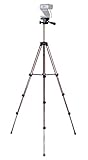
- Webcam Tripod:Max Height 51 inches, Max load 4 pounds, With 1/4'' Screw thread; 4 sections Extends;
- Webcam Tripod: Weighs just over a pound. Extends to 22", 30", 40" and 50". Minimum Height: 16". Carrying case included.
- Webcam Tripod: Built-in bubble view levels and 3-way head to allow for tilt and swivel motion; portrait or landscape options.
- WIDELY COMPATIBLE: Compatible with most video cameras, digital cameras, still cameras, projector, GoPro devices, smart phone adapters (not included), and scopes.
- What you get: 1x50'' Tripod, 1xBlack Fabric Carry Bag;
The principle stays the same: create a virtual camera source that shows your webcam plus a potato image layer.
Best-fit Use Cases
- You want a static overlay (potato face sits over you at one scale).
- You need a predictable look for repeated meetings.
- You don’t want to tweak audio/video settings inside OBS mid-call.
Alternative Workflow (Conceptual Steps)
- Create or open your virtual camera tool.
- Add webcam as the base layer.
- Add potato image overlay layer.
- Set overlay position and size once.
- Start the virtual camera output.
- Select that virtual camera inside Teams’ camera picker.
Because tools vary by OS and current software availability, the only “must” is that Teams can detect the virtual camera as an available Camera device.
Mobile Teams Options (iPhone and iPad)
On iPhone and iPad, Teams supports background effects in many configurations, but you’ll typically have fewer customization controls than desktop.
Try Background Effects on iPhone or iPad
- Join the Teams meeting on your iPhone or iPad.
- Tap More (often represented by …).
- Look for Background effects or Video effects.
- Select the potato-themed background if available, or choose a custom option if your version supports it.
If you can’t upload your own potato image on mobile, your fastest workaround is to use Method 1 with a built-in upload (if supported) or Method 2 on a desktop feeding a meeting.
Troubleshooting: When Your Potato Effect Fails
Teams is picky about devices and permissions. If your potato disappears, don’t panic—use these checks in order.
Teams Doesn’t Show My Background Upload
- Confirm you’re on the latest Teams client available for your device.
- Try a different file format: export as PNG (transparent) or JPG (16:9).
- Check whether your organization restricts video background features (common in managed workspaces).
OBS Virtual Camera Isn’t Listed in Teams
- In OBS, confirm Start Virtual Camera is running.
- Switch Teams camera selection to refresh the device list.
- Close and reopen the meeting camera settings.
- Restart OBS, then reopen Teams.
- On macOS, ensure camera permission is granted to OBS (System Settings > Privacy & Security > Camera).
My Potato Overlay Is Blurry or Pixelated
- Use a higher-resolution potato PNG (aim for at least 1920×1080).
- In OBS, keep the overlay scale reasonable (don’t stretch a tiny image to fill the entire frame).
- Make sure your webcam isn’t already low resolution; potato quality depends on your base feed.
Overlay Cuts Off or Sits Off-Center
- In OBS, reposition using the preview transform controls until the potato sits where you want.
- In Teams, adjust camera framing if your client offers crop controls.
- Test at the meeting resolution (some calls downscale video).
Performance Drops Mid-Call
- Reduce potato overlay complexity (fewer layers; prefer a single PNG).
- Lower webcam resolution in OBS (example: 1280×720).
- In OBS, reduce effects filters that add CPU load.
Audio Desync (Rare but Annoying)
- Keep audio sources unchanged (your potato overlay shouldn’t affect audio).
- If audio drifts, restart the virtual camera and reselect it in Teams.
Common Mistakes That Ruin the Joke
- Using a tiny potato file: If your PNG is 400×400 and you stretch it, it’ll look like wallpaper glue.
- Forgetting to reorder OBS layers: If your potato goes behind the webcam layer, you’ll just show yourself normally.
- Chasing perfect alignment: Mates laugh at the idea, not the pixel math. Get it “close enough” and move on.
- Testing on the actual meeting start: Do a 30-second test call first.
Privacy, Performance, and Meeting Etiquette
Potato mode is harmless fun, but be mindful of workplace and school contexts. Some organizations restrict virtual backgrounds and video effects due to bandwidth or policy.
Rank #3

- Compatibility and Stability Note: This webcam stand suit only for webcams with standard 1/4" screw hole. For Logitech BRIO/MX BRIO webcams, detach the included computer mounting clip/magnetic mount to access the standard 1/4” screw hold located at the base, enabling compatibility with InnoGear webcam stand mount. For maximum stability and load capacity, please install without the gooseneck or bend the gooseneck into a straight form to make the center of gravity centered.
- Compact Yet Robust Design: The InnoGear webcam stand features a compact yet weighted all-metal base, ensuring optimal stability and portability. Unlike traditional stands that require unscrewing or re-clamping with every move, this model can be effortlessly repositioned around your home. The weighted round base offers superior protection for your webcams, minimizing the risk of tipping compared to tripod stands.
- Anti-Scratch & Skid-Proof Base: The base is equipped with four high-quality non-slip pads that ensure your webcam remains securely in place. These pads not only prevent surface scratches but also significantly reduce noise from movement, maintaining a professional and quiet environment for recording and broadcasting.
- Fully Adjustable for Perfect Angles: Featuring a detachable gooseneck and an intuitive adjustment knob, the InnoGear webcam stand provides a flexible range of motion for precise angle positioning. The adjustable height range of 8.7 to 20.9 inches ensures optimal shooting range, making it ideal for professional live streaming, video conferencing, and content creation.
- Exceptional Compatibility: Featuring a swivel ball head with 360° horizontal and 140° vertical rotation, this stand is compatible with a wide range of devices. The 3/8"-1/4" screw thread fits standard 1/4” screw hole webcams, including models like Logitech Webcam C920, C920S, C922x, C615, BRIO, C930e, C922, C960, and more. It also supports other devices with a 1/4” screw hole, such as ring lights and Tascam recorders.
If you’re sharing a meeting with external guests, consider a quick verbal heads-up: “I’m turning on a silly potato cam.” It avoids the awkward “why is this happening” moment.
FAQs
Can I make Teams automatically recognize my face and replace it with a potato?
Not reliably with built-in Teams features. The dependable method is using a virtual camera overlay (Method 2) or a background swap (Method 1).
Will OBS work with Teams on a locked-down work PC?
Often yes, but device permissions and policy can block virtual camera selection. If OBS Virtual Camera isn’t listed, your tenant may restrict camera device choices or your account may need permissions.
What’s actually slowing this PC down?
Pick the symptom - the matching free tool is one click away.
What image size should my potato PNG be for best results?
Start around 1920×1080 or larger. If you’re overlaying only your face area, a 1500×1500 square PNG can work too, as long as you’re not stretching it past usefulness.
Can I use potato mode in YouTube-style streaming or recordings?
If the app records your selected camera device, it can record your potato overlay too. Since Teams feeds from the selected camera, recordings should capture what you selected—unless the recorder bypasses Teams’ video pipeline.
Bottom Line
If you want the fastest “potato” gag, use Teams background effects and upload (or select) a potato-themed image. If you want the effect that actually looks like you’re turning into a potato, build it in OBS with a potato overlay and feed Teams via OBS Virtual Camera.
Either way, you’ll get the laughs. Now go forth and become the tatest version of yourself—politely, and preferably with mates who appreciate a good tater.
Do these 3 things before closing this tab:
1Clear out junk files and repair common Windows errors2Fix the driver behind crashes, sound loss and screen glitches3Repair Windows errors before they cause bigger problemsQuick Recap
Product prices and availability are accurate as of the date/time indicated and are subject to change. Any price and availability information displayed on Amazon at the time of purchase will apply.




