What’s actually slowing this PC down?
Pick the symptom - the matching free tool is one click away.
You can use AI to turn a plain-language description into a proposed automation, then inspect and configure the steps before it runs. In Microsoft Power Automate, Copilot can suggest a trigger and actions; Zapier Copilot can outline a workflow and help configure, test, and refine it. Treat either result as a starting draft—not a guarantee that the apps, fields, or behavior are correct.
What to include in your automation prompt
Describe the outcome and the sequence that should produce it. A useful prompt names the event that starts the automation, what should happen next, any conditions or exceptions, and where the result should go. For example, follow Zapier’s pattern: “When X happens, do Y, then do Z.” Replace each placeholder with the actual event, action, and destination.
As an Amazon Associate I earn from qualifying purchases.
- Trigger: What event starts the workflow?
- Actions: What should happen, and in what order?
- Conditions: Are there cases in which an action should be skipped or changed?
- Destination: Where should the result, message, or record be sent or saved?
This detail gives the assistant more to work with, but a specific prompt does not ensure a correct draft. Review the generated app choices, sequence, field mappings, permissions, and connections yourself.
How AI drafting works in Power Automate
Microsoft’s documented Copilot flow-creation process starts with the “What will your flow do?” prompt field. Describe the automation in natural language; Copilot proposes a structure containing a suggested trigger and one or more actions. You can provide more detail to regenerate the suggestion, then continue into the designer to complete the flow. Microsoft says this capability is optimized for English, with limited support for other languages. Microsoft’s Copilot instructions explain the creation process.
#1 Best Overall
![Arduino Portenta Machine Control [AKX00032] - High-Performance Industrial Controller for Automation, Robotics, and IoT | Dual-Core Processor, Real-Time Control & Edge Computing](https://m.media-amazon.com/images/I/511qfuRiUOL._SL160_.jpg)
- Advanced Industrial Controller for Automation & Robotics: The Arduino Portenta Machine Control [AKX00032] is designed for industrial applications, offering a powerful platform for machine automation, robotics, and edge computing. Built with a dual-core processor, it is optimized for real-time control, data acquisition, and processing in demanding environments.
- Real-Time Control & Multi-Tasking Capabilities: Equipped with a 32-bit ARM Cortex-M7 processor and a co-processor (Cortex-M4), the Portenta Machine Control delivers high-speed performance and multitasking capabilities. This allows for precise, real-time control of motors, sensors, and actuators in complex systems, making it ideal for robotics, CNC machines, and other precision control applications.
- Built-in Connectivity for IoT & Cloud Integration: With multiple communication options, including CAN, Ethernet, Wi-Fi, and Bluetooth, the Portenta Machine Control facilitates seamless integration with IoT networks and cloud-based platforms. Collect and analyze real-time data from machines or sensors, and remotely monitor or control your system through edge computing or cloud services like AWS IoT, Microsoft Azure, and more.
- Extensive I/O & Expandability: The board features a variety of digital, analog, and specialized I/O interfaces, including PWM, ADC, DAC, and RS-485 for industrial-grade communication. It also includes multiple expansion headers for easy integration of custom modules and sensors, ensuring scalability for a wide range of automation and control tasks.
- Designed for Robust Industrial Use: With a compact, industrial-grade design, the Arduino Portenta Machine Control is built to withstand harsh environments, offering superior durability and stability. It’s the perfect solution for applications requiring continuous operation and reliable performance in factory automation, robotics, smart manufacturing, and other industrial sectors.
Before saving, verify that the proposed connections are the ones you intend to use and finish configuring the action fields. Microsoft recommends testing the saved flow. Use representative inputs and check the resulting behavior before relying on it.
Access requirements for flow creation from a description
For Microsoft’s documented flow-from-description path, the requirements include a work or school account and a Power Automate environment based in Europe or the United States. Microsoft says a personal Microsoft account cannot be used to create cloud flows from a description through this path. These requirements apply to that specific feature, not to every AI capability in Power Automate. Check Microsoft’s current feature documentation for availability details.
Rank #2
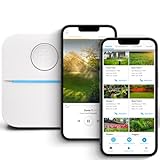
- DITCH THE DIAL – Upgrade to smart irrigation with the free Rachio app for precise, easy control.
- AUTOMATIC WEATHER SKIPS – Patented Weather Intelligence skips watering for rain, wind, freeze & more.
- SAVE WATER YEAR-ROUND – Adaptive schedules help your yard thrive in April showers & July heat.
- FLEXIBLE SCHEDULING – Create your own schedule or let Weather Intelligence adjust automatically; includes grow-in options.
- CONTROL FROM ANYWHERE – Manage watering, run zones, view schedules & track estimated usage in the Rachio App.
How AI drafting works in Zapier
Zapier Copilot can create an outline from a natural-language workflow description, then help configure, test, and refine the steps. Zapier defines a workflow as a trigger followed by one or more actions. Copilot can suggest field values, explain fields, and add or replace steps. Its documented modes are auto-build, the default, and ask-as-you-build, which requests confirmation before acting on suggestions. See Zapier’s Copilot guide for details.
The Tool Desk
Outbyte Driver Updater FREEFix the driver behind crashes, sound loss and screen glitchesFind Drivers →Outbyte PC Repair FREERepair Windows errors before they cause bigger problemsFix Now →Zapier labels Copilot as open beta and lists Free, Professional, Team, and Enterprise plan names in its documentation. Beta access and availability can change, so check the feature in your account rather than assuming it is available to every user. If you leave the editor before completing a Zap, Zapier says the unfinished Zap is saved as a draft. An outline or saved draft is not the same as a tested, ready-to-run automation; Zapier’s workflow overview describes the trigger-and-action structure.
Rank #3

- [Multi-Protocol Hub with Matter Bridge] The M3 is a versatile hub supporting Aqara Zigbee and Thread devices. It integrates third-party devices into the Aqara Home app. Supports advanced Matter bridge functionality, enabling Aqara-exclusive scenes and signals to sync with Matter ecosystems such as Home Assistant for seamless integration. Supports up to 127 Aqara Zigbee devices (** Not third-party Zigbee devices) and 127 Thread devices (Repeaters are needed).
- [Edge Compatibilities and Local Automations] The M3 serves as an Edge Hub, prioritizing local control and automation. Upon integration, it supersedes existing Aqara hubs, shifting the automations among them to local operation (Some cloud-based notifications still require internet). Upgrade-friendly, it supports migrating Zigbee devices from older Aqara hubs.
- [Smart IR Blaster with Feedback and Learning] The 360°IR blaster not only sends commands but also provides accurate status updates by detecting traditional remote use. It connects IR air conditioning units to Matter, functioning as an AC thermostat when paired with an Aqara Temperature and Humidity Sensor. (Note: Only one AC device can be exposed to Matter. Functionality may vary based on the Matter integration app. For Apple Home exposure, use Matter integration instead of HomeKit.)
- [Optimal Wired and Wireless Connectivity] Offering both wired and wireless solutions, the smart home hub M3 provides dual-band Wi-Fi (2.4/5 GHz) with advanced WPA3 security, and a Power over Ethernet (PoE) port. The addition of a USB-C port allows for mini-UPS and power bank connections, delivering unparalleled stability. (2A USB power adapter is not included. ) . Note: To ensure a stable connection, place the Hub M3 between 6 to 19 feet from the router.
- [Privacy-Focused with Encrypted Storage, Easy Setup and Versatile Placement] The M3 prioritizes privacy by excluding microphone or camera components. It boasts 8GB end-to-end encrypted local storage, for device lists, configuration parameters, and automation configuration data. Additionally, it includes a mount and screws for flexible placement on flat surfaces, walls, or ceilings. Magic Pair technology ensures effortless detection by the Aqara Home app upon power-up.
Refine and verify the generated draft
- Read the proposed sequence. Confirm that the trigger matches the event you meant and that the actions are in the right order.
- Check app and field choices. Make sure each step uses the intended app, account, and fields. Inspect suggested values and mappings rather than accepting them automatically.
- Review conditions and exceptions. Confirm what happens when data is missing, a condition is not met, or an action fails. Add or revise steps where needed.
- Verify connections and permissions. Confirm that the connected accounts are yours or otherwise authorized for the intended task, and that the workflow has the access it needs.
- Test with safe, representative input. Check the output and any downstream effects before relying on the automation. In Power Automate, Microsoft recommends testing after saving; Zapier says Copilot can assist with testing and refinement.
- Save or publish only when the outcome is right. Keep the draft unrun if its behavior, access, or data handling remains uncertain.
Don’t confuse drafting a workflow with adding AI to one
Asking an assistant to draft a whole flow is different from adding an AI-powered step inside a flow. Microsoft documents generative actions as a preview: describe an intended automation, review AI suggestions for inputs, outputs, connectors, and actions, and preview with sample inputs before adding an action to a cloud flow. Microsoft labels the feature prerelease and subject to change.
Separately, AI Builder prompts can be used as flow actions. Microsoft notes regional availability limits and possible usage limits or capacity throttling. The action’s name changed from “Create text with GPT using a prompt” to “Run a prompt” in May 2025. This is an AI operation within a workflow, not the overall prompt-to-flow drafting experience. Microsoft describes AI Builder as integrated with Power Apps and Power Automate for adding AI to automated processes.
How to choose a drafting approach
Start with the tool that supports the apps and accounts your workflow needs. Then consider how much control you want during generation, how you prefer to edit steps, what testing is available, and whether the feature is available for your account and region. The documented features do not establish a complete, current comparison of plans, pricing, privacy practices, or regional availability, so verify those points with the relevant vendor before deciding.
Quick Recap
Product prices and availability are accurate as of the date/time indicated and are subject to change. Any price and availability information displayed on Amazon at the time of purchase will apply.




