Aura Sync can control many third-party PC lighting setups, but compatibility isn’t about the marketing label. What matters is the electrical and signaling standard: ASUS Aura Sync typically drives 5V ARGB (3-pin, D-RGB) from your motherboard’s ARGB header.
This guide ranks the best addressable RGB/ARGB LED strips you can buy in 2024 that fit that standard—plus the exact checks and wiring steps you need to make Aura Sync actually show up in Armoury Crate.
As an Amazon Associate I earn from qualifying purchases.
Quick warning: if your strip is 12V RGB (4-pin) or uses a proprietary controller ecosystem, it may look similar but won’t behave like a true Aura Sync-ready ARGB strip.
Quick Compatibility Checklist (Read This First)
Before you buy any “Aura Sync compatible” strip, confirm the physical and electrical specs. If these don’t match, no amount of software tweaking will fix it.
#1 Best Overall
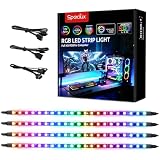
- √ Dimmable and adjustable speed: Different brightness levels when the RGB strips for PC cases are in static mode (single-color display), and different speed levels in dynamic mode (color-changing display). More fun and designs are waiting for you to discover. If you have any questions about our product, both before and after placing an order, feel free to contact us anytime — we will respond within 24 hours.
- √ Great effects: There are 4 ultra-bright ARGB Fusion LED strips (WS2812B) for modding your PC case, creating amazing ARGB sync effects and making it brighter. These RGB PC strips are perfect for DIY gamers to create any colors or animations they want.
- √ ARGB Sync: Speclux PC RGB LED strips are designed for motherboards with a 3-pin digital RGB LED header (+5V, DATA, N/A, GND or VDD, DATA, GND), compatible with Asus Aura, Gigabyte RGB Fusion, ASROCK RGB LED, etc. A perfect Valentine’s Day gift for him, men, and friends.
- √ Easy installation: The PC RGB strip comes with both a magnet between each 5050 LED and double-sided 3M adhesive on the back, making it easier for you to install on iron surfaces or any dry and flat surface without screws or clips.
- √ Package includes: 4 × Speclux rainbow strip lights, 3 × extension cables, 2 × SATA power cables, 1 × 5V 3-pin header cable, 1 × user manual. (Note: Before placing your order, please make sure that your computer’s motherboard has a 3-pin ARGB header and check whether the motherboard’s outer package has an RGB Sync logo. If there is no RGB Sync logo, it will not support RGB Sync.)
- Header type: 3-pin 5V ARGB (D-RGB) plug (usually labeled +5V, D, Blank/GND).
- Data chipset: Commonly WS2812B, WS2813, or SK6812 (addressable, one-LED control).
- Voltage: 5V (not 12V). 12V strips are typically analog RGB and use different wiring.
- Connector keying: 3-pin ARGB uses a fixed pinout—don’t force mismatched headers.
- Control method: Ideally direct-to-motherboard ARGB header, not via a separate app-only controller.
When in doubt, look for “5V ARGB” and “3-pin” in the product listing. If the listing only says “RGB” without voltage and pin count, treat it as a red flag.
Why Aura Sync Works With Some LED Strips and Not Others
Aura Sync’s strength is its tight integration with ASUS hardware headers. Its limitation is that it can only drive the kind of signal your LED strip expects.
The three categories that matter
- 5V ARGB (3-pin, addressable): One data stream per LED, so Aura Sync patterns (rainbow, wave, etc.) can apply per segment.
- 12V RGB (4-pin, analog): Usually color channels change together; you can’t get the same per-LED “addressable” effects without a different controller.
- Proprietary ecosystems: Works only through vendor software (e.g., iCUE, Hue Bridge, app controllers) and may ignore Aura Sync entirely.
What to look for on an ASUS motherboard
Your board will have a header labeled something like:
Quick wins for a faster PC:
Clear out junk files and repair common Windows errorsFree Scan →Scan for outdated or missing drivers - takes under a minuteDriver Scan →Repair Windows errors before they cause bigger problemsFix Now →- ADD_GEN2 (on some newer ASUS boards; still ARGB 5V class)
- 12V RGB header (not the one you want)
- RGB header (often 12V analog)
- ARGB / ADD_RGB / D-RGB (the one you want)
If you plug a 5V ARGB strip into a 12V RGB header, you’ll at best get nothing and at worst damage the strip or header.
Top 5 Best Aura Sync Compatible RGB/ARGB LED Strips (2024)
These picks are “Aura Sync compatible” in the practical sense: they’re sold as 5V ARGB (3-pin, addressable) strips that can connect to an ASUS ARGB header for control in Armoury Crate/Aura Sync.
Because product listings change, treat each entry as a checklist: confirm the voltage (5V), pin count (3-pin), and addressable chipset (WS2812B/SK6812) before you check out.
1) WINGONEER 5V ARGB Addressable LED Strip (WS2812B Class)
WINGONEER’s 5V addressable strips are a common builder favorite because they’re typically sold in lengths that match typical PC case routing (1m and 2m kits are easy to place around fans, GPU shrouds, and desk builds).
Look for the 3-pin 5V ARGB connector and chipset references like WS2812B. These are the conditions that let Aura Sync drive per-LED patterns from your motherboard ARGB header.
2) EZDIY-FAB 5V ARGB LED Strip Kit (WS2812B / SK6812 Style)
EZDIY-FAB kits often include useful add-ons for clean builds, like solderless connectors and length options that make it easier to map lighting around corners.
As with all 5V ARGB picks, confirm the strip is addressable and uses the standard 3-pin 5V ARGB input. That’s what makes the Aura Sync software side behave correctly.
3) Phanteks D-RGB LED Strip (5V 3-Pin Ecosystem-Compatible)
Phanteks is widely respected in PC lighting for quality and build consistency. Their D-RGB strip approach generally targets 5V ARGB (3-pin) style control, which is the same core standard Aura Sync relies on.
Free tools Windows power users keep installed
One-click scans. No signup required.
Rank #2

- Addressable RGB lights
- Sync with Motherboard
- Kindly Note: Please make sure there is a 3-PIN ARGB header on your Motherboard
- What’s In the Box:A ARGB extension cable, a 21.7 inches ARGB LED Strip, eight pcs Brackets
If the listing mentions D-RGB or 5V 3-pin, and the strip doesn’t require a separate app-only controller, it’s usually a strong “plug into motherboard” candidate.
4) Govee 5V Addressable ARGB Strips (When Sold as 5V 3-Pin ARGB)
Govee is best known for app-controlled lighting, so compatibility depends on which specific product you buy. The Aura Sync-friendly path is the variant that exposes a 3-pin 5V ARGB input (addressable) rather than relying only on the Govee controller.
If the product includes a direct 3-pin ARGB interface suitable for motherboard headers, it can work well with Aura Sync—just verify the voltage and connector type in the listing first.
5) 5V ARGB “WS2812B/SK6812” 3-Pin Strip Kits (High-Value Generic Builds)
If you’re comfortable comparing specs yourself, generic 5V ARGB kits labeled for WS2812B or SK6812 can be excellent value for Aura Sync builds.
Crashes, No Sound, or Screen Glitches?
Random freezes, missing sound and display glitches usually trace back to one bad driver. Find and replace yours safely.Free scan · under a minutePC Slower Than It Used to Be?
A free scan shows the junk files, broken settings and background clutter dragging Windows down - then fixes them in one click.Free scan · Windows 10 & 11Choose kits that clearly state 5V, 3-pin ARGB, and addressable behavior. These often come in multiple densities (commonly 30/60/144 LEDs per meter), which you can match to how smooth you want gradients to look.
Shopping rule that prevents regret: never buy a strip solely because it says Aura Sync. Buy the strip that clearly matches 5V ARGB (3-pin, addressable), then confirm the connection scheme.
How to Connect ARGB Strips to an ASUS Aura Sync Motherboard (Step-by-Step)
Once your strip matches the 5V 3-pin ARGB standard, the wiring process is straightforward. The details matter—especially pin orientation and power handling.
What you’ll need
- ASUS motherboard with an ARGB 5V 3-pin header (often labeled ADD_GEN2 or ARGB)
- Your LED strip kit with a 3-pin ARGB connector
- (Often) an ARGB splitter or hub if you’re connecting more than one strip to a single header
- Armoury Crate installed on Windows
Step 1: Power down and plan cable routing
Shut down, switch off the PSU, and press the power button once to discharge. Route the strip so the cable doesn’t tug on connectors during case closing.
Step 2: Confirm the motherboard header is ARGB (5V) not RGB (12V)
Check the motherboard manual or printed labeling near the pins. If it’s labeled 12V RGB, do not use it for a 5V ARGB strip.
Step 3: Connect the 3-pin ARGB cable (pin orientation)
The standard 3-pin ARGB header expects correct alignment (typical labeling is +5V, Data, Ground). The connector is often keyed, but don’t rely on force as an alignment method.
- Align the plug to the header’s notch/key.
- If you have to rotate it to fit, stop and verify pin order.
- Use an ARGB hub/splitter if you run out of headers—don’t daisy-chain improperly.
Step 4: Install/enable Aura Sync in Armoury Crate
On Windows 11/10, open Armoury Crate and verify you have the correct Aura Sync module installed. Then:
Rank #3

- Adjustable Lighting: Control the LED strip lights with a remote control for dynamic color changes and animations.
- Compatible with Popular Motherboards: Works with Asus Aura, Gigabyte RGB Fusion, MSI Mystic Light, and ASRock RGB LED.
- Easy Installation: Magnetic backing and double-sided adhesive allow for secure mounting on any flat surface without screws or clips.
- Dimmable and Adjustable Speed: 5-level brightness in static mode and adjustable speed in dynamic mode for customizable lighting.
- Includes Key Controller and Extension Cables: Get a remote control, 2 extension cables, and a 5V SATA connection cable to connect multiple LED strips.
- Go to the Device or Lighting area.
- Select your motherboard and find Aura Sync.
- Choose an ARGB mode if there’s a per-zone/per-device option.
- Test animations like Rainbow and Breathing.
Step 5: Map the lighting layout (if supported)
Some setups allow zone assignment (e.g., “LED 1”, “LED 2”, or “Device 1”). If patterns look scrambled, it usually means the LED order or connector mapping doesn’t match your physical layout.
Do these 3 things before closing this tab:
1Scan for outdated or missing drivers - takes under a minute2Repair Windows errors before they cause bigger problems3Fix the driver behind crashes, sound loss and screen glitchesPower, Brightness, and Length Limits (So You Don’t Fry Anything)
Most Aura Sync issues aren’t software—they’re power. Addressable LEDs draw current depending on brightness and how many LEDs are active.
Understand why 5V ARGB needs headroom
Unlike simple RGB analog strips, addressable ARGB LEDs can reach high current when full brightness colors are set. That’s why many builders use a hub or ARGB controller hub with proper power distribution.
Practical guidance for strip length
Because density (LED count per meter) varies, there’s no universal “safe length” across all kits. Use these rules of thumb:
- Short runs (around 0.5m to 1m) are usually easiest to power from a header in normal usage.
- Longer runs (2m+) often benefit from a powered ARGB hub/splitter rated for addressable LEDs.
- If your kit includes a hub/controller, follow its recommended load limits—those exist for a reason.
Watch for symptom patterns
- Flicker only at certain colors: voltage sag or insufficient power margin.
- One end of the strip is dim/doesn’t light: power drop along the strip length.
- Random reboots after changing effects: header power instability (use a powered hub).
Troubleshooting: Aura Sync Doesn’t See the Strip
If Armoury Crate shows no device or the strip doesn’t respond, work through the checklist from most likely to least likely. Most failures come from wiring/power mismatch or outdated software.
What’s actually slowing this PC down?
Pick the symptom - the matching free tool is one click away.
1) Confirm the strip is actually 5V ARGB (3-pin)
Check the strip connector and labeling. If it’s 4-pin 12V RGB or SATA/Molex-powered only via a controller, Aura Sync won’t drive it directly.
2) Reseat the connector and verify pin orientation
Unplug and reconnect the 3-pin ARGB lead. If your strip has an arrow or “data in” marking, ensure the data-in direction matches your motherboard header side.
3) Test with a different ASUS ARGB header (if available)
Some builds have multiple ARGB headers; if one is faulty or configured differently, the strip may not respond there.
4) Update Armoury Crate and Aura Sync components
On Windows, open Armoury Crate and check for updates. Reboot after updating. A mismatched version can prevent device detection.
The Tool Desk
Outbyte PC Repair FREERepair Windows errors before they cause bigger problemsFix Now →Outbyte Driver Updater FREEFix the driver behind crashes, sound loss and screen glitchesFind Drivers →- Open Armoury Crate.
- Check for system/driver updates related to Aura Sync.
- Restart the PC.
5) Disable conflicting lighting software
If you run other RGB tools (sometimes motherboard utilities or third-party RGB apps), they can conflict. Temporarily close background lighting apps and retest.
6) If you use an ARGB hub, confirm its power
Many hubs require a SATA/Molex power input. If the hub isn’t powered, the motherboard data signal won’t be enough to light the LEDs.
Rank #4
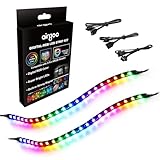
- ✅ Two Addressable RGB LED Strips: Each led strip come with clear silicone covering, overall dimension is 13.78 x 0.39 x 0.12 inches. Using environmentally friendly clear silicone covering, no smell, soft, flexible, but not helpful for lighting diffusing, you may see the led lamp beads inside, please note it.
- ✅ Using built-in ic led lamp beads: Each LED Strip has 21 leds, control with argb 3-pin connector (+5V, DATA, GND), each led lamp bead can be individually controlled via specialized Airgoo AG-DRGB16 Signal RGB controller or motherboard's argb 3-pin header. Working voltage is +5V, cannot use other voltages for power supply, please note it.
- ✅ Perfectly works with AG-DRGB16 Controller: Recommend to purchase our AG-DRGB16 Controller (Not Included) separately, compatible with SignalRGB, 16-Port independent channel for complex layered lighting setups, eliminating motherboard header limits and unifying multi-brand lighting setups effortlessly.
- ✅ Easy to install: Thanks to the in-built magnets and adhesive tape, installing the led strips inside a PC case is a breeze.
- ✅ PACKAGE INCLUDES: 1 x ADD RGB extension cable A, 1 x ADD RGB extension cable B, 2 x 13.8inch Digital-RGB LED Strip.
7) LED order/scrambled patterns
If the strip lights but effects look reversed or “folded,” try reversing the strip’s data direction (switch which end goes to the header) or rotate the device mapping inside Armoury Crate if you have that option.
Common Mistakes That Break Sync (and How to Avoid Them)
- Buying 12V RGB thinking it’s ARGB: You’ll see only partial behavior or nothing at all.
- Forgetting to check density: Low-density strips can look banded with certain patterns.
- Using extensions incorrectly: Passive extensions can create signal degradation if they’re too long.
- Overloading one header: If you connect multiple strips directly to a single header without a hub, you risk flicker or failure.
- Ignoring ESD and connector strain: Tight case tolerances can tug connectors loose after installation.
When a strip is “recognized but not consistent,” power management is usually the real culprit.
Recommended Free Tools
Alternatives: If Your Build Uses 12V RGB or Proprietary Controllers
If your current case lighting is 12V RGB (4-pin) or you inherited a proprietary controller kit, you have a few workable paths.
Use a 12V-to-5V conversion approach (only when the hardware supports it)
Some third-party adapters can translate control standards, but not all support addressable ARGB behavior. Avoid “it should work” adapters unless the listing explicitly confirms ARGB (addressable) control.
Keep the existing controller, but limit expectations
Proprietary controllers (like those driven only by vendor apps) may not integrate into Aura Sync. You can still use them, but you likely won’t get true cross-control through Armoury Crate.
Swap to native 5V ARGB strips
This is the cleanest Aura Sync path: pick strips labeled 5V ARGB (3-pin) and connect directly to the ASUS header or a properly powered ARGB hub.
FAQs
Does Aura Sync support 12V RGB strips?
Many ASUS boards have both 12V RGB and 5V ARGB headers. Aura Sync support is strongest for 5V ARGB (3-pin) addressable strips. For 12V RGB (analog), behavior may be limited or require the correct header type and software support.
What’s the difference between RGB and ARGB for PC strips?
RGB typically changes colors as a group (often analog, 12V, 4-pin). ARGB is addressable and can control each LED (commonly 5V, 3-pin), enabling effects like moving rainbows along a strip.
Why does my strip light up but animations look wrong?
Most often, it’s LED order/direction or zone mapping. Try reversing the strip end that connects to the motherboard ARGB header, and check if Armoury Crate offers per-device/per-zone assignment.
Can I connect multiple ARGB strips to one header?
Yes, but do it safely. Use a powered ARGB hub/splitter designed for 5V ARGB loads, especially for longer runs or higher LED densities.
Will these work on any ASUS motherboard?
They should if the motherboard provides a compatible 5V ARGB (3-pin) header and Armoury Crate supports Aura Sync on that platform. Always verify the header type in your motherboard manual.
Bottom Line
The best Aura Sync experience comes from buying true 5V ARGB (3-pin, addressable) strips and connecting them to an ASUS ARGB header (or a properly powered ARGB hub). If you do that, Aura Sync patterns are stable and look exactly like you’d expect in a modern PC lighting setup.
If you’re unsure, start with the compatibility checklist: voltage (5V), connector (3-pin ARGB), and addressable behavior (WS2812B/SK6812). That single check prevents most “it doesn’t work” returns.
Quick Recap
Product prices and availability are accurate as of the date/time indicated and are subject to change. Any price and availability information displayed on Amazon at the time of purchase will apply.




