Quick wins for a faster PC:
Scan for outdated or missing drivers - takes under a minuteDriver Scan →Repair Windows errors before they cause bigger problemsFix Now →If your keyboard suddenly types French characters, check the active keyboard layout or input source first. Your computer may still be using English for menus and apps while a French keyboard layout is selected. Windows and macOS both let you view and manage installed layouts, so the right fix depends on which system is changing.
What “switching to French” usually means
A keyboard layout determines which characters your keys produce. It is separate from the display language used for menus and apps. Microsoft states that changing a keyboard layout “only changes the layout and doesn’t change the Windows display language.” So an English-language computer can still be using a French layout.
As an Amazon Associate I earn from qualifying purchases.
First look for the active input indicator: Windows uses an input-language icon in the taskbar, while macOS can show an Input menu in the menu bar. If French is selected, switch to the layout or source you intended to use. If it keeps returning to French, check the installed layouts and the controls that can change them.
What’s actually slowing this PC down?
Pick the symptom - the matching free tool is one click away.
Fix the layout on Windows
- Check the active layout. Look for the input-language indicator in the taskbar. Select it and choose the intended keyboard layout if French is active.
- Review installed layouts. Open Settings > Time & language > Language & region. Check the installed languages and the keyboard layouts associated with them. Remove a French layout only if you do not need it.
- Check whether a shortcut is changing it. Windows supports keyboard-layout switching; Microsoft documents Alt+Shift for the language-bar configuration it describes. A key combination may be pressed accidentally, but available controls can vary by Windows configuration. Review the switching options for your version rather than assuming every PC uses the same shortcut.
- Verify the layout before signing in. The sign-in screen has an input-language icon showing the current layout. Check it before entering a password if the characters do not match what you expect. Microsoft also notes that changing Windows’ display language may change the keyboard layout.
Microsoft’s support instructions cover Windows 11 and Windows 10. Windows 10 support ended on October 14, 2025.
#1 Best Overall
![Russian Keyboard Stickers [5 in 1], Cyrillic Keyboard Letters Replacement Sticker with Black Background and Blue Lettering for Computer, Laptop, Notebook, Desktop](https://m.media-amazon.com/images/I/516xfMaCvpL._SL160_.jpg)
- 【5-in-1】Unlike others, our russian keyboard stickers set includes 2 x English keyboard stickers, 1 x Tweezer, 1 x Keyboard Cleaning Brush, and 1 x Microfiber Cleaning Cloth for easy, clean, and accurate application. Each sticker: 0.43" × 0.51
- 【Great Compatibility】The russian keyboard letter stickers fit various desktop, laptop, and tablet computer keyboards. Widely used by students, office or remote workers, multilingual users, language learners, or anyone tired of squinting at worn keys
- 【Renew Worn-Out Keyboards 】Tired of faded letters under your fingers and the high cost of a new keyboard? The keyboard letter stickers adhere well and are easy to read. Renew worn letter keys to give your keyboard a fresh look without replacement
- 【Easy to Install and Remove】The Cyrillic keyboard stickers can be easily applied and removed without leaving residue. Each letter of the stickers is precisely cut, and the F and J keys feature alignment notches to blend naturally with your keyboard
- 【Premium Materials】The keyboard stickers are made of durable, long-lasting black vinyl materials with a matte texture, which offers you a comfortable tactile experience similar to the original keyboard. It will not fade for 5 years under normal use
Fix the input source on macOS
- Inspect Input Sources. Open Keyboard settings and review the listed input sources. Select the one you want, or remove an unwanted source if you do not use it.
- Use the menu-bar Input menu. The menu lets you see and select the active source. Apple says it appears automatically when more than one input source is added.
- Check the Globe/Fn key setting. In Keyboard settings, the Globe or Fn key can be assigned to Change Input Source. If the source changes unexpectedly, check whether this key is configured for switching and might be pressed inadvertently.
- Treat Caps Lock switching as configuration-specific. Apple documents it for switching between a non-Latin input source and a Latin one. It is not a general-purpose fix for French and English layouts.
Where to check on each system
| Check | Windows | macOS |
|---|---|---|
| See the active input | Input-language indicator in the taskbar | Input menu in the menu bar, when available |
| Manage installed layouts or sources | Settings > Time & language > Language & region | Keyboard settings > Input Sources |
| Switching control covered in support guidance | Alt+Shift in Microsoft’s described language-bar configuration | Globe/Fn can be assigned to Change Input Source |
If the problem continues
- Note whether the switch happens while typing, after pressing a particular key combination, or only at the sign-in screen. That can help distinguish an active layout change from a password-entry mismatch.
- Check the active indicator immediately after the characters change, then remove only layouts or sources you do not need.
- Keep display language and keyboard layout separate when troubleshooting: changing one does not necessarily mean the other has changed.
- If the issue is limited to one operating system, follow that system’s settings rather than changing settings on another device. The symptom alone does not identify the operating system or the cause.
The supported remedies are operating-system settings checks. Replacing a physical keyboard does not remove an installed input source or prevent the operating system from selecting it.
Quick Recap
Rank #4
![Russian Keyboard Stickers[5 in 1], Cyrillic Keyboard Letter Replacement Sticker with Black Background and Orange Lettering for Computer, Laptop, Notebook, Desktop](https://m.media-amazon.com/images/I/51iDopeLyPL._SL160_.jpg)
- 【5-in-1】Unlike others, our russian keyboard stickers set includes 2 x English keyboard stickers, 1 x Tweezer, 1 x Keyboard Cleaning Brush, and 1 x Microfiber Cleaning Cloth for easy, clean, and accurate application. Each sticker: 0.43" × 0.51
- 【Great Compatibility】The russian keyboard letter stickers fit various desktop, laptop, and tablet computer keyboards. Widely used by students, office or remote workers, multilingual users, language learners, or anyone tired of squinting at worn keys
- 【Renew Worn-Out Keyboards 】Tired of faded letters under your fingers and the high cost of a new keyboard? The keyboard letter stickers adhere well and are easy to read. Renew worn letter keys to give your keyboard a fresh look without replacement
- 【Easy to Install and Remove】The Cyrillic keyboard stickers can be easily applied and removed without leaving residue. Each letter of the stickers is precisely cut, and the F and J keys feature alignment notches to blend naturally with your keyboard
- 【Premium Materials】The keyboard stickers are made of durable, long-lasting black vinyl materials with a matte texture, which offers you a comfortable tactile experience similar to the original keyboard. It will not fade for 5 years under normal use
Rank #3

- ✅ True 3D Transfer Letters (No Borders) Only the Cyrillic character transfers to the key surface for a clean, factory-printed look—no full sticker overlay and no visible borders. Designed to blend seamlessly with your existing keyboard keys.
- ✅ 48 Individual Stickers for Precise Placement Each letter and symbol is a separate sticker for better alignment and control. Apply only to the specific keys you need without using combined multi-character blocks.
- ✅ Clean Removal, No Sticky Mess Removes neatly without leaving glue marks or damaging keyboard surfaces. Safe for most laptops, desktops, and MacBook keyboards, making upgrades or layout changes easy.
- ✅ Durable, Everyday-Use Print Made for daily typing with long-lasting, wear-resistant lettering that stays clear and readable over time, even on frequently used keys.
- ✅ Fits Most Laptop & Desktop Keyboards Compatible with many keyboard styles, including laptops, desktops, external keyboards, and MacBook keyboards. Easy 3-step application: clean, place, and peel. Our brand also offers language keyboard stickers in Korean, Arabic, and other layouts to support multilingual typing needs.
Rank #2
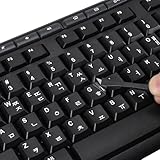
- 【Peel-Off Film, Leaves Letters】This korean letter stickers are just letters rather than stickers covering the entire key. After application, only the white korean letters adhere to the keys when rubbed on, give your keyboard a clean and professional look.
- 【Attention Please】 1. !!!After sticking the sticker to the keyboard keys, be sure to press it several times and then peel off the film on the back, to ensure that the letters are firmly attached to the keys. 2. The letters are located in the center of the stickers, and you can transfer them to the appropriate key position according to your need
- 【High Adhesion & Durability】 Each korean character is shielded with a transparent UV layer, characters are slightly convex, restoring the original 3D button feel, combination of a specialized adhesive, ensures the letters stay firmly in place even under intense daily use.
- 【Bilingual keyboard & Restoration】 The korean keyboard stickers can cost-effectively revive old or faded keyboards, highly durable, making them look new again. Easily obtain a bilingual keyboard for learning and communication.
- 【UNIVERSAL COMPATIBILITY】Our keyboard letter replacement stickers set includes 2 x Korean keyboard stickers, 1 x Tweezer for easy applying, 1 x Microfiber Cleaning Cloth. Fit most keyboard, including computer, laptop, macbook and desktop keyboards. Compatible with both rectangular and circular keycaps.
Product prices and availability are accurate as of the date/time indicated and are subject to change. Any price and availability information displayed on Amazon at the time of purchase will apply.




