Do these 3 things before closing this tab:
1Fix the driver behind crashes, sound loss and screen glitches2Repair Windows errors before they cause bigger problems3Scan for outdated or missing drivers - takes under a minuteFor an internal Steam Deck SSD replacement, look for a single-sided M.2 2230 NVMe SSD and confirm that exact description in the product listing. No specific models or current prices are established here, so this is a practical comparison framework—not a ranking. If you mainly need room for more games and want to avoid opening the Deck, Valve supports storing games on a microSD card.
Which SSD fits a Steam Deck?
iFixit identifies the Steam Deck’s internal drive as a single-sided M.2 2230 SSD. Kingston likewise describes a compatible replacement as single-sided M.2 2230. Search for all three key terms—M.2 2230, NVMe, and single-sided—and verify them against the exact drive listing rather than relying on a broad “Steam Deck compatible” label. iFixit’s LCD replacement guide notes that OLED owners should use the separate OLED guide and that internal designs can vary by revision. Kingston’s upgrade overview also notes that newer drives will operate at the Deck’s supported PCIe Gen 3 x4 level.
As an Amazon Associate I earn from qualifying purchases.
How to compare 2230 NVMe drives
The available evidence does not establish a tested winner among specific drive models. Compare exact model specifications and your regional listings using the criteria below; do not treat headline sequential speeds as proof of better game loading, battery life, or temperatures.
| Criterion | What to verify |
|---|---|
| Physical fit | Listing explicitly identifies an M.2 2230 NVMe drive with a single-sided layout. This is the central fit check identified by iFixit and Kingston. |
| Capacity | Choose according to the size of your game library and budget. The factory storage capacity is not evidence that a replacement must have the same capacity. |
| Interface and advertised speed | Check the manufacturer’s specification for the exact model. A newer advertised PCIe generation does not mean the Deck will run it at that generation; Kingston says the Deck supports PCIe Gen 3 x4. |
| Price and value | Compare current local prices and price per capacity at purchase time. No current prices were verified. |
| Warranty and seller | Check warranty coverage for your region and whether the retailer is an authorized seller. No specific listing or warranty was verified. |
| Power and thermals | Use manufacturer data for the exact drive when available. Do not infer battery impact or operating temperature from advertised sequential speed alone. |
Steam Deck storage options by model
Valve’s published specifications distinguish the factory configurations, but those capacities do not identify the internal revision of an individual unit. Check the device and use the repair instructions for its generation.
#1 Best Overall

- AN SSD THAT DOESN’T BACK DOWN. Experience an exhilarating boost with level-conquering PCIe 4.0 Sequential Read/Write speeds up to 7,250/6,900 MB/s(2). Reduce load times for applications and immersive games, including those supported by Microsoft DirectStorage.
- MOVING ON TO THE NEXT LEVEL. Improve system responsiveness and minimize game lag with Random Read/Write speeds up to 1M/1.3M IOPS(2) and integrated SANDISK nCache 4.0 technology.
- EXPAND YOUR GAME LIBRARY WITHOUT WORRY. Available in capacities of 1TB(1) and 2TB(1) on M.2 2230, you have ample storage for the latest games. Powered by our 8th generation SANDISK BiCS TLC 3D CBA NAND.
- CLEAR THAT CHECKPOINT. With a power-efficient architecture, you can clear that checkpoint before your battery taps out.
- INCLUDED SANDISK SOFTWARE. Keep your drive updated and enable Game Mode with SANDISK Dashboard (Windows).(4) Migrate to your new drive with Acronis True Image for SANDISK.(5)
| Steam Deck version | Valve-listed storage configurations | Expansion |
|---|---|---|
| LCD | 64 GB, 256 GB, and 512 GB | microSD |
| OLED | 512 GB and 1 TB NVMe SSD | microSD |
These are the configurations on Valve’s Steam Deck specifications page; availability of some LCD models is marked while supplies last. Valve’s lineup information does not guarantee that every device has the same internal design.
SSD replacement or microSD expansion?
Choose based on whether you need an internal replacement or simply more space for games. Valve confirms that games can be stored on microSD, which avoids internal disassembly. An SSD swap replaces the internal drive, but requires opening the Deck and reinstalling or recovering SteamOS afterward.
Rank #2
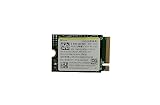
- Capacity: 256GB / Interface: M.2 2230 PCIe NVME SSD
- Dimension: 22mm x 30mm x 2.38mm / Key Type: M Key
- Size: Fits 2230 as is / Compatibility: Laptop & Desktop Compatible
- Bulk Packaging - Only the Drive is included. Any screws, cables, or adapter needed are sold separately
- Warranty: 1-Year Oemgenuine Warranty
| Option | Best suited to | What it involves |
|---|---|---|
| Single-sided M.2 2230 NVMe replacement | Replacing the internal drive or choosing a different internal capacity | Opening the device, physically replacing the SSD, and completing separate SteamOS recovery or re-imaging steps. |
| microSD card | Adding game storage without opening the Deck | Valve supports storing games on microSD. See its specifications and Steam Deck FAQ video. |
What an internal SSD swap involves
The physical replacement and the software recovery are separate parts of the job. iFixit’s guide covers removal and replacement, while Valve’s recovery page provides instructions to recover, repair, or re-image SteamOS. Follow the guide that matches the LCD or OLED model and the device revision; do not assume the same internal layout applies to every Deck.
Prepare before opening the Deck
- Use general ESD precautions, as recommended in iFixit’s preparation guidance.
- Put the battery into storage mode before repair, following the applicable device guide.
- Remove any microSD card before opening the back; an inserted card can be damaged during disassembly.
- Have a USB stick ready for SteamOS reinstallation. The LCD replacement guide lists Phillips screwdrivers, opening picks, and tweezers among its tools.
Replace the drive and restore SteamOS
- Identify whether the Deck is LCD or OLED and use the corresponding iFixit instructions: LCD SSD replacement guide or OLED SSD replacement guide.
- Follow the matched guide’s disassembly and replacement steps, including transferring the SSD shielding as instructed.
- After the physical swap, follow Valve’s Steam Deck recovery instructions to recover, repair, or re-image SteamOS.
iFixit notes that controls may not register immediately after re-imaging; its guide says touchscreen setup and updates followed by a restart should restore functionality.
Rank #3

- High-Speed Performance in a Compact Size: The MA200 features a PCIe Gen4 x4 high-performance controller, supporting NVMe 1.4, achieving read speeds of up to 5200 MB/s and write speeds of up to 4700 MB/s, delivering impressive speed in a small package.
- Smart Buffering for Enhanced Performance: With HMB + SLC Cache smart buffering, the Acer MA200 enables quicker game launches, faster loading times, and an improved gaming experience.
- Efficient Cooling for Stability: The low-power, high-performance controller paired with a graphene heat spreader enhances heat dissipation, ensuring less heat buildup, better performance, and a more stable user experience.
- Large Capacity for Portability: Measuring 22.0 x 30.0 mm, the MA200 is compact and compatible with various devices, including Steam Deck gaming handhelds, ultra-thin tablets, and mini-PCs. It offers 512 GB and 1 TB capacities, allowing users to store a variety of apps and AAA games on the go.
- Optimized for Gaming and Portable Devices: The MA200 is designed to meet the needs of gamers and users of portable devices, providing high-speed performance, smart buffering, efficient cooling, and large storage capacities in a compact form factor.
How easy is it to replace the SSD?
Valve’s Steam Deck FAQ answers the end-user question, “How easy is it for end-users to replace the thumbsticks / SSD?” with a video, noting: “This is one of the most frequently asked questions we received, but the answer is a bit complicated so in this case we’re answering with a video.” The practical takeaway is to consult the generation-specific repair guide and account for both the hardware work and SteamOS recovery, rather than treating the swap as a simple plug-in expansion. Watch Valve’s FAQ video.
Quick Recap
Product prices and availability are accurate as of the date/time indicated and are subject to change. Any price and availability information displayed on Amazon at the time of purchase will apply.




