Free tools Windows power users keep installed
One-click scans. No signup required.
Advanced retail ERP and POS systems work best as connected layers: POS handles store transactions and related devices, while ERP supports processes such as finance, procurement and merchandising. The practical goal is to make useful, timely data available across those functions without adding unnecessary complexity. For retailers modernizing their systems, that means evaluating process coverage, integration, data availability, flexibility, deployment fit and hardware readiness—not just feature lists.
What ERP and POS each do in a retail operation
ERP supports business processes
Retail ERP can coordinate functions such as finance, procurement and merchandising. As one vendor example, SAP described its retail cloud offering as bringing those areas together with unified operational data, and named integrations with SAP Commerce Cloud, SAP Service Cloud, SAP Emarsys and SAP S/4HANA Cloud Public Edition. Those are SAP’s descriptions of its offering, not independent evidence that it is the best fit for every retailer. SAP’s January 9, 2025 announcement provides the example.
As an Amazon Associate I earn from qualifying purchases.
POS handles store transactions and devices
A POS system processes store sales and can connect transaction information with inventory and product data, reporting, and hardware such as barcode scanners, scales, receipt printers and cash drawers. POS may also connect with online channels to support omnichannel operations. GS1 describes these roles in its retail POS 2D barcode implementation guideline.
What’s actually slowing this PC down?
Pick the symptom - the matching free tool is one click away.
How information can move between them
A useful way to picture the relationship is: a store transaction is captured at POS; relevant transaction and inventory information becomes available to business systems; teams use that information for decisions involving merchandising, replenishment, finance or customer-facing operations. This is an explanatory model, not a claim that every retailer’s systems exchange data in the same way or at the same speed.
#1 Best Overall

- No Hidden Fees or Forced Subscriptions: The SmartPOS 129 arrives ready to use, equipped with a comprehensive range of functionalities, ensuring no additional costs. For details on these capabilities, refer to the "SmartPOS Included Features" table below.
- Professional All-in-One POS System: The SmartPOS 129 comes with a 15" cashier touchscreen, a matching 15" customer-facing promo display, a cash drawer, a handheld scanner, and a thermal printer, ensuring a seamless checkout experience.
- Over 50 Card Processor Integrations: SmartPOS offers unparalleled flexibility, integrating with a vast array of card processors and forecourts, so you can select the best option for your business needs without extra hardware costs.
- Free Initial Setup Call: Benefit from personalized guidance with our specialists dedicated to ensuring your SmartPOS is up and running effortlessly, providing you with the tools and knowledge for a seamless start.
- Free Mobile App: Experience seamless integration with SmartPOS through the free Retail360 app. Easily scan products, update your price book, and make on-the-spot price adjustments — all from your mobile device, at no additional cost.
Why integration, current data and simplicity matter
The National Retail Federation describes retailers’ current technology priorities as connecting existing systems and using current customer, operational and financial information to make faster decisions. It also points to reducing overlapping systems and connecting new tools without increasing complexity. These are industry priorities, not a guarantee that a particular ERP or POS implementation will produce faster decisions or a measurable business improvement. See NRF’s April 17, 2026 retail technology perspective.
In practice, evaluate whether teams can access the information they need across systems, whether updates arrive on a useful schedule, and whether adding a new capability requires another isolated tool or a custom connection that will be difficult to maintain. The right balance depends on the retailer’s operating model and existing architecture; fewer systems are not automatically better if essential capabilities are lost.
Rank #2
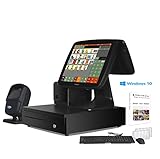
- SET04 will be default upgrade to new design 15'' Touch Screen with 11.6'' Customer Display + 80mm Thermal Receipt Printer + Cash Drawer + Free Keyboard&Mouse + Desktop Scanner + POS-Software for Retail Store
- Motherboard CPU I5, 8GB RAM, 128G SSD, Windows 10, Smart Touch Screen Monitor, Full Flat Screen with Fast Response.
- Multi-functional interfaces: 6 USB Ports, 1 HDMI, 1 VGA, 1 LAN Port and 2 Audio Output,Strong Compatibility with hardware and software.
- Our POS-Software with the functions required for all retail stores, No Monthly Fees, Easy to Understand, Lifetime Use.
- We provide free lifetime software service, no worries about the after-sale service (Gifts: Keyboard&Mouse set,10 rolls Thermal Papers)
How to evaluate ERP and POS options
Use the same questions for each candidate system or proposed architecture. The available sources establish no neutral vendor ranking, comparable pricing, implementation benchmark or guaranteed return on investment, so request retailer-specific proposals and validate claims against your requirements.
- Retail process coverage: Does the solution support the needed merchandising, procurement, finance, inventory and store-operation processes? Separate essential workflows from features that are merely desirable.
- Integration: How will it connect with current POS, ecommerce, service, loyalty and operational systems? Identify which connections are standard and which require custom work. SAP’s named integrations are an example of one vendor’s stated ecosystem, not a universal integration pattern.
- Data availability: Which customer, operational and financial information can teams access, and how current is it? Establish what “current” means for each workflow rather than treating all data as real-time.
- Complexity and flexibility: Will the design reduce redundant tools while leaving room for future change? Ask what happens when a store, channel or process is added, and what ongoing support each integration needs.
- Deployment fit: Assess retailer size, geography, store count, operating model and internal capacity to implement and maintain the system. Ask vendors for comparable proposals that state scope, assumptions, recurring costs and implementation responsibilities.
- Hardware and standards support: Confirm compatibility with existing scanners, scales, printers and payment equipment. For barcode plans, verify supported formats, data transmission and POS host processing with the solution provider.
What GS1’s 2027 2D barcode goal means for POS
GS1’s “Ambition 2027” is an industry goal: by the end of 2027, all retail POS systems should be capable of reading and processing a defined set of GS1-standard 2D barcodes, in addition to existing linear barcodes. It is a transition target, not evidence that every store can already handle 2D barcodes. GS1 outlines the readiness expectations on its 2D barcode readiness page.
Rank #3

- Requires Merchant Processing Account through Powering POS. CANNOT be used with different processor. Rate match guarantee. For US, USVI, and PR. Contact us for questions
- Two screens are faster than one: Keep lines moving with a 14” HD display for you and a 8” touch screen for your guests to confirm their order, leave a tip, redeem rewards, pay, and request a digital receipt
- Beauty and brains all-in-one POS: Attractive and easy-to-use hardware with a printer and included cash drawer and all the right software in one system.
- It's totally expandable: Build a system tailored to your needs. Put together multiple countertop and handheld devices with accessories like printers and scanners, and it all works together, seamlessly.
- Easy to use and ready to goStation Duo is ready for work right out of the box, and with intuitive software built in, training your staff is minimal.
Readiness involves more than buying a scanner described as an “imager.” GS1’s guidance describes capabilities such as recognizing and decoding compliant retail 2D symbols, transmitting selected data and supporting retail scanning modes. The scanner’s capabilities and configuration matter, as does the POS host’s ability to receive and process the data. GS1 notes that advanced use cases may require POS host software updates and configuration.
Define the use case before changing hardware
Basic product identification and richer data handling are different requirements. A retailer seeking only an item identifier may have different needs from one intending to use information such as an expiry date or weight. Before selecting equipment or changing a POS system, document which barcode formats and data fields are needed, what the scanner must pass to the host, and what the host must do with that information.
Rank #4

- Powerful POS System Performance:This all-in-one smart cash register delivers reliable operation for various point-of-sale software, featuring 8GB RAM and 128GB SSD storage. The system supports smooth performance in active retail settings, helping maintain consistent workflow during customer transactions.
- 15.6" HD Touchscreen Display:The touch screen cash register monitor provides clear visibility of transaction details through its adjustable-angle screen. This design helps reduce operator eyestrain during extended use while maintaining readability under different lighting conditions.
- Comprehensive Connectivity Options:This all-in-one cash register with touch screen dual monitor includes multiple functional ports (4 USB, HDMI, LAN) for connecting barcode scanners and other retail peripherals. The versatile interface configuration supports essential store management operations.
- Integrated Printing Solution: Features a built-in 58mm receipt printer that operates with minimal noise while delivering consistent print quality. The space-saving design helps preserve counter space while supporting regular receipt printing needs.
- Versatile Business Applications:Suitable for diverse settings including retail stores, restaurants and cafes. This touch screen cash register helps streamline basic transactions and operational tasks, adapting to different business types with user-friendly functionality.
Keep linear barcode support in the transition plan
2D readiness does not mean linear barcodes have disappeared. GS1 continues to identify EAN/UPC as the first symbol choice for trade items scanned at retail POS, with standardized 2D symbols applying in some cases. Plan for the required mix rather than assuming a universal switch from linear to 2D. See GS1’s EAN/UPC and barcode selection guidance.
A practical readiness checklist
- Map the current architecture. List ERP, POS, ecommerce, service, loyalty and operational systems, along with their owners and the information each exchanges.
- Write down required workflows and data. Specify the retail processes to support, which teams need which information, and how fresh it must be for each decision.
- Trace the integrations. For each proposed connection, record whether it is standard or custom, what data moves, and who will maintain it.
- Inventory store hardware. Record scanner, scale, printer and other peripheral models and interfaces; confirm compatibility with the proposed POS host rather than relying on a generic capability label.
- Set barcode requirements. Identify required GS1 barcode formats, data fields, scanning modes and host-side processing. Ask the provider whether updates or configuration are needed for the intended use case.
- Compare deployment proposals on common assumptions. Request scope, dependencies, costs and responsibilities in a consistent format. There is no established universal cost or implementation timeline in the cited material.
- Test an end-to-end store workflow. Validate that a representative transaction and any required barcode data move through the scanner, POS and relevant business systems as intended before wider rollout.
What the available evidence can—and cannot—establish
The cited material describes system roles, current architecture priorities, SAP’s own retail offering and GS1’s barcode transition guidance. It does not establish which vendor is best for a particular retailer, what an implementation will cost, or what ROI, sales lift, labor savings or inventory-accuracy improvement it will deliver. Those questions require retailer-specific requirements, proposals and validation.
Quick Recap
Best Value

- Windows 11 PROFESSIONAL POS TERMINAL - Equipped with Intel Core i5 High-Performance CPU, 4 GB Memory, and 128 GB Hard Disk. It also offers versatile connectivity options, including two serial ports, four USB ports, an HDMI output, an audio input, a DC 12V power input, and an Ethernet port.
- SLEEK & COMPACT DESIGN - Volcora POS Terminal is designed to take up as little space as possible so you can focus on better utilization of the counter space. Our sleek yet heavy-duty metal base ensures the terminal is well-stabled while taking orders with style. Suitable for any business such as retail stores, quick service restaurants, dine-in restaurants, cafes, bars, and more.
- DUAL WIDE TOUCHSCREEN - Terminal comes with one 15.6" capacitive LCD touchscreen and one 11.6” capacitive LCD touchscreen for customer display, combined with 1366x768 high-resolution, makes it easy to read and touch with minimal effort. Our POS Terminals can also withstand over 15000 hours of screen time with little to no quality sacrifice.
- IN THE BOX - Volcora 15.6" & 11.6” Dual-TouchScreen Windows 11 Professional POS Terminal, Power Adapter, Registration Card, and User Manual.
- LIFETIME WARRANTY & SUPPORT - Simply unbox, and set up your POS terminal like a Windows tablet with ease. We do understand that additional support might be needed for non-tech-savvy users and our US Based Customer Service team is committed to help. Plus, all Volcora products come with a limited lifetime warranty so you can purchase with peace of mind.
Product prices and availability are accurate as of the date/time indicated and are subject to change. Any price and availability information displayed on Amazon at the time of purchase will apply.




