Do these 3 things before closing this tab:
1Clear out junk files and repair common Windows errors2Scan for outdated or missing drivers - takes under a minute3Repair Windows errors before they cause bigger problemsA PS4 that keeps dropping into Safe Mode often isn’t a “software bug” you can ignore—it’s usually a sign that the system can’t complete a normal boot. The goal is simple: stop the boot loop by changing the conditions that trigger Safe Mode and, if needed, repair or reinstall the system software.
This guide walks you through every practical fix, from quick power checks to Safe Mode options 1–8, including the exact USB firmware setup many boot loops require. If you follow it in order, you’ll usually find the specific step that gets the console back to the home screen.
As an Amazon Associate I earn from qualifying purchases.
What Safe Mode Is and Why PS4s Get Stuck in a Boot Loop
Safe Mode is a recovery environment built into the PlayStation 4. When PS4’s normal boot process fails (corrupted software, database issues, a bad update, storage errors, or even an HDMI/display handshake problem), the system may repeatedly restart and re-enter Safe Mode.
The Tool Desk
Outbyte Driver Updater FREEScan for outdated or missing drivers - takes under a minuteDriver Scan →Outbyte PC Repair FREERepair Windows errors before they cause bigger problemsFix Now →It can look like this: you select an option, the system restarts, then you’re back in Safe Mode again. That loop usually means the underlying problem wasn’t resolved by the first attempt.
#1 Best Overall

- Works with dualshock 4 controllers
- 6.5ft cable
- Made with quality ferrite coil
- Usb to Micro-USB USB
- Gold plated connectors
Before You Start: Quick Checks That Save Hours
Before touching recovery options, remove anything that can interfere and verify basics. These steps are fast and often fix boot loops caused by peripherals, power instability, or display negotiation problems.
- Unplug everything except power and HDMI. Remove external USB storage devices, controllers on USB, and anything plugged into USB ports.
- Check the HDMI cable. If possible, try a different HDMI cable and a different TV/monitor input.
- Power cycle fully. With the PS4 powered off, unplug the power cable from the back (wait 60 seconds), then plug it back in.
- Let it cool. If the console felt hot or shut down unexpectedly, give it 10–15 minutes to cool.
Identify Your Symptoms (So You Pick the Right Fix)
Your symptoms help you choose the right Safe Mode option, instead of guessing. Use the list below to match your situation.
- Safe Mode appears immediately after boot every time: start with Option 1, then Option 2 (resolution), then Option 5 (rebuild database), and finally software updates.
- Safe Mode appears after a failed update: prioritize firmware update via USB and then Option 5/8 if needed.
- Video output shows issues (black screen, flicker): try Option 2 to change resolution and test a different HDMI setup.
- Initialization attempts don’t fix it: suspect a failing HDD/SSD or incomplete/incorrect firmware file.
- The console is loud, stalls, or struggles to boot: storage health is likely the bottleneck.
Step-by-Step: Get Out of Safe Mode Using Safe Mode Options
Enter Safe Mode by powering the PS4 off completely, then powering it on and holding the power button until you hear two beeps (about 7 seconds). Then connect a controller via USB and press the PS button.
From there, test each option in a logical order. If you pick the wrong one first, you may just burn time.
Option 1: Restart PS4 (when it’s a temporary glitch)
This is the simplest test. If Safe Mode is triggered by a brief software hiccup or interrupted process, Restart can clear it.
- Select Option 1: Restart PS4.
- Wait for a full reboot to the PlayStation logo and home screen.
- If it loops back into Safe Mode, move on to Option 2.
Option 2: Change Resolution (when HDMI handshake or display settings cause failure)
If the system tries to output a resolution your TV can’t handle, the boot can appear to fail and trigger recovery behavior. Option 2 forces a safer video configuration.
Rank #2

- New Upgraded Design: FEMORO micro usb charger is made of quality aluminum alloy housing, high quality PVC insulated core wire, long tail design makes this micro usb more durable and robust than ordinary cables, effectively extending the service life
- Data Transfer and Fast Charging: The usb micro cable supports the usb 2.0 standard devices and provides data transfer rates up to 480Mbps, while also providing a current supply of up to 12W, allowing devices to both data tansfer and charge
- Multi-layer Strong Shielding: Micro usb charging cable adopts 22AWG copper core, internal aluminum foil + woven net, external PVC and cotton net woven multi-layer shieldingto resist external electromagnetic interference
- Wide Compatibility: The usb a to micro usb cable supports all micro usb devices, such PS4, Xbox One, old Kindle Reader, old android phones(Galaxy S7/S6 Edge/S5/Note 4/S4/Tab, HTC One, Xperia Z3, LG G Pro 2/G Flex2, Nexus 6/7), Raspberry PI, Fan, power bank and more
- 18 Month Warranty: When you get the micro usb data transfer cable, you will enjoy 18 months of after-sales service
- Select Option 2: Change Resolution.
- Follow the on-screen steps. The PS4 will attempt a resolution change and test display output.
- If you see video, try to complete the boot normally afterward.
Option 3: Update System Software (from USB when the internet path fails)
Use this when internet updates fail, the network settings are corrupted, or you want a controlled, known firmware file. You’ll need a correctly prepared USB drive.
- Create the firmware USB correctly (see the USB Firmware Prep section below).
- Select Option 3: Update System Software.
- Follow the prompts to update from the USB storage device.
Option 4: Update System Software Using Internet (when your network is fine but USB isn’t available)
If you can connect the PS4 to your network and downloads work, this option can fix corrupted system files without manual USB prep.
- Select Option 4: Update System Software Using Internet.
- Choose your Wi-Fi or LAN connection and enter credentials if prompted.
- Let the update complete fully and don’t power off mid-update.
Option 5: Rebuild Database (when the system UI crashes or loops)
This is one of the most common “boot loop” fixes. It doesn’t erase your games or saves, but it does reorganize the database entries.
- Select Option 5: Rebuild Database.
- Confirm when prompted.
- Wait—large libraries can take a while. If it appears stuck, give it time (often 10–30 minutes, depending on drive size).
Option 6: Restore Default Settings (when a corrupted setting triggers Safe Mode)
If you recently changed network, display, or other settings and it started happening afterward, default settings can help.
- Select Option 6: Restore Default Settings.
- Reboot and test the system normally.
Option 7: Initialize PS4 (Delete Everything) (when data corruption is likely)
This option wipes the console storage and resets it. Only use it if other options don’t stop the loop, or if you’re okay losing local data on the PS4’s internal drive (you may still be able to recover some data via PlayStation Plus cloud saves or backups on external storage).
Windows Errors? Fix Them Before They Spread
Repair common Windows errors and clear accumulated junk for a smoother, more stable PC - no reinstall needed.Free scan · no reinstallOutdated Drivers Are Slowing You Down
One free scan finds every outdated or missing driver and matches the right update for your exact hardware.Free scan · exact hardware match- Select Option 7: Initialize PS4 (Delete Everything).
- Confirm carefully.
- After initialization, set up the PS4 again.
Option 8: Initialize PS4 (Reinstall System Software) (last resort for repeated Safe Mode loops)
Option 8 combines initialization with a system software reinstall. If Safe Mode returns after initialization, it can point to bad firmware media or a failing drive.
Rank #3

- 【Core Dropout Solution】Prevents loose connections during gaming. Built with precision stainless steel latching pins, our micro USB head locks firmly into DualShock 4 controller ports with a click-lock fit. Slim stepped housing bypasses thick protective cases, maintaining continuous power feed without sudden disconnections during motion gaming.
- 【Chew Resistant Braided Cable】Protects against wire fraying and pet damage. Constructed with a heavy-duty triple-braided nylon jacket and reinforced aramid fiber core, this 10ft micro USB charger cord endures over 10,000 90-degree bend tests. Laser-welded aluminum casing safeguards internal joints from stretching and daily wear.
- 【High-Gauge Copper Construction】Delivers steady 2.4A fast charging and 480Mbps data transfer. Made with thick 25 AWG low-impedance pure copper wire and a ferrite bead anti-interference shield to maintain signal integrity and stable power delivery without voltage drop over the full 3-meter distance.
- 【10FT Couch Gaming Reach】Includes 2-pack extra long 10-foot micro USB cords designed for living room setups. Provides ample distance to play while charging simultaneously from your couch or bed without staying tethered close to the console or TV screen.
- 【Legacy Micro USB Compatibility】Designed for PlayStation 4 (PS4, PS4 Slim, PS4 Pro) and Xbox One (Xbox One S, Xbox One X) controllers. Works with legacy Micro USB devices including Kindle Paperwhite, Fire tablets, Roku sticks, and Android devices. (Note: Fits Micro USB ports only. NOT compatible with USB-C devices).
- Select Option 8: Initialize PS4 (Reinstall System Software).
- Ensure your USB firmware preparation is correct if the system requests it.
- After reinstall, let it complete fully before using any peripherals.
USB Firmware Prep: The Correct Way to Create the Update Drive
Most USB update failures come from folder naming, file naming, or using the wrong PS4 model file. Follow the structure exactly.
What you need
- A USB flash drive (commonly 2GB or larger; many users succeed with 8GB+).
- A PC or Mac to download the official PS4 update file.
- The PS4 firmware file from Sony (commonly named like
PS4UPDATE.PUP).
Folder and file structure
Create these folders exactly (case sensitive):
| Level | Name | Notes |
|---|---|---|
| USB root | UPDATE |
Folder must be named exactly UPDATE |
UPDATE folder |
PS4UPDATE.PUP |
File must be named exactly PS4UPDATE.PUP |
Formatting and file transfer
- Format the USB drive to FAT32.
- Copy only the correct
PS4UPDATE.PUPfile intoUPDATE. - Do not add other update files, text files, or unrelated folders.
- Safely eject the USB drive, plug it into the PS4, then retry Safe Mode Option 3 or 8.
Common Causes and Targeted Fixes
Boot loops aren’t random. These are the usual culprits—and the specific moves that address each one.
Bad power/overheating/PSU instability
Unstable power can interrupt updates and corrupt files. Use a reliable power outlet, avoid power strips if possible, and confirm the fan sounds normal after restarting.
What’s actually slowing this PC down?
Pick the symptom - the matching free tool is one click away.
Corrupted database or interrupted updates
If the PS4 got shut down during an update, or games/settings started behaving oddly, Option 5 (Rebuild Database) is the first repair-style step that preserves data.
Hard drive issues (HDD/SSD)
A failing drive can cause repeated Safe Mode re-entry. If Rebuild Database and software updates keep failing, you may need to replace or reseat the internal drive.
HDMI or TV compatibility problems
Some TVs and receivers struggle with certain output settings. Option 2 (Change Resolution) is a quick way to force a more compatible output.
Rank #4
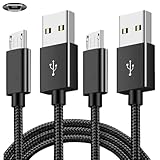
- COMPATIBILITY: Works with PlayStation 4, Xbox One S/X controllers and other devices with micro USB ports for charging and data sync
- CABLE LENGTH: Extra-long 6.6-foot cord provides convenient reach and flexibility while gaming or charging
- DURABLE DESIGN: Premium nylon braided cable resists tangles and provides enhanced durability for long-term use
- DUAL PACK VALUE: Includes two black charging cables to keep multiple controllers powered or serve as backup
- FAST CHARGING: High-quality micro USB connection ensures reliable power transfer and stable data synchronization
External USB devices preventing normal boot
USB storage devices, hubs, and even some controllers can cause boot instability. Remove everything except power and HDMI, then try Safe Mode again.
Quick wins for a faster PC:
Clear out junk files and repair common Windows errorsFree Scan →Scan for outdated or missing drivers - takes under a minuteDriver Scan →When It Still Won’t Boot: Advanced Troubleshooting
If you’ve tried Option 1, Option 2, and at least one software update, but Safe Mode keeps returning, switch to “verify and eliminate” mode.
Try a different storage device (or reseat the drive)
Power off completely, unplug the cable, and reseat the internal HDD/SSD. If you have access to another known-good 2.5-inch SATA drive, try it to isolate hardware faults.
Check USB ports and remove peripherals
Use a single USB port for the controller during Safe Mode. For updates, connect the USB drive directly (avoid USB hubs).
Reinstall firmware again with a verified download
Re-download the firmware file and recreate the USB drive. Corrupted downloads are common when the initial file was incomplete or the USB drive had errors.
Test with a different HDMI cable/TV input
If Option 2 made any difference, keep testing different HDMI configurations. A bad cable or wrong input mode can mimic a system failure.
Best Value

- 【Perfect 6FT / 1.8M Length for Gaming】 Our micro USB cable is specially designed at 1.8 meters (approx. 6 feet), giving you plenty of room to play comfortably from your sofa or bed without sitting close to the console. No more interruptions due to short cables!
- 【Charge & Play Without Interruption】 Keep the action going! This durable cable lets you charge your PS4 controller while you play, so you’ll never get kicked out of a game because of a dead battery. Ideal for long gaming sessions and online matches.
- 【Wide Compatibility with Gaming Devices】 Works perfectly with PS4, PS4 Slim, PS4 Pro, and X Box One S/X controllers (including Elite Wireless Controller models 1537, 1697, 1708). Also suitable for Kindle Paperwhite, Fire Tablet, and other Micro-USB devices.
- 【Stable Connection & Anti-Interference】 Features a built-in ferrite bead and reinforced connector tips to reduce signal noise and provide a secure, stable connection. The plug fits snugly and won’t loosen during intense gameplay, ensuring reliable charging and sync.
- 【Package Includes】 Comes with 2-Pack of 6Ft durable & flexible micro usb cable, with user-friendly customer service. We will try our best to resolve your issue if you have any questions.
What You Should (and Shouldn’t) Do With Your Data
Rebuild Database (Option 5) typically preserves your installed games and saves, but it can take time. Initialize options (especially Option 7) are wiping steps.
If you care about saves: make sure you have PlayStation Plus cloud saves enabled (if applicable) and consider backing up to USB storage before attempting the more destructive options. If you can’t boot normally, backups may still be limited—so prioritize Option 5 and software update steps first.
Troubleshooting Checklist (Fast Reference)
- Remove peripherals (everything USB except the controller for Safe Mode).
- Power cycle (unplug 60 seconds).
- Try Option 1 (Restart PS4).
- Try Option 2 (Change Resolution).
- Update software (Option 3 with a correctly built FAT32 USB, or Option 4 via Internet).
- Repair data structure (Option 5 Rebuild Database).
- Reset settings (Option 6 Restore Default Settings).
- Initialize only if needed (Option 7 or Option 8, depending on how far you’ve gotten).
- If it loops after Option 5 + update: suspect the drive or firmware USB media.
FAQs
Will Rebuild Database erase my games or saves?
Generally, Option 5 reorganizes the database and doesn’t delete your games or saves. However, it can’t fix all hardware failures, and corrupted storage can still cause issues.
Do I need PlayStation Plus to keep saves when Safe Mode is stuck?
PlayStation Plus is typically required for cloud saves. If you have no cloud backup and can’t access the console normally, initializing (Option 7/8) may erase local data.
My USB update fails in Safe Mode. What’s the most common fix?
Recreate the USB drive using FAT32 and the exact folder/file names: UPDATE and PS4UPDATE.PUP. Also confirm you downloaded the correct PS4 firmware for your model and region.
Safe Mode shows even after Initialize PS4. What should I check?
If Option 8 still loops, suspect a failing internal HDD/SSD or a persistent corrupted firmware install path (wrong/failed USB firmware preparation). Test with a different drive if possible.
Can HDMI issues send my PS4 into Safe Mode?
HDMI problems can prevent the console from showing output correctly, and in some cases it can trigger behavior that leaves you stuck in recovery. Option 2 (Change Resolution) plus a different HDMI cable/TV input is the fastest verification.
Bottom Line
If your PS4 is stuck in Safe Mode, start with quick isolation (power cycle, remove USB peripherals, confirm HDMI), then move through Safe Mode options in the right order: Restart, Change Resolution, update system software, and Rebuild Database. That sequence fixes the majority of boot loops without wiping the system.
If it still won’t exit Safe Mode after updates and Rebuild Database, you’re likely dealing with bad firmware media or failing storage—then re-create the USB update properly or test/reseat the internal drive before resorting to full initialization.
Quick Recap
Product prices and availability are accurate as of the date/time indicated and are subject to change. Any price and availability information displayed on Amazon at the time of purchase will apply.




