Free tools Windows power users keep installed
One-click scans. No signup required.
To open a HEIC photo, use a device or app with HEIF support. Apple includes support in iOS 11 and later, iPadOS, visionOS, and macOS High Sierra 10.13 and later. On Windows, install the HEIF and HEVC extensions if Photos reports that it needs them. To make a JPEG copy on a Mac, open the image in Preview or Photos and choose File > Export.
What HEIC means—and how it differs from HEVC
HEIF is the image format family Apple uses for photos, and HEIC is a common filename extension for those images. HEVC, also called H.265, is a video format discussed separately from HEIF. A photo ending in .heic is not the same kind of media as an HEVC video.
As an Amazon Associate I earn from qualifying purchases.
Apple says HEIF and HEVC provide better compression than JPEG and H.264, using less storage while preserving the same visual quality. That describes Apple’s supported formats; whether a particular app or device can open a file still depends on its software support.
Open a HEIC file on an Apple device or Mac
Apple lists built-in HEIF and HEVC support for iOS 11 and later, iPadOS, visionOS, and macOS High Sierra 10.13 and later. If a file will not open on a supported platform, check that the operating system and the app you are using are up to date and support the file.
#1 Best Overall

- HEIC image to JPEG converter
- HEIF image to JPEG converter
- AVIF image to JPEG converter
- JPEG image to HEIC/HEIF/AVIF converter
- heic image to png converter
On a Mac, open a HEIC image in Preview or Photos. If you need another format, use File > Export and select JPEG or PNG. Preview also supports exporting multiple selected images from one window, which is useful when you need a batch of converted copies.
Open a HEIC file on Windows
If Windows Photos shows an extension error, Microsoft recommends installing both the HEIF Image Extensions and HEVC Video Extensions—even when you are trying to open a photo. Microsoft’s support page lists the HEIF extension as free and the HEVC extension at $0.99; these are page-listed prices, not guaranteed current Microsoft Store prices. Check the Store listing before installing, since availability and pricing can change.
Rank #2

- 🖼️ A simple app that "just works".
- 🖼️ No loss in details or image quality.
- 🖼️ No more annoying ads or confusing user interface.
- 🖼️ Convert an unlimited number of images for free at no hidden cost.
- 🖼️ Click on the Add Images button at the bottom-right corner.
If you only need to view a file in a browser, OneDrive’s website can preview HEIF and HEVC files. That browser preview does not install local decoding support: a downloaded file may still require a suitable Windows codec or app to open on the PC.
Recommended Free Tools
Convert HEIC to JPEG or PNG
On a Mac, open the image in Preview or Photos, then choose File > Export and select JPEG or PNG. Exporting creates a file in the chosen format; keep the original HEIC if you may need it later. In Preview, you can select multiple images in one window to convert a batch.
Rank #3

- Convert as many .heic/.heif files as required in one go
- Instant conversion
- Use your HEIC images on other platforms
JPEG is often easier to use with apps and devices that do not support HEIC. A converted file is a separate copy, so conversion should not be treated as a way to preserve the original file and its format. Apple says HEIF can provide better compression than JPEG while retaining the same visual quality; the provided platform guidance does not establish how every converter handles quality settings or metadata.
Choose whether to preserve or convert originals when sharing
The result depends on how you move the image. Apple’s guidance distinguishes between keeping originals and making media more compatible for a recipient or destination:
Rank #4

- Convert video to mp3, flac, audio
- Convert video to other video format
- Convert HEIF, HEIC and AVIF images to JPEG, PNG or WEBP
- Work offline
- Fast
| Workflow | What happens to the format | When to use it |
|---|---|---|
| iCloud Photos | Preserves the original format, resolution, and frame rate. | Use it when you want the original media maintained in your iCloud Photos library. |
| AirDrop, Messages, or email | Media may be shared in a more compatible format when the recipient’s device does not support it. | Useful when the recipient needs a file their device can open. |
| USB import from iPhone or iPad | Importing to Photos, Image Capture, or a PC may convert media to JPEG or H.264. Selecting Keep Originals preserves the HEIF/HEVC original during import. | Choose based on whether compatibility or retaining the original format matters more. |
Set an iPhone or iPad to capture more compatible files
On supported iPhone and iPad models, choose Settings > Camera > Formats > Most Compatible to make new photos use JPEG and videos use H.264. This affects new captures; it does not convert photos already saved as HEIC. The setting is not available on every device.
What’s actually slowing this PC down?
Pick the symptom - the matching free tool is one click away.
Which workflow should you use?
- Need to open one file on a Mac: try Preview or Photos first; export a JPEG or PNG copy only if another format is required.
- Windows Photos reports a missing extension: follow Microsoft’s extension guidance, checking the current Store price and availability.
- Need to view a file without local Windows support: OneDrive browser preview may work, but it does not prepare a downloaded file for local opening.
- Need to send a photo to someone with an incompatible device: use a sharing method that can provide a compatible version, or export a JPEG copy.
- Need to retain the camera original during a wired import: select Keep Originals.
Android compatibility
Support can vary by Android device, operating-system version, and app. The platform guidance cited here does not establish a universal Android workflow, so check the specific device and app documentation rather than assuming every Android phone opens every HEIC file.
Quick Recap
Best Value
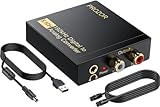
- 192Khz Dac Converter: Our Optical to Rca Converter Support Digital Optical And Coaxial Audio Signal Input Into L/R RCA 3.5mm Analog Signal Output; Optical Coaxial Can Be Connected to Dvd Player, RCA Connected to Speaker, 3.5mm Connected to Your Headphones, to Meet Your Diverse Needs
- Support 5.1CH: Support DTS/Dolby AC-3/ LPCM/ PCM Audio Mode, Optical Coaxial Input Interface Support Dolby AC-3 DTS 5.1CH/PCM2.0 Audio Format to 2.0CH Analog Audio Output Format, Enjoy High Sound Quality
- 192Khz Sampling Rate: The Sampling Rate Is As High As 192Khz, And 24-Bit Spdif Incoming Bit Stream to Left And Right Channels.Proving High Quality Audio Transmission to Enjoy A Pure And Clear Listening Experience
- High Quality: The Converter Is Equipped with a Magnetic Ring Power Cord, Adjust The Amplifier Chip, Achieve Noiseless Audio Transmission, More Stable Work
- Wide Application: Applicate for HD TV, PS3, PS4, HD DVD, Sky HD, Blu-Ray, Home Cinema Systems, AV Amps, Etc
Official guidance
- Apple Support: Using HEIF or HEVC media on Apple devices
- Microsoft Support: Using HEIF or HEVC media files on Windows devices
- Microsoft Support: View HEIC and HEVC files in OneDrive
- Apple Preview User Guide: Convert image file types
- Apple Support: About HEIF and HEVC
Product prices and availability are accurate as of the date/time indicated and are subject to change. Any price and availability information displayed on Amazon at the time of purchase will apply.




