Free tools Windows power users keep installed
One-click scans. No signup required.
The Logitech Brio is a premium webcam, but “zoom” behavior depends entirely on where you’re zooming—inside Logitech software, inside your video app, or via OS-level camera controls. For most Brio configurations, zoom is digital (cropping and scaling), not true optical zoom.
This guide walks you through every practical way to zoom with the Logitech Brio, with concrete steps for Logitech Capture, Logi Tune (when supported), and major conferencing apps like Zoom, Microsoft Teams, and Google Meet. You’ll also get troubleshooting paths when zoom controls don’t appear or the image turns soft.
As an Amazon Associate I earn from qualifying purchases.
What Zooming Means on the Logitech Brio
Unlike PTZ cameras, the Logitech Brio has a fixed lens. That means you can usually zoom by cropping the sensor’s image and then scaling it back up to the output resolution you’re using. The result looks like a zoom, but detail can drop because you’re magnifying a smaller portion of the frame.
Crashes, No Sound, or Screen Glitches?
Random freezes, missing sound and display glitches usually trace back to one bad driver. Find and replace yours safely.Free scan · under a minuteWindows Errors? Fix Them Before They Spread
Repair common Windows errors and clear accumulated junk for a smoother, more stable PC - no reinstall needed.Free scan · no reinstallPractically, you’ll see zoom implemented in one of two ways:
#1 Best Overall

- Compatible with Nintendo Switch 2’s new GameChat mode
- Auto-Light Balance: RightLight boosts brightness by up to 50%, reducing shadows so you look your best—compared to previous-generation Logitech webcams (1)
- Privacy with a Slide: The integrated webcam cover makes it easy to get total, reliable privacy when you're not on a video call
- Built-In Mic: The built-in microphone lets others hear you clearly during video calls
- Easy Plug-And-Play: The Brio 101 works with most video calling platforms, including Microsoft Teams, Zoom and Google Meet—no hassle; it just works
- Digital zoom (crop + scale): Zoom level increases, framing gets tighter, and image quality typically softens.
- App-level framing controls: Some apps expose “zoom” or “camera framing” UI that maps to a similar crop-and-scale pipeline.
Prerequisites and What You Need Installed
Before you try to zoom, confirm your system can control the camera and that the webcam is recognized correctly.
- Logitech Brio connected via USB: Use a direct USB port when possible (avoid hubs at first).
- Drivers and software: Install the right Logitech software for your workflow: Logitech Capture (for effects and camera controls) and/or Logi Tune (for supported Brio control features).
- One app at a time: Many webcams expose camera controls to only one foreground application.
If you’re on Windows 10/11 or macOS, you should also verify the Brio appears as a selectable camera in your target conferencing app.
Confirm Your Current Zoom Capability (Optical vs Digital)
Do a quick sanity check so you don’t waste time chasing a feature that your Brio setup can’t provide.
Recommended Free Tools
- Open a camera preview in the tool you plan to use (Logitech Capture, Zoom app settings preview, or Teams device preview).
- Look for a control labeled Zoom, Frame, FOV (field of view), or Crop.
- Change the control and observe output quality and framing.
- If the image becomes more pixelated/soft as you zoom, you’re using digital zoom.
- If there’s no zoom/FOV option anywhere, your zoom might only be possible via Logitech software or not at all for that specific app and configuration.
Reality check: On Brio, “optical zoom” is not typically available because the lens doesn’t mechanically move for zoom.
Zooming in Logitech Capture
Logitech Capture is usually the most reliable place to apply zoom-like framing because it gives you explicit camera controls and a consistent preview pipeline.
- Launch Logitech Capture.
- Select your Logitech Brio camera in the device/source list (look for “Brio” under camera selection).
- Open the Camera or Controls panel.
- Find the framing option labeled something like Zoom or FOV (wording varies by version).
- Increase zoom in small steps (for example, 1.1x → 1.3x → 1.5x) and watch the preview for blur.
- Confirm your output is set to a sensible resolution (commonly 1080p). Higher zoom at low resolution often looks extra soft.
When Capture is ready, use its output as your video source in meetings. In Zoom and Teams, you’ll choose Logitech Capture as the camera, not the physical Brio, if your setup uses a virtual camera output.
Rank #2

- Spectacular video quality: superb resolution, frame rate, color, and detail, featuring autofocus and 5x digital zoom; this Ultra HD webcam supports up to 4K at 30 fps
- Look great in any light: RightLight 3 automatically adjusts exposure and contrast to compensate for glare and backlighting
- Adjustable field of view: Choose from three dFOV presets to perfectly frame your video; frame an ideal head and shoulders view with 65° diagonal, and more of the room with 78° or 90° diagonal
- Sound excellent anywhere: With dual omnidirectional microphones and noise-canceling tech, this webcam with microphone captures clear audio from up to 1.2 meter away while reducing background noise
- Make it your own: The Logi Options+ app (3) simplifies personal device control with zoom in/out, color presets, color adjustments, set manual focus, and easy firmware updates
Zooming in Logi Tune (if available for your setup)
Logi Tune can provide camera controls for compatible Logitech devices and setups. Availability depends on your Brio model and software version.
Quick wins for a faster PC:
Scan for outdated or missing drivers - takes under a minuteDriver Scan →Repair Windows errors before they cause bigger problemsFix Now →Fix the driver behind crashes, sound loss and screen glitchesFind Drivers →- Install and open Logi Tune.
- Select your Logitech Brio (or corresponding camera device entry) in the main device list.
- Look for a Camera section with options such as Zoom, FOV, or Framing.
- Adjust the slider/controls while watching the live preview.
- Apply changes and then restart your conferencing app if the new camera controls don’t appear immediately.
If you don’t see any zoom/framing controls in Logi Tune, don’t assume your camera can’t zoom—often it just means the specific control isn’t exposed for your configuration.
Zooming Inside Zoom (the app)
Zoom (by Zoom Video Communications) sometimes exposes camera controls only under certain conditions—such as device permissions, supported camera features, and the camera mode you’re using.
- Open the Zoom app on your computer.
- Go to Settings → Video.
- Select Logitech Brio (or your Logitech Capture virtual camera) under Camera.
- In the preview area, look for a control labeled Zoom or Advanced (some versions hide camera controls behind an overflow menu).
- If you see zoom/framing options, adjust them while previewing.
- If you don’t see any zoom control, enable zoom through Logitech Capture instead, and use that as the camera source.
Practical guidance: For consistent results, many users set zoom in Logitech Capture and let Zoom simply display the processed feed.
Zooming Inside Microsoft Teams
Teams typically relies on the selected camera’s capabilities and device driver exposure. If Teams doesn’t show a zoom control, you’ll get better results using Logitech Capture.
- Open Microsoft Teams.
- Go to Settings → Devices.
- Under Camera, select Logitech Brio or select Logitech Capture (if it appears as a camera source).
- Check the preview for any framing, zoom, or camera effects controls.
- If no zoom control is present, don’t hunt for a hidden option—move zoom to Logitech Capture and reselect that output camera.
Zooming in Google Meet and Web Conferencing
Web apps depend heavily on what the browser and the camera pipeline allow. Most of the time, you’ll only get zoom if the video feed itself (e.g., from Logitech Capture) is already “zoomed.”
Rank #3

- Compatible with Nintendo Switch 2’s new GameChat mode
- Ultra HD 4K webcam: meet or stream in 4K resolution at 30fps or 1080p at 60fps, with our most advanced webcam sensor yet, with 70% larger pixels (1) for sharp image quality
- AI-enhanced image quality: Experience 2x better face visibility with finer image details in difficult light (2), with auto-exposure, auto white balance, noise reduction, and autofocus
- Curate Your Image: Fine controls (3) on this Ultra HD webcam let you adjust lighting and white balance, such as ISO, Shutter Speed, Tint, and Vibrance, or let Auto mode take care of it
- Let Them Hear Your Every Word: Integrated dual beamforming noise-reducing microphones minimize background noise with the aid of AI to make sure you are clearly heard
- Open Google Meet in Chrome.
- Click the camera picker and ensure you selected Logitech Brio.
- Look for a camera control menu in the Meet UI. If you see a framing/zoom feature, use it there.
- If no zoom controls are available, use Logitech Capture to create a zoomed virtual feed and select that as the camera.
- Refresh the meeting page after changing camera sources if the browser keeps the old stream.
Gotcha: Browser permissions and autoplay policies can prevent camera controls from updating reliably. If zoom won’t change, reload the tab after switching cameras.
Zooming on Windows and macOS Camera Settings
OS-level camera controls can help sometimes, but they rarely provide the level of consistent framing control you get from Logitech Capture.
Windows 10/11
Windows settings may expose basic camera format controls, but zoom/framing options are often not provided at the OS level.
- Open Settings → Bluetooth & devices → Camera.
- Confirm the Logitech Brio is selected.
- Check whether any camera effects or framing options exist (wording varies).
- If there’s no zoom control, use Logitech Capture/Logi Tune and then select that virtual camera inside your apps.
macOS
macOS provides camera permissions and some format selection, but zoom is usually handled by the specific camera software or app.
- Go to System Settings → Privacy & Security → Camera.
- Ensure your conferencing app (Zoom, Teams, browser) has camera permission.
- Open the app and look for camera controls in its own preview.
- If zoom controls aren’t present, set zoom in Logitech Capture and select the virtual camera feed.
Best Practices for Crisp Zoom (Preventing Blur and Jaggies)
Zooming on Brio is typically digital, so quality depends on how you combine zoom, resolution, and lighting.
- Use smaller zoom steps: Instead of jumping to 2x, try 1.2x–1.5x and see where detail stays acceptable.
- Raise your source resolution: If you can choose 1080p vs 720p, prefer 1080p before zooming.
- Improve lighting: Digital zoom amplifies noise. Bright, even lighting reduces grain.
- Stabilize your frame: Zoom makes micro-movements more obvious. Use a solid mount and keep the camera at a consistent height.
- Avoid double-processing: If you zoom in Logitech Capture and also enable additional “enhancements” in your meeting app, the result can look softer.
Common Problems and How to Fix Them
Zoom control doesn’t appear in my meeting app
Many apps simply don’t expose zoom/framing controls for webcams. The fastest fix is to zoom in Logitech Capture and use its output as the camera source.
Rank #4
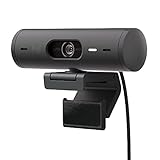
- Compatible with Nintendo Switch 2’s new GameChat mode
- Advanced Image Quality: Full HD 1080p webcam resolution provides outstanding image quality so everyone can see you clearly during meetings
- Auto Light Correction (RightLight 4): RightLight 4 video lighting technology automatically adjusts to the lighting in your environment, so you can be seen clearly even in low light
- Auto-Framing (RightSight): Auto-framing (1)(3) centers the video camera on you, allowing you to stand and move during meetings without leaving the frame
- Show Mode: Present your work or other objects on your desk with Show Mode, which lets you tilt the web camera up or down with one hand
- Close and reopen the meeting app after switching cameras.
- Ensure you’re selecting the correct camera: Logitech Capture (virtual) vs Logitech Brio.
The picture is too blurry after zooming
This is normal with digital zoom when you exceed what the sensor detail supports for your output size.
Do these 3 things before closing this tab:
1Scan for outdated or missing drivers - takes under a minute2Clear out junk files and repair common Windows errors3Fix the driver behind crashes, sound loss and screen glitches- Reduce zoom to a level where text and edges remain sharp.
- Increase output resolution in your camera tool (commonly to 1920×1080).
- Improve lighting (face and background, not just overhead).
- Check your focus settings in Logitech software. If available, use auto focus, then let it settle for 1–2 seconds.
Zoom changes, but the change doesn’t show up in the meeting
That usually means the meeting app isn’t picking up the updated stream.
- Switch away from the camera and back (Settings → Video → reselect the camera).
- Reload the browser tab (for Google Meet) or restart the meeting app (for Zoom/Teams).
- Kill other apps using the Brio (OBS, another video call, photo app) so the camera pipeline updates correctly.
Logitech software can’t detect the Brio
Detection issues often come from permissions, USB instability, or another app holding the device.
- Unplug and replug the Brio.
- Try a different USB port (preferably USB 3.x).
- Close other camera apps (including streaming software).
- Reboot and launch Logitech Capture/Logi Tune first, then open your meeting app.
Comparison: Where Zoom Works Best
Here’s a practical view of where to control zoom depending on your situation.
| Method | Where you adjust zoom | Consistency | Typical result |
|---|---|---|---|
| Logitech Capture | Desktop app preview | High | Predictable framing across apps |
| Logi Tune | Logi Tune device settings | Medium to high (if supported) | Zoom-like framing when exposed |
| Zoom app controls | Inside Zoom preview/settings | Variable | Works only when UI is available |
| Teams/Meet controls | Inside meeting UI | Variable | Often no direct zoom, rely on pre-processing |
FAQ: Logitech Brio Zooming
Does Logitech Brio have optical zoom?
Logitech Brio is typically a fixed-lens webcam, so what most users experience is digital zoom (crop and scale). If you don’t see a mechanical zoom or FOV control that behaves like optical zoom, assume it’s digital framing.
Will zooming reduce resolution?
Even if the output stays at 1080p, digital zoom effectively uses less of the sensor’s detail for the frame, so fine detail can drop. If you zoom too far, the image can look soft or noisy.
Best Value

- Compatible with Nintendo Switch 2’s new GameChat mode
- Be Your Best Self on Every Video Call: Full HD 1080p webcam resolution provides natural image quality, so you look like the real you on all meeting apps
- Auto Light Correction: RightLight 2 technology automatically compensates for poor video lighting conditions so you can be seen clearly
- Sound Like You: The mono noise reduction mic suppresses background sound so everyone on the call can hear you easily
- Spin for Instant Privacy: Spin the webcam privacy shutter to block the camera lens when you don’t need to be on screen
What zoom level looks best for video calls?
Most people land around mild zoom (roughly 1.2x to 1.5x equivalent) where the frame is tighter without excessive softness. Your room lighting and how close you sit matter more than any single number.
Why can I zoom in Logitech Capture but not in Google Meet?
Google Meet typically doesn’t expose camera zoom for most webcams. If you zoom using Logitech Capture, select its virtual camera feed in Meet to carry the zoomed framing into the call.
My face is centered when zoomed, but text looks blurry. How do I fix it?
Reduce the zoom slightly, ensure your source output is 1080p, and improve lighting. If you’re using effects, try disabling extra enhancements in the meeting app to avoid double scaling.
The Tool Desk
Outbyte Driver Updater FREEScan for outdated or missing drivers - takes under a minuteDriver Scan →Outbyte PC Repair FREERepair Windows errors before they cause bigger problemsFix Now →Final Thoughts
The Logitech Brio can absolutely get you tighter framing, but you’ll get the best results when you control zoom in a dedicated camera tool like Logitech Capture and then feed that output into your meetings. That approach gives you consistent behavior and fewer surprises across Zoom, Teams, and web conferencing.
Start with modest digital zoom, prioritize lighting, and treat heavy zoom as a last step. With that workflow, you’ll keep the image crisp while still getting the close-up framing you want.
Quick Recap
Product prices and availability are accurate as of the date/time indicated and are subject to change. Any price and availability information displayed on Amazon at the time of purchase will apply.




