What’s actually slowing this PC down?
Pick the symptom - the matching free tool is one click away.
On a Lenovo IdeaPad 110, look for a small button or pinhole marked with a curved, backward-arrow icon, often described as an upside-down U. Lenovo says the Novo button is usually on a laptop’s side or near its power button, but its position varies by model. Check the user guide for your exact machine type before pressing any pinhole; the available guidance does not confirm one location for every IdeaPad 110 variant.
Where to look on an IdeaPad 110
Inspect both sides of the laptop and the area around the power button for a small control bearing the Novo icon. It may be recessed rather than a raised button. Lenovo’s general guidance says the Novo button is usually on a side or near the power button, and that its location differs among models. Lenovo’s Novo button overview gives those general directions, not a verified position for every IdeaPad 110.
As an Amazon Associate I earn from qualifying purchases.
Do not assume that an unmarked hole is the Novo control simply because it is in a likely spot. Confirm the location in the user guide for the laptop’s exact machine type. Lenovo’s support results associate the Novo overview with the IdeaPad 110-14IBR, type 80T6, but that does not establish that other IdeaPad 110 versions use the same chassis layout. Check the device label or Lenovo support identification to determine your machine type, then consult its matching guide.
How to identify the Novo control
- Look for a small button or pinhole with a backward-arrow or upside-down-U-like icon.
- Use the exact model’s user guide to confirm the control before inserting anything into a hole.
- If you cannot verify the control, do not press it; use the model’s documentation or support identification to narrow down the correct guide.
How to open the Novo menu
- Shut down the laptop.
- Confirm the Novo button or pinhole using the user guide for your machine type.
- Gently press the confirmed control with the tip of an unfolded paper clip or a similar pointed object.
- Read the menu on screen and choose only the option you intend to use.
Depending on the model and software, the menu may include System Recovery, BIOS Setup, or boot options. The available choices are not identical on every machine. Lenovo’s Novo guidance describes the general button and menu, while its reset instructions begin with the computer powered off and direct users to choose System Recovery when that is their goal. Read the on-screen choices carefully: following a recovery path can change the installed system.
#1 Best Overall

- Web vision Including Word, Excel, OneNote, Outlook, PowerPoint, Publisher, Access
Using Novo to reach BIOS or recovery
The Novo menu can provide a route to BIOS Setup or system recovery when those options are available on the particular laptop. Lenovo also documents function-key methods for entering BIOS, so the Novo button is not the only route described in its general guidance. Follow the instructions for your specific machine rather than assuming every IdeaPad 110 exposes the same menu. See Lenovo’s BIOS entry guidance for its general function-key approach.
Quick Recap
Rank #3
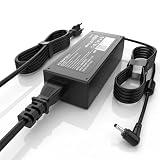
- High Performance Output: Featuring an output of 20V and 3.25A, this computer adapter delivers reliable power for IdeaPad Series. Enjoy seamless performance with our efficient AC/DC power cord, perfect for everyday use.
- Easy to Use: With a connector size of 4.0 mm* 1.7 mm, this laptop charger is simple to plug in and out. The lightweight design makes it easy to carry, making it an essential accessory for students and professionals alike.
- LJO-EEIH Laptop Charger Compatible with IdeaPad 1 3 5: 1-11IGL05, 1-11ADA05, 1-14AST-05, 1-14IGL05, 1-15ADA7 1-15IJL7; 3-14ADA05, 3-14IIL05, 3-14IML05, 3-14ARE05, 3-14IGL05, 3-14ALC6, 3-15IIL05, 3-15IML05, 3-15ADA05, 3-15ARE05, 3-16IAH8, 3-16ABR8, 3-16IRU8, 3-17ADA05; 5-14ALC7, 5-14ABR8, 5-14IRU8, 5-14IAU7, 5-14IIL05, 5-14ARE05, 5-14ARE0, 5-14IIL0, 5-15IIL05, 5-15IIL0, 5-15ARE05, 5-16ALC7, 5-16IAU7, 5-16ABR8, 5-16IRU8.
- Compatible with IdeaPad 110 110S 310 320 330 330s S145 S340 S540 L340 Series: 310-14IKB, 310-15ISK, 310-15IKB, 310-15ABR; 320, 320-14ISK, 320-14IKB, 320-15IKB, 320-15AST, 320-15ABR, 320-15IAP, 320-17IKB, 320-17ISK, 330, 330-15ARR, 330-15IGM, 330-14IKB, 330-15IKB, 330-14AST, 330-15AST, 330-17IKB, 330-17AST, 310S, 320S, 320S-15IKB, 330S, 330S-15ARR, 330S-15IKB; Compatible with Yoga 710-11IKB, 710-11ISK, 710-14IKB, 710-14ISK, 710-15ISK.
- Safety and Sturdy: The 65W charger has built-in IC chip technology and has a variety of intelligent functions to prevent IC overcurrent, IV error voltage, SC short circuit, and IO internal overheating. CE/FCC/ROHS certification. It is more secure than other adapters.
Rank #2

- CPU: 12th Gen Intel Processor N100 0.8 GHz (4 Cores, 4 Threads, 6M Cache, up to 3.40 GHz).
- Screen: 15.6" FHD (1920 x 1080), Non-Touch; 88% AAR on the IdeaPad Slim 3i’s FHD LCD display, which comes with a taller 16:10 aspect ratio on the 16’’.
- RAM & Storage: 4GB DDR5 Memory; 128GB SSD Storage
- Ports: 1 x HDMI 1.4, 1 x Power in, 2 x USB-A 3.2 Gen 1, 1x USB-C 3.2 Gen 1, 1x Headphone/mic combo, 1x SD card reader
Product prices and availability are accurate as of the date/time indicated and are subject to change. Any price and availability information displayed on Amazon at the time of purchase will apply.




