Recommended Free Tools
To create an aesthetic widget on your iPhone, choose what it should show, style it in a widget app if you want more visual control, then add it through iOS’s widget picker. You can use Apple’s built-in widgets for a simple, coordinated layout or configure an app such as Widgetsmith for custom themes and photo-based designs.
Choose a look and a purpose
Start with one visual direction—such as a muted palette, a bright accent color, or a set of photos—and decide what information belongs on the screen. A useful widget might show a calendar, time, weather, activity, reminder, or countdown; a photo widget can provide a less information-dense focal point.
As an Amazon Associate I earn from qualifying purchases.
Native iPhone widgets are the simplest option when you want information from an app without customizing its appearance extensively. A custom-widget app adds more control over photos and themes, but requires configuring the widget in that app before placing it on the Home Screen.
The Tool Desk
Outbyte PC Repair FREERepair Windows errors before they cause bigger problemsFix Now →Outbyte Driver Updater FREEFix the driver behind crashes, sound loss and screen glitchesFind Drivers →Make a custom widget in Widgetsmith
- Choose or create a widget. Open Widgetsmith and select an existing widget or create one. Choose a size that suits the space you plan to use.
- Select its content and style. Open the widget’s Aesthetic or Theme controls. Depending on the selected widget and available features, you can adjust its background, font, tint, border, and artwork.
- Set up a photo widget, if desired. Select a static photo or an album and allow the photo-library access the app needs. You can reposition and scale the selected photo within the widget.
- Save or name the configuration. Keep track of the configured widget’s name; iOS may ask you to choose it after you add the app’s widget to the Home Screen.
Widgetsmith lists integrations with photos, Apple Music, calendars, and reminders, as well as optional Apple Health access subject to iOS permissions. Its product information says weather and tide data require Premium. Feature availability can depend on the app’s current version and settings.
#1 Best Overall
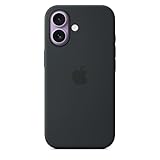
- DESIGNED BY APPLE — This Apple case is designed to fit iPhone 17
- CAMERA CONTROL — This case features a sapphire crystal coupled to a conductive layer to communicate finger movements to the Camera Control.
- LIGHTWEIGHT AND SMOOTH — Made from a 55 percent recycled silicone material, the case is lightweight and smooth to the touch, with a soft microfiber lining on the inside for even more protection.
- SCRATCH AND DROP PROTECTION — Not only does this case look great, but the raised edges protect your iPhone from scratches and drops.
- MAGSAFE CHARGING COMPATIBLE — With built-in magnets that align perfectly with your iPhone 17, this case offers a magical attach experience to other MagSafe accessories and is MagSafe charging compatible.
Add a widget to the Home Screen
- Touch and hold an empty area of the Home Screen until the apps begin to jiggle.
- Tap Edit, then Add Widget. Depending on the iOS version and screen, the add control may appear directly instead of under Edit.
- Choose the app, swipe through its available widget sizes, and tap Add Widget.
- Move the widget to the position you want, then tap Done.
- If you added Widgetsmith, tap the placed widget and select the named configuration you created, if prompted.
Apple’s current support instructions describe this as the native placement flow. Widgetsmith configuration and iOS placement are separate steps: a widget can be added successfully but still need its saved design selected.
Add a widget to the Lock Screen
Lock Screen widgets use a separate setup flow and are available on iOS 16 or later.
Rank #2
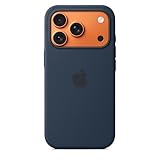
- DESIGNED BY APPLE — This Apple case is designed to fit iPhone 17 Pro
- CAMERA CONTROL — This case features a sapphire crystal coupled to a conductive layer to communicate finger movements to the Camera Control.
- LIGHTWEIGHT AND SMOOTH — Made from a 55 percent recycled silicone material, the case is lightweight and smooth to the touch, with a soft microfiber lining on the inside for even more protection.
- SCRATCH AND DROP PROTECTION — Not only does this case look great, but the raised edges protect your iPhone from scratches and drops.
- MAGSAFE CHARGING COMPATIBLE — With built-in magnets that align perfectly with your iPhone 17 Pro, this case offers a magical attach experience to other MagSafe accessories and is MagSafe charging compatible.
- Touch and hold the Lock Screen until Customize appears.
- Tap Customize, then choose the Lock Screen.
- Tap Add Widgets.
- Tap or drag a supported widget into an available area, then tap Done to save.
The Lock Screen has limited widget space. If the area is full, remove an existing widget before adding another. The available choices depend on which apps provide Lock Screen widgets.
Balance appearance with useful information
Use a consistent visual system
Pick a small palette and repeat it across widgets rather than styling each one independently. A photo widget can set the palette for nearby icons or wallpapers; a calendar or reminder widget can make the screen more useful without adding another app shortcut.
Rank #3
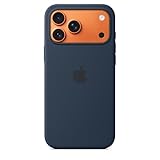
- DESIGNED BY APPLE — This Apple case is designed to fit iPhone 17 Pro Max
- CAMERA CONTROL — This case features a sapphire crystal coupled to a conductive layer to communicate finger movements to the Camera Control.
- LIGHTWEIGHT AND SMOOTH — Made from a 55 percent recycled silicone material, the case is lightweight and smooth to the touch, with a soft microfiber lining on the inside for even more protection.
- SCRATCH AND DROP PROTECTION — Not only does this case look great, but the raised edges protect your iPhone from scratches and drops.
- MAGSAFE CHARGING COMPATIBLE — With built-in magnets that align perfectly with your iPhone 17 Pro Max, this case offers a magical attach experience to other MagSafe accessories and is MagSafe charging compatible.
Use stacks to save space
On the Home Screen, you can place widgets in a stack instead of dedicating a separate area to each one. Apple supports user-created stacks of up to 10 widgets. A Smart Stack can rotate widgets based on context such as time, location, or activity, so it can surface different information through the day.
Keep the design static and legible
Widgetsmith says iPhone widget forms are limited to small, medium, and large, and that iOS does not allow animated GIFs or video in widgets. Treat a widget as a glanceable panel, not a miniature app screen: prioritize a readable photo crop, clear text, and one main purpose.
Rank #4

- Designed by Apple to complement iPhone 17 Pro, the Silicone Case with MagSafe is a delightful way to protect your iPhone
- And it securely attaches to the Crossbody Strap, allowing you to conveniently wear your iPhone hands-free
- Made with a 45 percent recycled silicone material, the case has a silky, soft-touch finish on the exterior that feels great in your hand
- And on the inside, there’s a soft microfiber lining for even more protection
- This case works seamlessly with Camera Control to recognize precise finger movements like clicks and slides
Native widgets or a custom-widget app?
| Approach | Best suited to | Setup | Design control |
|---|---|---|---|
| iOS widgets | Quick access to information from apps that provide widgets | Add directly through the iOS widget picker | Uses the options offered by each app |
| Widgetsmith | Custom themes and photo-based designs | Configure the widget in the app, then add and select it in iOS | Offers controls such as backgrounds, fonts, tints, borders, and artwork; some features may be paid |
Neither approach is universally better: choose based on whether convenience or visual customization matters more for the widget you want. Apple documents native placement and stacks, while Widgetsmith describes its own design features; these sources do not establish that either approach performs better overall.
Do these 3 things before closing this tab:
1Scan for outdated or missing drivers - takes under a minute2Clear out junk files and repair common Windows errors3Fix the driver behind crashes, sound loss and screen glitchesFix common display problems
- A custom widget shows the wrong design: Tap the widget and check whether it is set to the configuration you named in Widgetsmith.
- A widget appears blank or gray: Widgetsmith’s FAQ recommends checking that the configured widget still exists and restarting the iPhone. These are troubleshooting suggestions, not a guarantee that every display problem has the same cause.
- A photo does not appear: Check that Widgetsmith has the photo-library permission needed to access the selected image or album.
- You cannot add another Lock Screen widget: The available region may be full. Remove a widget to free space, then try adding the new one.
What to know before paying for customization
Widgetsmith describes most of its features as free and offers a Premium subscription for some options, including weather and tide data. Subscription prices and trial terms can change, so check the current offer in the app or its App Store listing before subscribing. A paid plan is not required to use the iPhone’s native widget picker.
Best Value
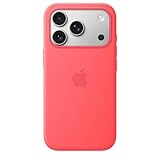
- Designed by Apple to complement iPhone 17 Pro, the Silicone Case with MagSafe is a delightful way to protect your iPhone
- And it securely attaches to the Crossbody Strap, allowing you to conveniently wear your iPhone hands-free
- Made with a 45 percent recycled silicone material, the case has a silky, soft-touch finish on the exterior that feels great in your hand
- And on the inside, there’s a soft microfiber lining for even more protection
- This case works seamlessly with Camera Control to recognize precise finger movements like clicks and slides
Widgetsmith announced version 7 Action Widgets for iOS 18 in September 2024, describing actions such as launching an app, running a Shortcut, making a call, sending a text, or playing music. That announcement documents a specific release, not guaranteed availability in every current version; check the app’s current listing and controls if you want those functions.
Quick Recap
Finish with a quick layout check
- Confirm that each widget has a clear role, rather than repeating information shown elsewhere.
- Check the photo crop and text legibility against your wallpaper.
- Make sure a custom app widget points to the saved design you intended.
- Review Lock Screen space separately from the Home Screen; their widget areas and setup flows differ.
Product prices and availability are accurate as of the date/time indicated and are subject to change. Any price and availability information displayed on Amazon at the time of purchase will apply.




