Free tools Windows power users keep installed
One-click scans. No signup required.
To measure a monitor or TV’s display input lag at home, either compare a millisecond timer shown simultaneously on the target and a display with known lag, or use a dedicated HDMI lag tester. The timer method gives a relative estimate; a tester measures the display path for its supported signal mode. Neither result, by itself, measures the full delay from pressing a controller button to seeing the game react.
What display input lag measures
Display input lag is the time between a display receiving a video signal and beginning to show the corresponding image. It is one part of the complete button-to-screen delay: the input device, game or application, computer or console, and signal path can all add time before the display receives the signal. A display-only measurement therefore cannot stand in for total system latency. See RTINGS’ TV testing explanation and monitor testing explanation.
As an Amazon Associate I earn from qualifying purchases.
Input lag is not pixel response time
Input lag concerns when the image starts appearing. Pixel response time concerns how long pixels take to transition between colors after they begin changing. A display can have low input lag but slower pixel transitions, or the reverse. Some tools and databases report a combined figure, so check what the instrument counts before comparing numbers. DisplayLag’s methodology describes its testing approach.
PC Slower Than It Used to Be?
A free scan shows the junk files, broken settings and background clutter dragging Windows down - then fixes them in one click.Free scan · Windows 10 & 11Crashes, No Sound, or Screen Glitches?
Random freezes, missing sound and display glitches usually trace back to one bad driver. Find and replace yours safely.Free scan · under a minuteChoose a measurement that answers your question
| Method | What it tells you | Main limitation |
|---|---|---|
| Timer comparison on two displays | The target display’s lag relative to a display whose lag is known. | It is not an absolute measurement; the baseline, synchronization, and camera capture constrain precision. |
| Dedicated HDMI tester | A measurement of the display path for a supported signal mode and the tester’s reported quantity. | Supported formats depend on the tester and display; a display-only reading excludes upstream system latency. |
| Gameplay-level testing | The response of a game and broader setup to an action, under the chosen test conditions. | It is a different measurement from display-only HDMI testing and can include game and system factors. |
If you want to know whether one monitor is slower than a trusted reference, the timer comparison may be enough. If you want a display-path reading without relying on another display as a baseline, use a compatible tester. If the problem is how a game feels, investigate the complete setup rather than treating a display-only number as the answer.
#1 Best Overall

- Smooth motion: 240Hz refresh rate and fast 0.5ms response time provide crisp visuals and fluid movement with less input lag.
- Seamless gaming: FreeSync Premium and HDMI VRR eliminate tearing for smooth, responsive PC and console gameplay.
- Fast IPS: Faster 0.5ms response with excellent color accuracy across wide IPS viewing angles.
- Rich color: 99% sRGB color coverage delivers vivid, detailed imagery with strong accuracy.
- Eye comfort: TÜV Rheinland 3‑star certified display lowers blue light while preserving color quality.
Method 1: Compare two displays with a millisecond timer
- Connect the target monitor and a reference display to one computer, or connect a laptop to the target and use the laptop’s screen as the second display.
- Show the same timer with millisecond readings on both screens at the same time. Make sure the reference display’s input lag is known; otherwise, the comparison has no trustworthy baseline.
- Photograph both screens at once, then compare the timer readings. The difference estimates how much later the target is showing the timer than the reference.
- Record the displays’ signal settings and picture modes with the result. Treat it as a relative estimate, not a precise absolute lag measurement.
This approach is described in RTINGS’ monitor testing methodology. The photo captures only one moment, and the displays may not update in perfect synchrony, so do not claim accuracy beyond what the comparison supports.
Method 2: Measure with a dedicated HDMI tester
A tester sends a known video signal and detects when the display begins emitting light from the corresponding image. Follow the instructions for the specific device and use only a resolution and refresh-rate mode it supports.
Rank #2
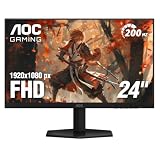
- SHARP CLARITY: This 24'' class (23.8″ viewable) AOC gaming monitor delivers crisp Full HD visuals. Enjoy games, movies, and videos with remarkable detail, all wrapped in a 3-sided frameless design, perfect for multi-monitor setups
- SPEED INTO VICTORY: Lightning-fast 200Hz refresh rate and rapid 1ms MPRT response time lets you target moving opponents with precision. With Adaptive-Sync and low input lag, fast-moving action and dramatic transitions will be rendered smoothly without the effects of ghosting
- ASTONISHING COLORS: Enjoy true-to-life images and vivid colors with 116% sRGB wide color gamut. Elevate your viewing experience with HDR ready
- THE ULTIMATE BATTLE STATION: This sleek gaming monitor is frameless on three sides, so you get minimal bezel distraction. Enjoy next level immersion by creating your own seamless multi-monitor setup
- BETTER CONSOLE GAMING: AOC gaming monitors are designed to maximize the performance of your consoles by unleashing up to 120Hz frame rate (exact performance depends on consoles) and ultra low latency with its low input lag mode, giving you an edge over your opponents
- Connect the tester’s HDMI output to the display and connect USB power, as directed by the Leo Bodnar 4K quick-start guide.
- Wait for the test screen’s three flashing bars. Place the tester’s photosensor over one bar.
- Wait a few seconds and check that the displayed reading is stable, then record it.
- Repeat for the other bars if practical. The guide says the top, middle, and bottom readings can differ because of how the display forms its image; it recommends averaging the readings or using the center bar.
The cited 4K guide says its tester ships set to 3840×2160p60. If that format is unsupported, the guide directs users to change the resolution through the tester’s configuration application. Do not assume another tester supports the same modes.
Leo Bodnar’s separate HDMI/DVI tester page claims better than 1 ms accuracy for that particular model and says it measures combined input lag and pixel response time. That product-specific claim and combined measurement should not be generalized to every tester or confused with a display-only input-lag figure.
Rank #3

- High-Resolution QHD Gaming Display: 27-inch QHD (2560 x 1440) gaming monitor with 180Hz refresh rate designed for professional gamers and immersive gameplay
- ASUS Extreme Low Motion Blur Sync Technology: ELMB Sync technology enables ELMB and variable-refresh-rate technologies to work simultaneously to eliminate ghosting and tearing for sharp gaming visuals with high frame rates
- Advanced Synchronization Technologies: FreeSync Premium, G-Sync compatible and AdaptiveSync technology delivers a seamless, tear-free gaming experience by enabling VRR (variable refresh rate) by default
- High Dynamic Range Support: HDR technology supports HDR-10 format to enhance bright and dark areas for improved visual depth and contrast
- Package Contents: DisplayPort cable, L-shaped Screwdriver, Power cord, Power adapter, Quick start guide, Warranty Card
Make the result comparable to your real setup
A number is meaningful only alongside the conditions under which it was measured. Record the display, input, resolution, refresh rate, picture mode, and relevant processing settings. For gaming, test the refresh rate and Game or low-latency mode you actually use. RTINGS says Game Mode is generally the lowest-lag TV configuration and notes that processing such as motion interpolation can add delay; its TV methodology measures displays across resolutions, refresh rates, and settings.
- A 60 Hz result does not describe the same setup as a 120 Hz result.
- Changing picture processing or input can change what configuration the measurement represents.
- State whether the instrument excludes pixel response time or reports it together with input lag.
Why scan position and refresh rate affect readings
On a top-to-bottom scan, the signal reaches the middle of the screen partway through a refresh cycle. In the measurement setup described by RTINGS, the middle-screen scan-position contribution is 4.17 ms at 120 Hz and 8.33 ms at 60 Hz. These are not complete input-lag scores or universal additions to every measurement. RTINGS says its photodiode test stops when pixels begin changing color, intentionally excluding pixel response time; a sensor at the screen’s middle also samples halfway through the refresh cycle. Such methodological differences help explain why published figures can differ without indicating inconsistent display behavior. The methodology page does not state a publication year for these figures.
Rank #4

- MSI's 23.8-inch Full HD IPS gaming monitor (1920×1080) delivers a 1500:1 contrast ratio with wide 178°/178° viewing angles — producing deeper blacks, brighter highlights, and accurate colors from virtually any position for gaming and productivity.
- TÜV Rheinland certified Flicker Free and Low Blue Light — eliminating the ~200Hz screen flicker common on standard monitors and reducing harmful blue light exposure to minimize eye strain during extended gaming or work sessions.
- 144Hz high refresh rate delivers ultra-smooth motion and sharper tracking versus standard 60Hz or 75Hz monitors — keeping every frame fluid and responsive for fast-paced FPS, racing, and action games without screen tearing or stuttering.
- MSI's built-in Eye-Q Check provides a vision assessment tool to help optimize display settings for healthier long-term viewing — designed for professionals and students spending extended hours in front of a Full HD IPS screen.
- Tilt-adjustable stand (-5°~20°) for comfortable viewing at any desk setup, with VESA 100×100mm wall mount compatibility for monitor arms, brackets, and multi-monitor arrangements — reducing neck strain during long gaming or work sessions.
Separate display lag from game or system delay
If a game feels delayed, a display-only tester will not identify every possible cause. The controller or keyboard, game processing, rendering, and signal path all contribute to the experience. Intel’s input-lag troubleshooting guidance suggests trying another input device when one may be faulty, checking wireless battery and connection conditions, and considering frame-rate changes. These are broader system checks, not ways to change a display’s hardware-defined lag.
Do these 3 things before closing this tab:
1Repair Windows errors before they cause bigger problems2Fix the driver behind crashes, sound loss and screen glitches3Clear out junk files and repair common Windows errorsGameplay-level testing is another separate approach. inputlag.science’s methodology recommends a mostly static scene, a consistent response location, an action without gameplay buffering, and repeated trials; it states that 300 points is its minimum for a decent measure. That method investigates game-level response under its test conditions and should not be compared directly with a display-only HDMI tester reading.
Quick Recap
Product prices and availability are accurate as of the date/time indicated and are subject to change. Any price and availability information displayed on Amazon at the time of purchase will apply.




