Recommended Free Tools
The HP OfficeJet Pro 7720 is a wide-format inkjet all-in-one that prints, copies, scans and faxes. It accepts A3/11×17 media, can print automatically on both sides, and uses four separate ink cartridges. The correct cartridge family depends on the country in which the printer was sold: U.S. machines use HP 952 or 952XL, while many other regions use 953, 954 or 955 families. Match the number printed on your existing cartridge or the printer’s regional documentation before ordering.
What the HP OfficeJet Pro 7720 does
The 7720 is designed for homes and small offices that need ordinary letter/A4 documents as well as larger plans, spreadsheets, brochures or posters. It combines an inkjet printer with a flatbed scanner, copier and fax. A 35-sheet automatic document feeder (ADF) handles multipage copy, scan and fax jobs, while the main input tray holds up to 250 sheets and the output tray up to 75 sheets.
As an Amazon Associate I earn from qualifying purchases.
Its wide-format path supports paper up to A3 or 11×17 inches, including borderless output up to that size when the selected paper type and driver support it. Automatic duplex printing is built in, so the printer can print both sides without you manually reinserting each page. Duplex availability can vary by paper size, media type and application settings; if the option is missing, choose a supported plain-paper size in the HP driver.
Which ink cartridges fit the 7720?
The printer uses four individual cartridges: black, cyan, magenta and yellow. Replacing only the depleted color is one advantage over a combined color cartridge. Cartridge numbers are regional rather than universal, so the same 7720 model name can require a different family in another market.
#1 Best Overall
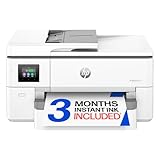
- Perfect FOR OFFICE - The wide-format OfficeJet Pro 9720 is perfect for offices printing professional-quality color documents like floorplans, mood boards and spreadsheets. Print speeds up to 22 ppm black, 18 ppm color.
- 3 MONTH TRIAL OF INSTANT INK INCLUDED – Subscribe to the Instant Ink delivery service to get ink delivered directly to your office door before you run out and after 3 months, a monthly fee applies unless cancelled
- KEY FEATURES – Fast color printing up to 11 x 17, copy, auto 2-sided printing, auto document feeder and 250-sheet input tray
- EASILY ACHIEVE VIBRANT, SCREEN-ACCURATE PRINTS – Print true to screen with the world's first and only wide-format printer with P3 for a wider color gamut vs. sRGB
- 2.7-INCH TOUCHSCREEN – Quickly navigate your printer with a large color touchscreen and a phone-like user interface
| Market or sales region | Standard family | High-yield family | What to verify |
|---|---|---|---|
| United States | HP 952 | HP 952XL | Confirm that the printer is a U.S. unit or that the installed cartridge is numbered 952. |
| Europe, Middle East and Africa (EMEA) | HP 953 | HP 953XL | Use the 953 family shown for the printer’s country. |
| Latin America | HP 954 | HP 954XL | Regional packaging and availability can differ by country. |
| Asia-Pacific | HP 955 | HP 955XL | Check the local product page or the number printed on the installed cartridge. |
“XL” denotes the higher-yield version in the same regional family; it is not a different color system. Yield depends on the cartridge, page coverage, print mode and the document itself, so a page count on packaging is an estimate rather than a guarantee for every job.
Is HP 952XL compatible with the OfficeJet Pro 7720?
Yes, HP 952XL is the high-yield family for U.S.-market OfficeJet Pro 7720 units. It is not the correct universal number for every 7720 sold worldwide. A non-U.S. printer may require 953XL, 954XL or 955XL instead. Check the country setting on the original purchase record, the printer’s documentation, or the number on each installed cartridge before buying a replacement.
HP also uses dynamic security in some cartridges and printers. A cartridge with a non-HP chip may be rejected, and a cartridge that works after one firmware state can stop working after a later change. If reliability matters, buy cartridges whose regional number and chip specification are explicitly stated for your machine, and keep the old cartridge until the replacement has printed a test page.
Core specifications at a glance
| Specification | OfficeJet Pro 7720 information |
|---|---|
| Functions | Print, copy, scan and fax |
| Ink system | Four separate cartridges: black, cyan, magenta and yellow |
| Maximum media size | A3 or 11×17 inches; borderless printing up to that size is supported with suitable settings |
| Automatic duplex | Yes; actual paper-size support depends on the driver and media |
| Automatic document feeder | 35 sheets |
| Input capacity | 250 sheets |
| Output capacity | 75 sheets |
| Connectivity | Wi‑Fi, Ethernet and USB |
| U.S. ISO speed rating | Up to 22 pages per minute black and 18 pages per minute color |
| U.S. draft speed rating | Up to 34 pages per minute for black and color |
| Recommended monthly volume | 250–1,500 pages |
| Maximum monthly duty cycle | Up to 30,000 pages |
The ISO and draft figures are manufacturer ratings measured under specified conditions. A real job can be slower when it contains photographs, large graphics, duplex pages, wireless traffic or a higher-quality mode. The 30,000-page figure is a maximum duty-cycle rating, not a target workload; HP’s recommended 250–1,500 pages per month is the more useful planning range for routine use.
How to replace an OfficeJet Pro 7720 cartridge
Have the correct regional cartridge ready and leave it sealed until installation. Handle the cartridge by its plastic body, not the copper-colored contacts or ink nozzles.
Rank #2

- FROM AMERICA'S MOST TRUSTED PRINTER BRAND – The wide-format OfficeJet Pro 9730 is perfect for offices printing professional-quality color documents like floorplans, mood boards and spreadsheets. Print speeds up to 22 ppm black, 18 ppm color.
- 3 MONTH TRIAL OF INSTANT INK INCLUDED – Subscribe to the Instant Ink delivery service to get ink delivered directly to your office door before you run out, and you save up to 50% on ink; after 3 months, a monthly fee applies unless cancelled
- KEY FEATURES – Fast color printing up to 11 x 17, copy, auto 2-sided printing, auto document feeder with single-pass 2-sided scanning, and two 250-sheet input trays
- EASILY ACHIEVE VIBRANT, SCREEN-ACCURATE PRINTS – Print true to screen with the world's first and only wide-format printer with P3 for a wider color gamut vs. sRGB
- 4.3-INCH TOUCHSCREEN – Quickly navigate your printer with a large color touchscreen and a phone-like user interface
- Turn on the printer. Load plain paper so you can print an alignment or test page after the replacement.
- Open the cartridge-access area. Raise the printer’s access door and wait for the carriage to stop moving. Do not reach into a moving carriage.
- Identify the empty color. The control-panel message normally names the depleted cartridge. Compare the label on the installed unit before removing it.
- Release the old cartridge. Press the tab or front of the indicated cartridge, then pull it straight out. Place it in a bag or follow your local cartridge-recycling program.
- Prepare the new cartridge. Remove the new unit from its package and peel off the protective tape only where the instructions indicate. Do not remove additional labels or touch the contacts.
- Install the replacement. Slide it into the matching color-coded slot until it clicks firmly into place. A cartridge that will not seat should not be forced; recheck its number, orientation and packaging tape.
- Close the access door. The printer may initialize the ink system and request an alignment page. Let that process finish without switching off the printer.
- Print a check page. Inspect for missing lines, wrong colors or smearing. If alignment is requested, place the printed sheet on the scanner glass exactly as shown on the display and start the alignment routine.
If the printer still reports a cartridge problem, remove and reseat the affected unit, check that its regional number matches the printer, and inspect the contacts for packaging residue. Repeated rejection of a third-party chip can be a compatibility or dynamic-security issue rather than an ink-level problem.
Setting up printing and connections
Wi‑Fi
- On the printer’s control panel, open the wireless or network setup menu and select the wireless setup option.
- Choose your home or office network, enter its password carefully, and wait for the wireless indicator or network status to show a connection.
- Install the HP printer software on each computer, choose the detected OfficeJet Pro 7720, and print a small test document.
Keep the printer and computer on the same network. A guest network, client isolation, VPN or a changed Wi‑Fi password can prevent discovery even when the printer shows signal strength.
Ethernet
Connect an Ethernet cable from the printer to the router or network switch, wait for a network address, and add the printer through the operating system’s printer settings or HP software. Ethernet is often preferable in a busy office because it avoids wireless interference, but the computer must still be allowed to communicate with the printer’s network segment.
USB
For a direct connection, install the printer software first unless its instructions say otherwise, then connect a USB cable when prompted. A direct USB setup does not make the printer available to other computers unless you deliberately share it through the operating system.
Printing A3, 11×17 and duplex documents
Choosing wide-format media
In the application’s print dialog, select A3 or 11×17 as the paper size and choose the same size in the printer properties. Load the media in the tray with the printable side oriented as shown by the tray guides, adjust the guides without bending the paper, and remove sheets that exceed the tray’s capacity. If the printer reports a size mismatch, cancel the job, correct either the driver selection or the tray setting, and resend it.
Rank #3

- The OfficeJet Pro 8125e is perfect for home offices printing professional-quality color documents like business documents, reports, presentations and flyers. Print speeds up to 10 ppm color, 20 ppm black
- PERFECTLY FORMATTED PRINTS WITH HP AI – Print web pages and emails with precision—no wasted pages or awkward layouts; HP AI easily removes unwanted content, so your prints are just the way you want
- UPGRADED FEATURES – Fast color printing, scan, copy, auto 2-sided printing, auto document feeder, and a 225-sheet input tra
- WIRELESS PRINTING – Stay connected with our most reliable dual-band Wi-Fi, which automatically detects and resolves connection issues
- 3 MONTHS OF INSTANT INK WITH HP+ ACTIVATION – Subscribe to Instant Ink delivery service to get ink delivered directly to your door before you run out. After 3 months, monthly fee applies unless cancelled.
Using automatic two-sided printing
Enable “Print on both sides” or “Duplex” in the HP driver. Select the binding direction—long edge for a book-style document or short edge for a flip-up layout. Print one two-page test before sending a long run, especially on A3 media. Heavy or glossy stock may not be approved for automatic duplexing; use a supported plain or duplex-rated paper setting.
Quick wins for a faster PC:
Scan for outdated or missing drivers - takes under a minuteDriver Scan →Clear out junk files and repair common Windows errorsFree Scan →Fix the driver behind crashes, sound loss and screen glitchesFind Drivers →Scanning and copying larger originals
Use the flatbed for a single large original and the 35-sheet ADF for multiple pages that fit its supported size. Keep receipts, photographs and fragile sheets on the glass rather than feeding them. For an A3 copy, set the output paper size and scaling explicitly; otherwise the printer may reduce the image to the default letter or A4 setting.
Maintenance that protects print quality
HP’s user guide says that maintaining the printer is necessary for the best print quality. The following habits prevent common ink and handling problems:
- Keep cartridges sealed until needed. Opening a cartridge early exposes it to drying and contamination.
- Store cartridges at room temperature. HP recommends 15–35 °C (59–95 °F). Avoid a hot vehicle, freezing conditions and prolonged direct sunlight.
- Run cleaning only when symptoms justify it. Printhead-cleaning cycles consume ink. Start with a nozzle or print-quality diagnostic page; use the lightest available cleaning level and print another check page before repeating.
- Keep the paper path clean and dry. Remove scraps carefully, do not use sharp tools inside the carriage area, and fan paper that has absorbed humidity.
- Transport the printer flat. HP advises moving it with cartridges installed and keeping it level to reduce the chance of ink leakage or carriage problems.
The manual specifically says the printer is not designed for continuous-ink systems. If one has been fitted and the printer stops operating correctly, remove that system and install original HP or compatible cartridges that match the printer’s region.
Independent reader supportYour contribution helps us test, update, and keep practical guides available for everyone.Troubleshooting common 7720 problems
“Cartridge missing,” “incompatible” or “empty” message
- Confirm the cartridge family: 952/952XL in the U.S., 953/953XL in EMEA, 954/954XL in Latin America or 955/955XL in Asia-Pacific.
- Remove and reseat the cartridge until its latch clicks.
- Check that all protective tape has been removed and that contacts are clean and undamaged.
- Restart the printer and print a status or alignment page.
- If a previously accepted third-party cartridge is now rejected, check for chip or firmware compatibility rather than repeatedly cleaning the printhead.
Missing colors, streaks or banding
Print a quality diagnostic page to determine whether one color is affected. Verify that the suspect cartridge contains ink and is seated correctly. Run one standard cleaning cycle, then print another diagnostic page. Multiple cleaning cycles in succession waste ink; if defects remain, inspect the paper type and print mode, and follow the printer’s deeper printhead-maintenance procedure only when prompted.
Rank #4

- Compatible with HP OfficeJet 8702 OfficeJet Pro 7720 7730 7740 8200 8210 8216 8218 8700 8710 8714 8715 8716 8717 8718 8719 8720 8724 8725 8726 8727 8728 8730 8732M 8734 8735 8736 8740 8743 8744 8745 8746 8747 printers series
- Package Contents: 1 x Black 952 XL, 1 x Cyan 952 XL, 1 x Magenta 952 XL, 1 x Yellow 952 XL (4 cartridges in total)
- Print More with XL. Page yield: Up to 2,000 pages per XL Black, 1,600 pages per XL color cartridges (Cyan, Magenta, Yellow)
- Customer Care 24/7: We provide exceptional Customer Live Support daily (even on holidays). Call or write to us if you need manufacturer support
- No updates - No headaches: Printer auto-updates may interrupt your printing with compatible cartridges when most needed; we recommend turning off the auto-updates to avoid unpleasant surprises (read the instructions in the photo slides)
Wireless printer not found
Check that the printer is connected to the same network as the computer, re-enter the Wi‑Fi password after a router change, and temporarily disable VPN or guest-network isolation. Power-cycle the router and printer, then add the printer again in the operating system. Ethernet or USB can provide a temporary connection while wireless settings are corrected.
Paper jams or skewed pages
Cancel the job, remove loose paper from the indicated path, and check that the tray guides touch the stack without squeezing it. Do not pull a sheet against the feed direction if doing so could tear it. Reload a smaller, straight stack and select the exact media size and type in the driver. Repeated jams with one stock often indicate curled, damp or unsupported paper rather than a software fault.
Slow output or unexpected quality
Photo-heavy documents, high-quality modes, duplexing and wireless congestion all increase processing time. Compare a simple text page in the normal quality mode with the original job. If the simple page is normal, adjust the application’s graphics, quality or duplex settings instead of assuming the printer has failed.
Is the 7720 suitable for your workload?
It is a good fit when you need occasional to moderate office volume, large-format pages and scanning or copying in one device. The recommended 250–1,500 pages per month leaves room for regular business printing without treating the maximum duty-cycle number as a promise of continuous heavy production. Before buying supplies, identify the printer’s sales region, decide whether standard or XL cartridges suit your page volume, and verify that your preferred A3/11×17 paper is approved for the output—especially for automatic duplexing.
The Tool Desk
Outbyte Driver Updater FREEFix the driver behind crashes, sound loss and screen glitchesFind Drivers →Outbyte PC Repair FREEClear out junk files and repair common Windows errorsFree Scan →Because cartridge availability, firmware behavior, warranty terms and retail stock vary by country and date, treat the number printed on your current cartridge as the final purchasing check. Keep a spare set sealed at the recommended temperature, but do not open it until the printer requests replacement.
Quick Recap
As an optional shortcut for a printer or connection problem, Outbyte Driver Updater can scan more than 100 devices, identify outdated, corrupted or missing drivers, install official drivers, show current and recommended versions, and provide driver backup, restore and scheduled scans. It supports Windows 11, 10, 8 and 7 and has a two-day free trial with no credit card before subscription; results vary and no utility repairs every hardware problem.
Product prices and availability are accurate as of the date/time indicated and are subject to change. Any price and availability information displayed on Amazon at the time of purchase will apply.




