Do these 3 things before closing this tab:
1Repair Windows errors before they cause bigger problems2Fix the driver behind crashes, sound loss and screen glitches3Clear out junk files and repair common Windows errorsFor a quick narrated client walkthrough, Loom is the clearest fit among the options covered here: its browser recorder captures screen and camera, supports editing, and lets viewers respond to shared videos. For repeatable instructions or an SOP, Scribe is a better fit because it turns browser actions into an annotated step-by-step guide. It is not a video recorder. The right choice depends on whether the client needs to watch an explanation or follow a procedure.
Choose the output before choosing the tool
Agencies use recordings for client walkthroughs, bug reports, feature demonstrations, design feedback, recurring support questions, tutorials, and handoffs. Those jobs usually call for one of two outputs:

As an Amazon Associate I earn from qualifying purchases.
- Narrated video: Use it to explain a visual decision, demonstrate a feature, or answer a specific question. The viewer can see the interface and hear the context.
- Written visual guide: Use it for a procedure someone may need to repeat, such as navigating a web app or troubleshooting a routine issue. Numbered steps and annotated screenshots are easier to scan and reuse than a video when the task is procedural.
A September 22, 2026 roundup of a WordPress-agency community discussion describes both quick explainers and reusable tutorials as common needs; it is a report of community perspectives, not a controlled comparison of recording tools. The Admin Bar’s roundup also highlights practical questions such as links versus exported files, built-in editing, SOP creation, and Mac versus Windows.
The Tool Desk
Outbyte Driver Updater FREEFix the driver behind crashes, sound loss and screen glitchesFind Drivers →Outbyte PC Repair FREERepair Windows errors before they cause bigger problemsFix Now →How the main options differ
| Option | Best fit | Output and capabilities | Important limitation |
|---|---|---|---|
| Loom | Short client explainers, browser walkthroughs, and visual feedback | Browser screen and camera capture, trimming and editing, link sharing or embedding, privacy controls, comments, reactions, and a video library. Loom’s browser recorder page describes these features. | Check the current plan for recording limits, resolution, and which features are included. Loom’s app page describes a Starter limit of 25 videos per member; plan terms can change. Loom’s screen-recording app page |
| Scribe | Repeatable client procedures, SOPs, training, and troubleshooting | Captures browser actions and generates an editable guide with annotated screenshots and text. Guides can be shared, embedded, or exported as PDF, HTML, or Markdown. Scribe’s browser recorder page | It creates visual guides, not video. Scribe says full desktop capture is available to Pro and Enterprise users. Scribe’s FAQ |
| Cap | A possible open-source or self-hosting workflow to investigate | The Admin Bar’s September 2026 community roundup reports open-source and self-hosting options. | The available information here is secondary. Confirm the project’s current status, supported platforms, hosting steps, and terms before relying on it. |
When Loom makes more sense
Choose a video-first workflow when the client benefits from hearing your explanation while watching you navigate a page or tool. Loom’s browser recorder supports screen and camera capture, editing, link or embed sharing, privacy controls, and viewer comments and reactions. Its listed use cases include website walkthroughs, online tool demonstrations, and browser tutorials. See Loom’s browser recorder details.
#1 Best Overall

- High resolution 1080P Full HD Webcam. Plug and play Batteries are not included. This 1080P webcam supply Crisp Image and Crystal Clear Video. Webcam captures your clips in true 1080p glory, and 30 frames per second, so even the most detailed makeup tutorials look crisp and clear.
- Suitable for mainstream software, Compatible with multi system. Versatile 1080P USB webcam for gaming, blogging, conferencing and Live streaming, widely works with Windows 10, Windows 7, Windows 8, Windows 2000, Windows XP, Android TV, Mac OS X etc. Compatible with Facebook, Skype, OBS, You Tube, Twitter,Twitch .Switch 2
- 110 Degree Wide Angle Webcam with Microphone. Fixed focus Webcam captures Full HD video at a wide angle of up to 110 degrees. Giving you an unparalleled perspective for a wide variety of conditions when you live streaming, video chatting or recording. Build-in auto noise reduction Mic makes sound purer and clearer, and pick up your voice even at 3m distance. Also Easy to turn off the webcam microphone on the software setting you used, when you want to use your own headset or speake..
- Easy to Setup, Play and Plug:The product has no battery.1080P webcam camera with low light correction, makes you see clearly even in dim light. Easy to Setup, just Play and Plug, No additional driver need. It also features a universal clip, with a 6ft USB power cable that fits to laptops and LCD monitors.
- This web camera for desktop computers comes With Tripod and Privacy Cover. PC webcam with Privacy cover allows you to enjoy safe digital web life when not in use and prevent hackers from spying on you. To control what your video displays at any time, effectively protecting your privacy. The webcam comes with a tripod, convenient for you to place the computer camera..
Loom’s screen-recording app page also describes voice, screen, and mobile recording, instant link sharing, viewer feedback, and a centralized video library. The page states that Starter permits 25 videos per member and that a 14-day Business + AI trial is available; both plan names and limits are subject to change, so check the live page before choosing a plan. Loom’s screen-recording app page
When Scribe makes more sense
Choose Scribe when the useful deliverable is a repeatable sequence of steps rather than a narrated explanation. Its browser recorder captures a process and generates an editable step-by-step guide. Scribe lists website and web-app walkthroughs, tutorials, troubleshooting, support knowledge bases, design feedback, and usability testing among possible uses. Guides can be shared or embedded and exported as PDF, HTML, or Markdown. Scribe’s browser recorder page
Rank #2
Scribe explicitly distinguishes its product from video recording: its FAQ says it records screen processes to create visual guides but does not record video. The same FAQ says desktop capture is available to Pro and Enterprise users. Scribe’s FAQ
Free tools Windows power users keep installed
One-click scans. No signup required.
Questions to settle before standardizing on a workflow
- What will the client do with the output? Watch an explanation, or follow a procedure later?
- What must be captured? Confirm whether browser capture is enough or whether the workflow needs whole-desktop capture.
- How will the client receive it? Compare an instant share link or embed with downloadable formats for a guide.
- What feedback is needed? Check whether built-in comments and reactions suit the review process, or whether feedback will happen elsewhere.
- Who can access the content? Review privacy controls, hosting requirements, team access, and how long client material should remain available.
- Will the recording be reused? A one-off answer may suit a short video; repeated questions may justify a maintained guide or tutorial library.
- Does the workflow fit the team’s computers and plan? Verify supported operating systems, current recording limits, resolution, and paid-tier requirements directly with the provider.
Use a simple agency rule
- For a particular client question or visual decision: send a concise narrated walkthrough.
- For a task clients or staff must repeat: create a step guide and keep it updated as the interface changes.
- For mixed needs: pair the formats selectively—for example, a short video for context and a guide for the exact recurring steps—instead of expecting one asset to do both jobs.
Community anecdotes can illustrate why agencies choose video, but they are not proof that all clients prefer it. In the September 22, 2026 roundup, agency owner Sherri Lavigne is quoted describing a shift to client how-to videos after written instructions went unread. Treat that as one agency’s experience, not a universal rule. The Admin Bar’s community roundup
Quick Recap
Rank #4
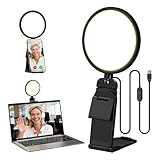
- Upgraded Light Panel — 200% Softer – LitONES features a 4-layer optical soft panel with edge-lit technology that eliminates glare and hotspots. The ultra-soft diffused light gently diminishes shadows, unifies complexion, and enhances your best features — delivering flattering light that ensures you always appear sharp, natural, and engaging in every video meeting
- Vivid On‑Camera Colors, Comfortable Long‑Hour Lighting – , Professional-grade CRI (Ra) 97.8 ensures true-to-life color reproduction in your videos, so you never look washed out on camera again. The soft, natural light is also gentle on your eyes, helping you stay comfortable and focused during long zoom calls or streaming sessions
- 50 Dimmable Modes - 5 color temperatures (3000K-6500K from cool white to warm tones) and 10 adjustable brightness levels (3%-100%) providing you with unparalleled flexibility, allowing you to achieve the perfect lighting for video calls, remote conferences, zoom meetings, streaming, podcasting, or content creation
- Angle It Any Way You Want – With 360° rotation and 180° tilt, the light head moves freely to put light exactly where you need it. Height adjusts from 6 to 8.9 inches to suit your setup. Use it as a key light to brighten your face, or as a balance fill light to soften shadows — simply hang it behind your monitor or place it on your desk
- Screen-Safe Hanging Mount – With a 2"–2.5" stretchable hanging clip, this webcam light installs instantly with no tools required. It fits most monitors and laptops—from thin to thick, regular to curved—and stays firmly in place without taking up desk space or scratching your screen
Rank #3
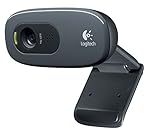
- This Certified Refurbished product is tested and certified to look and work proof as new restoration functionality. process includes, cleaning, inspection, basic and repacking. The product ships with all accessories, a minimum of 90 days warranty, and can only arrive in a generic box. Select sellers who maintain high performance can offer certified refurbished products on Amazon. com
- HD 720P, video calls and HD video recording, 2.4 GHz, Intel Core2 Duo, 2 GB RAM, 200 MB HDD space
- Video capture: Up to 1280 x 720 pixels, Logitech Fluid Crystal
- 3MP Sharp Photo Technology, Hi-Speed USB 2.0
- Built-in microphone filters out background noise
Product prices and availability are accurate as of the date/time indicated and are subject to change. Any price and availability information displayed on Amazon at the time of purchase will apply.




