Quick wins for a faster PC:
Clear out junk files and repair common Windows errorsFree Scan →Scan for outdated or missing drivers - takes under a minuteDriver Scan →Non-destructive editing lets you change a clip or apply processing while keeping the underlying audio available for revision. Undo history is a separate, usually temporary record of recent actions. Neither guarantees that every change can always be recovered: behavior depends on the editor, the editing mode, and the project version.
What makes an audio edit non-destructive?
A non-destructive editor stores or applies instructions that change how audio is arranged or heard without immediately replacing the source samples. For example, changing a clip’s boundaries can alter the part that plays while leaving audio outside those boundaries available. Some operations, by contrast, modify waveform data directly or render an effect into it.
Undo history is related but different. It records successive project states so you can step backward through recent actions and, in some editors, forward again. It is not a permanent archive of the original recording.
How undo and redo work
Undo generally reverses the latest project-changing action; Redo restores an action you just undid. In Audacity, the History window can show actions and jump to an earlier state. Its manual notes that retaining history uses storage, and that undoing to an earlier state and then making a new edit removes the former later actions from the redo path. Audacity’s documentation says Undo/Redo is fast regardless of how long the original action took. Audacity Development Manual: History – Undo and Redo.
#1 Best Overall

- Bass Sound: Enjoy clear sound and superior comfort with the OneOdio Studio Monitor Headphones. Equipped with large 50mm speaker drivers and neodymium magnets, pro-10 deliver powerful bass, clear vocals, and crisp highs for a balanced stereo sound.
- Built for Comfort: The soft, padded ear cushions are designed to provide long-lasting comfort and effective noise isolation. The adjustable, stretchable headband allows you to easily find the perfect fit and angle for your listening pleasure.
- Single-side Monitoring: The 90° swiveling ear cups allow for single-ear monitoring, making it ideal for DJing or mixing. The self-adjusting and flexible headband ensures a fatigue-free listening experience, even during extended sessions, making these headphones perfect for mastering and mixing.
- Compatibility: Pro-10 wired headphones work exclusively in wired mode and are compatible with a wide range of devices, including smartphones, laptops, tablets, desktop computers, audio interfaces, DJ mixers, amplifiers, and any device that features either a 3.5mm or 6.35mm audio jack.
- Share Audio Port: With a shared audio port, easily connect another pair to share music or videos—no splitters or special cables needed.
Think of history as a sequence: trim, move a clip, then adjust a setting. Undo walks back through those actions in reverse order. If you undo the adjustment and then make a different edit, you should not expect to redo the abandoned adjustment branch.
Can you get trimmed audio back?
Often, if the editor used a non-destructive trim. Audacity’s project documentation says that shrinking a clip or choosing Edit > Remove Special > Trim Audio retains the trimmed audio but hides it, allowing the clip to be expanded later. That is different from cutting or deleting a selection, which removes it from the track and may require undo or another recovery route. Audacity Development Manual: Trim Audio.
Rank #2

- Advanced build quality and engineering; Designed for studio tracking and mixing
- 40 mm drivers with rare earth magnets and copper clad aluminum wire voice coils
- Tuned for enhanced low frequency performance
- Circumaural design contours around the ears for excellent sound isolation in loud environments
- Convenient single side cable exit
Do not assume every operation called “trim,” “delete,” or “apply effect” behaves identically across editors. Adobe Audition, for example, distinguishes its waveform editing view from its multitrack non-destructive environment. Its documented undo behavior is specific to Audition’s workflow, not a general promise for all audio software. Adobe Audition Help: Initiate undo, redo and history options.
Does saving keep your undo history?
Saving the editable project and retaining undo history are separate matters, and the answer depends on the product version. Audacity documentation is not consistent across generations: its Development Manual says history remains while a project is open, saving does not erase it, and closing clears it; a newer Audacity 4 project guide says the .aup4 project includes undo history. Older project documentation refers to .aup3 and says history is not saved. Check the documentation for the Audacity version installed rather than treating either statement as universal. Audacity Development Manual: Saving · Audacity Development Manual: Managing Audacity Projects · Audacity Team: Save your project.
The Tool Desk
Outbyte Driver Updater FREEFix the driver behind crashes, sound loss and screen glitchesFind Drivers →Outbyte PC Repair FREERepair Windows errors before they cause bigger problemsFix Now →Rank #3

- Neodymium magnets and 40 millimeter drivers for powerful, detailed sound.Specific uses for product : Professional audio system,Home audio system
- Closed ear design provides comfort and outstanding reduction of external noises
- 9.8 foot cord ends in gold plated plug and it is not detachable; 1/4 inch adapter included
- Folds up for storage or travel in provided soft case
- Frequency Response: 10 Hertz to 20 kilohertz
Adobe Audition’s help says edits are not permanently applied until you save and close a file, allowing undo and redo in its documented workflow. That statement should be read in the context of Audition and the mode being used, not as a general guarantee that history survives closing in every program. Adobe Audition Help: Initiate undo, redo and history options.
Project, export, and backup: three different safeguards
| Safeguard | What it is for | What it does not guarantee |
|---|---|---|
| Undo history | Quickly return to recent states during editing. | It is not necessarily retained after closing, and it is not an independent backup. |
| Editable project | Preserves the editor’s tracks, clips, and project work for continued editing. Audacity’s newer guide describes .aup4; older documentation describes .aup3. |
An exported audio file is not a substitute for the project’s editable structure. |
| Exported audio | Creates a rendered file such as WAV or MP3 for listening or use in another application. | It does not preserve the same editable tracks and decisions as the project. |
| Independent backup | Keeps a separate copy of source audio or project files outside the working session. | It does not enable undo; it provides a separate recovery copy. |
Audacity’s project-management guidance recommends exporting newly recorded audio as WAV or AIFF before editing, ideally to an external drive. This gives you a source copy separate from the working project and its history. Audacity Development Manual: Managing Audacity Projects.
Rank #4

- Critically acclaimed sonic performance praised by top audio engineers and pro audio reviewers
- Proprietary 45 millimeter large aperture drivers with rare earth magnets and copper clad aluminum wire voice coils
- Exceptional clarity throughout an extended frequency range, with deep, accurate bass response
- Circumaural design contours around the ears for excellent sound isolation in loud environments
- 90 degree swiveling earcups for easy, one ear monitoring, and professional grade earpad and headband material delivers more durability and comfort
A safer reversible-editing routine
- Keep a source copy. Before major edits, export or copy the original recording to a separate location, preferably a different drive when practical.
- Save the editable project as you work. The project is the file to reopen when you need tracks and editable decisions; use the format supported by your installed version.
- Use Undo to compare recent decisions. Step back and redo while the relevant history is available. Avoid making a new edit after stepping backward if you still need to redo actions from the discarded branch.
- Export a listening or delivery file separately. Create a WAV, MP3, or other supported output when you need audio to play or share outside the editing project.
- Verify behavior before relying on recovery. Check whether the operation preserves source samples and whether history survives save, close, and reopen in your specific editor and version.
What to check when choosing an editor
- Does it edit clips and project instructions, or write directly to waveform audio?
- Do effects remain adjustable, or are they rendered into the audio?
- How much undo history is retained, and does it persist after closing and reopening?
- Does the project retain original media, or merely refer to files stored elsewhere?
- What project format and separate backup process does the editor use?
The available documentation here illustrates Audacity and Adobe Audition behavior; it is not a complete comparison of current digital audio workstations. Check the help for the product and version you use before relying on a particular undo or recovery path.
Quick Recap
Best Value
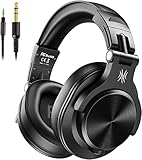
- Hi-Res Sound Quality: Equipped with 40mm drivers, these wired over-ear headphones deliver exceptional sound clarity and depth, making them perfect for studio monitoring, mixing, and DJing. The high-resolution audio ensures every detail and nuance in your music is captured and reproduced with precision.
- Built to Stay Comfortable: The soft padded ear cushions are specifically designed for monitor headphones comfort and noise isolation. The headband is adjustable and stretchable for you to find the desired angle you like to fit in.
- No More Adapter: A long-style 6.6-9.8 ft coiled cord and standard-sized 6.35mm plug and a 3.5mm plug are included. These headphones can be easily connected to a variety of devices including AMPs, computers, keyboards, guitars, and laptops.
- Single-sided Monitoring: 90° swiveling earcups for single-ear monitoring anytime, keep one ear free for conversations with single-sided monitoring.
- Share Audio Port: With a shared audio port, easily connect another pair to share music or videos—no splitters or special cables needed.
Product prices and availability are accurate as of the date/time indicated and are subject to change. Any price and availability information displayed on Amazon at the time of purchase will apply.




