On the Galaxy Z Fold7’s unfolded main screen, Samsung’s Multi window swipe gestures let you open an app in split screen with two fingers or in a floating pop-up with one. Enable the relevant swipe option under Settings > Advanced features > Multi window, then use the gesture that fits how you want to arrange your apps.
Enable Multi window swipe gestures
- Open Settings.
- Tap Advanced features, then Multi window.
- Turn on Swipe for split screen for two-finger split-screen gestures. Turn on Swipe for pop-up view if you also want the one-finger floating-window gesture.
Samsung’s Galaxy Z Fold7 guide describes these settings for the device. Use the gestures on the unfolded main display: Samsung’s general Multi window guidance says split screen and pop-up view are not supported on the front screen of Galaxy Z Fold series devices.
As an Amazon Associate I earn from qualifying purchases.
Choose split screen or pop-up view
| Mode | Gesture | What it does |
|---|---|---|
| Split screen | With an app open, swipe up from the bottom edge with two fingers, or swipe inward from the left or right edge with two fingers. | Places the app in a screen region so you can use it alongside another app. |
| Pop-up view | With an app open, swipe inward from either the top-left or top-right corner with one finger. | Opens the app in a floating window you can move on screen. |
Both gestures and their settings are described in Samsung’s Fold7 instructions. Choose split screen when you want apps visible in separate screen regions; choose pop-up when a floating window suits your task. Which mode is available depends on app support.
Recommended Free Tools
Use Edge panel or Recents if a swipe does not work
Open apps from the Edge panel
- If Edge panels are off, go to Settings > Display and enable Edge panels.
- Open the Edge panel using its side handle.
- Drag an app to a screen region for split view, or toward the center for pop-up view.
Choose a mode from Recents
- Open the Recents screen.
- Tap the app’s icon.
- Choose Open in split screen view or Open in pop-up view.
Samsung documents these alternatives in its Fold7 guide and Multi window guidance.
#1 Best Overall

- BIGGER, YET SLIMMER THAN EVER: Who would’ve guessed that wider could also be lighter? The design of Galaxy Z Fold7 is refined to feel like a traditional smartphone with its expanded cover display.
- BEST CAMERA ON A FOLD YET: You asked for more – now you can have the most. Galaxy Z Fold7 now boasts an ultra-premium 200MP camera with Pro-Visual Engine so you can effortlessly take incredibly detailed pics.
- SCREENSHARE FOR STREAMLINED ASSISTANCE: Intrigued by something you see? Go Live with Google Gemini, then screenshare or point your camera at it for additional info or assistance on the fly.¹
- DO AND VIEW MORE, ALL AT ONCE: With an 8” screen that allows you to view up to three windows at once, Galaxy Z Fold7 is the ultimate device for seeing and doing more.²
- ALL THE POWER AND SPEED YOU NEED Smoothly run your day with the power and speed of Galaxy Z Fold7. With its customized Snapdragon 8 Elite processor for Galaxy, you can stream your favorite shows, edit photos, scroll social feeds and more with ease.³
Troubleshoot a missing option or unresponsive app
- Check the setting: Return to Settings > Advanced features > Multi window and confirm the matching swipe option is on. Menu availability can vary with software version, device model, or service provider, according to Samsung’s general guidance.
- Check the display: Try the gesture on the unfolded main screen; Samsung says these modes are not supported on the Fold series’ front screen.
- Check app compatibility: Some apps do not support split screen, pop-up view, or Drag and Split. Try another app, or use the Edge panel or Recents option if available.
These are not Android navigation gestures
Multi window swipes arrange apps; they are separate from Android navigation gestures, which use swipes to move around the device instead of navigation buttons. They are also distinct from Samsung’s Motions and gestures options, such as lift to wake, double tap, mute with gestures, and palm swipe to capture. Samsung’s gesture guidance notes that available options vary by model and software and that finger-sensor gestures are unavailable on the Z Fold7. Google explains Android navigation separately in its Android Help guide.
Quick Recap
Best Value
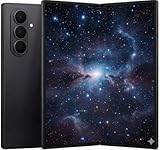
- A premium foldable smartphone featuring an 8.0" Dynamic AMOLED 2X main display, 6.5" cover display, 200MP main camera, Snapdragon 8 Elite for Galaxy processor, up to 16GB RAM and 1TB storage, 4,400mAh battery, and a slim 215g design.
Rank #4

- A premium foldable smartphone featuring an 8.0" Dynamic AMOLED 2X main display, 6.5" cover display, 200MP main camera, Snapdragon 8 Elite for Galaxy processor, up to 16GB RAM and 1TB storage, 4,400mAh battery, and a slim 215g design.
Rank #3

- A premium foldable smartphone featuring an 8.0" Dynamic AMOLED 2X main display, 6.5" cover display, 200MP main camera, Snapdragon 8 Elite for Galaxy processor, up to 16GB RAM and 1TB storage, 4,400mAh battery, and a slim 215g design.
Rank #2

- A premium foldable smartphone featuring an 8.0" Dynamic AMOLED 2X main display, 6.5" cover display, 200MP main camera, Snapdragon 8 Elite for Galaxy processor, up to 16GB RAM and 1TB storage, 4,400mAh battery, and a slim 215g design.
Product prices and availability are accurate as of the date/time indicated and are subject to change. Any price and availability information displayed on Amazon at the time of purchase will apply.




