What’s actually slowing this PC down?
Pick the symptom - the matching free tool is one click away.
Start with Android’s built-in One-handed mode: open Settings, search for “One-handed mode,” and turn on Use One-handed mode. On supported phones, the feature moves the usable part of the interface into the lower half of the display so your thumb can reach notifications and app controls. If your phone is a Samsung Galaxy or Motorola, its own settings may add more control. Accessibility features and, if needed, a grip ring can solve different parts of the problem.
Why a large phone becomes difficult to use with one hand
Modern phone screens are tall enough that a thumb resting near the bottom cannot naturally reach every control. Android’s large-screen design guidance notes that the upper 25% of a large display can be difficult to reach without changing your grip. That is a design guideline published by Android Developers on 9 November 2022, not a universal measurement of every person, phone, or hand.
As an Amazon Associate I earn from qualifying purchases.
Two separate problems are often confused:
- Reach: your thumb cannot get to a button, notification, address bar, or menu near the top of the display.
- Security: the phone is too wide, heavy, or slippery to hold confidently while your thumb moves.
One-handed software solves reach by shrinking or lowering the interactive area. It does not make a slippery phone lighter or prevent a drop. A physical grip can improve your hold, but it cannot bring a top-corner control down into thumb range. Start with the free software setting, then address the remaining problem separately.
Crashes, No Sound, or Screen Glitches?
Random freezes, missing sound and display glitches usually trace back to one bad driver. Find and replace yours safely.Free scan · under a minutePC Slower Than It Used to Be?
A free scan shows the junk files, broken settings and background clutter dragging Windows down - then fixes them in one click.Free scan · Windows 10 & 11Turn on Android’s built-in One-handed mode first
Find the setting
- Open Settings.
- Tap the Settings search field and type One-handed mode.
- Open the matching result.
- Turn on Use One-handed mode (the exact capitalization can differ).
Google’s Android Accessibility Help describes the result this way: “When one-handed mode is on, you can use one hand to pull down the top half of your screen and easily reach notifications, app content, and more.” The feature is documented for supported devices, and Google notes that some instructions require Android 12 or later. The setting can therefore be absent on an older software build, a device whose maker removed it, or a model that does not support it.
#1 Best Overall

- Transparent Phone Ring Design: The cell phone ring holder is made of transparent Acrylic, the phone grip kickstand perfect fit for any cell phone with or without case cover. Phone ring keeps your phone original feature design without affecting the exterior.
- Free Rotation Phone Ring Holder: Black, sliver, rose gold round transparent phone ring for you to choose. Size: round diameter 1.4 inch. 360°Rotation and 180°Flip fold to help you adjust your phone, different viewing angles to reading, watch videos.
- Strong Adhesive: Environment-friendly material and strong adhesive sticky to make the phone ring holder finger kickstand can be glued to the back of your tablets/phones or their cases firmly, which reduces the risk of theft.
- Wide Compatibility of Phone Case Holder: Our cell phone ring holder stand is compatible with almost all phones and phone cases. Phone ring holders conveniently take photos, text or talk. Nice package perfect for your family, friends, co-workers, Thanksgiving day, Christmas gift choice.
- High Viscosity: Strong sticky adhesive makes sure the phone ring be attached tightly to the back of your phone/tablet. Nice package perfect for your family and friends gift choice.
Activate and use the smaller reach area
After the switch is enabled, Android normally uses a downward gesture from the bottom edge to pull the display content into reach. Gesture details can vary by navigation mode and manufacturer. Once active, the upper portion of the app or home screen is shown lower down, where your thumb can tap it without sliding your hand toward the top edge.
Use the reduced area for the immediate task rather than treating it as a permanent zoom setting. Open the notification, tap the top-bar control, enter text, or choose the menu item you could not previously reach. Tap outside the reduced window or use the on-screen exit control, when shown, to return to the normal full-screen layout.
Add it to Quick Settings
Android allows One-handed mode to be added to Quick Settings on supported devices. Swipe down from the top of the display to open Quick Settings, swipe again if needed to show all tiles, and tap the edit button (often a pencil). Look for the One-handed mode tile and drag it into the active tile area. The tile gives you a visible activation method when the gesture is difficult to remember or conflicts with another edge gesture.
Free tools Windows power users keep installed
One-click scans. No signup required.
Tile names and editing controls differ by Android version and phone maker. If the tile is not offered, continue using the Settings search result or follow your manufacturer’s instructions.
If the setting does not appear
- Check the Android version in Settings > About phone > Android version. Google’s current instructions identify Android 12 and later for some steps.
- Search Settings for shorter terms such as one handed, reachability, or gestures.
- Look in the phone maker’s accessibility or advanced-features section; manufacturers frequently place their own implementation elsewhere.
- Use Button navigation or Voice Access as an alternative if your model has no reachability mode.
Do not assume a missing search result means the phone is faulty. One-handed mode is not a universal Android requirement, and names and availability vary by device, software build, and market.
Samsung Galaxy: use One-handed mode and optional edge gestures
Enable the built-in Galaxy control
- Open Settings.
- Tap Advanced features.
- Tap One-handed mode.
- Turn the feature on and choose the activation gesture or button offered by your software version.
Samsung’s support instructions place the control in this path, but Galaxy menus can move between One UI releases. Samsung’s page was updated on 3 June 2024, so a newer or older build may use slightly different wording. If the path is not present, search Settings for “one-handed mode” instead of following an old menu screenshot.
Rank #2

- 【4.4lbs One-Sided Magnetic Force】Attention Please: This ring holder is one-side magnetic, it can not stick to the metal surface directly. Lamicall lightweight (1.12 ounce) & slim (4.2mm) mag safe ring holder can snap securely onto your bare iphone 12 13 14 15 16 17 18 series with up to 4.4lbs of magnetic force. Pro Tip: Apply the included metal ring for a stronger hold – up to 9.9lbs! (Please press the metal ring firmly for 2 minutes before use)
- 【Upgraded 360° Rotational Damping】Our upgraded internal damping ring gives you steady rotation and multi-angle positioning. You will feel nice resistance when spinning the inner ring. Flip, tilt, and hold your phone comfortably with one hand – no wobble, no disassembly needed. Perfect grip accessories for browsing, selfies.
- 【Universal Fit】This magnetic phone grip holder fits perfectly on iPhone 18 Pro, 18 Pro Max, iPhone 17, 17 Pro, 17 Pro Max, iPhone Air, iPhone 16, 16 Pro, 16 Pro Max, 16 Plus, iPhone 15 14 13 12 Series or mag safe magnetic phone. (Magnet will stronger if use the metal ring). For non-magnetic devices, you must apply the included metal ring on hard, flat surfaces (not for Soft Silicone/TPU/PP/TPE) to enhance magnetic power.
- 【Multi Function】Lamicall iphone magnetic ring can be used as a magnetic finger grip holder and a desktop kickstand. Easy to operate the phone with one hand, hold the phone firmly and reduce the risk of accidentally dropping down. Moreover, it can also hold strongly on your magnetic car mount while driving and no need to take the ring off. (Note: If using the metal ring, gently twist and lift the grip from the side to remove it easily.)
- 【Easy to Pull Ring Out】The unique arc-shaped groove makes pulling the ring out effortless when you need to use the phone grip – no more struggling! Also, it enhanced stability, preventing wobbling when your phone is placed horizontally or vertically.
Resize and move the minimized window
Galaxy’s minimized one-handed window can be moved to the side that matches your holding hand. Samsung also allows its size to be changed. A smaller window maximizes thumb reach but shows less content; a larger window reduces the amount of shrinking while leaving more controls within reach. Experiment while holding the phone normally rather than while it rests on a table.
Do these 3 things before closing this tab:
1Repair Windows errors before they cause bigger problems2Fix the driver behind crashes, sound loss and screen glitches3Clear out junk files and repair common Windows errorsTo leave the mode, tap outside the minimized window. If your version displays an exit handle or button, that control performs the same job. The phone returns to its ordinary full-screen layout; One-handed mode does not permanently resize apps.
Use One Hand Operation+ for edge actions
Samsung’s separate One Hand Operation+ app assigns actions to short swipes from the left or right edge. It is useful when the problem is not only reaching the top of an app, but also repeatedly opening Back, Home, Recents, notifications, or another command with a thumb that stays near the side of the phone.
The app exposes adjustable handle regions. Samsung says you can tune the handle to your hand size, thumb thickness, and case shape. Make the active strip wide enough to trigger reliably, but not so wide that ordinary scrolling starts an unwanted command. Configure left and right handles independently if you switch hands.
One Hand Operation+ is an OEM enhancement, not the same feature as Android’s built-in One-handed mode. The former provides shortcut gestures; the latter lowers the screen content. You can use one, both, or neither depending on which reach problem you actually have.
Motorola: check Gestures and the navigation requirement
Open Motorola’s One-handed mode
- Open Settings.
- Tap Gestures.
- Tap One-handed mode.
On supported Motorola phones, the setting offers two behaviors. One pulls the screen down into thumb reach. The other uses the gesture to show notifications or Quick Settings. Select the behavior that matches your most frequent task: lower the app controls when you need to tap content, or expose system panels when your main problem is reaching the top shade.
Rank #3

- [High quality phone ring holder] Features ultra-slim design (0.014inch thickness). made of high-quality zinc alloy and metal plate, Syncwire phone ring holder boasts unrivalled durability to stay intact even in dropping accidents. Vacuum Ion plating technology makes the phone holder surface 5 times more resistant to color fading than traditional water electroplating ones. The edges of the ring grip are carefully polished for your fingers.
- [Strong adhesiveness finger ring grip] With an ultra-strong 3M VHB adhesive pad, This phone finger ring grip can attach to your smartphone tightly (withstands 5kg gravity test) for accidental drops and slips. The 3M pad can be applied to most smooth surfaces including plastic, metal and TPU. Note: The 3M pad does not work with silicone case, leather, fabric case.
- [360°Rotatable & 180°adjustable] Syncwire phone holder is 360° rotatable and 180° foldable so that you can position your phone at your best viewing angle anytime. This ring grip is tested to withstand 6000 times of folding without getting loose. The metal plate is a perfect match for a magnetic car mount.
- [Multi-functional phone ring] This versatile phone holder can set your hands free while you are riding in crowded buses or subways. You can also place It on your office desk, kitchen counter or table to watch movies, listen to music, put on makeup, make video calls and play games.
Check gesture navigation
Motorola documents that this mode requires Gesture navigation and is not available on every model. If the option is disabled or the gesture does nothing, open Settings > System > Gestures > System navigation (the exact path can vary) and select Gesture navigation. Changing navigation changes how you go Home, go Back, and open Recents, so practice those commands before relying on the one-handed gesture.
If your Motorola model does not offer the feature, use Settings search for “one-handed” and check Android accessibility alternatives. A model-specific absence is expected behavior, not evidence that the phone needs repair.
Accessibility options when shrinking the screen is not enough
Button navigation
Button navigation replaces edge gestures with visible or persistent navigation controls. Google lists it among accessibility features that can help people with limited reach, manipulation, or strength. The buttons keep Back, Home, and Recents in a predictable lower area, reducing the need to swipe from an edge or stretch for a system gesture.
Look in Settings > System > Gestures > System navigation, or search Settings for navigation. The label and location vary by manufacturer. Button navigation does not lower an app’s top controls, so combine it with One-handed mode when both navigation and reach are problems.
Voice Access
Voice Access lets you control supported Android interfaces with spoken commands. It can be useful when holding the phone securely matters more than tapping every control. Google identifies it as an accessibility option related to limited reach or manipulation.
Search Settings for Voice Access, follow the setup prompts, and review the commands shown on your device. Availability, language support, and command names can differ by device and market. Voice control may be unsuitable in quiet shared spaces, outdoors, or situations where privacy is important; it is an alternative input method, not a universal replacement for touch.
Rank #4

- 【Super Strong Magnetic】The Syncwire MagSafe phone ring holder is made with N55 NdFeB magnets, providing exceptional magnetic force. You can securely attach your phone to the MagSafe magnetic phone ring holder with just one finger, experiencing a strong hold that resists shaking or movement. The magnetic force can be enhanced by 5 times when used with the provided metal ring.
- 【Double-Sided Magnetic】Features a unique two-sided magnetic design, so it work with MagSafe car mounts without the need to remove the ring. It can be attached to any magnetic metal surface, such as fitness equipment, fridges, bread machines, etc. The side attaches to the phone can hold up to 2.6-3 lbs(1.2-1.4KG), the magnetic force is enhanced to 10 lbs(5KG) used with the provided metal ring. Meanwhile, the back of the holder can hold weights of up to 2.2 lbs (1KG). (Tested by Syncwire Labs)
- 【360° Rotation & 90° Flip】Multi-angle adjustment provide flexible & comfortable hand grab and excellent viewing angle. This ring holder is tested to withstand over 6000 times of folding without getting loose, greatly improving durability.
- 【Unique Decompression Design】A patented structure that combines gears with spring plates for positioning, ensuring enhanced stability. By rotating the ring, it produces a satisfying clicking sound, providing an effective method of stress relief. The innovative design ensures a unique experience, enabling users to alleviate tension and find relaxation in a simple yet enjoyable manner.
- 【User-Centered Design】The ring incorporates a flat bottom design that forms a long fulcrum, providing enhanced stability and preventing any wobbling when your phone is placed horizontally or vertically. Additionally, the inner groove shape design of the ring allows for effortless pulling, no more struggling to pull the ring out.
Which approach fits your problem?
| Option | What it changes | Activation or dependency | Best fit | Important limitation |
|---|---|---|---|---|
| Android One-handed mode | Lowers the usable screen area so upper app content is closer to the thumb | Settings search; some instructions require Android 12 or later | Most Android users who need a free, general reach solution | Not present on every device; gesture details vary |
| Samsung One-handed mode | Creates a movable, resizable minimized window | Settings > Advanced features > One-handed mode | Galaxy owners who want to choose the window’s side and size | Menus vary by One UI version |
| Samsung One Hand Operation+ | Maps short edge swipes to commands such as Back or notifications | Requires Samsung’s separate app and configured edge handles | People who need frequent shortcuts while keeping the phone in one hand | It does not lower app content; cases and accidental swipes affect reliability |
| Motorola One-handed mode | Pulls the screen down or exposes notifications/Quick Settings | Settings > Gestures > One-handed mode; Gesture navigation required | Supported Motorola models using gesture navigation | Unavailable on some models |
| Button navigation | Places Back, Home, and Recents in persistent navigation controls | System navigation settings | Users who find edge gestures difficult | Does not move an app’s top controls |
| Voice Access | Uses spoken commands instead of reaching for every control | Accessibility setup; device and language support vary | Limited reach or hand strength, when speaking commands is practical | Privacy, noise, and recognition can limit usefulness |
| Grip ring | Adds a finger hold point to improve physical security | Accessory attached to a compatible case or phone surface | A slippery phone that is hard to hold, even after reach is solved | Does not lower the screen and comfort varies by hand and case |
Use a grip ring only for the holding problem
A phone grip ring creates a place for one or two fingers to anchor behind the phone. That can reduce the chance of dropping a large device while your thumb moves, but it is not required for One-handed mode and it is not a medical or universal ergonomic solution.
Recommended Free Tools
A MobileHCI paper from 2018 examined how a grip ring affected text entry. Its setting was stationary text entry, so it does not establish that every ring improves comfort, reduces strain, or works equally well during walking, gaming, photography, or prolonged browsing. Treat it as evidence that the accessory is relevant to phone handling, not as a guarantee for your hand.
Check fit before attaching one
- Confirm that the ring’s adhesive or mounting plate is compatible with your case material. A textured, soft, or heavily curved case may not hold it securely.
- Place it where your middle or ring finger naturally rests when your thumb is near the lower center of the screen. The ideal location depends on the phone’s weight and your hand.
- Leave room for wireless charging, a magnetic mount, the camera bump, and any foldable hinge or stand mechanism.
- Clean and dry the attachment surface, follow the maker’s curing time, and test the bond over a soft surface before trusting it above hard floors.
- Remove it if it causes numbness, pressure, or a forced wrist angle. A grip that makes the phone safer to hold is not useful if it makes your hand hurt.
A ring improves hold security; it does not substitute for a lower screen mode. Conversely, One-handed mode reduces thumb travel but does not stop a slick phone from slipping. Decide which failure you are trying to prevent before buying an accessory.
A comfortable one-handed setup, step by step
- Start without accessories. Enable Android One-handed mode through Settings search and test it in the apps you use most.
- Choose the activation method you can repeat. Add the Quick Settings tile if the gesture is unreliable, or use the manufacturer’s documented shortcut.
- Match the window to your hand. On Galaxy, move the minimized window toward your thumb and resize it until important controls are reachable without sliding your palm.
- Check navigation separately. If edge swipes are difficult, test Button navigation. On Motorola, verify that Gesture navigation is enabled before troubleshooting the one-handed gesture.
- Add voice input for specific tasks. Set up Voice Access if tapping is the limiting factor and speaking commands is acceptable in your environment.
- Only then consider a grip ring. Add one when the phone still feels insecure, not merely because the display is large.
- Re-test with your case installed. Cases alter edge sensitivity, handle placement, weight, and the adhesive surface for accessories.
Troubleshoot the common failures
“One-handed mode” is missing from Settings
Verify the Android version, search the manufacturer’s sections for Gestures, Advanced features, and Accessibility, and check whether the model supports the feature. Google’s documentation does not promise it for every Android phone. Use Button navigation or Voice Access if the hardware and software provide no reachability mode.
The gesture opens notifications instead of lowering the screen
That behavior can be an intentional Motorola choice. Return to Settings > Gestures > One-handed mode and select the screen-lowering behavior if your model offers both. On other phones, inspect gesture settings for an overlapping notification or Quick Settings shortcut.
The Tool Desk
Outbyte PC Repair FREERepair Windows errors before they cause bigger problemsFix Now →Outbyte Driver Updater FREEScan for outdated or missing drivers - takes under a minuteDriver Scan →The gesture does nothing
Check whether your navigation mode is compatible. Motorola specifically requires Gesture navigation. On Samsung, use the activation method selected in One-handed mode rather than assuming the stock Android gesture applies. A thick case can also make a bottom or edge gesture harder to start; test briefly without it.
Best Value
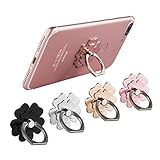
- Mobile Phone Ring Holder - 360°rotation and 180°angle adjustable, with lovely flower design, it's absolutely the best decision to your love cell phone
- Hands Free - Cell phone stand holder can used as a kckstand, set your hands free when watching movies, listening to music or facetime chatting
- Sturdy Adhesive - Metal finger ring grip with advanced and sticky sensitive adhesive which tightly hold your phone and prevent possibility of dropping phone on many occasion
- Compatibility - Phone ring holder is compatible with most smartphones which has flat back cover
- Packing - There are 4 pieces of phone ring holders in different colors
Edge shortcuts trigger accidentally
On Samsung One Hand Operation+, narrow or reposition the handle, reduce the number of assigned actions, or disable the handle on the side where you scroll most. Reconfigure for the case you actually use. A shortcut that fires during ordinary scrolling is worse than a slower but predictable navigation method.
The phone is reachable but still feels unsafe
That is a holding problem rather than a reach problem. Reposition your fingers, use Button navigation or Voice Access to reduce thumb movement, and consider a compatible grip ring. Do not rely on the ring until its attachment has cured and held securely in a controlled test.
The smaller window makes an app awkward
Some interfaces are designed around the full display and may show less content or require more scrolling when reduced. Exit One-handed mode for tasks that benefit from a full-screen view, then reactivate it for the controls that are hard to reach. One-handed mode is a temporary reach aid, not a requirement to run every app in a shrunken layout.
Quick wins for a faster PC:
Clear out junk files and repair common Windows errorsFree Scan →Fix the driver behind crashes, sound loss and screen glitchesFind Drivers →Repair Windows errors before they cause bigger problemsFix Now →What to expect from phone-maker differences
“Android phone” does not identify one identical menu system. Google supplies the general One-handed mode behavior, while Samsung and Motorola layer their own paths, gestures, and requirements on top. A tutorial written for one brand can therefore be wrong on another brand even when both phones run Android.
Use Settings search as the most transferable starting point. Then verify the exact wording on your software version, especially after a major Android or One UI update. The absence of a menu, a changed gesture, or a different Quick Settings tile is usually a version or model difference rather than a defect.
A practical stopping point
For most people, the best sequence is: enable the built-in One-handed mode, add its Quick Settings tile if needed, then use the phone-maker controls only when they solve a specific problem. Switch to Button navigation or Voice Access when touch reach or hand strength is the limiting factor. Add a grip ring only when the phone remains physically slippery after the software setup. This separates reach, navigation, and grip instead of expecting one feature to solve all three.
Quick Recap
Product prices and availability are accurate as of the date/time indicated and are subject to change. Any price and availability information displayed on Amazon at the time of purchase will apply.




