Quick wins for a faster PC:
Scan for outdated or missing drivers - takes under a minuteDriver Scan →Repair Windows errors before they cause bigger problemsFix Now →Update World of Warcraft from the Battle.net desktop app: select the WoW version you play and choose Update if it appears. If a patch fails, note the exact error message or code first, then follow Blizzard’s matching support instructions before trying general fixes.
Update WoW through Battle.net
Blizzard installs all World of Warcraft versions and game modes through the Battle.net desktop app. Modern WoW, WoW Classic Era, and Cataclysm Classic are separate installations, so choose the version you intend to play. See Blizzard’s World of Warcraft installation instructions for the current launcher flow.


As an Amazon Associate I earn from qualifying purchases.
- Open the Battle.net desktop app and sign in.
- Select World of Warcraft in the game list.
- Use the version selector to choose the WoW version you want.
- If the game is installed and a patch is available, choose Update. When updating finishes, choose Play.
If Battle.net shows Install even though the game is already on your computer, do not start a second installation over the existing files. Select Locate the game below Install, browse to the existing game folder, and select it. The button should change to Play.
Recommended Free Tools
Before broad troubleshooting, identify the error
Write down the full message and any code shown in Battle.net. Blizzard’s World of Warcraft Technical Troubleshooting recommends searching for the specific error or problem before applying general troubleshooting. The code can point to a download, file-in-use, disk-write, or unreadable-file issue, and each may need a different first step.
#1 Best Overall
Try Blizzard’s general patching steps in order
If there is no specific error article—or its targeted steps have not resolved the problem—Blizzard lists these steps for patching issues:
- Restart the computer. This can clear processes or pending operations that are interfering with the patch.
- Optimize the internet connection. Check that the connection is working reliably and address connection problems before retrying.
- Run the repair tool. In Battle.net, select World of Warcraft, open the options menu next to the Play button, and choose Scan and Repair, then Begin Scan. The tool checks and repairs damaged game files.
- Allow the game through security software. Check firewall or antivirus settings for blocks affecting the game or Battle.net patching.
- Uninstall and reinstall the Battle.net app. Blizzard includes this later in its general sequence, after the simpler checks.
- On Windows 10 or 11, check account permissions. If earlier steps fail, update or create a Windows account as a way to address account-permission problems.
Use the first step that matches your error
Download failure: BLZBNTAGT000008A3
This code means Battle.net could not download a file needed for installation or patching. Blizzard’s BLZBNTAGT000008A3 instructions begin with clearing the launcher’s Agent process:
Rank #2
![Blizzard Entertainment - Wolrd of Warcraft 60 Days of Game Time [eGift Card] - $29.99](https://m.media-amazon.com/images/I/41QpeBx10wL._SL160_.jpg)
- Azeroth Awaits! Join millions of players and enter a world of myth, magic, and endless adventure.
- With a single game time purchase you can access World of Warcraft and WoW Classic, including 20th Anniversary Edition, Cataclysm Classic, Season of Discovery, and Hardcore Realms.
- Embark on your epic adventure in Azeroth for 60 days with this pre-paid game timecard.
- Simply enter your code at battle.net/code then assign this game time to any new or existing World of Warcraft account to keep the adventures going. No game purchase required.
- Includes access to World of Warcraft and WOW Classic. The most recent modern WOW expansion is sold separately.
- Close Battle.net.
- Open Task Manager and wait for Agent.exe to disappear. If it does not, restart the computer.
- Relaunch Battle.net and try the patch again.
If the download still fails, check the connection, run Scan and Repair, allow Blizzard apps through security software, close other applications, and scan for malware. Blizzard’s advanced options include checking disk permissions and deleting the Battle.net Tools folder; use those only if the earlier steps do not help.
File in use: BLZBNTAGT00000A2A
This code indicates that Battle.net tried to patch a file that was still in use. Follow Blizzard’s BLZBNTAGT00000A2A guidance: restart Battle.net first to clear stalled Agent processes, then restart the computer. If the error persists, Blizzard lists rebuilding Battle.net Tools, reinstalling the app for rare launcher issues, and checking whether security software is mistakenly flagging the login module.
Rank #3
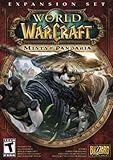
- Master the Path of the Monk - Learn the mystic powers of the Monk, World of Warcraft's newest playable class. Destroy foes with the Windwalker's devastating attacks, replenish allies with the Mistweaver's spiritual energies, and shrug off enormous damage with the Brewmaster's unyielding strength.
- Battle to level 90 - Ascend to new heights of power as you explore the verdant reaches of the Jade Forest, war with the terrible Yaungol on Kun-Lai Summit, and unlock the secrets of the Mogu'shan Vaults.
- Unleash the Mighty Pandaren - Set out as a member of the enigmatic Pandaren -- World of Warcraft's first neutral race -- and join the ranks of either the Horde or Alliance as you enter the conflict brewing on Pandaria's shores.
- Discover a Lost Continent - Explore the ancient kingdoms of Pandaria and mount your defense against a newly awakened evil stirring in the continent's dark corners.
Write-to-disk failure: BLZBNTBTS00000034
This error means Battle.net cannot write patch files to the hard drive. Blizzard’s BLZBNTBTS00000034 article recommends checking available disk space, security software, other running applications, and permissions, as well as investigating drive problems. Its older guidance discusses ScanDisk and defragmentation for bad sectors; do not defragment a solid-state drive (SSD).
Unreadable or corrupted file: BLZBNTBTS0000004E
For this code, Blizzard identifies a corrupted or unreadable game file. Its BLZBNTBTS0000004E steps include checking the connection and security software, closing other applications, and—if simpler checks fail—rebuilding Battle.net Tools.
Rank #4

- Join Illidan's immortal army
- Wield a mythic weapon
- Battle to level 110
- Boost to Level 100 instantly
Archive-open failure: Error #134
Blizzard says Error #134 can result from permissions, a security program, or a file error. The Error #134 instructions include checking security configuration, updating the system and drivers, running Scan and Repair, and reinstalling the game if necessary.
The Tool Desk
Outbyte PC Repair FREEClear out junk files and repair common Windows errorsFree Scan →Outbyte Driver Updater FREEFix the driver behind crashes, sound loss and screen glitchesFind Drivers →Rebuild Battle.net support files only after simpler fixes
Deleting Battle.net support files is an advanced troubleshooting step, not the first thing to try. Blizzard warns that the launcher may forget where installed games are afterward. If a game then shows Install, use Locate this game to point Battle.net back to its existing folder.
Best Value
Blizzard’s Deleting Battle.net Files procedure differs by operating system:
- Windows: Close Agent, Battle.net, and game processes. Open
C:ProgramData, delete theBattle.netfolder, then start the app again. - Mac: Quit Agent, Battle.net, and game processes, then delete the specified files or folders under
/Users/Shared/Battle.net/, following Blizzard’s Mac-specific instructions.
After rebuilding the support files, launch Battle.net and allow it to recreate what it needs. If it no longer recognizes a WoW installation, select Locate this game rather than downloading the game again.
Quick Recap
Product prices and availability are accurate as of the date/time indicated and are subject to change. Any price and availability information displayed on Amazon at the time of purchase will apply.




