Free tools Windows power users keep installed
One-click scans. No signup required.
To fully turn off Bluetooth on an iPad, open Settings > Bluetooth and switch Bluetooth off. To disconnect accessories temporarily, use Control Center instead—but that does not fully disable Bluetooth. To remove a saved pairing, go to Settings > Bluetooth, tap the actions button beside the accessory, choose Forget This Device, and confirm.
Choose the Bluetooth action you need
| Goal | Where to go | What happens |
|---|---|---|
| Temporarily disconnect accessories | Control Center > Bluetooth | Disconnects most connected accessories, but Bluetooth remains available for some features. Exceptions apply. |
| Turn Bluetooth fully off | Settings > Bluetooth | Disables Bluetooth for devices and networks until you turn it on again. |
| Remove one saved pairing | Settings > Bluetooth > actions button > Forget This Device | Unpairs the selected accessory after you confirm. |
Apple distinguishes the Control Center shortcut from fully disabling Bluetooth: disconnecting accessories there does not turn Bluetooth off. See Apple Support’s explanation of Bluetooth and Wi-Fi in Control Center.
As an Amazon Associate I earn from qualifying purchases.
How do I turn off Bluetooth on my iPad?
- Open Settings.
- Tap Bluetooth.
- Turn off the Bluetooth switch.
Use Settings when you want Bluetooth connectivity disabled, rather than only disconnecting accessories. Apple’s guidance describes this route as completely disabling Bluetooth for all networks and devices: Use Bluetooth and Wi-Fi in Control Center.
How do I disconnect Bluetooth accessories temporarily?
- Swipe down from the top-right edge of the iPad screen to open Control Center.
- Tap the Bluetooth control to disconnect accessories.
This is a quick disconnection, not a full Bluetooth off switch. Apple says location accuracy and other services remain enabled because Bluetooth is not turned off when you disconnect from devices. Some features and accessories also remain connected or available, including Apple Watch, Instant Hotspot, Apple Pencil, certain accessories listed in Privacy & Security, and Continuity features such as Handoff. Details are in Apple’s iPad Control Center guide and Apple’s Bluetooth and Wi-Fi guidance.
#1 Best Overall

- HIGHLY COMPATIBLE WITH iPad and iPhone Series, For iPad A16 11th /10th Generation, iPad 10.2 (9th/8th/7th Generation), iPad Pro 13/12.9/11 inch, iPad Air 13/11 inch,iPad Air 10.9inch( 5th/4th Gen),iPad mini 6 / 5, iPhone 17/16/15/14/13 etc. (NOTICE: The function keys not fully compatible with other system)
- STABLE & DURABLE: Features stable wireless Bluetooth connectivity and a 78-key QWERTY layout; made of high-quality ABS material, with sensitive keys to meet daily typing and work needs
- ULTRA-SLIM & COMFORTABLE: 0.2-inch ultra-thin design; compact and portable size(11.2"L x 4.7"W) specifically designed for iPads and iPhones, suitable for travel, office work and study
- LONG BATTERY LIFE: Auto-sleep & energy-saving; up to 400hours battery life with 2 AAA batteries (NOT INCLUDED) (e.g., 4 hours of continuous use per day, batteries need to be replaced in 100 days), 10 mins inactive auto sleep
- OPTIMIZED iOS SHORTCUTS: 12 dedicated multimedia hotkeys for volume, brightness, music & more; one-key control for iPadOS/iOS efficiency
How do I forget a Bluetooth device on iPad?
- Open Settings > Bluetooth.
- Find the accessory and tap the actions button beside its name.
- Tap Forget This Device.
- Confirm by tapping Forget Device.
Forgetting removes that accessory’s pairing; simply disconnecting it does not. Apple notes that the Bluetooth device list may not appear unless Bluetooth is on. For the pairing steps, see Connect iPad to Bluetooth accessories.
AirPods behave differently across your Apple devices
When you forget AirPods on iPad, they are automatically unpaired from other devices where you are signed in to your Apple Account. Apple documents this behavior specifically for AirPods; do not assume it applies to every Bluetooth accessory. Apple’s Bluetooth accessory guide explains the detail.
Quick Recap
Rank #4
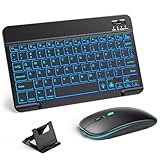
- 【Wide Compatibility】This Bluetooth keyboard and mouse combo offers wide compatibility with iPad (A16 chip, 11th/10th generation), with iPad Pro, Air, and Mini series, as well as iPhone 17/16/15 and other smartphones and tablets. In addition, the wireless keyboard and mouse are compatible with iOS, Windows, and Android—any Bluetooth-enabled device should work seamlessly. (Note: Please ensure your system is running iPadOS/iOS 13 or above.)
- 【7-Color Rainbow Backlight】The vibrant 7-color backlit for iPad keyboard makes typing or working at night more enjoyable. You can switch between the seven colors or activate the automatic color-cycling mode. Additionally, once the mouse is connected, its lights will also cycle through colors automatically. Please note: The mouse lighting cannot be turned off.
- 【Rechargeable Mouse and Keyboard】The built-in rechargeable battery (420mAh) provides up to 90 days of standby time and 45 hours of continuous use with backlight off. The wireless keyboard and mouse combo only requires 3–4 hours to be fully charged. Recommendation: A 6-hour initial charge is recommended for optimal battery performance.
- 【Ultra-Slim & Lightweight】Designed for portability, this for iPad keyboard and mouse are travel-friendly and lightweight, adding minimal weight and taking up little space in your bag. You can easily take it anywhere. The ultra-slim keyboard for iPad pairs seamlessly with your tablet for a sleek, harmonious look.
- 【Adjustable DPI】The Bluetooth mouse features three adjustable DPI levels—800, 1200, and 1600—to suit different users' cursor speed preferences. Its silent button design allows you to work in quiet environments or late at night without disturbing others. This Bluetooth mouse and keyboard set is ideal for use in quiet settings such as offices, libraries, and bedrooms.
Rank #3

- HIGHLY COMPATIBLE WITH iPad and iPhone Series, For iPad A16 11th /10th Generation, iPad 10.2 (9th/8th/7th Generation), iPad Pro 13/12.9/11 inch, iPad Air 13/11 inch,iPad Air 10.9inch( 5th/4th Gen),iPad mini 6 / 5, iPhone 17/16/15/14/13 etc. (NOTICE: The function keys not fully compatible with other system)
- STABLE & DURABLE: Features stable wireless Bluetooth connectivity and a 78-key QWERTY layout; made of high-quality ABS material, with sensitive keys to meet daily typing and work needs
- ULTRA-SLIM & COMFORTABLE: 0.2-inch ultra-thin design; compact and portable size(11.2"L x 4.7"W) specifically designed for iPads and iPhones, suitable for travel, office work and study
- LONG BATTERY LIFE: Auto-sleep & energy-saving; up to 400hours battery life with 2 AAA batteries (NOT INCLUDED) (e.g., 4 hours of continuous use per day, batteries need to be replaced in 100 days), 10 mins inactive auto sleep
- OPTIMIZED iOS SHORTCUTS: 12 dedicated multimedia hotkeys for volume, brightness, music & more; one-key control for iPadOS/iOS efficiency
Rank #2

- Excellent Compatibility: The Bluetooth keyboard compatible with iOS, Android and iPad OS system. It is perfect for Apple iPhone, iPad, iPad Mini, iPad Pro, iPad Air, Android Samsung LG tablet smartphone cell phone.
- Light portable and compact: This keyboard is much lighter, smaller than traditional keyboard. You can easily carry it without taking up more space on your desk or bag. 10 inch keyboard dimensions: 25 x 15 x 0.6 cm, weight: 180g. 【Size: 9.84 x 5.9 x 0.24 inch, weight: 6.35ounce/0.4pounds】
- Long-term use: Built-in rechargeable lithium battery, after fully charged, it can be used for more than 20 days (When used continuously for 2 hours a day). If you don't use it for more than 10 minutes, the keyboard will automatically enter the sleep state to save power. If you want to continue to use it, just click any key to wake up the keyboard.
- Comfortable Bluetooth Keyboard: The keys of the keyboard are scissor structure, square chocolate keycap design. Use this keyboard, you can type quietly on your tablet, iPad, iPhone, smartphone and provide you with a comfortable and pleasant typing experience.
- Bluetooth Connection: The keyboard adopts stable Bluetooth technology, the working distance is up to 10m. The keyboard is US QWERTY layout, easy to use, has hot keys, such as volume control, play and pause, previous and next etc. The front is brushed, the back is ultra-thin and smooth aluminum alloy design.
Product prices and availability are accurate as of the date/time indicated and are subject to change. Any price and availability information displayed on Amazon at the time of purchase will apply.




