Quick wins for a faster PC:
Fix the driver behind crashes, sound loss and screen glitchesFind Drivers →Clear out junk files and repair common Windows errorsFree Scan →To find why a network service is slow or unreliable on a Raspberry Pi Zero, compare the Pi’s connection to the local gateway, an external IP address, and the service’s hostname. First identify the exact Zero model and Raspberry Pi OS release: Zero W and Zero 2 W have 2.4 GHz Wi-Fi but no built-in Ethernet, while the original Zero has neither built-in Wi-Fi nor Ethernet. These checks help distinguish a board or configuration issue from a weak Wi-Fi link, router or Internet path, DNS problem, remote service issue, or power fault.
Start with the exact board and OS release
Record the board model, Raspberry Pi OS release, whether the Pi is headless, and whether you reach the service by IP address or hostname. The model determines which network comparisons are available.
| # | Preview | Product | Price | |
|---|---|---|---|---|
| 1 |
|
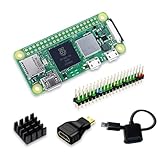
SANOOV Raspberry Pi Zero 2W Kit | $119.99 | Buy on Amazon |
| 2 |

|
CanaKit Raspberry Pi 4 4GB Starter PRO Kit - 4GB RAM | $159.99 | Buy on Amazon |
As an Amazon Associate I earn from qualifying purchases.
- Original Raspberry Pi Zero: no built-in Wi-Fi or Ethernet. Network access requires an adapter or another supported connection method.
- Raspberry Pi Zero W and Zero 2 W: built-in 2.4 GHz Wi-Fi, but no built-in Ethernet and no 5 GHz Wi-Fi.
Raspberry Pi’s configuration documentation notes that some boards and wireless adapters do not support 5 GHz, so confirm the band and hardware compatibility rather than assuming a network is available to every Zero variant.
Check Wi-Fi setup and association
If the Pi is headless, configure wireless using Raspberry Pi Imager or the current Raspberry Pi OS instructions. The correct setup depends on the OS release: Raspberry Pi OS Bookworm uses NetworkManager by default. Instructions that rely on placing wpa_supplicant.conf in the boot partition do not apply from Bookworm onward.
#1 Best Overall
- Powerful Performance: Equipped with a quad-core 64-bit ARM Cortex-A53 processor, the Raspberry Pi Zero 2 W delivers a significant performance boost compared to its predecessor. And built-in Wi-Fi and Bluetooth support enable easy wireless communication and Internet access for your projects, five Times Faster.
- SANOOV Basic Starter Kit for Pi Zero 2 W Include: 1. Raspberry Pi Zero 2 W Board 2.Mini HDMI to Standard HDMI adapter 3.Micro-USB to Standard USB OTG Adapter 4.Aluminum Heatsink 5.40 Pin Header.NOTICE: The kit does NOT include , supply power, case, SD card, keyboard, mouse or monitor.
- SANOOV for Raspberry Pi Zero 2 W features: 1GHz quad-core, 64-bit ARM Cortex-A53 CPU VideoCore IV GPU 512MB LPDDR2 DRAM 802.11b/g/n wireless LAN Bluetooth 4.2 / Bluetooth Low Energy (BLE) MicroSD card slot Mini HDMI and USB 2.0 OTG ports Micro USB power HAT-compatible 40-pin header Composite video and reset pins via solder test points CSI camera connector.
- Video Output & Efficient Cooling: Supports 1080p30 video output via the mini HDMI port, making it ideal for multimedia applications and streaming.The aluminum heatsink helps dissipate heat, ensuring stable performance even under heavy workloads.
- Compact Size: The tiny size of the Raspberry Pi Zero 2 W makes it perfect for space-constrained projects and embedded applications.Ideal for a variety of uses, including IoT projects, home automation, media centers, educational tools, and more.
Check that the saved network name and password are correct, the access point uses a supported band, and the WLAN regulatory country is set where applicable. If the Pi cannot associate with Wi-Fi, investigate this local configuration or radio link before testing the remote service.
Confirm the interface is connected and has an address
Use the NetworkManager device and connection status to identify the active interface and check whether it has an IP address. Raspberry Pi’s remote-access guide shows how to identify the interface type and find its IPv4 or IPv6 address in nmcli output.
- No available wireless interface: check the board model, adapter connection, and OS-visible device status.
- Interface present but not connected: check association, credentials, supported band, and signal conditions.
- Connected but no address: investigate local addressing or DHCP before blaming the remote service.
Compare the gateway, an external IP, and a hostname
Run repeated checks and record latency and packet loss instead of drawing a conclusion from one sample. Use the same checks from another client on the same Wi-Fi when possible. These are comparisons, not fixed pass/fail thresholds: the Raspberry Pi documentation explains interface and address inspection but does not specify universal latency or packet-loss limits for Zero boards.
What’s actually slowing this PC down?
Pick the symptom - the matching free tool is one click away.
- Check the default gateway. Find the gateway address in the Pi’s network details, then test whether it is reachable. Loss or instability here points toward the Pi-to-router link, local Wi-Fi, or local addressing.
- Check a known external IP address. If the gateway responds but an external IP does not, the problem lies beyond the local link, such as the router’s Internet connection or another part of the network path. Because this check uses an IP address, it does not depend on DNS lookup.
- Check a hostname or the actual service name. If the external IP check works but a hostname fails, name resolution is a likely area to investigate. If the hostname resolves but the service is still slow, compare the service itself and another client’s experience.
- Compare another client and, if available, a wired path. If other clients on the same Wi-Fi also struggle, look beyond the Pi. If they work but the Pi does not, focus on its configuration, radio link, or hardware. A USB-to-Ethernet adapter can provide a wired comparison on a Zero without built-in Ethernet.
Consider power and USB when symptoms point there
Power is worth investigating when the Pi reboots, a USB network adapter disconnects, or instability begins after connecting a peripheral. Raspberry Pi recommends a 5 V, 2.5 A supply for Zero models; cable voltage loss can still matter even with a suitable supply. See the official getting-started guidance.
Rank #2
- Includes Raspberry Pi 4 4GB Model B with 1.5GHz 64-bit quad-core CPU (4GB RAM)
- Includes Pre-Loaded 32GB EVO+ Micro SD Card (Class 10), USB MicroSD Card Reader
- CanaKit Premium High-Gloss Raspberry Pi 4 Case with Integrated Fan Mount, CanaKit Low Noise Bearing System Fan
- CanaKit 3.5A USB-C Raspberry Pi 4 Power Supply (US Plug) with Noise Filter, Set of Heat Sinks, Display Cable - 6 foot (Supports up to 4K60p)
- CanaKit USB-C PiSwitch (On/Off Power Switch for Raspberry Pi 4)
The Zero’s PWR IN micro-USB connector is for power. Use the USB data port with the appropriate OTG adapter for peripherals such as a USB network adapter. Raspberry Pi notes that connecting a USB device to a Zero after boot can drop voltage enough to reboot the board. Its hardware documentation also identifies inadequate supplies, high-demand USB devices, and thin-wire cables as possible causes of voltage drop. The Zero range does not have the low-voltage detection circuitry found on most other models, so the absence of a warning is not evidence that its power is stable.
Raspberry Pi’s hardware guidance lists a 500 mA per-port USB output limit and suggests a powered USB hub when USB devices may exceed available power. A hub may help with a power-limited adapter or peripheral; it does not by itself improve ordinary Wi-Fi congestion.
Independent reader supportYour contribution helps us test, update, and keep practical guides available for everyone.Choose a comparison path before buying hardware
| Option | Useful when | What to check |
|---|---|---|
| Built-in Wi-Fi on Zero W or Zero 2 W | Normal wireless operation or testing the existing Wi-Fi path | 2.4 GHz only; no built-in Ethernet. Compare signal and router path with another client. |
| USB-to-Ethernet adapter | You need a wired comparison or wired networking on a Zero without Ethernet | Requires the USB data port and an OTG adapter. Check model and OS compatibility and USB power needs. |
| USB Wi-Fi adapter | The original Zero needs Wi-Fi, or you need to compare wireless radios | Confirm Linux support and band compatibility; it is not automatically an upgrade. |
| Powered USB hub | A USB network adapter or another peripheral may exceed available USB power | Can address a possible power constraint, but not Wi-Fi congestion on its own. |
| Suitable 5 V, 2.5 A micro-USB supply and sound cable | Resets or instability track peripheral load or possible voltage drop | Relevant to power faults, not a general fix for a slow network service. |
Use the endpoint comparisons first. If you do need another connection path, choose it based on the exact Pi model, OS compatibility, whether you need a 2.4 GHz wireless or wired comparison, and the adapter’s power requirements.
Free tools Windows power users keep installed
One-click scans. No signup required.
Quick Recap
Product prices and availability are accurate as of the date/time indicated and are subject to change. Any price and availability information displayed on Amazon at the time of purchase will apply.




