Start by matching the exact EPYC processor, server or motherboard, firmware, operating system, memory configuration and workload. Then check the platform vendor’s compatibility guidance, inspect the topology the OS detects, and test one workload-relevant setting at a time against a repeatable baseline. EPYC systems vary by generation and platform, so there is no single BIOS or NUMA configuration that is right for every server.
Record the system and define the symptom
Before changing firmware or tuning settings, make an inventory. It helps distinguish an unsupported configuration from a software or workload issue and gives the server vendor enough detail to investigate.
As an Amazon Associate I earn from qualifying purchases.
- Platform: exact EPYC model and generation, server or motherboard model, and socket count.
- Firmware: BIOS and BMC versions, plus any recent updates or configuration changes.
- Memory and devices: DIMM part numbers and slot population, along with PCIe cards and other devices relevant to the workload.
- Software: operating system and release, kernel version where applicable, drivers, and relevant runtime or application settings.
- Symptom: for example, failure to boot or recognize a CPU, a device that is not detected, low throughput, high latency, or inconsistent runs.
- Workload baseline: save the workload, its configuration, and repeatable measurements such as latency, throughput or bandwidth, and power behavior where available.
Keep the same workload and measurement method when comparing results. Without a stable baseline, a configuration change cannot be credited—or blamed—for a performance difference.
Verify that the server supports the installed hardware
Check the exact CPU and firmware requirements
Use the server or motherboard manufacturer’s support page for the exact system model to confirm that the installed processor is supported. Check whether that CPU requires a minimum BIOS or platform BMC version for recognition, and follow the vendor’s update procedure. AMD’s EPYC warranty-service troubleshooting guidance notes that a new processor may need a motherboard BIOS or platform BMC update to be recognized correctly.
#1 Best Overall
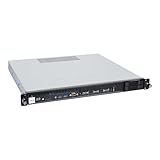
- Powered by AMD EPYC 4000 series processors up to maximum 120W TDP: Delivers exceptional performance and reliability, with DDR5 5600MHz ECC/non-ECC UDIMM memory.
- Graphics Support: Supports one NVIDIA RTX A1000/A400 GPU, ideal for rendering and AI workloads.
- Storage Options: Supports two hot-swappable 2.5" SATA drive bays, and additional two internal 2.5" SATA or NVMe U.2 drive tray, enhancing storage flexibility and performance.
- Network Connectivity: Dual 2.5Gb LAN ports for fast, high-bandwidth, and low-latency connections.
- I/O Options: 10Gbps USB Type-C, USB Type-A, and an internal Type-A port (for security kits), providing versatile connectivity for various needs.
If the system does not boot or recognize the processor, do not assume the CPU is defective until you have checked platform support and the required firmware. Follow the manufacturer’s diagnostic sequence rather than applying firmware instructions intended for a different board or server.
Match memory to the platform’s qualification list
Compare each installed DIMM’s part number and the slot population with the server or motherboard vendor’s tested or qualified memory list and population rules. AMD’s support guidance says most platform and motherboard manufacturers publish a list of tested and approved memory. A DIMM being a server-grade type—or working in another EPYC system—is not proof that it is supported in this particular platform.
If memory compatibility is in question, use memory supported by the exact server or motherboard and follow its capacity, slot, and population guidance. Do not select a replacement based only on the processor family.
The Tool Desk
Outbyte Driver Updater FREEScan for outdated or missing drivers - takes under a minuteDriver Scan →Outbyte PC Repair FREEClear out junk files and repair common Windows errorsFree Scan →Check power and the vendor’s diagnostic path
Confirm that power connections and supply capacity meet the system vendor’s requirements. AMD’s troubleshooting guidance identifies unsupported memory and system power as possible contributors to symptoms initially attributed to a processor. If the problem persists, use the platform vendor’s diagnostics and record any error codes or logs.
Inspect the topology the operating system sees
A server’s physical configuration and the topology exposed to the OS can affect where work runs and where its memory is accessed. Check the detected CPU count, sockets, NUMA nodes, memory arrangement, cache layout, and relevant device locality before interpreting a performance result.
Rank #2

- HPE ProLiant DL145 Gen11 – P87460-005 – SMART CHOICE MODEL – COMPACT EDGE SOLUTION: Preconfigured and factory-tested for fast deployment and cost efficiency. Includes AMD EPYC 8024P (8 cores, 2.40 GHz), 16GB DDR5 ECC SmartMemory, 2 SFF chassis, 480GB SATA 6G Read Intensive SSD, Broadcom 1GbE OCP NIC, and single 700W Platinum PSU—ideal for IoT gateways, retail POS, and light virtualization.
- PERFORMANCE AND MEMORY – EFFICIENT FOR LIGHT WORKLOADS: The AMD EPYC 8024P delivers 8 cores at 2.40 GHz for edge compute tasks. Includes 16GB DDR5 RDIMM ECC (1x16GB) and supports up to 768GB across six DIMM slots—ideal for small-scale virtualization and real-time analytics.
- STORAGE – READY FOR OS AND DATA Includes one HPE 480GB SATA 6G Read Intensive SSD for quick deployment. Supports additional SFF drives for storage flexibility—perfect for edge workloads and local data storage.
- ENTERPRISE DESIGN – POWER AND CONNECTIVITY: Single 700W Platinum hot-plug power supply ensures reliable power delivery. Broadcom BCM5719 OCP NIC offers four 1GbE ports for edge networking and connectivity.
- SECURITY AND MANAGEMENT – BUILT-IN PROTECTION: HPE iLO6 with Intelligent Provisioning, TPM 2.0, Silicon Root of Trust, and secure boot protect against threats. Compatible with HPE OneView and Compute Ops Management for simplified lifecycle management.
Linux inspection tools
AMD’s low-latency application note names lscpu and lstopo as Linux tools for inspecting system topology. lscpu gives a quick CPU and socket overview; lstopo, provided by the hwloc project, can show a more detailed view of processing units and their relationship to memory and devices. Availability and the detail shown depend on the OS and installed tools.
Use NUMA-aware OS tools such as numactl to inspect available nodes and affinity. Compare the topology with the workload’s thread placement, memory use, and the locality of any device it relies on. A discrepancy between the expected and detected topology is a reason to investigate firmware, OS configuration, or platform documentation before tuning the application.
Free tools Windows power users keep installed
One-click scans. No signup required.
Interpret locality in context
On a multi-node system, a CPU can access memory associated with another NUMA node, but remote access may have different latency and bandwidth characteristics from local access. AMD’s low-latency guidance recommends understanding CPU and memory arrangement and minimizing remote memory access when that fits the objective. That does not mean every workload should be pinned to one node: a workload that needs aggregate bandwidth or uses many sockets may benefit from a different placement strategy.
Test NUMA placement against the workload
Memory placement can be affected by how an application initializes and uses memory. AMD’s AOCL tuning guide explains that Linux commonly uses first-touch allocation: memory is generally placed according to the NUMA node of the CPU that first accesses it. If a thread on one node initializes memory that threads across several nodes later use, remote accesses can increase; latency may rise and aggregate bandwidth may fall.
Review the application’s thread placement and memory policy together. AMD’s AOCL guide discusses thread migration, pinning, OpenMP configuration, and NUMA memory placement as factors that can alter application performance. A scheduler may already manage placement, so compare behavior before imposing affinity or a memory policy.
Rank #3
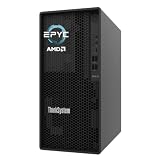
- Powerful AMD EPYC Performance – Powered by AMD EPYC 4244P processor with up to 6 cores, delivering exceptional performance for virtualization, business applications, databases, and growing workloads.
- Memory – Supports DDR5 ECC UDIMM memory for higher bandwidth, improved efficiency, and automatic error correction to help maximize system reliability and reduce data corruption. This build comes with 16GB DDR5 RAM.
- Scalability and Flexibility – Tower servers are designed for easy upgrades and expansion, making them an ideal choice for development teams and growing businesses. They provide a dedicated environment for software development, testing, and deployment. This server is sold without an operating system, allowing you to select and install the OS and software that best fit your specific needs during setup.
- Designed for Small Business and Remote Offices – Quiet tower design with enterprise-grade reliability makes it ideal for file sharing, collaboration, backup, virtualization, and office applications without requiring a dedicated server room.
- Easy to Manage – Features multiple networking options and room for future upgrades, helping protect your investment as your business grows. This server is designed to run 24 hours a day, 7 days a week.
- For a latency-sensitive workload, test whether keeping time-critical threads and their frequently accessed memory local improves the measured latency.
- For a bandwidth-oriented workload, compare appropriate placement and interleaving strategies using the same throughput or bandwidth test.
- For workloads that span nodes, check whether thread migration or memory initialized on a different node is creating avoidable remote access.
These are test hypotheses, not universal prescriptions. Record the placement and policy used in each run so a result can be reproduced.
Recommended Free Tools
Change one relevant setting at a time
Once compatibility is established and topology is understood, tune against the original workload baseline. AMD’s EPYC 9005 tuning guide, document 58467 revision 2.3, released September 24, 2026, describes NPS as a trade-off between minimizing local-memory latency and maximizing per-core memory bandwidth. The appropriate choice depends on the processor configuration and workload; do not treat one NPS setting as best for every EPYC server.
Potential variables include the BIOS performance or power profile, NPS or other NUMA-related settings, memory interleaving, CPU affinity, thread count, and OS scheduler or NUMA services. Test only variables relevant to the observed symptom.
- Save the current BIOS and OS settings, workload configuration, and baseline measurements.
- Choose one variable that could plausibly affect the symptom, using the guide for the correct EPYC generation and operating system.
- Change that variable using the platform vendor’s instructions, then run the same workload under the same measurement conditions.
- Compare the metric that matters—such as latency, throughput or bandwidth—along with run-to-run consistency and power behavior.
- Keep the change only if the result is repeatable and appropriate for the workload; otherwise restore the previous setting before testing another variable.
AMD’s documentation catalog separates tuning resources by EPYC family and operating system. Verify that a BIOS option exists and applies to the exact platform before using guidance written for an older generation. Do not disable power management, security, virtualization, or error-monitoring features as a blanket performance fix. AMD’s June 2018 low-latency note discusses trade-offs for a particular objective; its older firmware and latency advice should be checked against current platform, security, reliability, and vendor guidance.
Escalate with a reproducible record
If the server still fails a compatibility check or produces repeatable errors, contact the server or motherboard vendor with the information needed to reproduce the issue.
What’s actually slowing this PC down?
Pick the symptom - the matching free tool is one click away.
- Exact server or motherboard model, EPYC model, and socket count.
- BIOS and BMC revisions and the operating system, release, and kernel where applicable.
- DIMM part numbers and slot population, plus relevant PCIe devices.
- Topology and NUMA information reported by the OS.
- Error messages, diagnostic logs, workload configuration, and repeated baseline results.
- Each setting changed, the reason for changing it, and the results before and after.
AMD recommends testing a processor in another compatible system, where possible, before concluding that the CPU is defective. Use only a system confirmed to support that processor, and coordinate testing with the platform vendor when required by its diagnostic process.
Quick Recap
Product prices and availability are accurate as of the date/time indicated and are subject to change. Any price and availability information displayed on Amazon at the time of purchase will apply.




