Recommended Free Tools
Start by identifying which link is failing: the SmartHub’s wired connection to your router, the camera’s wireless connection to the SmartHub, or the video stream after both devices appear online. An online SmartHub does not mean every camera is connected. Work through the checks below before resetting anything; a SmartHub factory reset removes it and its connected cameras from your account.
First identify what is offline or failing
In the Arlo app, check whether the SmartHub or base station is offline, only one camera is offline, or devices appear online but live video is slow or distorted. These symptoms point to different parts of the connection:
As an Amazon Associate I earn from qualifying purchases.
- SmartHub offline: Begin with hub power, Ethernet, router, and internet access.
- SmartHub online, one camera offline: Check that camera’s charge, wireless range, and recent network or location changes.
- Camera online, video poor: Investigate upload capacity, wireless congestion, and video-quality settings.
On the Ultra manual’s SmartHub, a solid blue internet LED indicates an internet connection; amber means more troubleshooting is needed. LED meanings vary among Arlo hub and base-station generations, so check the guide for your exact model rather than assuming the same colors apply to every unit. See Arlo support for device-specific guidance.
If the SmartHub is offline
Check power and Ethernet
- Make sure the SmartHub’s power adapter is firmly connected and the outlet works. For diagnosis, bypass a switched outlet or power strip.
- Reseat the Ethernet cable at both ends and inspect it along its length. If available, try a known-good Ethernet cable. This is a useful low-cost test for the hub’s wired link, but it will not fix a camera’s wireless range, an ISP outage, or insufficient upload bandwidth.
- Leave Ethernet connected, unplug SmartHub power for 30 seconds, then reconnect it. Allow about two minutes for startup and check the status light again.
These checks follow Arlo’s SmartHub offline troubleshooting guidance.
#1 Best Overall

- 4K Protection for Total Coverage: Safeguard your home or business with an outdoor camera featuring 4K HDR video, an expanded 180° field of view, emergency response, and reliable wireless performance for complete control and peace of mind.
- Arlo Secure Early Warning System Unlocks Advanced Features: Get 60-day video history, AI detection, and emergency response. A paid plan is required after trial. Live streaming and basic alerts work without a subscription.
- Built for Real Emergencies for Fast Response When It Matters: Trigger emergency response directly from the app to contact police, fire, or medical services tied to your camera’s location with pre-filled details for faster access.
- Smart Automation for Your Routine: Customize modes, routines, and geofencing to automatically turn on or turn off your cameras based on your daily activity to give you privacy and command of your home security camera system.
- 4K Clarity with Ultra-Wide Coverage: Capture detailed video with 4K High Dynamic Range and an expansive 180° field of view, making it easy to identify faces, vehicles, and activity in bright and low-light conditions.
Check the router and internet path
- Test internet access on another device connected to the same router. If other wired devices also cannot reach the internet, resolve the router or ISP connection first.
- Connect the SmartHub directly to the main router, not to a Wi-Fi extender or mesh node. Arlo says a direct router connection is more stable and does not recommend connecting this setup through an extender or mesh node.
- Check whether the router is using a VPN. If it is, investigate that configuration with the router administrator or ISP support.
Check network settings only if basic connectivity works
If the cable, power, and internet connection check out, consider whether a router security or firmware change coincided with the problem. Arlo’s Ultra manual advises checking that DHCP is enabled and that the SmartHub has been assigned an IP address. It also identifies ports 443 and 80 for the Ultra setup. If you do not manage your home network, ask your IT administrator or router/ISP support to review the configuration. Do not broadly disable firewall protections or put the hub in a DMZ as a routine troubleshooting step.
If the SmartHub is online but an Ultra camera is offline
- Check that the camera is powered on and its battery has charge.
- Temporarily move it closer to the SmartHub. Arlo recommends placing an Ultra camera within 300 feet (90 meters) of the SmartHub or base station, but walls and interference can reduce the usable range.
- Think about recent changes: a new router or password, a moved camera, or a changed network setup can affect reconnection. Confirm the relevant network information and use the Arlo app’s supported reconnection flow for your camera.
- If only one camera is affected, troubleshoot that camera rather than resetting the whole SmartHub first.
An online hub confirms its own internet path, not the wireless connection from every camera. Arlo’s camera offline guidance covers camera-specific checks.
Rank #2

- 4K Protection for Total Coverage: Safeguard your home or business with an outdoor camera featuring 4K HDR video, an expanded 180° field of view, emergency response, and reliable wireless performance for complete control and peace of mind.
- Arlo Secure Early Warning System Unlocks Advanced Features: Get 60-day video history, AI detection, and emergency response. A paid plan is required after trial. Live streaming and basic alerts work without a subscription.
- Built for Real Emergencies for Fast Response When It Matters: Trigger emergency response directly from the app to contact police, fire, or medical services tied to your camera’s location with pre-filled details for faster access.
- Smart Automation for Your Routine: Customize modes, routines, and geofencing to automatically turn on or turn off your cameras based on your daily activity to give you privacy and command of your home security camera system.
- 4K Clarity with Ultra-Wide Coverage: Capture detailed video with 4K High Dynamic Range and an expansive 180° field of view, making it easy to identify faces, vehicles, and activity in bright and low-light conditions.
If live video is slow, pixelated, green, purple, or gray
When the app shows the camera online, distinguish a connection failure from a stream-quality problem. For an Ultra camera, Arlo cites an average upload requirement of 3 Mbps per camera. Treat that as technical guidance, not a guarantee for every household: other uploads, network congestion, interference, and multiple simultaneous 4K streams can affect results.
What’s actually slowing this PC down?
Pick the symptom - the matching free tool is one click away.
- Check upload capacity while minimizing other devices’ uploads.
- Try fewer concurrent 4K streams and reduce nearby wireless congestion or interference.
- In the video-quality settings, Arlo says Best Video uses more Wi-Fi bandwidth, Best Battery Life uses less, and Optimized balances the two. If the connection is strained, try a less demanding setting.
Arlo discusses color corruption and live-stream troubleshooting in its Ultra live-stream support guidance. A poor stream alone does not establish that the camera or SmartHub has failed.
Rank #3
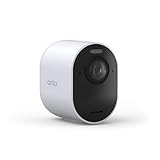
- An Elite Security Camera for Home or Business: Safeguard the people & property that matter most with superior Dual-Band wireless protection including 4K HDR clarity, 180° Field of View, Smart Detection & 24/7 Emergency Response.
- Tailored Top-Level Protection: Set your cameras to match your lifestyle with Custom Modes, Routines & Rules like auto-arming when you leave a geofence or disarming when you have guests join you for lunch on the deck.
- Quick Emergency Response Even When Away: Connect directly to your camera’s local emergency team, not your current location. One tap contacts police, fire or medical help, sending prefilled info like gate codes for faster access when every second counts.
- Enhanced Protection with 1-Month Secure Plan Included: Access 60-Day Video History, Custom Detection, Event Captions, 24/7 Emergency Response, Activity Zones & more. After trial, subscription plans start at $17.99/month (billed annually).
- Unrivaled Precision, Premium Clarity: See it all with a 180º Field of View & 4K HDR, capturing facial features to ID intruders, car imperfections, & low-light scenes. Bright whites & deep blacks reveal sharp detail for clarity you can trust.
If the problem began during a firmware update
Arlo says updates occur automatically while a device is connected and has at least 15% battery before the update begins. Live viewing may be interrupted during installation. Do not remove the battery or interrupt power while an update is installing.
- Check the device’s connection and network speed.
- Move the device closer to the SmartHub or router if the connection is weak.
- Check Arlo service status if the update is still failing.
- Only consider reinstalling after the earlier connectivity checks fail; use Arlo’s firmware update error guidance.
Reset the SmartHub only as a last resort
A factory reset is disruptive: it removes the SmartHub from your Arlo account and removes connected cameras, which must be added again and may need re-pairing. Before proceeding, record the device identity and make sure you can complete setup in the app.
Rank #4

- 4K Protection for Total Coverage: Safeguard your home or business with an outdoor camera featuring 4K HDR video, an expanded 180° field of view, emergency response, and reliable wireless performance for complete control and peace of mind.
- Tailored Top-Level Protection: Set your cameras to match your lifestyle with Custom Modes, Routines & Rules like auto-arming when you leave a geofence or disarming when you have guests join you for lunch on the deck.
- Quick Emergency Response Even When Away: Connect directly to your camera’s local emergency team, not your current location. One tap contacts police, fire or medical help, sending prefilled info like gate codes for faster access when every second counts.
- Enhanced Protection with 6 Months of Secure Plus Plan Included: Access 60-Day Video History, Person & Vehicle Recognition, Package Detection, Audio Detection, Activity Zones & more. A paid plan is required after 6 months.
- Unrivaled Precision & Clarity: See it all with a 180º Field of View & 4K HDR, capturing facial features to ID intruders, car imperfections, & low-light scenes. Bright whites & deep blacks reveal sharp detail for clarity you can trust.
- On the SmartHub, use a straightened paper clip to press and hold the reset button on its back for about 10 seconds, until the LEDs blink amber.
- Let the SmartHub reboot. Wait for its LED to indicate readiness.
- Use the Arlo app to set up the SmartHub again, then add or re-pair the cameras as needed.
Arlo’s offline support page also warns that resetting removes the hub and connected cameras from the account. If the issue affects one camera or video quality only, use the narrower troubleshooting steps above first.
Quick Recap
Best Value
- 4K Protection for Total Coverage: Safeguard your home or business with an outdoor camera featuring 4K HDR video, an expanded 180° field of view, emergency response, and reliable wireless performance for complete control and peace of mind.
- Arlo Secure Early Warning System Unlocks Advanced Features: Get 60-day video history, AI detection, and emergency response. A paid plan is required after trial. Live streaming and basic alerts work without a subscription.
- Built for Real Emergencies for Fast Response When It Matters: Trigger emergency response directly from the app to contact police, fire, or medical services tied to your camera’s location with pre-filled details for faster access.
- Smart Automation for Your Routine: Customize modes, routines, and geofencing to automatically turn on or turn off your cameras based on your daily activity to give you privacy and command of your home security camera system.
- 4K Clarity with Ultra-Wide Coverage: Capture detailed video with 4K High Dynamic Range and an expansive 180° field of view, making it easy to identify faces, vehicles, and activity in bright and low-light conditions.
Product prices and availability are accurate as of the date/time indicated and are subject to change. Any price and availability information displayed on Amazon at the time of purchase will apply.




