Recommended Free Tools
If the edges of your Sharp AQUOS picture are cut off, open the picture-size or view-mode controls for the active input and look for Dot by Dot, Underscan, or another mode that shows the input without enlarging it. The available choices depend on the TV model and video signal, so check your exact model’s manual rather than relying on a universal button sequence.
What to change to stop the picture being cropped
Overscan makes an image extend beyond the visible screen, hiding details at its edges. On some AQUOS models, the relevant screen-size options include Dot by Dot and underscan. Sharp describes those modes as displaying the image according to the input signal. If either is available for your active input, select it and check whether the full picture is visible.
As an Amazon Associate I earn from qualifying purchases.
Menu names and availability vary. Sharp’s cited guidance is for the 2TC40/32AE1 model family, not every AQUOS generation or region. It does not establish that all AQUOS TVs have a setting named “Overscan,” “Dot by Dot,” or “Underscan.”
Free tools Windows power users keep installed
One-click scans. No signup required.
Find the instructions for your exact AQUOS model
- Find the TV’s model number on its product label or in its system information.
- Use Sharp’s official manual finder and search by that model number. The manual finder is the reliable place to confirm the menu names and controls for your TV.
- Make sure you are looking at the instructions for the correct region and model. A similar AQUOS name does not guarantee the same menus.
Change the screen size for the active input
- Switch the TV to the input whose picture is cropped.
- Open the picture, screen-size, or view-mode control using the route given in your model’s manual.
- Look for Dot by Dot, Underscan, or an equivalent mode that displays the input signal without enlarging it. Sharp’s model-specific guidance lists Normal, Cinema, Full, Wide, Dot by Dot, and underscan, but the behavior and availability of modes can differ by model and signal.
- Select a suitable mode, then check the screen edges. A picture with visible borders or desktop elements near the edges can help you see whether anything is still being cut off. This is a practical check, not a guarantee that every source will display the same way.
If Dot by Dot or underscan is missing
- Check the manual for your exact model and region; do not assume another AQUOS model’s menu applies.
- Confirm you are changing the setting while the cropped input is active. Sharp says selectable screen sizes depend on the type of video, so a mode may not be offered for every signal.
- If the original remote is unavailable, check compatibility against your exact TV model before purchasing a replacement. A remote provides access to controls; it does not itself correct overscan.
What the available guidance establishes
Sharp’s guidance for the 2TC40/32AE1 family associates Dot by Dot and underscan with displaying the image as supplied by the input signal. It also says available screen sizes vary with video type. Those details support checking for an exact-input mode, but they do not establish one menu path or button sequence for all AQUOS TVs.
#1 Best Overall

- GB004WJSA TV Remote Control for All Sharp BRAND TV Smart TV,Aquos TV ; Compatible for Remote Model: GB004WJSA GB005WJSA GA890WJSA GB105WJSA GA935WJSAE and More.
- No programming or setting required, You can just use the remote directly after inserting 2X 1.5V AA Batteries (not supplied).It can match your TV 100%.it covers all the functions of the original remote control.The buttons and functions are the same as the original remote control
- Fast Response: Soft Touch and Anti-dusted Buttons. Fastest Response Not over 0.2 Second. Supports over 150,000 Clicks Approved by Tests.
- Uyibii Supply One Year Warranty!!! If for Any Reason the Remote Control Does not Operate Properly, Please Rest Assured That You May Qualify for a Full Re-fund. 【Compatible with】LC52C6400U LC-52C6400U LC52LE640 LC-52LE640 LC52LE640U LC-52LE640U LC60C6400U LC-60C6400U LC-60C6500U LC60C6500U LC70LE750U LC-80C6500
- LC70C6500U LC70LE640 LC70LE650U LC52C6400 LC52C6400U LC52LE640 LC52LE640U LC60C6400 LC60C6400U LC60C6500 LC60C6500U LC60C7500 LC60C7500U LC60LE550 LC60LE550U LC60LE640 LC60LE640U LC60LE640UA LC60LE640UB LC60LE640UC LC60LE640UD LC60LE650 LC60LE650U LC60LE750U LC70C6400 LC70C6400U and More
There is no single sequence that can be confirmed for an unspecified model. If the setting is absent, the exact model manual is the best next step; the supported options depend on both the TV and the input signal.
Quick Recap
Best Value

- Perfect replacement for Sharp Smart TV remoteen , New GB118WJSA Remote, no program needed.
- This is the best replacement remote when your original remote is broke or got lost.
- It is easy to operate and use without programming or pairing, and the keys are sensitive.
- High quality alternative remote control, suitable for Sharp GB118WJSA Smart TV remoteen
- If you have any questions during the use, please contact us by e-mail, we will help you in the first time, thank you!
Rank #4

- Sharp GB004WJSA Universal Remote Control for All Sharp Brand TV, Smart TV - 1 Year Warranty
Rank #3

- Gvirtue universal remote control compatible replacement for Sharp AQUOS Smart TV/ HDTV/ 3D/ LCD/ LED. Applicable various Sharp brand models: LC70LE657U LC70LE745 LC70LE745U LC70LE757U LC70LE845U LC70LE847 LC70LE847U LC70LE857U LC80LE657U and more.
- Work right out box without any programming for 99% Sharp TV. For another 1% Sharp TV, the remote can be setup simply and easily with instruction.
- This item is selling without batteries, customers need to buy 2 AAA batteries in local store by themselves and put the batteries in then it works.
- Hot-keys: Smart Central, Netflix, 3D, Surround and Customize your own! Hotkey shortcuts to most popular Sharp Smart TV functions.
- Compatible Remote Model Name: GA935WJSA GA806WJSA GA840WJSA GA480WJSB GB004WJSA GB118WJSA GB004WJSA GB005WJSA GJ221-C GJ221-R.
Rank #2
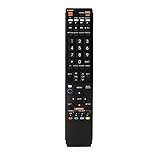
- No programming required. Just install batteries and it will work well.
- Fit for Sharp TV Models: LC60C6600U, LC-60C6600U, LC60EQ10U, LC-60EQ10U, LC60EQ30U, LC-60EQ30U, LC60LE660U, LC-60LE660U, LC60LE661U, LC-60LE661U, LC60SQ15U, LC-60SQ15U, LC60TQ15U, LC-60TQ15U, LC60UD27U, LC-60UD27U, LC60UQ17U, LC-60UQ17U, LC70C6600U, LC-70C6600U, LC70EQ10U, LC-70EQ10U, LC70EQ30U, LC-70EQ30U, LC70LE660U, LC-70LE660U, LC70LE661U, LC-70LE661U, LC70SQ15U, LC-70SQ15U, LC70TQ15U, LC-70TQ15U, LC70UD27U, LC-70UD27U, LC70UQ17U, LC-70UQ17U, LC80LE661U, LC-80LE661U, LC80UQ17U, LC-80UQ17U
- LC52C6400U LC52LE640U LC60C6400U LC60LE640U LC70C6400U LC70LE640U LC80LE633U LC60C6400U LC60LE640UA LC80LE633UB LC52LE640 LC60C6500U LC60LE640 LC60LE650U LC70C6500U LC70LE640 LC70LE650U LC52C6400 LC52C6400U LC52LE640 LC60C640 LC52LE640U0 LC60C6400U LC60C6500 LC60C6500U LC60C7500 LC60C7500U LC60LE550 LC60LE550U LC60LE640 LC60LE640U LC60LE640UA LC60LE640UB LC60LE640UC LC60LE640UD LC60LE650 LC60LE650U
- LC60LE750U LC70C6400 LC70C6400U LC70C6500 LC70C6500U LC70C7500 LC70C7500U LC70LE640 LC70LE640U LC70LE650 LC70LE650U LC70LE750 LC70LE750U LC80C6500 LC80C6500U LC80LE633 LC80LE633U LC80LE642 LC80LE642U LC80LE650 LC80LE650U LC40LE830U LC40LE830UA LC40LE830UB LC40LE832U LC40LE832UB LC40LE835 LC40LE835U LC42LE540 LC42LE540U LC42LE540U LC46LE540 LC46LE540U LC46LE540U LC46LE830U LC46LE830UB LC46LE830UC LC46LE832U LC46LE832UB LC46LE832UC LC46LE835 LC46LE835U LC52C6400U
- LC52LE640U LC52LE830U LC52LE832U LC52LE835 LC52LE835U LC60C6400U LC70LE655U LC70LE657U LC70LE732U LC70LE733U LC70LE734U LC60C7450U LC60C8470U LC60LE632U LC60LE633U LC60LE640U LC60LE655U LC60LE655U LC60LE657U LC60LE745 LC60LE745U LC60LE755U LC60LE830U LC60LE831U LC60LE832U LC60LE832UB LC60LE835 LC60LE835U LC60LE845 LC60LE845U LC60LE847U LC70C6400U LC70C6400U LC70C7450U LC70C8470U LC70LE632U LC70LE633U LC70LE640U LC70LE640U LC70LE655U LC70LE735U LC70LE745U LC70LE845U LC70LE8470U LC70LE847
Product prices and availability are accurate as of the date/time indicated and are subject to change. Any price and availability information displayed on Amazon at the time of purchase will apply.
Independent reader supportYour contribution helps us test, update, and keep practical guides available for everyone.



