Quick wins for a faster PC:
Clear out junk files and repair common Windows errorsFree Scan →Fix the driver behind crashes, sound loss and screen glitchesFind Drivers →For smoother running, cycling, and action footage, choose an in-camera stabilization mode that fits the activity, leave enough field-of-view margin for its crop, and decide whether the horizon should stay level or show the camera’s roll. If you plan to stabilize later with gyro-based software, confirm that the recording contains supported motion data, that the data is synchronized with the video, and that the lens profile is correct. Stabilization can smooth camera movement, but it cannot undo motion blur already captured during exposure.
Choose in-camera stabilization or post-stabilization
In-camera electronic image stabilization (EIS) is the simpler route: the camera analyzes and shifts or combines frames to reduce shake, then records a stabilized result. DJI describes RockSteady 3.0 on the Osmo Action 6 as EIS and notes that stabilization cuts off image edges as frames are combined. The benefit is a ready-to-use clip; the trade-off is a narrower view.
As an Amazon Associate I earn from qualifying purchases.
Gyro-based post-stabilization uses motion data recorded by the camera to reconstruct and correct movement after filming. It gives you more control over smoothness, horizon behavior, and cropping, but it depends on compatible gyro data, accurate timing between that data and the video, and an appropriate lens profile. Gyroflow can also use accelerometer data where available. Camera, recording mode, and lens support vary, so check compatibility for the exact combination you plan to use.
Set up the shot before recording
Pick a mode for the movement and the story
Use a camera’s regular shake-reduction mode when you want movement smoothed without forcing the horizon to remain level. Choose horizon lock when a level view matters more than showing the camera’s rotation. For footage where a lean, banked turn, twist, or roll helps explain the action, turn horizon lock off or use a less restrictive stabilization mode.
#1 Best Overall

- Multifunctional -- Come with Smartphone Video Rig, both sides handles and Removable handle ideal for recording different wonderful angles quality Videos.
- Wide Compatibility -- Fits all Cameras and Camcorders with a national standard 1/4-20 thread interface. And the removable wireless shutter for all smartphones.
- Stability -- Great for Skateboarding, Rollerblading, Motor Racing, Biking, Surfing, Snowboarding, Skiing and any Extreme Sports Situation where stability is essential.
- Triple Shoe Mount -- Can be used to attach extra Video Lights, Flashes, LED Lights or Microphones at the same time.
- Moving Low Angle Filming -- Ideal for making moving low angle videos and images.
Mode names and limits are not universal. For example, DJI lists RockSteady 3.0 separately from HorizonSteady on the Osmo Action 6. Its HorizonSteady support is listed for specified 1080p, 2.7K, 4K, and 4K Custom modes at frame rates up to 60 fps. Check the camera’s current mode menu or official specifications for the resolution and frame-rate combination you intend to record.
Leave room around the subject
Stabilization shifts the image to counter movement. If the shifted frame reaches beyond the recorded image, software has to zoom or crop to avoid empty edges. Stronger smoothing and horizon correction can demand a larger crop, so a wide starting field of view often gives stabilization more room to work. Frame important subjects away from the extreme edges, especially if you expect substantial correction.
Rank #2
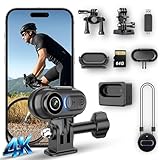
- 4K Ultra HD & 6-Axis Stabilization for Smooth Stable Footage - Experience professional clear 4K video with 6-axis electronic image stabilization and horizon balance. Whether you’re cycling, skiing, or jogging, this wearable camera records blur-free, stable footage without shaking. The built-in high-sensitivity microphone captures clear audio, making every vlog and outdoor video immersive and ready to share.
- Long Battery Life & Portable Charging Case for All-Day Use - This mini body camera comes with a built-in battery that supports up to 100 minutes of continuous recording. The included portable charging case extends total runtime to 6 hours, eliminating low-battery anxiety during hiking, camping, travel, and all-day outdoor activities. Enjoy reliable power for your whole adventure.
- 125° Wide-Angle Lens & 64GB Large Storage for Easy Recording - The 125° wide-angle lens captures a broader field of view for more immersive footage. It supports a 64GB micro SD card (included) for ample recording space. The 2-in-1 card reader allows fast and easy data transfer to your phone or computer, simplifying file management and sharing.
- IPX7 Waterproof & Hands-Free Wearable Design for Versatile Outdoor Use - With IPX7 waterproof rating, this thumb camera works safely in rain, swimming, and water-related activities. It supports auto horizontal/vertical recording switch and stable POV shooting with magnetic lanyard and versatile mounts. Perfect for cycling, skiing, hiking, and all hands-free outdoor adventures.
- Ultra-Compact Thumb Size & Wi-Fi Connection for Easy Sharing - Ultra-small and lightweight, this wearable camera is easy to carry anywhere discreetly. Built-in Wi-Fi connects to a dedicated app, letting you preview, edit, and share videos directly from your phone without a computer. Ideal for travel, daily vlogging, and outdoor recording on the go.
In Gyroflow, dynamic zoom varies the crop through the clip, while static zoom applies the maximum crop needed throughout. Increase smoothing gradually and watch the framing: a very steady result may be less useful if it cuts off a rider, helmet, or the environment that gives the shot context.
What’s actually slowing this PC down?
Pick the symptom - the matching free tool is one click away.
Choose horizon behavior deliberately
Horizon lock is not simply “more stabilization.” It tries to hold the view level as the camera rotates, which can increase the crop and remove visible rolls or banks. On the Insta360 One R, the guide describes 45-degree and 360-degree Horizon Lock choices for the 4K Mod and 1-Inch Mod, with firmware 1.2.64 or later, in Pro video mode at 30 fps or less. The 45-degree choice follows camera movement beyond 45 degrees; the 360-degree choice aims to maintain a level view through rotation along one axis. These limits and behaviors apply to that One R guide, not to every camera.
Rank #3
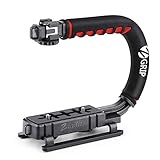
- Nice Gift -- Ideal filming accessory for birthday party, honeymoon, home, travel, banquet to record the happy and unforgettable moments. A nice gift for your friends and family.
- Moving Low Angle Filming -- Ideal for making moving low angle videos and images.
- Wide Compatibility -- Works with all Cameras and Camcorders with a national standard 1/4-20 thread interface.
- Stability -- Great for Skateboarding, Rollerblading, Motor Racing, Biking, Surfing, Hunting, Snowboarding, Skiing and any Extreme Sports Situation where stability is essential.
- Lightweight and Comfortable -- Cushioned NBR padded handle alleviated the stress of lengthy filming.
GoPro’s MAX manual describes HyperSmooth with a 180-degree field-of-view buffer and explains that Horizon Lock can keep orientation level through camera rotation. For extreme POV action in which barrel rolls or banked turns are part of what the viewer should see, the manual recommends turning Horizon Lock off.
Manage shutter speed and motion blur
Stabilization changes frame position; it does not remove blur recorded while the sensor was exposing each frame. That blur can look conspicuous when software makes the surrounding image appear steady. Gyroflow’s filming guidance recommends shorter exposure angles for high-shake footage intended for post-stabilization and cautions that the usual 180-degree shutter rule may not work well for rough action-camera movement.
Rank #4

- Transforms your handheld stabilizer into a body-mounted system: The Comfort Arm absorbs jerks and bumps while the vest takes camera weight off your arms - capture smoother tracking shots, walking moves, and dynamic moves without operator fatigue
- All-day shooting comfort: Foam-padded breathable vest fits 28-60" waist and 38-52" chest with Velcro straps and push-fit buckles for easy on/off. The Arm-to-Vest connector adjusts the arm angle relative to the vest for your shooting style
- Wide vertical range with Low Mode capability: The stainless-steel spring arm with tension adjustment knob supports payloads up to 5kg / 11lb, giving you wide vertical motion, including Low Mode for ground-level shots and creative angles
- Compatible with most handheld camera stabilizers: Works directly with the FLYCAM 5000, FLYCAM 3000, FLYCAM DSLR Nano, and other handheld stabilizers within the 5kg payload range - check your stabilizer's post diameter for fit
- Trusted globally since 1997: PROAIM gear is used on productions in 90+ countries by 50,000+ filmmakers, DPs, and rental houses
Use a faster shutter only when the light allows it: shorter exposures reduce captured motion blur but make motion look sharper and can require more light or a higher ISO. There is no single shutter speed that suits every activity, frame rate, lighting condition, and desired look.
Outdated Drivers Are Slowing You Down
One free scan finds every outdated or missing driver and matches the right update for your exact hardware.Free scan · exact hardware matchWindows Errors? Fix Them Before They Spread
Repair common Windows errors and clear accumulated junk for a smoother, more stable PC - no reinstall needed.Free scan · no reinstallRecord footage that can be stabilized later
- Confirm motion-data support. Check that the camera and exact recording mode provide gyro data recognized by your chosen software. Gyroflow’s supported sources and lens profiles include product families from GoPro, DJI, and Insta360, but support is model- and mode-specific. Its repository also notes support for already stabilized GoPro footage from HERO 8 onward; verify the exact model and clip type before relying on that workflow.
- Keep the recording settings compatible. Choose a video mode, frame rate, and lens or field-of-view setting for which the software has a suitable profile or supported setup. A feature working for one resolution or lens does not establish that it works for every mode on the same camera.
- Preserve synchronization. Gyro measurements must line up with the video frames. If the timing is off, the correction can lag, lead, or move in the wrong way. Some camera profiles include timing information; other setups may require adjustment.
- Use an appropriate lens profile. Stabilization needs to account for lens distortion. A mismatched profile can make corrected footage bend or warp, even when motion data is present.
- Check the result before committing to a long shoot. Record a short sample with the actual resolution, frame rate, and lens setting. Import it into the intended workflow and confirm that motion data is detected and the image corrects cleanly.
For instance, Insta360’s Ace Pro guide documents importing FreeFrame footage into Gyroflow and adjusting field of view, smoothing, and resolution before export. Treat that as a camera-specific workflow, not a general instruction for every Insta360 clip.
Best Value

- Capture sharp 4K Ultra HD video with clear audio while keeping both hands free. The compact wearable camera is ideal for cycling, hiking, travel, commuting, pet walks and casual vlogging, giving you an immersive first-person view without carrying a bulky camera.
- Record right out of the box with 64GB built-in storage—no separate memory card required. Connect to the dedicated app via Wi-Fi to preview, download, manage and share your footage directly from your smartphone, making everyday video transfer quick and convenient.
- Keep your camera powered during longer adventures with the included portable charging case. Ideal for cycling, hiking, travel, camping and full-day outings. Loop recording automatically replaces older footage when storage is full, so you can continue recording without constantly deleting files.
- Capture POV footage from different angles with the magnetic mounting system and included accessories. Attach the camera to compatible helmets, backpacks, collars, caps, handlebars and other suitable gear for cycling, hiking, pet walks, commuting and outdoor activities.
- Designed to be small, lightweight and discreet, this mini body camera slips easily into a pocket or bag and is ready whenever you need it. A practical choice for travel, daily commuting, outdoor adventures, pet walks and casual content creation when you want to record without holding a camera.
Stabilize a clip in Gyroflow
- Import the clip and verify gyro data. Confirm that the software recognizes motion data for the clip. If it does not, check whether the camera and recording mode are supported before changing stabilization controls.
- Check synchronization. If the correction seems delayed or behaves in the wrong direction, inspect the video-to-gyro timing or time offset. Timing errors are a common cause of poor results.
- Confirm the lens profile. Select the profile appropriate to the camera and lens or field-of-view setting. Do not assume a profile for one lens mode will fit another.
- Review rolling-shutter correction where relevant. Rolling shutter can make fast movement appear skewed or wobbling; inspect the correction setting if the clip still looks distorted after timing and lens setup are sound.
- Increase smoothing in small steps. Watch both the motion and the crop as you adjust it. More smoothing generally needs more zoom, and horizon locking can increase that demand.
- Choose dynamic or static zoom based on framing. Dynamic zoom changes the crop over the clip to use available image area; static zoom holds the maximum required crop throughout. Preview the entire clip so the crop does not unexpectedly trim an important moment.
- Export and inspect the result. Look for edge gaps, excessive cropping, warped lines, timing drift, and motion blur that remains despite corrected camera movement.
Diagnose common stabilization problems
- The image still jitters or correction feels delayed: verify synchronization and time offset before increasing smoothing.
- The picture bends or wobbles: check the lens profile and, where relevant, rolling-shutter correction.
- The crop is too tight: reduce smoothing or horizon correction, use a wider starting view on the next recording, or accept more visible movement to preserve context.
- The picture is steady but motion looks smeared: the blur was captured during exposure. Stabilization cannot recover detail that was blurred in the original frames.
- The horizon is level but the action feels unnatural: disable horizon lock when the camera’s lean or rotation is meaningful, or choose a less aggressive horizon correction.
- The software cannot find motion data: confirm support for the exact camera, mode, and clip type. Compatibility for a product family does not guarantee support for every recording configuration.
What camera-specific examples do—and do not—tell you
Manufacturer documentation illustrates why settings should be checked per model and mode. DJI’s Osmo Action 6 page distinguishes RockSteady 3.0 EIS from HorizonSteady and lists the supported HorizonSteady formats. Insta360’s One R guide restricts its stated Horizon Lock options to specified modules, firmware, mode, and frame rate. GoPro’s MAX manual frames Horizon Lock as a choice that can be counterproductive when extreme POV rolls and banks should remain visible. These examples explain the trade-offs, but they are not interchangeable specifications for other wearable cameras.
Quick Recap
Product prices and availability are accurate as of the date/time indicated and are subject to change. Any price and availability information displayed on Amazon at the time of purchase will apply.




