Sharing your location with Google Maps is one of the fastest ways to let friends, family, or teammates track where you are—without sending screenshots or constantly texting updates.
This guide covers the real-world steps for Android, iPhone/iPad, and desktop, plus what to check when location sharing doesn’t work the way you expect.
As an Amazon Associate I earn from qualifying purchases.
What sharing your location in Google Maps actually does
When you use Google Maps location sharing, you broadcast your current position (and ongoing movement) to selected people for a defined period. Recipients can view your dot on a map and follow your progress in near real time, depending on network and device conditions.
What’s actually slowing this PC down?
Pick the symptom - the matching free tool is one click away.
It’s different from sharing your current pin once. Location sharing is intended for “I’m on my way” moments where movement matters.
#1 Best Overall

- get around with real-time traffic information
Prerequisites (so sharing works on the first try)
- Google Maps installed and updated: Use a current version from the Google Play Store or App Store. Outdated builds can break the share controls.
- Location permissions enabled: Google Maps must be allowed to access location. Choose “While using the app” or “Always” (depending on your needs).
- Location services turned on: Your phone’s system location toggle must be enabled.
- Good connectivity: Wi‑Fi or mobile data both work, but extremely poor signal can delay updates.
Share your live location from the Google Maps app (Android)
On Android, you’ll typically use the in-app “Share location” flow to start live sharing and choose who receives it.
- Open Google Maps.
- Tap your profile icon or your avatar (top right), or tap your current location dot to open location options.
- Select Share location (wording may appear as “Share location” or “Location sharing”).
- Choose the duration (for example, 15 minutes, 1 hour, or until a set time—available options vary by region/app version).
- Pick the people to share with (contact suggestions appear based on your device). If needed, use the search field to find a contact.
- Confirm Share / Send.
- Verify your location dot is active on the map (if it’s stuck or inaccurate, fix location settings before sharing).
Share your live location from the Google Maps app (iPhone and iPad)
On iPhone and iPad, the flow is similar—start live sharing in Google Maps, then choose how long it should last and who should receive it.
- Open Google Maps.
- Tap your profile icon (top right) or tap your current location area to access location-sharing options.
- Tap Share location.
- Select a time duration for sharing.
- Choose contacts (or search for a specific person).
- Tap Share to send the invitation.
- Make sure iOS location permissions are correct if prompted.
If you’re asked to allow permissions, choose settings that match your goal. For live updates while you’re driving or walking, “While Using the App” is usually sufficient, but “Always” can improve reliability for longer sessions.
Share your live location from Google Maps on the web (desktop)
Desktop sharing can be limited depending on browser support and how Google enables location access for web sessions. When available, it typically works best if you’re using a modern browser and have location permission granted.
Rank #2

- google search
- google map
- google plus
- youtube music
- youtube
- Go to https://maps.google.com on your computer.
- Sign in to the same Google account you use on your phone.
- Allow location access when your browser prompts you (for example, “Allow” in the location permission dialog).
- In Google Maps, look for the Share location option in the location menu or profile/location controls.
- Select the duration.
- Choose recipients using your available sharing options.
- Confirm Share.
If you don’t see “Share location,” you may need to use the mobile app. Web location-sharing features can vary by account, region, and rollout schedule.
How long your shared location stays visible
Google Maps typically lets you choose a specific duration (commonly from short intervals like 15 minutes up to longer windows like 1 hour, depending on what your app shows).
After the timer ends, recipients can no longer see your live dot. If you still need tracking, start a new share session once the previous one expires.
The Tool Desk
Outbyte Driver Updater FREEScan for outdated or missing drivers - takes under a minuteDriver Scan →Outbyte PC Repair FREEClear out junk files and repair common Windows errorsFree Scan →Stop or pause location sharing
You can end sharing at any time to stop updates for recipients.
Rank #3

- Google search engine.
- Open Google Maps.
- Go back to Share location or your active sharing status.
- Tap Stop or End sharing.
- Confirm the action.
If you don’t see the stop control, force close the app, reopen it, and check your sharing status again—active sharing controls sometimes lag behind if the app loses network briefly.
Privacy and permissions checklist
If you want predictable behavior, verify these settings before you share.
Google Maps app permissions
- Location permission: Enabled and set to an appropriate level (While Using the App or Always).
- Background activity: Some Android devices restrict background services. If you’re sharing for more than a few minutes, consider letting Maps run in the background.
System-level settings (Android)
- Location services: On.
- Location accuracy mode: If available, enable high accuracy (this uses GPS and other signals for better positioning).
- Battery optimization: Disable optimization for Google Maps if your dot “freezes” during sharing.
System-level settings (iPhone and iPad)
- Settings > Privacy & Security > Location Services > Google Maps: Ensure it’s enabled.
- Location Services: Turn on.
- Precise Location: If available for Google Maps, enable it for more accurate movement tracking.
Common problems and troubleshooting
If your recipient can’t see your location, don’t assume it’s their device first. Start with permissions, connectivity, and whether your phone’s location is actually updating.
Permission errors or location won’t update
- Check permissions: Verify Google Maps has location access in system settings.
- Confirm location accuracy: Open Google Maps and watch whether the blue dot moves correctly.
- Re-toggle location: Turn Location Services off and back on, then reopen Google Maps.
- Restart sharing: Stop the session and start it again after your location is stable.
The share button is missing or disabled
- Update Google Maps: Features roll out in app updates.
- Check Google account: Ensure you’re signed in and using the account you expect.
- Try different entry points: Some layouts put “Share location” under your profile icon, while others tie it to your location dot.
- Switch networks: If you’re on restricted Wi‑Fi or a captive portal, sharing may fail.
Recipients say they can’t see your location
- Confirm they accept: Some sharing flows require the recipient to tap an invitation/accept prompt.
- Check duration: Make sure the share window hasn’t expired.
- Verify you started live sharing: Sharing a static location pin won’t behave like live tracking.
- Test with one recipient: If possible, share with a single person first to isolate whether it’s contact-specific.
Battery saver or power settings break tracking
- Android: Disable battery optimization for Google Maps (Settings > Battery > Battery optimization > Google Maps > Don’t optimize).
- iPhone and iPad: Low Power Mode can reduce background behavior; try disabling it during the sharing window.
- Keep screen behavior in mind: Some device manufacturers are aggressive about background restrictions when the screen is off.
Alternatives when you need a quick send
Live sharing isn’t always necessary. If you just want someone to find you at a specific place, consider these options.
Rank #4
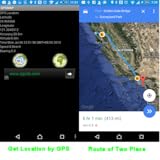
- GPS Location
- Google Map
- Route Finder
- Address Searching
Share a place pin (static)
Use this when you’re staying put (for example, “Meet at this coffee shop”). You’ll share a location card that points to a place, not a moving dot.
- Open Google Maps and search the place.
- Tap the place card, then tap Share.
- Send via Messages, email, or other share options.
Send your current location link
For quick coordination, you can send a link that opens the map at your current coordinates. This is typically less “live” than live location sharing.
- Tap your current location on the map.
- Choose Share or the location link option if shown.
- Pick your messaging channel and send.
FAQ
Can I share my location without a Google account?
Sharing options usually depend on being signed in to a Google account in Google Maps. If you can’t access location-sharing controls, sign in and try again.
Quick wins for a faster PC:
Fix the driver behind crashes, sound loss and screen glitchesFind Drivers →Clear out junk files and repair common Windows errorsFree Scan →Do recipients need Google Maps installed?
Often they’ll be able to open the shared link in a browser or view in the Google Maps experience, but having Google Maps installed can make the experience smoother—especially for live tracking invitations.
Best Value
- View Maps in Road View or Satellite View
- Get Turn by Turn Directions
- Save Maps for Offline Viewing
Why is my shared location inaccurate or delayed?
Inaccurate GPS or weak signal are common causes. Check system location settings (Precise Location on iPhone, high accuracy on Android) and confirm your blue dot moves normally before sharing.
Will my shared location update if I’m driving or walking?
Yes, that’s the main purpose of live location sharing. However, your device must keep location services running, and battery/power settings can affect how frequently updates are sent.
Can I share location with one person instead of a group?
Yes. When you choose recipients, select a single contact to share with just that person.
PC Slower Than It Used to Be?
A free scan shows the junk files, broken settings and background clutter dragging Windows down - then fixes them in one click.Free scan · Windows 10 & 11Outdated Drivers Are Slowing You Down
One free scan finds every outdated or missing driver and matches the right update for your exact hardware.Free scan · exact hardware matchBottom Line
To share your location using Google Maps, make sure Google Maps has location permission, start Share location in the app, choose a duration, and pick recipients. Your dot stays visible until you stop sharing or the timer ends.
If it doesn’t work, troubleshoot in this order: permissions, location accuracy, active sharing status, and battery/network conditions. That sequence fixes most failures fast.
Quick Recap
Product prices and availability are accurate as of the date/time indicated and are subject to change. Any price and availability information displayed on Amazon at the time of purchase will apply.




